
Getting started with the Analytics P2P app
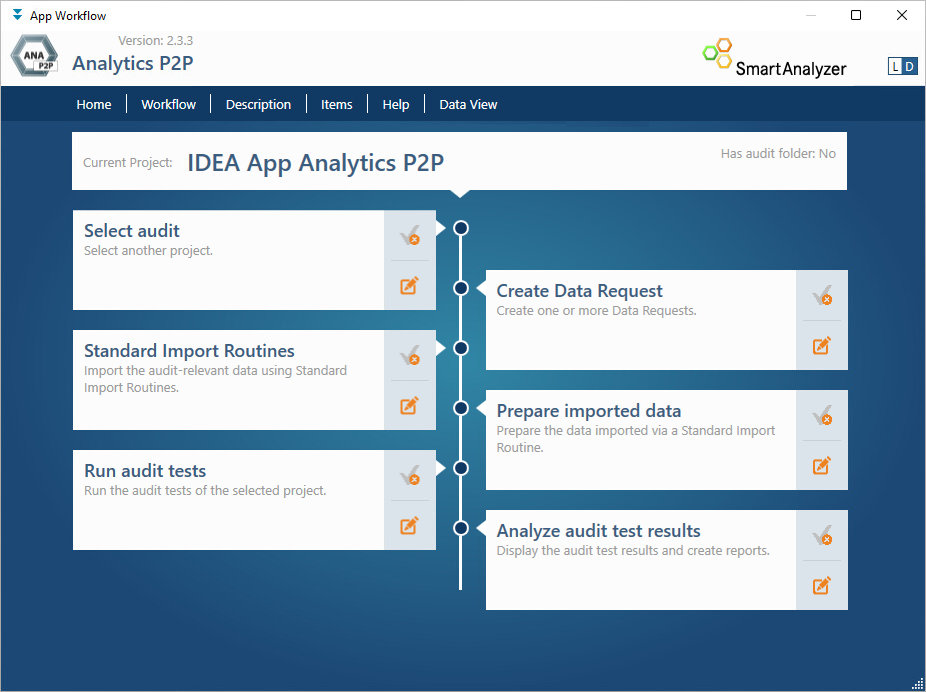
The Analytics P2P app contains an app workflow that helps you to complete all individual steps in the audit process in a structured manner:
- Open IDEA and switch to the SmartAnalyzer tab.
- In the ribbon click the Start entry in the Apps group. The App Workflow dialog will be shown.
In this view you can see all your imported apps provided that they contain an app workflow. - Click the Analytics P2P icon. The workflow for the Analytics P2P app is displayed.
- Click a tab at the top of the workflow:
- The Workflow tab shows the currently opened workflow of the Analytics P2P app.
- To return to the overview page showing all apps, click Home.
- To show the description of the Analytics P2P app, click Description.
- To show the content items of the Analytics P2P app, click Items.
- To view a series of screencasts introducing the Analytics P2P app, click Quick Start Videos.
- To open the help for the Analytics P2P app, click Help.
- If you have an IDEA database currently open and you want to view it, click Data View. If you want to return from the data view to the workflow, click the Start entry in the ribbon.
- Click one of the steps in the lower part of the workflow to open the corresponding dialog or module.
The app workflow guides you through all the steps required to run a purchase data analysis with the audit tests of the IDEA app Analytics P2P: from selecting the audit through creating a Data Request, importing and preparing the data to running the audit tests and creating a report.
As soon as you have completed a step or exited the corresponding dialog box or module, you will automatically return to the app workflow and can then continue with the next step.
Read more about the individual steps of the app workflow here.