
New in Caseware Cloud Engagements 2026-09
The 2026-09 release introduces enhancements to Caseware Cloud Engagements, including updates to risk assessments by cycle, trial balance customizations and more.
Each feature in this release is marked with an availability badge. Use the legend below to understand what applies to you and whether any action is required.
| Badge | Meaning |
|---|---|
| ✔ Live |
Available automatically in all products. No setup required. Customer action: None |
| ⚙ Setup required |
Available now, but requires setup by firm and enterprise authors. Customer action: Review the related release notes and documentation. |
This page lists new features in this release that apply to authors and end users.
Authoring features
Assign cycles to areas and filter by cycle on the Assessment tab
#firmauthors #enterpriseauthors #endusers
| Badge | ⚙ Setup required |
|---|---|
| Applies to | New engagements |
| Customer action | Review the related release notes and documentation |
You can now assign business cycles to specific financial statement areas. You can also filter the Assessment tab on the Risk & controls page by cycle.
When performing risk assessments by area, you can use the cycle filter to display only the relevant areas. This feature helps engagement teams organize and focus their risk assessment workflow by business cycle.
Authors can assign cycles to areas in settings to structure default engagement workflows. Engagement users can assign cycles to custom areas they create.
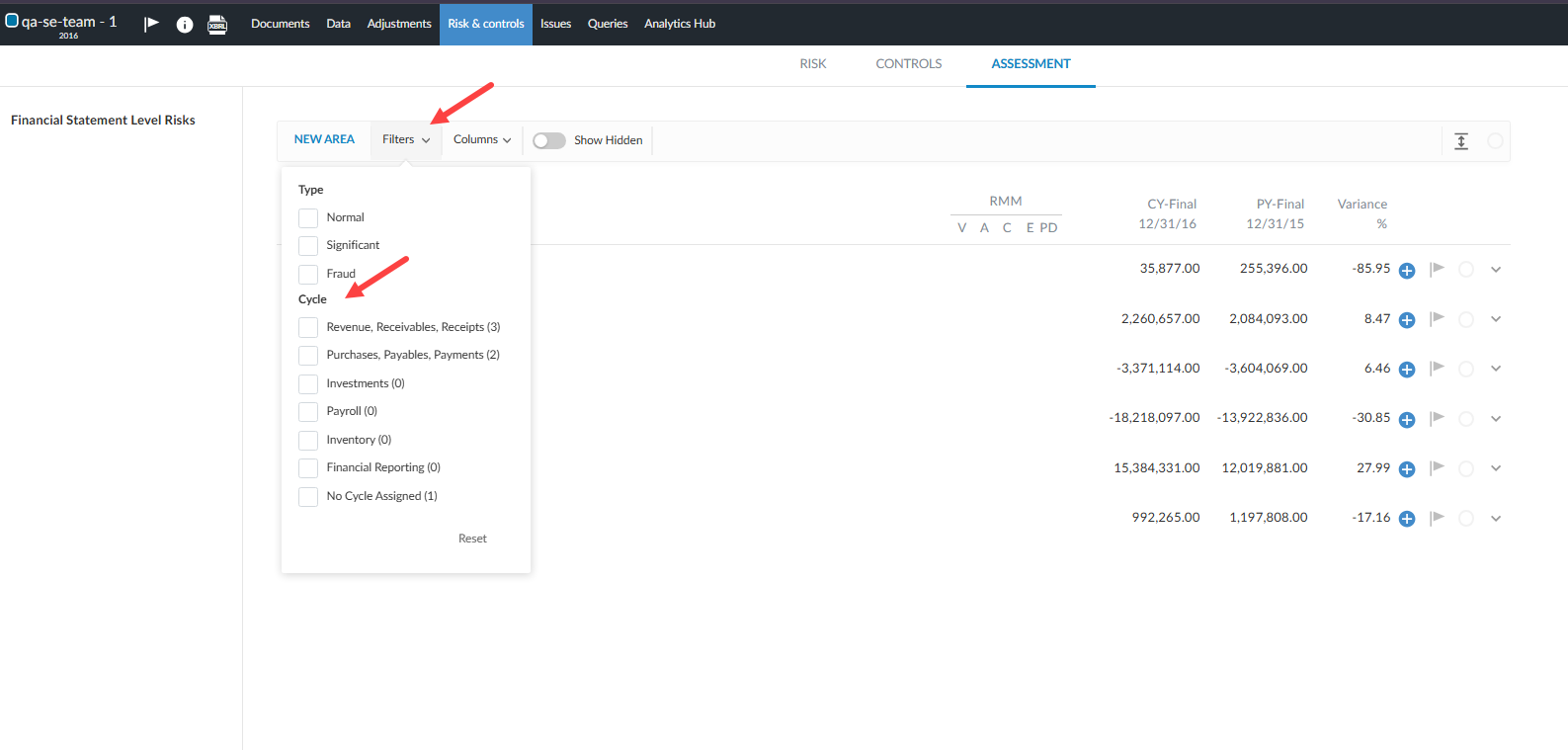
To learn more, see Manage risks and risk assessments.
Link controls to procedures and configure additional control fields
#enterpriseauthors #endusers
| Badge | ⚙ Setup required |
| Applies to | New engagements |
| Customer action | Review the related release notes and documentation |
You can now link internal controls directly to audit procedures and capture deeper control attributes in the Controls report. Link controls to procedures, see a control indicator on linked procedures and document control operator qualifications.
Enterprise authors can enable and customize these fields in Product Settings.
To learn more, see Manage controls and the Controls report.
End-user features
Duplicate engagements within and across entities
#endusers
| Badge | ✔ Live |
| Applies to | New and existing engagements |
| Customer action | None |
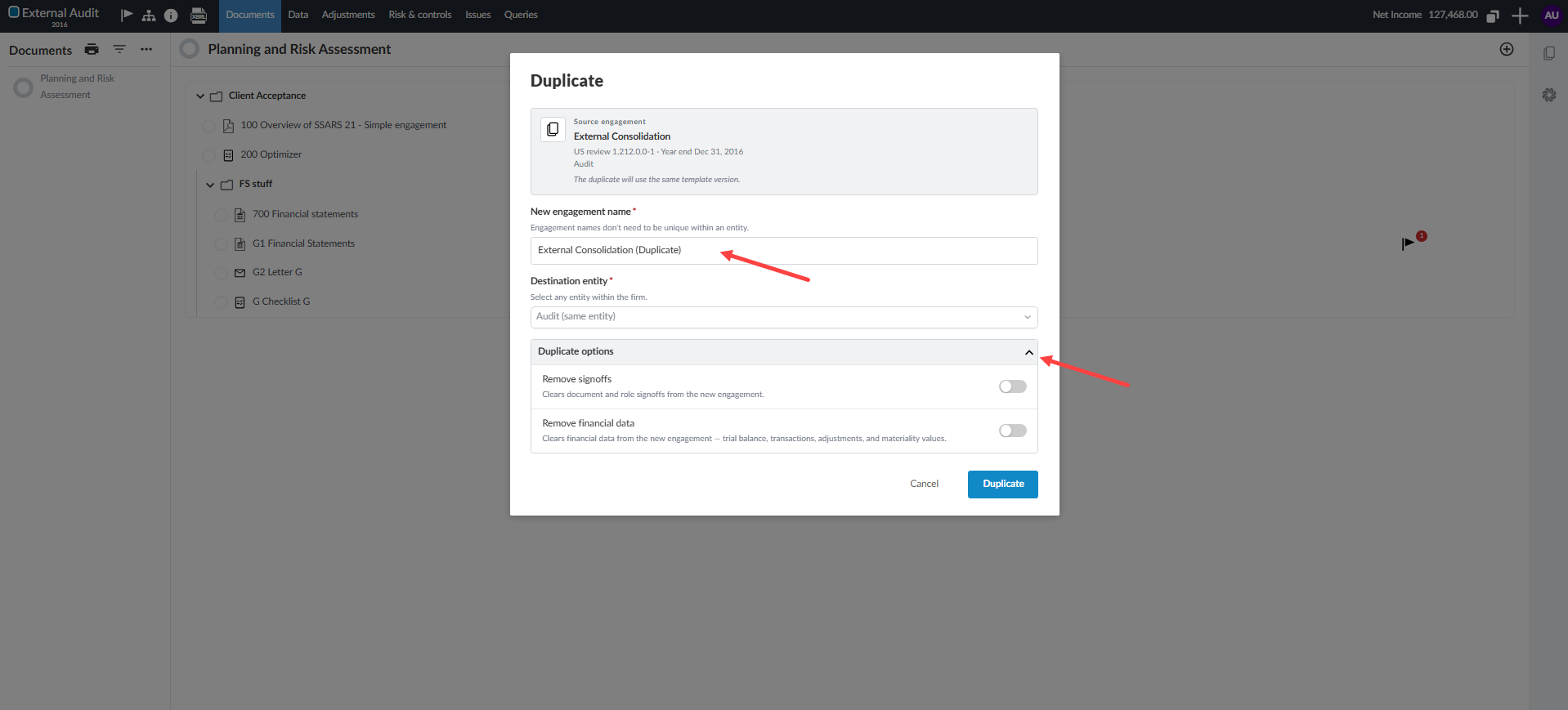
You can now duplicate unlocked engagements within the same entity or copied across different entities in your firm. You can also choose to remove sign-offs and financial data from the new engagement at creation time.
This flexibility helps you create training files, reuse customized engagement structures across entities, or prepare amended filings without rebuilding an engagement from scratch.
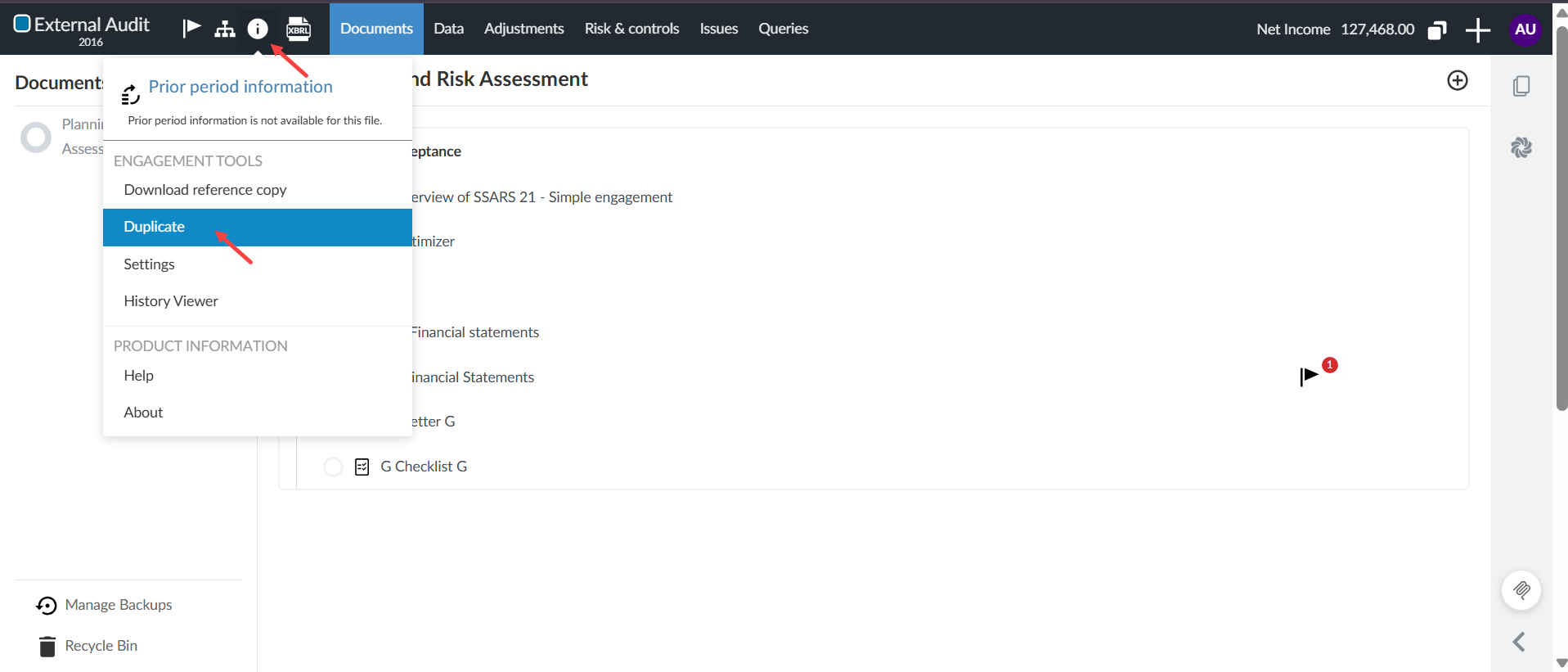
The Duplicate feature from the engagement:
The Duplicate dialog:
To learn more, see Create and set up an engagement file.
Build multi-function formulas in Cloud Connector
#firmauthors #enterpriseauthors #endusers
| Badge | ✔ Live |
| Applies to | New and existing engagements |
| Customer action | None |
You can now combine multiple trial balance functions, numbers and mathematical operators in Cloud Connector for Microsoft Excel. The Formula icon ( ) lets you build these calculations in a single cell.
You can add multiple functions and combine them with mathematical operators and parentheses. You can also edit the formula from the formula bar in Excel. This removes the need to manually write formula syntax or insert functions one at a time.
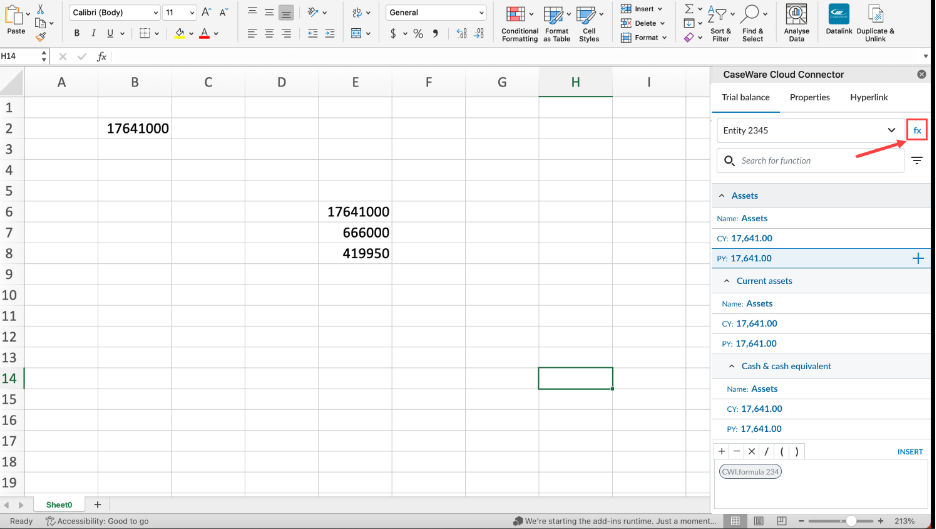
To learn more, see Insert data using the Cloud Connector pane.
View engagement permissions
#endusers
| Badge | ✔ Live |
| Applies to | New and existing engagements |
| Customer action | None |
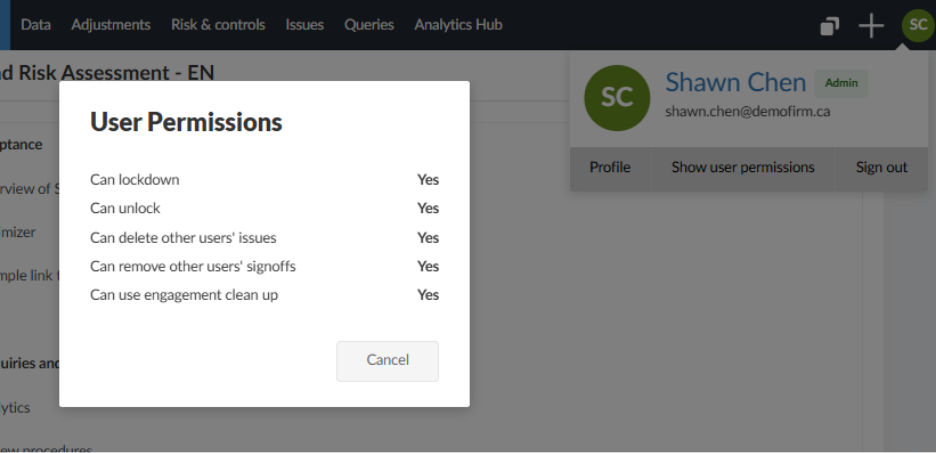
You can now view your permissions and role information directly within an engagement. The user profile menu displays an Admin or Read Only badge when applicable.
You can also select Show user permissions to view your effective engagement permissions. The list shows whether you can lock or unlock engagements, delete other users' issues or remove other users' signoffs. It also shows whether you can use engagement clean up.
This feature makes it easier for you to verify your engagement permissions and investigate why specific actions or controls are unavailable.
To learn more, see Permissions.
Filter financial groupings by component on Assign Accounts
#firmauthors #endusers
| Badge | ✔ Live |
| Applies to | New and existing engagements |
| Customer action | None |
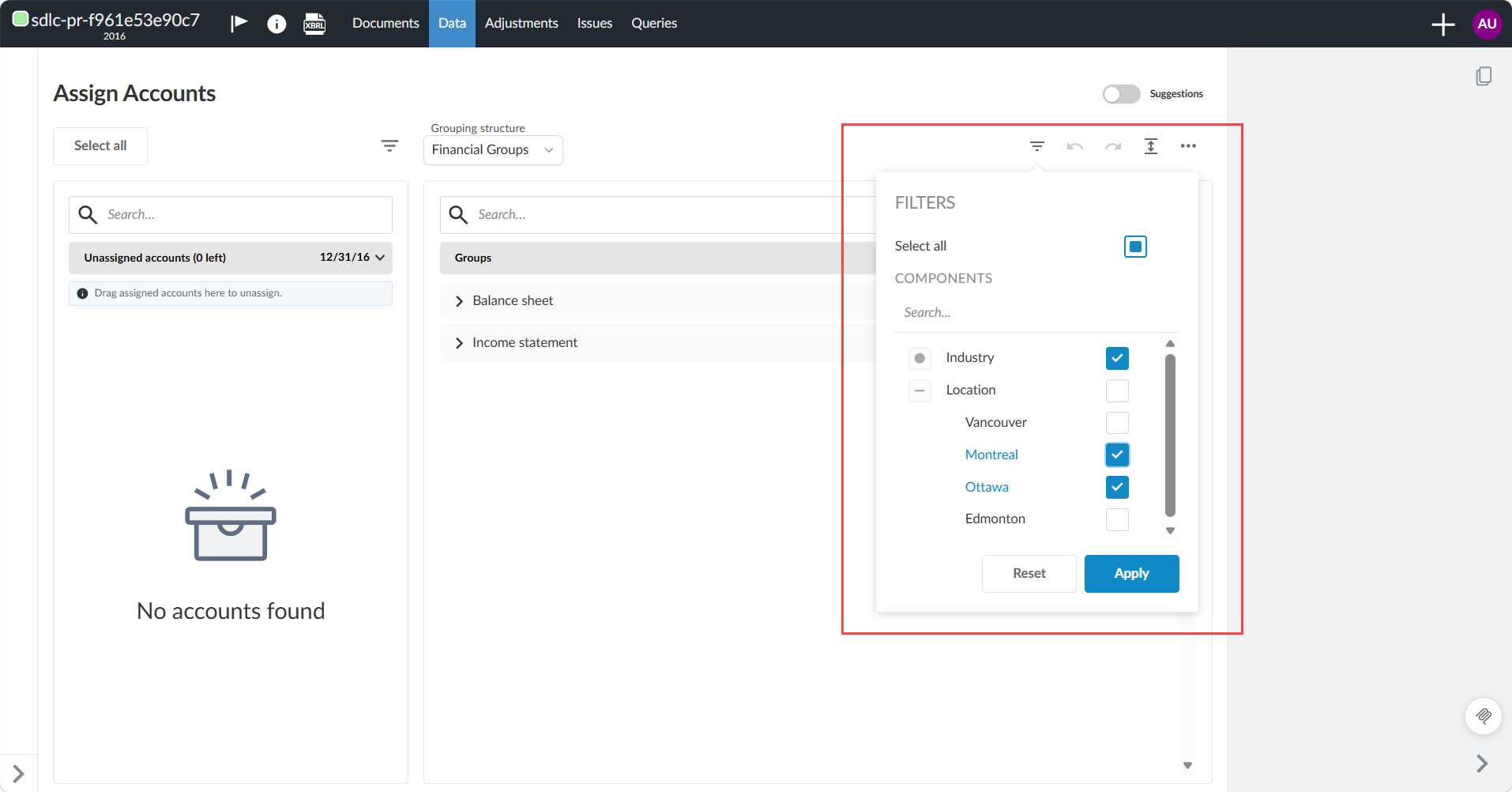
You can now filter the list of financial groups by one or more components on the Assign Accounts page. This feature helps you quickly narrow your view to specific groups, such as industry-specific classifications during account mapping. Clearing the filter restores the complete list of financial groups. Filtering only changes what you see. Hidden and occluded groups continue to behave according to your existing component visibility settings.
To learn more, see Assign accounts to groups in the Data page (new design) and Define components.
Copy transaction datasets when duplicating engagements
#firmauthors #enterpriseauthors #endusers
| Badge | ✔ Live |
| Applies to | New and existing engagements |
| Customer action | None |
When you duplicate a Caseware Cloud engagement using Duplicate, the new engagement now includes all associated transaction datasets. These datasets include General Ledger (GL), sub-ledger and schemaless data. You can replicate engagements with full transaction datasets without re-importing raw files.
For consolidated engagements, the new engagement retains component taggings and entity hierarchies. If you select Remove financial data the new engagement also excludes related transaction datasets and raw imports.
Authors can build training files and template replicas with realistic transaction datasets. They can also start clean by removing trial balance data.
To learn more, see Create and set up an engagement file.
Resolved issues
A brief description of resolved issues in this release:
-
Disabling Show group numbers for financials hides group numbers for the default financial grouping structure but not secondary grouping structures.
-
The engagement cleanup wizard displays an error when all cleanup tasks are skipped. The message incorrectly states that some jobs failed and prompts users to check server logs.
-
Dynamic text with a default of no output appears blank in engagement documents. Users can't view the condition details or edit the text.
-
In OnPoint Audit, the Preliminary Analytical Review (PAR) and Final Analytical Review (FAR) workpapers affect each other's settings. Changing column or variance settings in one workpaper overwrites the settings in the other.
-
The Materiality document uses the wrong roll forward logic for prior-year figures. Accept changes uses the prior-year planning materiality, while Dismiss changes uses the final materiality amount.
-
In Analytics Hub, Journal Entry View sorts journal entries by number instead of their highest relevance score. Sorting by Relevance Rank also misaligns test results and rankings with their corresponding general ledger rows.