
Manage controls and the Controls report
In Cloud Engagements, you can document and evaluate internal controls that address identified risks of material misstatement. You can evaluate control design and implementation, link controls to identified risks and checklist procedures and review documented controls in the Controls report.
From the Controls report, you can:
-
Review controls grouped by financial statement area or business cycle.
-
Filter controls by review status, control type or implementation conclusion.
-
Export to create a PDF or Excel copy for review or file retention.
Add a control
To add a control:
-
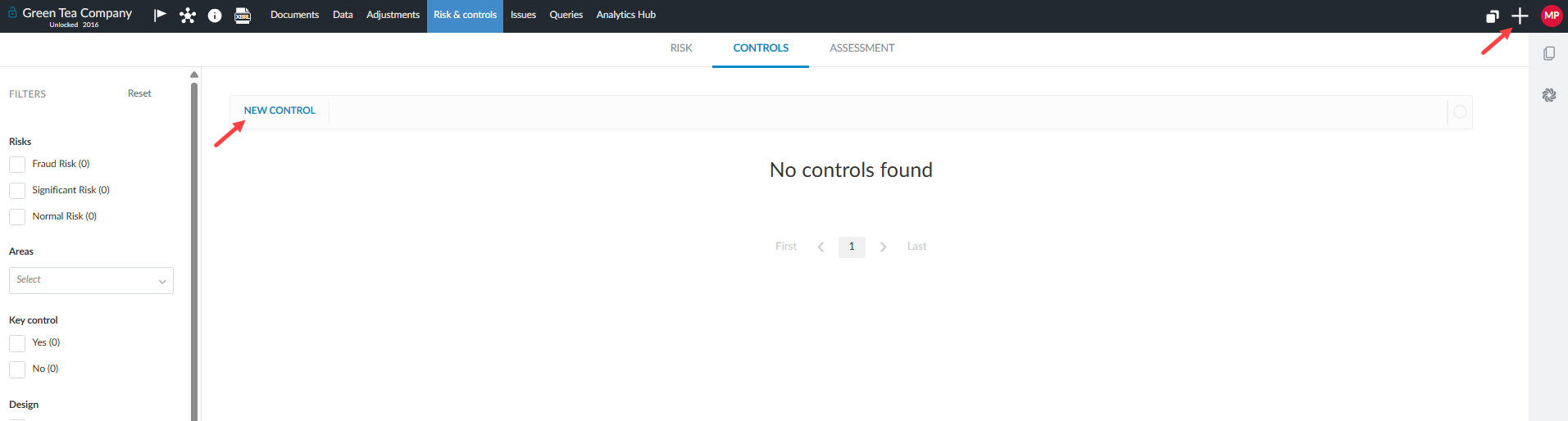
From the top menu, select Add (+) | Control. Alternately, on the Risk & controls page, select the Controls tab, then select NEW CONTROL.
-
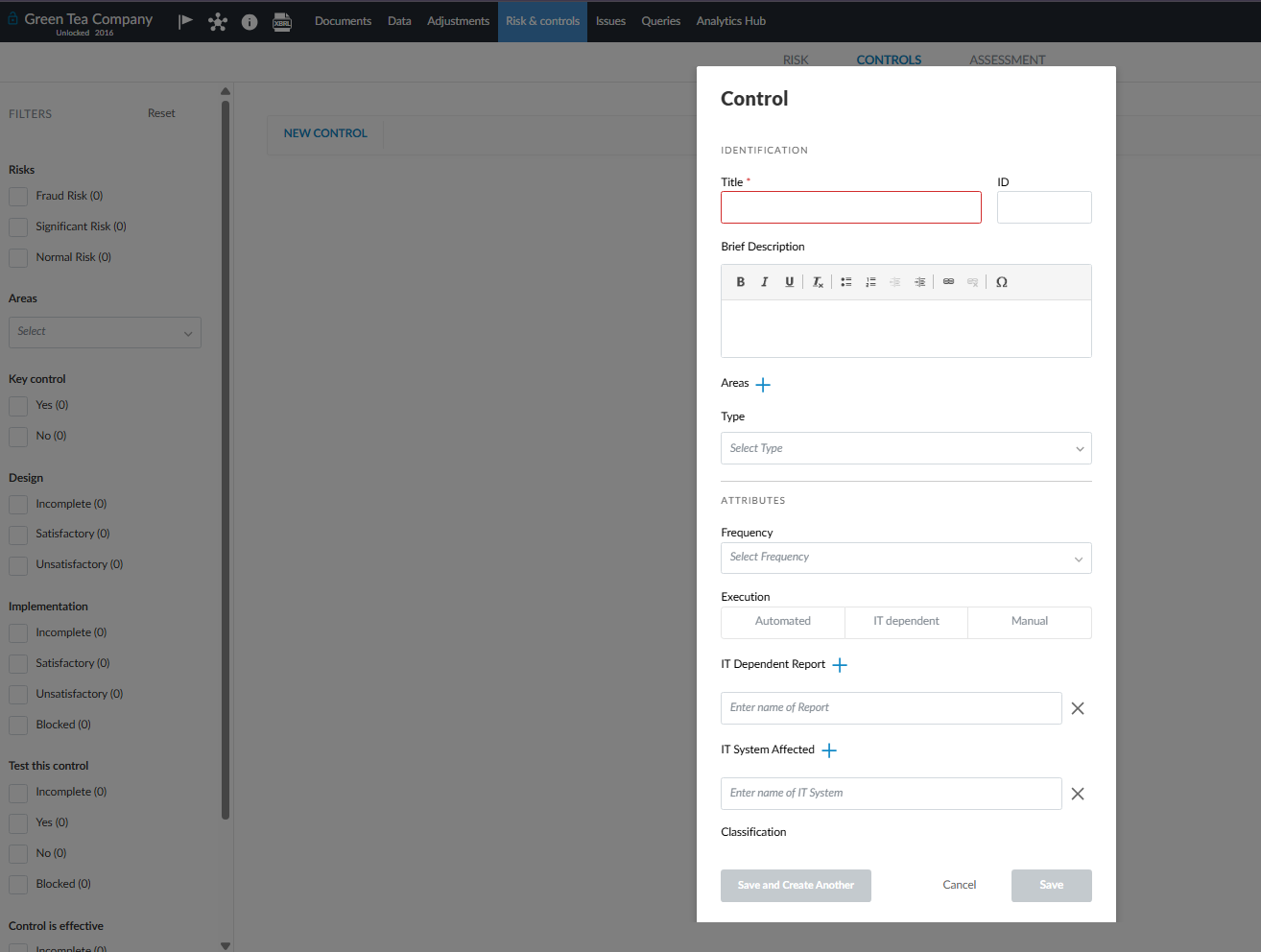
In the Control dialog, enter the Control Name and Control ID.
-
Select the Control Type and Frequency.
-
Under Addressed Risks, select one or more risks addressed by the control.
-
Select Save.
-
On the Controls tab, select the control to expand its details.
-
Expand Attributes and complete the applicable fields. If Information used in control is displayed, enter a description of the data, reports or queries used to perform the control. This option must be enabled by Caseware or an enterprise author.
To learn more about options that require author enablement, see Customize controls.
An example of the NEW CONTROL button:
An example of the Control dialog:
Modify a control
To modify a control:
-
Select the Controls tab on the Risk & controls page.
-
Select the control.
-
Modify the applicable details.
Control details are organized into the following sections:
-
Identification
-
Attributes
-
Design and implementation
-
Operating effectiveness evaluation
Control design and implementation
Use the Design and implementation section to document whether the control is properly designed and implemented.
Link a control to checklist procedures
To link a control to checklist procedures:
-
From the Controls tab, select the control to expand its details.
-
Scroll to Design and implementation.
-
Beside Design reference, select Add (+).
-
Select the checklist that contains the procedures.
-
Beside the added checklist, select Add (+).
-
Select one or more procedures from the checklist.
You can link multiple procedures to the same control and remove individual procedure references separately. To remove a document-level reference, first remove all procedure references associated with that document.
When a procedure is linked to a control, a control indicator displays beside the procedure in the checklist or work program. Select the indicator to view the linked control details.
Document the design and implementation conclusion
You can record your evaluation notes and select the overall design and implementation conclusion for the control.
To document the design and implementation conclusion:
-
From the Controls tab, select the control to expand its details.
-
Expand Design and implementation.
-
At the top of the section, if Control operator has the necessary authority and competence? is displayed, select Yes or No from the drop-down list.
-
In the evaluation text field, describe your assessment of the control’s design and whether it has been placed in operation.
-
From the conclusion drop-down list, select the applicable conclusion, such as Properly designed and implemented or Not properly designed.
Related topics
-
To learn how to identify and assess engagement risks, see Manage risks and risk assessments.
-
To learn how to configure control fields, see Customize controls.
-
To learn how to configure risk fields and settings, see Customize risks.
-
To learn more about risk and controls, see Navigate the Risk & controls page.