
Customize controls
Enterprise authors can select the fields available in the Controls report, customize their displayed labels and determine which fields are available in the Create New Control dialog.
Control fields are organized into four categories:
-
Identification
-
Attributes
-
Design and implementation
-
Operating effectiveness evaluation
You can expand or collapse each category using the up and down arrows.
Add and customize control fields
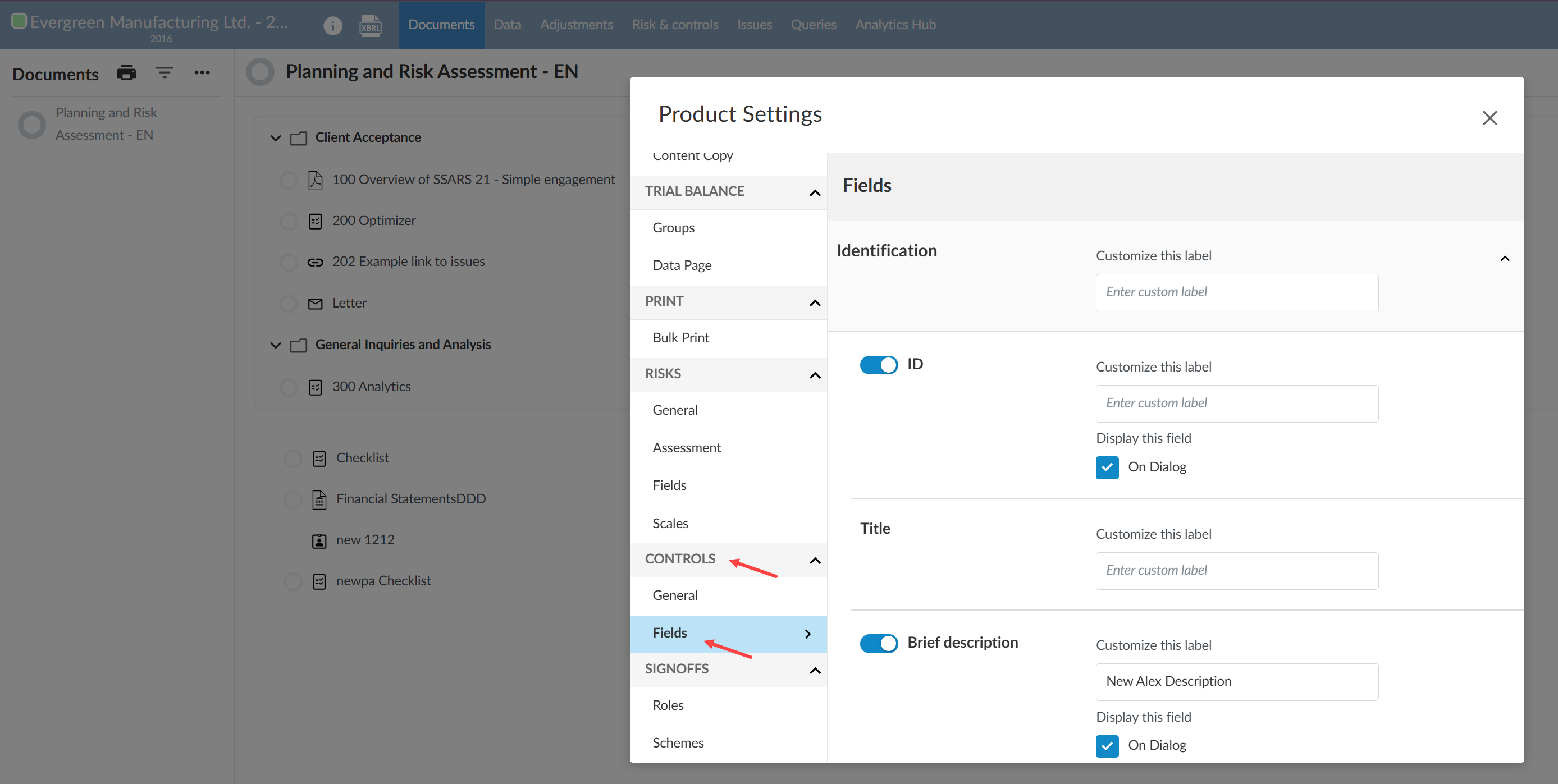
To add and customize control fields:
-
Select the Information icon [
 ] from the top menu, then select Settings. The Product Settings dialog opens.
 -
Under Controls, select Fields.
-
Turn on the toggle beside a field to include it in the Controls report.
-
In Customize this label, enter the term you want to display instead of the default label.
-
If available, select the On Dialog check box to display the field in the Create New Control dialog.
-
If the field has multiple options, enter a custom term for each option. For supported fields, select the Add icon [+] to define additional options.
-
Select Save.
-
Return to the Manage template page
- Save the draft.
-
Publish the draft.
Notes:
-
Attributes contains standard control attributes and Information used in control. This field lets engagement teams document source data, reports or queries.
-
Design and implementation contains evaluation fields, procedure references and Control operator has the necessary authority and competence?. This field lets engagement teams evaluate the control operator's qualifications.
-
Information used in control and Control operator has the necessary authority and competence? are report-only fields and disabled by default. Engagement teams complete these fields after expanding a control in the Controls report. The fields don't appear in the Create New Control dialog.
-
Population size is disabled by default. Use this frequency option when control testing depends on the size of the population being tested, such as in single audit engagements. To make the option available, in Product Settings, select Controls | Frequency, then turn on the Population size toggle. You can also customize its displayed name.
Link controls to checklist procedures
Procedure-level design references are enabled by default in all Cloud engagement files. You do not need to enable or configure them in Product Settings.