
Manage dynamic table rows, columns and visibility
You can use dynamic tables to add or rearrange rows and columns in financial statements. You can also modify column settings, account group settings and column visibility.
Open a dynamic table for editing
To open a dynamic table for editing:
-
From the financial statement, select the dynamic table.
-
Select More actions (
 ), then select Edit Dynamic Table.The table opens in edit mode.
Manage columns
To add a column in a dynamic table:
-
Select the table.
-
Select More actions (
 ), then choose Edit Dynamic Table.
The table opens in edit mode.
-
Go to where you want to add a column.
-
Select Add (
 ) at the upper table border.
A column is added to the table and the column settings display on the page.
To edit column settings:
-
Select the column header.
-
Modify the following settings as needed:
-
Type
Choose a column type. The following columns have predefined values:
-
Prior year - prior year balance
-
Current year - current year balance
-
Current period - balance for the current period (for interim engagements)
-
Comparative period - balance for the comparative period
-
Initial Budget - initial budget balance
-
Revised Budget - revised budget balance
-
Amount variance - difference between prior year balance and current year balance
-
Percent variance - percentage difference between prior year balance and current year balance. If you choose this column type, you can also select the number of decimal places to display in the column. By default, percent variance columns will display values to 2 decimal places.
You can enter custom values for the following columns:
-
Input - enter text, numbers, currency values or percentages.
-
Custom calculation - enter a calculation using the calculation editor. The calculation is applied to all column cells.
-
Note reference - add references to existing notes in the financial statements.
-
Annotation - add annotations column. Select Add (
) in each cell in the column to add annotations.
-
-
Heading
You can insert Dynamic Text or formula (fx) for the header. You can also type simple text in the Output field or combine simple text with dynamic text and formula.
-
Dimension
Dimensions are group properties that authors can configure for the groupings to provide further categorization for accounts. For example, to have a further categorization for accounts based on location (Europe, North America, etc.).
You can select a dimension to set the column to only display data for that dimension.
-
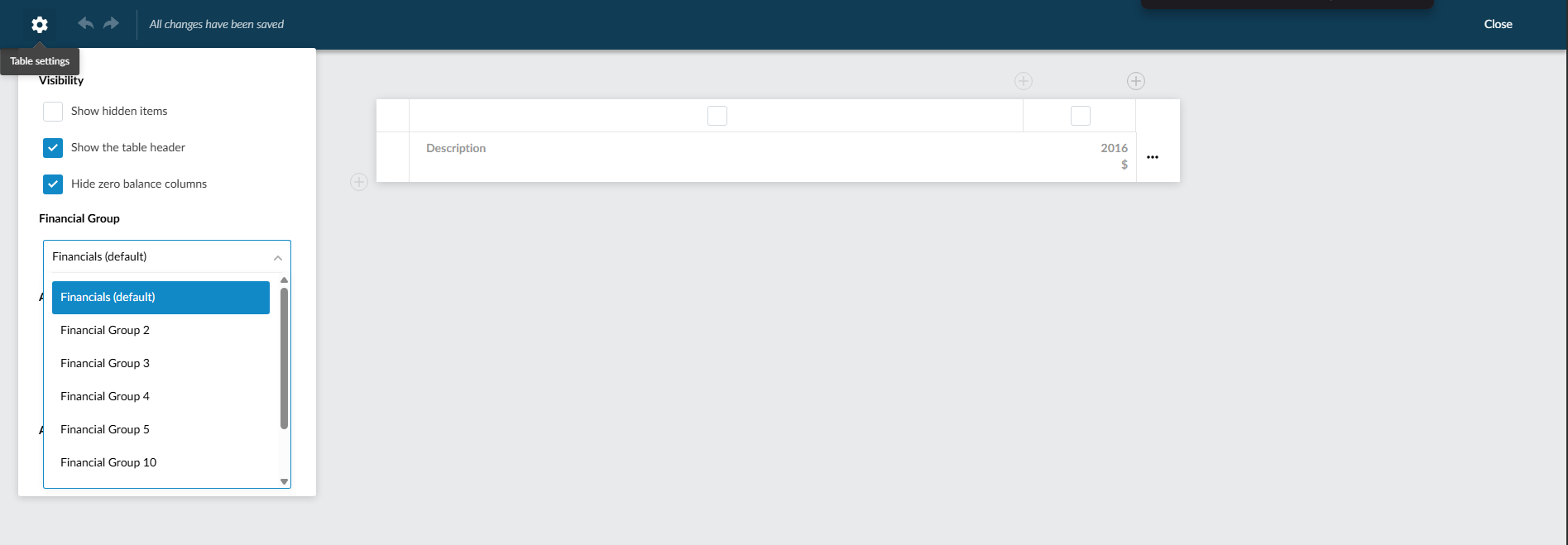
Financial Grouping
You can select a financial grouping structure to determine which balances display in the column. The dropdown only shows grouping structures that have been enabled across author levels (Caseware, enterprise author or firm author). When you select a different grouping structure, the column retrieves and displays the balances associated with that structure.
-
Entity
If your engagement is consolidated, you can select whether to display total consolidated data, consolidated data or data for a specific subsidiary entity. If there are at least 15 subsidiary entities, you can use the search box to find the entity you want to select.
-
Width
Select a width for your column. The width options for all columns are Narrow, Standard and Specific, except for note reference, annotation and description columns, where the width options are Small, Medium and Large.
If you select Specific, you can then specify the width of the column in centimeters or inches. The measurement unit is determined by the unit selected in the product settings.
-
Currency Symbol
Allows you to select whether to display the currency symbol in the column header.
Available options:
-
Use document default - the table uses the default currency symbol settings for the financial statements. See Set default currency symbols options for dynamic tables to learn more.
-
Show in header - the currency symbol displays in the column header.
-
Do not show in header - the currency symbol does not display in the header.
-
-
Format
For input or custom calculation columns, you can choose one of the following formats for your cell values:
-
Currency
-
Number
-
Percent
-
Text
If you select Number or Percent, you can also choose the number of decimal places.
-
-
Display options
For some column types and formats, you can select one or more display options:
-
Expand to fill the width of the page - sets the column width so the dynamic table fits the full width of the page.
Note: This setting is enabled on the Description column by default. -
Display zero balances - shows accounts with zero balances in the column.
-
Display opposite sign for balances - displays the opposite sign (negative or positive) for the values in the column.
-
Exclude from totals - excludes the values in this column from the calculation in the account group Total row.
-
Display symbol in heading - displays the currency symbol or percentage sign at the top of the column.
-
Show year in heading - adds the year to the heading of Current year or Prior year columns.
-
Use non-consolidated data - if this is a consolidated engagement, selecting this option removes consolidated data from the column and displays the non-consolidated data only.
You can select the Visibility icon (
 ) to reveal a dropdown with the following options:
-
Apply default behavior - the default behavior is applied to the column. Note that the default behavior differs based on the column type.
-
For trial balance columns:
The column always displays in the financial statements and the print copy (PDF) if the column contains data (at least one cell is not empty and its value is not zero). Note that this default behavior can be changed for an individual dynamic table from the table settings.
Note: Prior year columns do not display if there is no prior year data. -
For input and custom calculation columns:
The column always displays in the financial statements and displays in the print copy (PDF) if the column contains data (at least one cell is not empty and its value is not zero).
-
-
Always display this column - the column is always displayed in the financial statements and in the print copy (PDF).
-
Always hide this column - the column is always hidden in the financial statements and in the print copy (PDF).
-
-
Delete (
 )
)Select this icon to delete the column from the table.
-
-
Select DONE.
-
Select SAVE or SAVE & CLOSE.
To add a row in a dynamic table:
-
Select the table.
-
Select More actions (
), then choose Edit Dynamic Table.The table opens in edit mode.
-
Go to where you want to add a row.
-
Select Add (
 ) at the left border of the table.
 -
Select one of the following row types:
Trial balance data: to select the row data from the trial balance data. You can insert an account or group.
-
If the group has subgroups, they are inserted into the table as well. A Total row is also inserted to hold the sum of the accounts or subgroups within the group.
-
If dimensions are available in your product, you can filter the accounts and groups by dimension.
You can also select a financial grouping structure to retrieve balances specific to that grouping. Only enabled grouping structures appear in the dropdown.
Input row: to add an empty row, where you can enter custom text and values.
Commentary row: adds a commentary row. By default it inserts a reference to existing notes in the financial statements. You can change the default by deleting the note reference and enter a comment for the row.
Spacing row: to add white space into your dynamic table. You can add white space to make your content easier to read.
Page break: to add a page break between table rows.
Custom group: to insert a text field so you can enter a title or a brief description for your group. To learn more, see Create custom groups in tables.
-
-
Select SAVE or SAVE & CLOSE.
To move a row:
-
Select the table.
-
Select More actions (
), then choose Edit Dynamic Table.The table opens in edit mode.
-
Locate the row that you want to move and select the Move icon (
 ).
). -
Drag the row then drop it in the desired location.
A grid displays in the table to mark the borders of each row. Valid places to move your row have dark blue grid lines while invalid places have gray grid lines. Use the grid for guidance as you drag and drop.
Format cells in a dynamic table
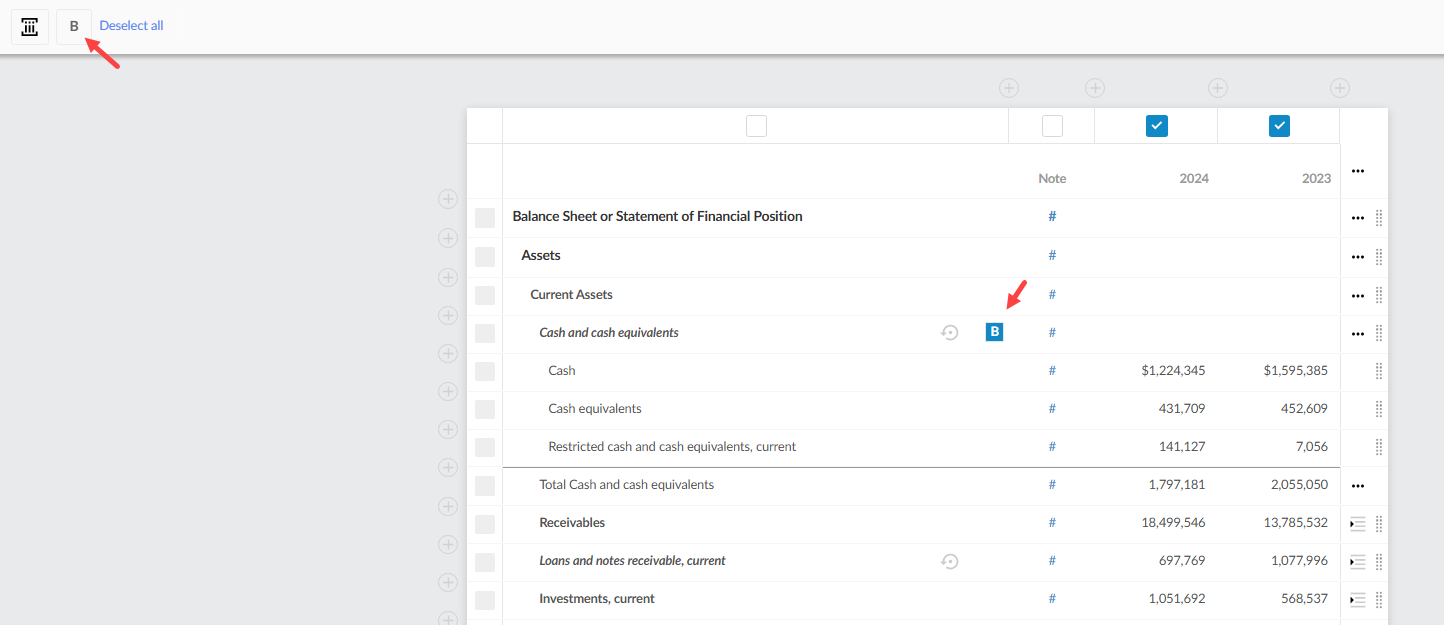
You can apply bold formatting to individual cells, rows and columns in a dynamic table. Cell-level formatting takes precedence over row- and column-level formatting.
To bold or remove bold from a cell:
-
Select the table.
-
Select More actions [
.png) ], then select Edit dynamic table.
], then select Edit dynamic table.The table opens in edit mode.
-
Select the cell you want to format.
-
Select Bold [
 ] to apply or remove bold.
Cell-level formatting overrides the row- or column-level formatting for that cell.
To apply bold to a column:
-
Select the table.
-
Select More actions
 , then select Edit dynamic table.
The table opens in edit mode.
-
Select the column header.
-
Select Bold
 in the upper-left corner of the column settings.
Bold is applied to all cells in the column. You can remove bold from individual cells.
-
Select Done.
-
Select Save or Save & Close.
An example of the Edit dynamic table dialog with bold options for a cell and column:
Set visibility for dynamic table columns
You can use visibility settings to control when dynamic table columns appear in the financial statements and in the print copy (PDF).
To set visibility for a dynamic table column:
-
Select the More actions icon [
] beside the dynamic table. -
Select Edit Settings.
-
Select or add a column
-
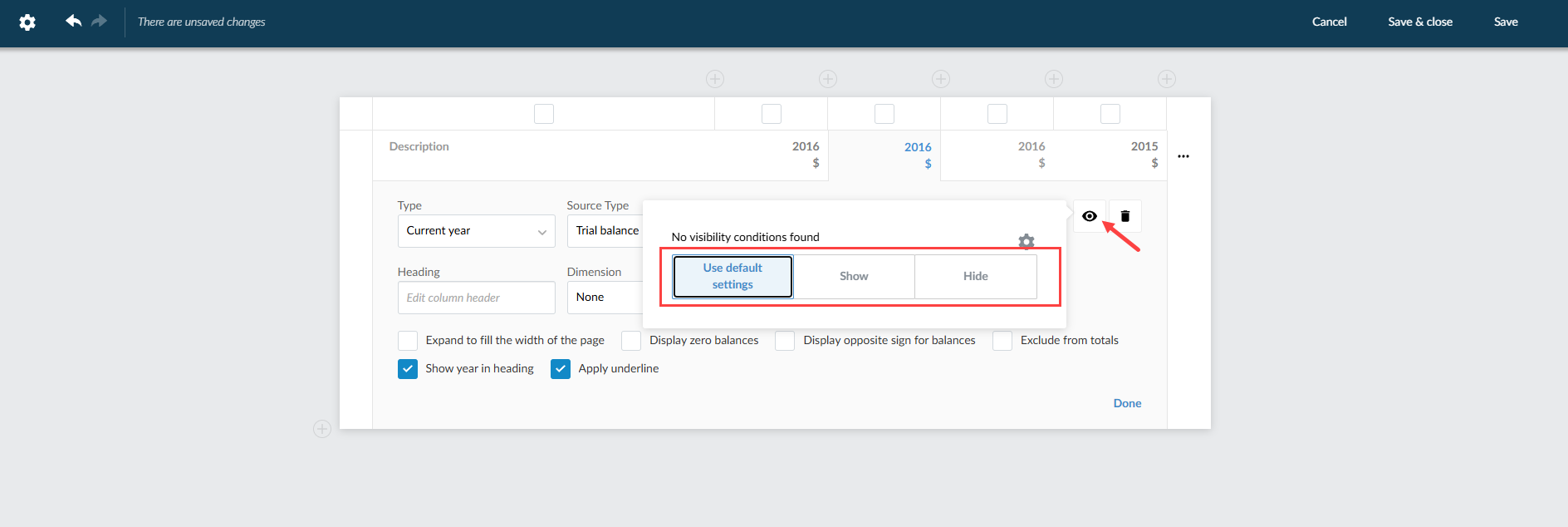
Select the Visibility icon [
 ]
] -
Choose one of the following options:
-
Use default settings
-
Show
-
Hide
-
Edit visibility settings
-
Use default settings applies the default column behavior.
Column visibility
Columns appear in the financial statements and PDF copy based on the column type, data and visibility settings.
Default visibility
Trial balance columns appear when the column contains data. A column contains data when at least one cell is not empty and has a value other than zero.
Note: Prior year columns do not appear if there is no prior year data.
Input and custom calculation columns appear when the column contains data.
Manual visibility
Show makes the column appear in the financial statements and PDF copy.
Hide hides the column in the financial statements and PDF copy.
Visibility conditions
To apply visibility conditions, select Edit visibility settings. You can show or hide the column based on rules for the reporting period, language, consolidation or form values.
-
If a column has visibility conditions, the application checks the column in this order:
-
The application checks whether the column contains data.
-
If all values are zero or empty, the column remains hidden.
-
If the column contains data, the application evaluates the visibility conditions.
-
If the conditions evaluate to hide, the column is hidden in the financial statements and PDF copy.
-
If the conditions evaluate to show, the column appears in the financial statements and PDF copy.
Authoring experience
When you open the visibility options for a dynamic table column, the panel shows Use default settings, Show and Hide, similar to document-level visibility controls.
-
Select Edit visibility settings to add or remove conditions.
-
If Show hidden items is enabled in Edit Dynamic Mode, columns hidden by conditions appear so you can review and update their settings.
-
Any user with edit access to the document can view and modify column visibility settings, regardless of authoring level.
Merged headers
-
If some columns under a merged header are hidden, the merged header remains visible and spans the remaining visible columns.
-
If all columns under a merged header are hidden, the merged header row is hidden.
Carry forward and copy behavior
-
When you carry a dynamic table forward to a new engagement period, the column visibility settings and conditions are retained on the corresponding columns.
-
When you copy a dynamic table, the column visibility settings and conditions are retained on the copied columns.
-
Existing dynamic tables that use Show, Hide or default visibility continue to work as before.
Cell references and hidden dynamic table columns
-
The cells in a hidden column still exist and keep their values.
-
References within the same dynamic table still calculate values in hidden columns
-
References from other tables or sections to hidden columns still calculate values when the table remains visible
-
If visibility settings hide the entire dynamic table, references from other tables or sections resolve to #0