
Work on a PDF during a session timeout
If you're editing a PDF locally with Caseware Open PDF when your engagement session ends — because it timed out, or you logged out — you can keep working. This topic explains what happens to your changes during and after that window.
What happens right after your session ends
For about 20 minutes after your engagement session ends, your changes keep syncing back to Caseware Cloud as normal, even though you're no longer logged in. You can keep editing the PDF during this window without interruption.
What happens after that window closes
Once that window has passed, changes you make stop syncing. If you try to save after this point, a sign-in prompt appears, since your engagement session is no longer active.
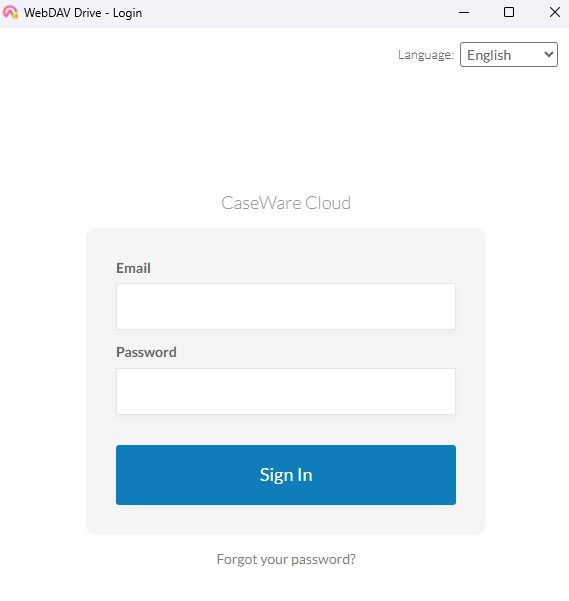
To save your latest changes:
-
Continue working in the PDF as usual — you don't need to close it.
-
When you try to save, sign in when prompted.
-
Once you're signed back in, all of your mounted PDF connections sync, not just the one that prompted you — you don't need to repeat this for each open PDF.
What this means for you
You won't lose work because your session timed out. As long as you keep the PDF open and sign in when prompted to save, your changes make it back to your engagement.