
Manage Caseware Open PDF tray icons
Each time you open a PDF locally with Caseware Open PDF, it creates a connection between your engagement and the PDF on your computer. On Windows, this connection shows up as an icon in your system tray.
What the tray icons are
You'll see one tray icon for each PDF connection. If you open several PDFs in a day, you'll see several icons build up — this is expected.

Why this matters
A leftover connection keeps a local copy of the PDF on your computer. If you reopen that local copy directly instead of through your engagement, any changes you make will not sync back to Caseware Cloud — the connection to your engagement has already ended, even though the file is still there. If you tend to open many PDFs, disconnecting the ones you're done with keeps this list manageable and avoids confusion about which local copies are still syncing.
Disconnect a PDF
To end a connection:
-
Close the PDF file first. Make sure any changes have finished saving before you continue — check the Status column for that file in File Explorer for a green checkmark.
-
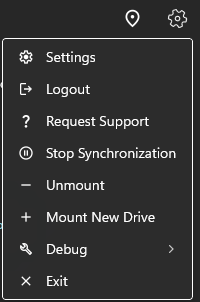
Right-click the tray icon for that connection and select Unmount.
What Exit does
Your tray menu also shows an Exit option. Exit closes all open PDF connections at once, not just one. Because of this, you'll be asked to sign in again to keep editing, or you can reopen your PDF from the Cloud engagement. For ending a single connection, Unmount is the more targeted option; use Exit only when you intend to close everything.