
Open and edit PDFs locally with Caseware Open PDF
You can open a PDF from your engagement in a desktop PDF editor, edit it, and have your changes sync back to Caseware Cloud automatically. This requires Caseware Open PDF, a small helper application on your computer.
Open a PDF locally
To open a PDF locally:
-
On the Documents page, click the PDF to open it in your engagement.
-
Click the Open menu, then select Open file locally.
-
In the Install Caseware Open PDF dialog that appears, select Open. See Respond to the Open file locally dialog below for what the other options do.
-
Make your changes, then select Save.
Your changes sync to the online PDF in your engagement. You can keep editing while the document is open — your changes sync each time you save.
Respond to the Open file locally dialog
Each time you select Open file locally, the Install Caseware Open PDF dialog appears — regardless of whether Caseware Open PDF is already installed on your computer. It reads:
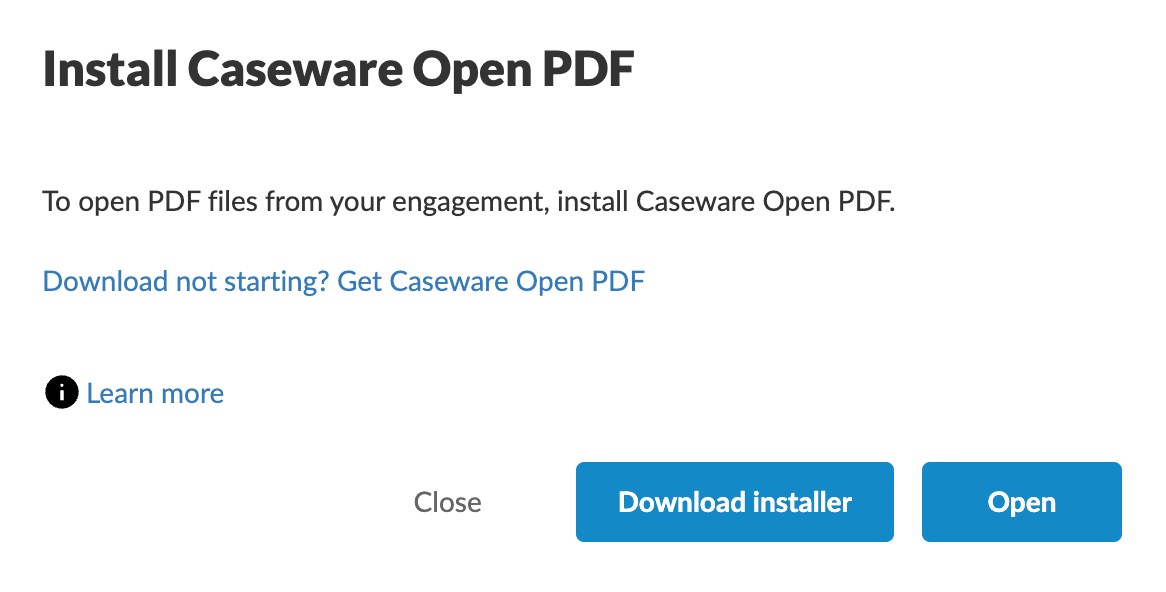
The dialog offers three options:
-
Close — dismisses the dialog. Nothing else happens.
-
Download installer — downloads the installer only. You still need to install it manually. See Install or update using Download installer below.
-
Open — closes this dialog and attempts to open the PDF, using the Caseware Open PDF version configured for your firm. If the PDF doesn't open within about 5 seconds, that means Caseware Open PDF genuinely isn't installed, and the Caseware Open PDF required message appears instead:
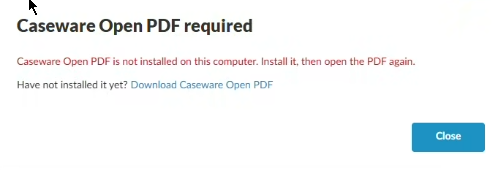
Select Close, install it, then select Open file locally again — there's no automatic retry.
Install or update using Download installer
-
Select Download installer. This downloads the installer (a
.msixfile) to your Downloads folder. -
Double-click the downloaded file to start the installation.
-
Follow the prompts and accept the default settings.
-
Go back to your engagement's Documents page and select Open file locally again on the PDF you want to edit.
How your firm's configured version is used
Your firm can be configured to use a specific version of Caseware Open PDF. Selecting Open always uses that configured version to open your PDF — you don't need to check or manage this yourself.
Allow the connection request
Separately from the Caseware Open PDF dialogs above, your browser shows its own connection request the first time (and sometimes each time) you open a PDF. This is a standard browser security prompt, not something Caseware Cloud controls — it confirms you intended to open the file with Caseware Open PDF and stops other websites from launching it without your permission.
To allow the connection:
-
Select Open to open the file in your desktop app this one time.
-
(Optional) Select Always allow to skip this prompt for this site going forward.
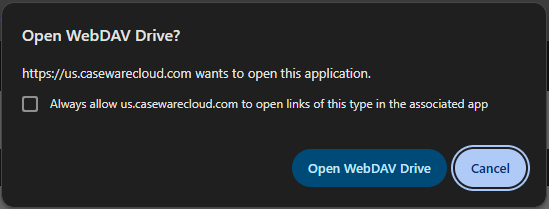
The PDF opens in the desktop app you use to edit PDFs.