
Financial grouping structures
In Caseware, financial grouping structures are containers that organize trial balance accounts for financial reporting, tax preparation, and regulatory filings. They work like a chart of accounts by mapping account numbers received from a client to a consistent set of groups.
Terminology
The following terms describe financial grouping structures and their components:
-
Financial grouping structure - A hierarchy of groups used to categorize and arrange accounts in the trial balance or financial statements.
-
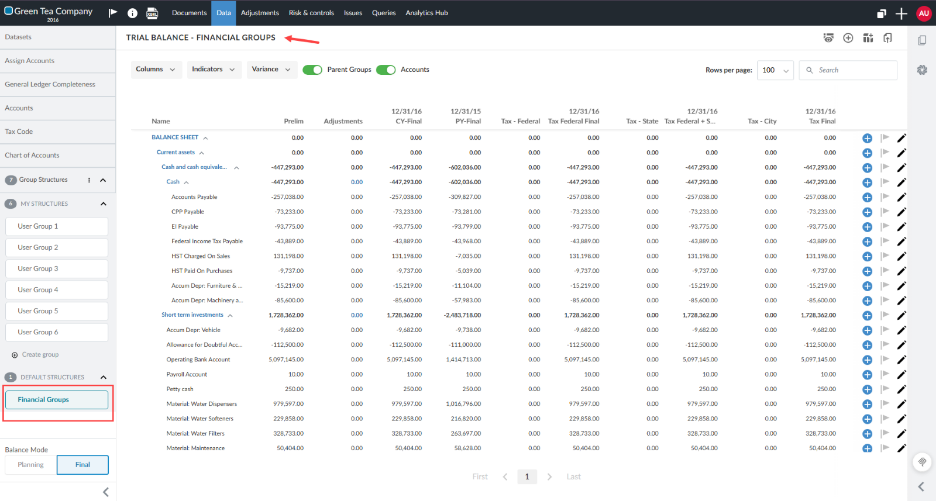
Primary grouping structure - The main structure (Financial Groups). Trial balance imports target it by default.
-
Secondary grouping structure - An additional structure for specialized reporting.
-
Tax grouping structure - A hierarchy of groups used to categorize and arrange accounts for tax purposes. A tax grouping structure resembles the tax codes applicable to your market.
-
Chart of accounts - A hierarchical listing of each posting account in the trial balance. Certain Caseware Cloud apps may employ a standard chart of accounts that does not necessarily resemble the line items in the financial statements.
-
-
Linked group - A group in a secondary structure connected to a group in the primary structure.
-
Financial group (or group) - An item within a grouping structure, such as Revenue or Current Assets.
Grouping structures on the Data page
Available grouping structures appear in the left sidebar on the Data page. By default, Caseware includes up to three financial grouping structures. Additional grouping structures can be enabled across author levels, for a total of up to 40 structures available in the financial grouping dropdown. Trial balance imports automatically target the primary default structure, Financial Groups.
Depending on the product template settings, you may also see secondary structures, such as:
| Structure | Purpose |
|---|---|
| Financial Groups |
The primary grouping structure. Trial balance imports target this structure by default. Caseware can add up to 10 additional financial grouping structures for specialized needs. Firm authors, enterprise authors, and end users can be enabled to add and manage their own custom grouping structures. |
| Tax Grouping |
A grouping structure for tax-specific account categorization. |
| Prescribed |
A grouping structure for regulatory or jurisdictional filing requirements. |
Manage grouping structures from the engagement
Each user level (firm authors, enterprise authors, and end users) can have up to 10 grouping structures from the engagement. Structures created at a higher level are visible and usable by all lower levels, but can only be modified by the level that created them. Each level can also create its own structures as needed.
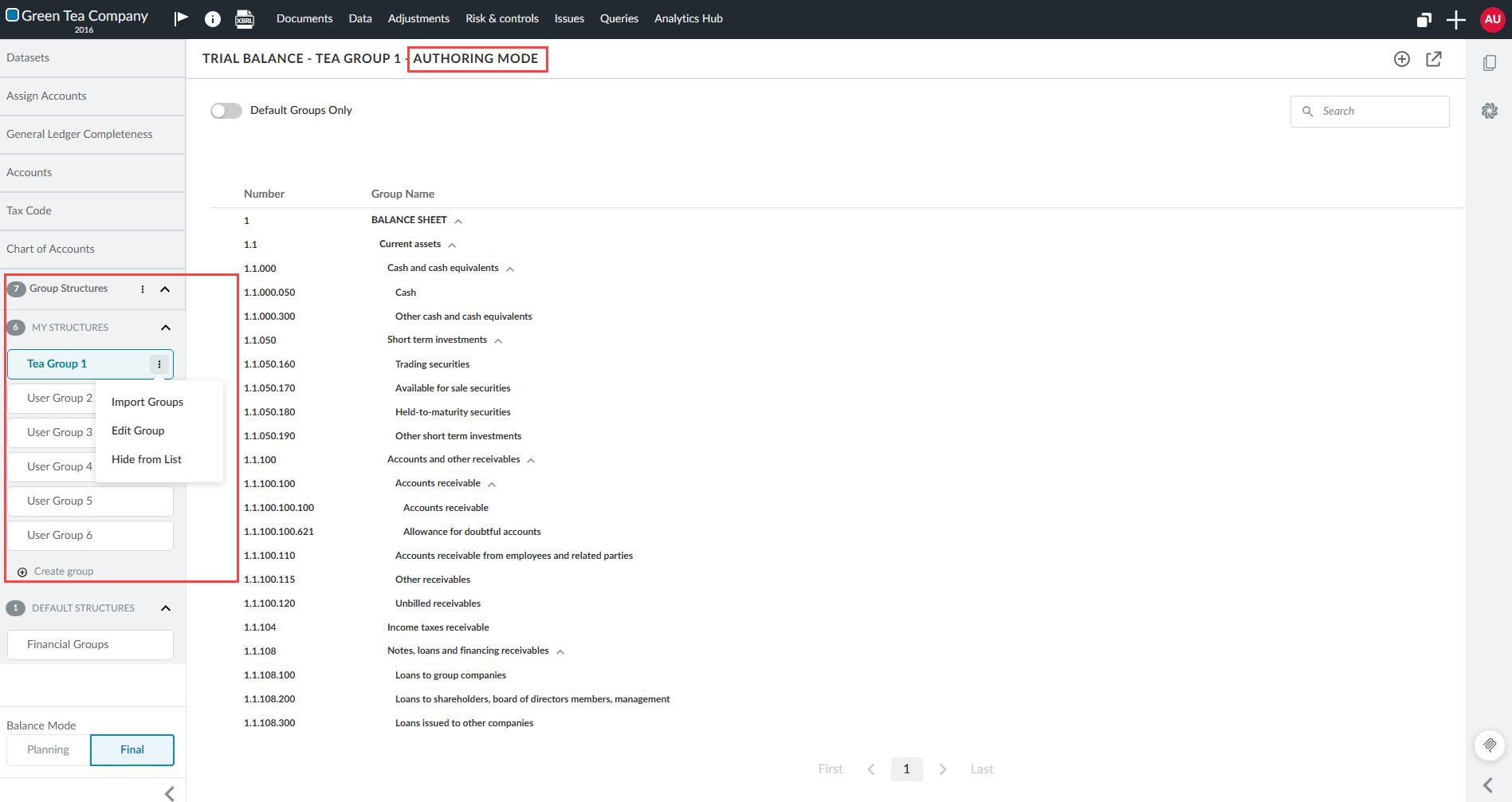
When this feature is enabled in your product, Financial Groups on the engagement Data page displays in Authoring mode.
From this mode, you can view, add, and edit grouping structures associated with your user level. The sidebar organizes grouping structures into collapsible sections. If the number of structures exceeds the available space, scroll the sidebar to view the remaining structures.
To add a grouping structure in the engagement:
-
Open the Data page and verify that the right panel displays Authoring mode in the title.
-
Under My Structures in the left sidebar, select Create Group.
-
Select the More actions [
 ].
]. -
Select Edit group.
-
Select the group box and enter a name.
Export or import a financial grouping structure
You can import and export grouping structures as CSV files. CSV import and export support linked-structure columns.
To export a financial grouping structure:
-
Select the financial grouping structure from the left sidebar.
-
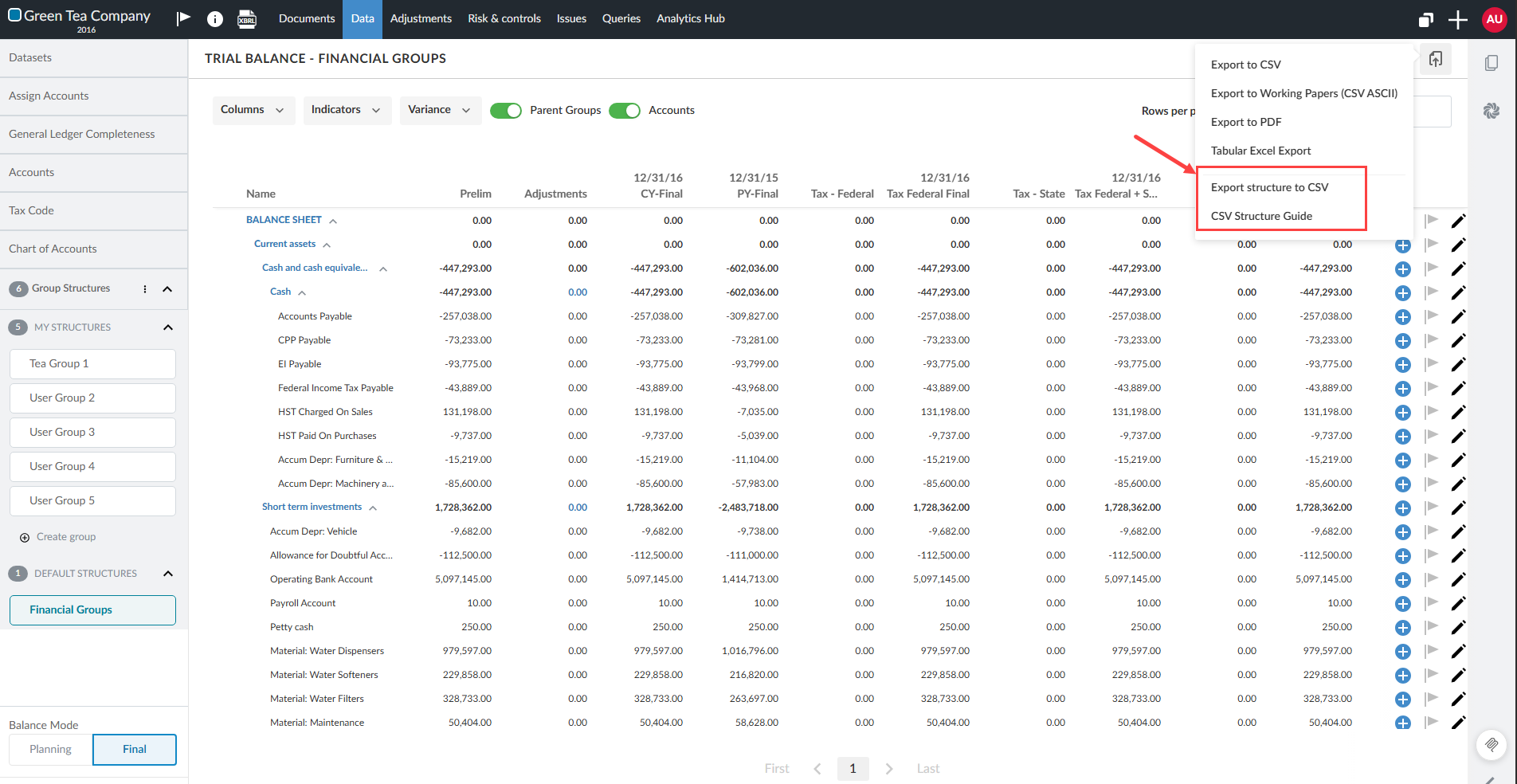
In the right panel, select Export options[
 ].
]. -
Select Export structure to CSV.
To import a financial grouping structure:
You can download the default Financial Groups structure CSV file, customize it, and then import the updated file into your grouping structures.
-
Select your financial grouping structure in Authoring mode.
-
Select More actions [
]. -
Select Import groups.
-
Select Yes, I want to import.
-
Select Browse, choose the file to import, and wait for the data to load. Refresh the page if the right panel does not display the imported data.
Link groups in secondary structures to the primary structure
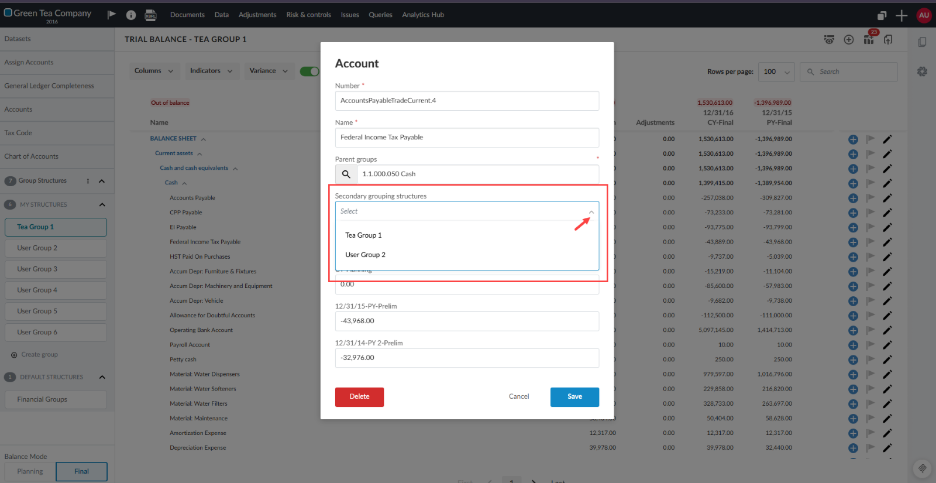
You can link a group in a secondary grouping structure to a group in the primary structure from the Group Properties dialog. You do not need to edit the primary structure to create the link.
To link a group in a secondary structure to the primary structure:
-
Open the Data page.
-
Select your grouping structure.
-
Select Edit group [
 ] beside a group.
The Group properties dialog opens.
-
Open the drop-down menu beside Secondary grouping structures.
-
Select the financial grouping structure to apply as secondary.
Assign accounts to grouping structures
To assign accounts to grouping structures:
-
Select Assign Accounts from the left sidebar.
-
In the right panel, open the Grouping structure drop-down list.
-
Select your financial grouping structure.
The structure opens and you can drag accounts into the appropriate groups.
View financial grouping balances on the Assessment tab
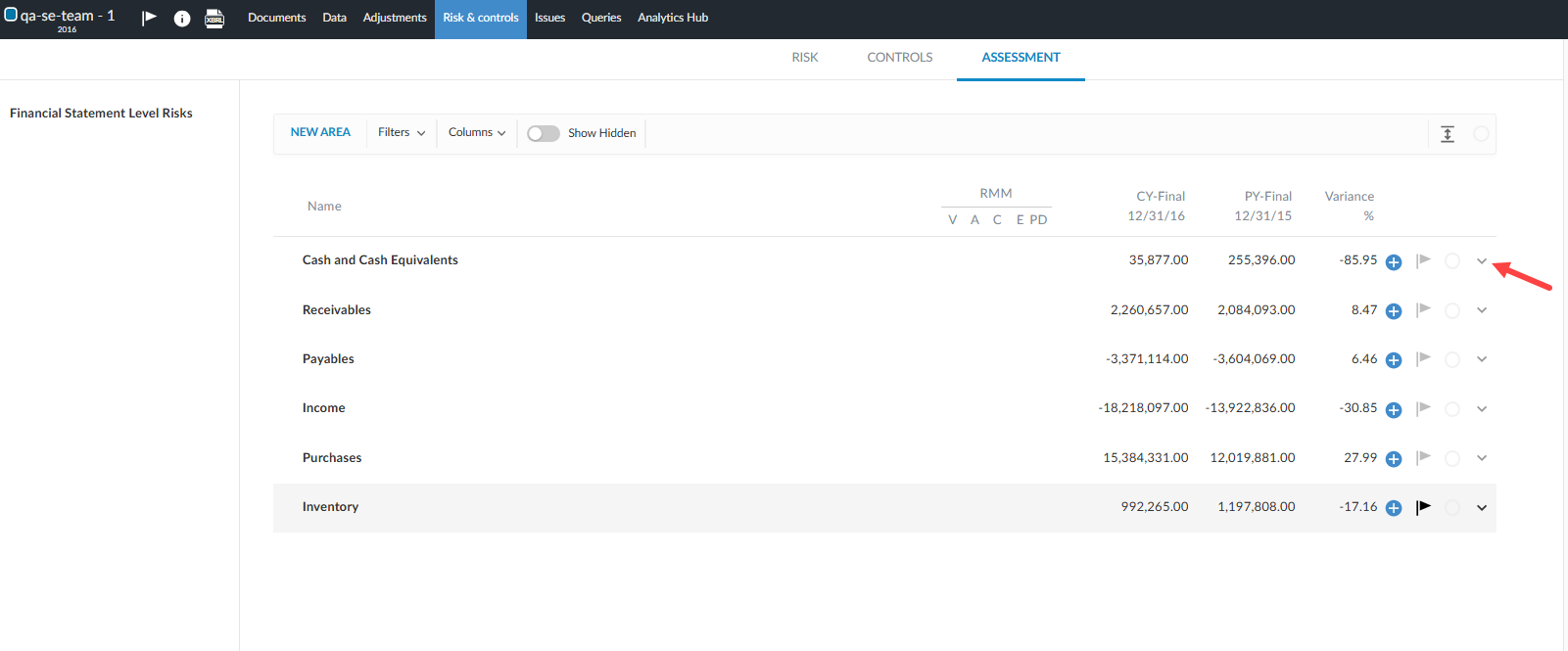
You can view a breakdown of the accounts and financial groupings that make up a financial statement area balance directly on the Assessment tab. The breakdown includes current-year and prior-year balances and calculated variances.
Before you begin
Ensure that:
-
Trial balance data has been imported into the engagement.
-
Financial statement areas have assigned accounts/groupings with both current year (CY) and prior year (PY) balance data available.
To view account balances for a financial statement area:
-
Go to the Risk & controls page and select the Assessment tab.
-
Locate the financial statement area row you want to review.
-
At the far right of the row, select the expand arrow (˅). The row expands inline to display the account or groupings breakdown.
-
Review the individual accounts and groupings that make up the area balance, including CY-Final, PY-Final and variance values.
-
Select the collapse arrow (˄) at the far right of the row to close the breakdown.
Author and template configuration
The following describes categories within the Product Settings that authors can use manage features and fields for their templates.
Trial Balance | Groups
Authors can rename and show or hide financial grouping structures from the Product Settings of the template.
To manage financial grouping structures (authors only):
-
Open your product template.
-
Select the Information [
 ].
]. -
Select Settings.
-
Select Trial Balance | Groups.
The list of grouping structures appears in the right panel.
-
Turn the grouping structure on or off to show or hide it.
-
Select the grouping structure name field to edit the name.
-
Return to the Manage your template page.
-
Save, and Publish the template.
Trial Balance | Data
Use the full trial balance for the out-of-balance check
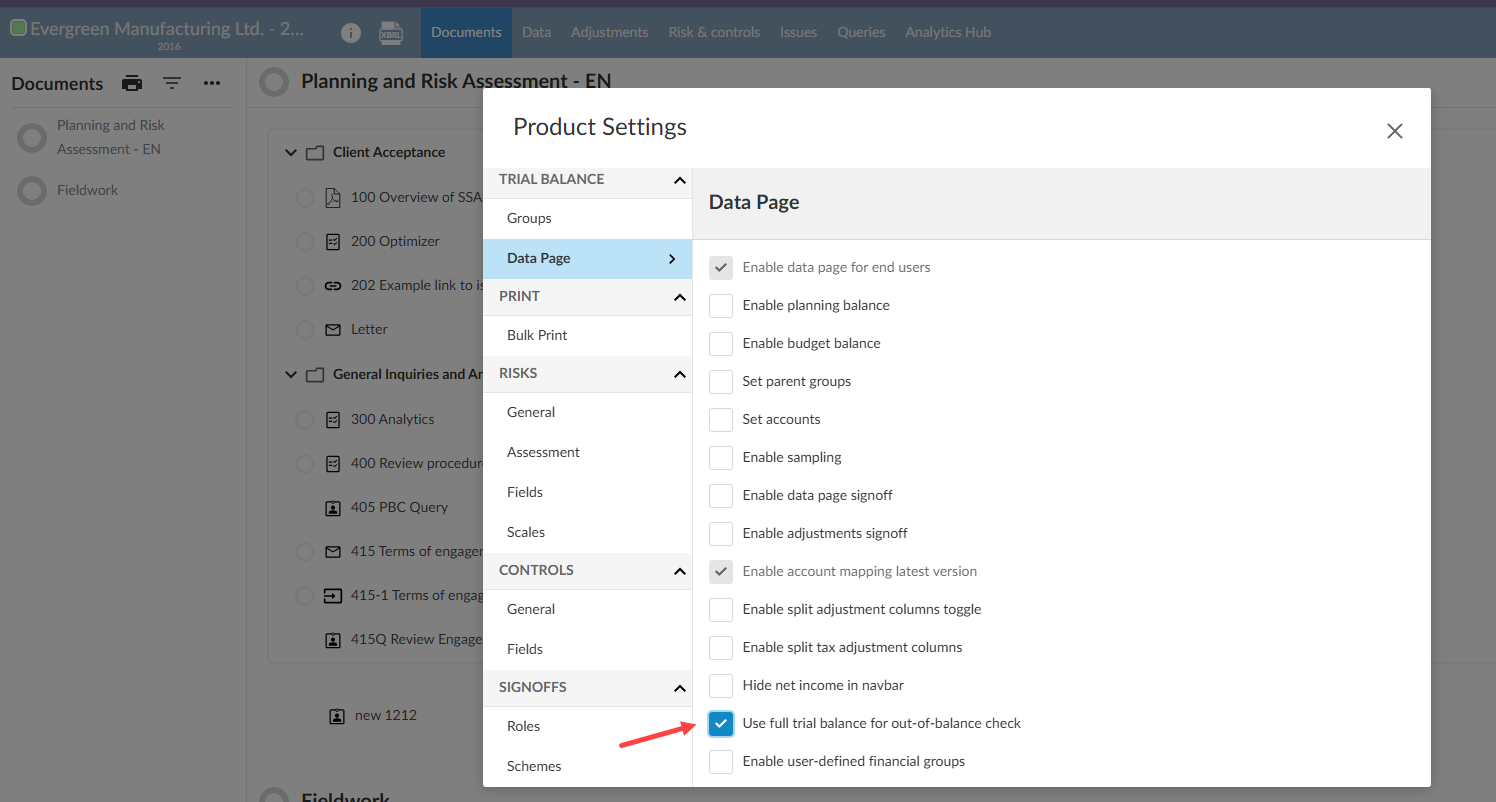
You can use the Use full trial balance for out-of-balance check setting to change how the Out of balance message is calculated in the Financial Groups window.
By default, the out-of-balance check includes Balance Sheet groupings plus Net Income. When you enable this setting, the check includes both Balance Sheet and Income Statement groupings.
This setting prevents a false Out of balance message when current-year net income is not closed to equity. The Income Statement offsets the Balance Sheet difference.
Only authors can enable this setting.
To enable the full trial balance out-of-balance check:
-
Open your product template.
-
Select Information [
 ].
]. -
Select Settings.
-
Select Trial Balance | Data.
-
Select Use full trial balance for out-of-balance check.
-
Return to the Manage template page.
-
Save, and Publish the template.
An example of the Use the full trial balance for the out-of-balance check:
Risk | Assessment
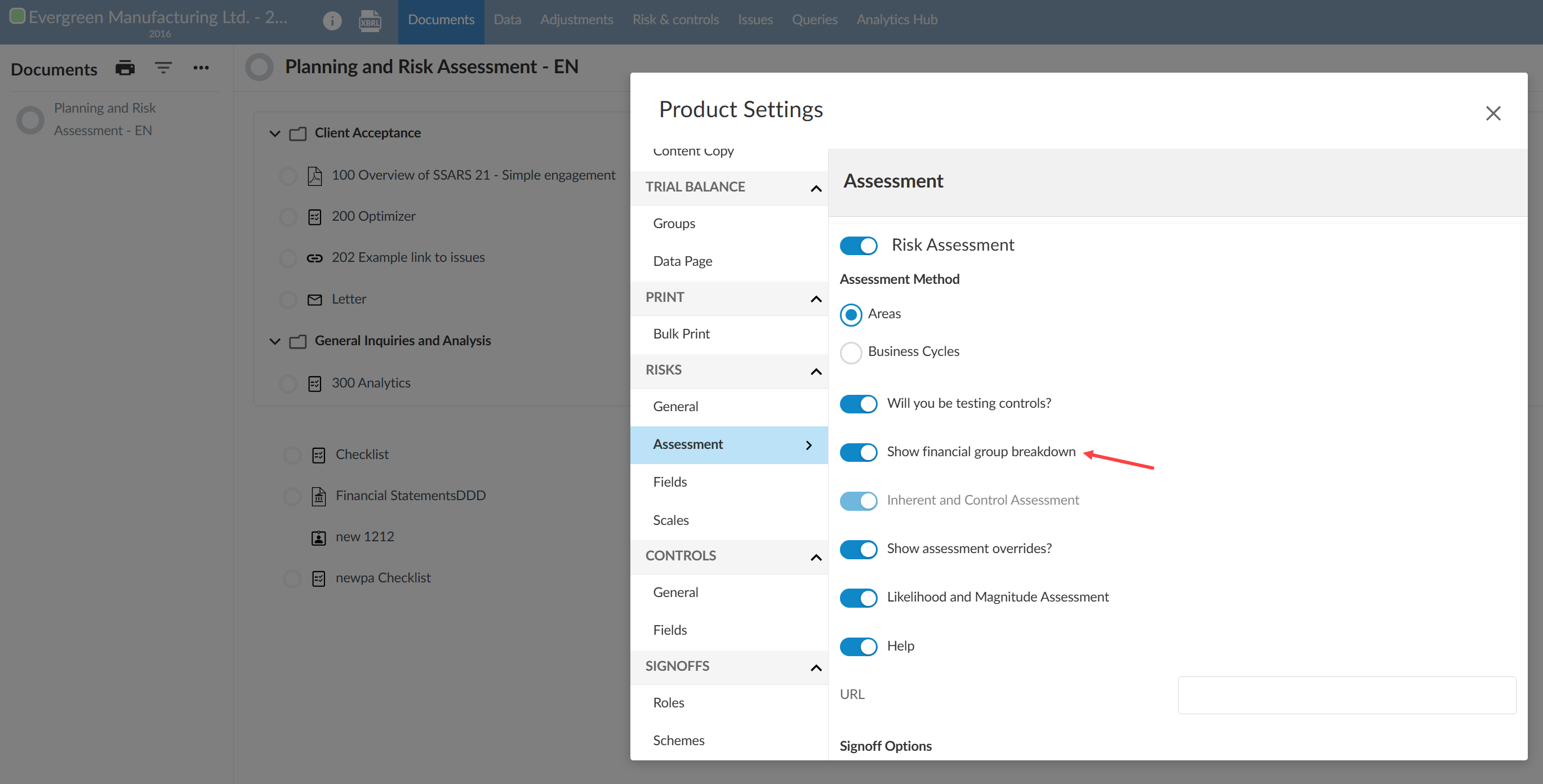
To enable balance breakdown for a financial statement area:
-
Open your product template.
-
Select Information [
]. -
Select Settings.
-
Select Risks | Assessment.
-
Turn on Show financial group breakdown.
-
Return to the Manage your template page.
-
Save, and Publish the template.
Financial grouping structures in dynamic tables
Available grouping structures appear as a selection option in dynamic table column settings in financial statements, allowing you to retrieve balances for a specific structure directly from the column. Only enabled structures appear in the dropdown. For more information, see Add data in the financial statement tables.
Related topics
To learn more about managing groups within a grouping structure, see: