
Income Statement (2 Year with % Format)
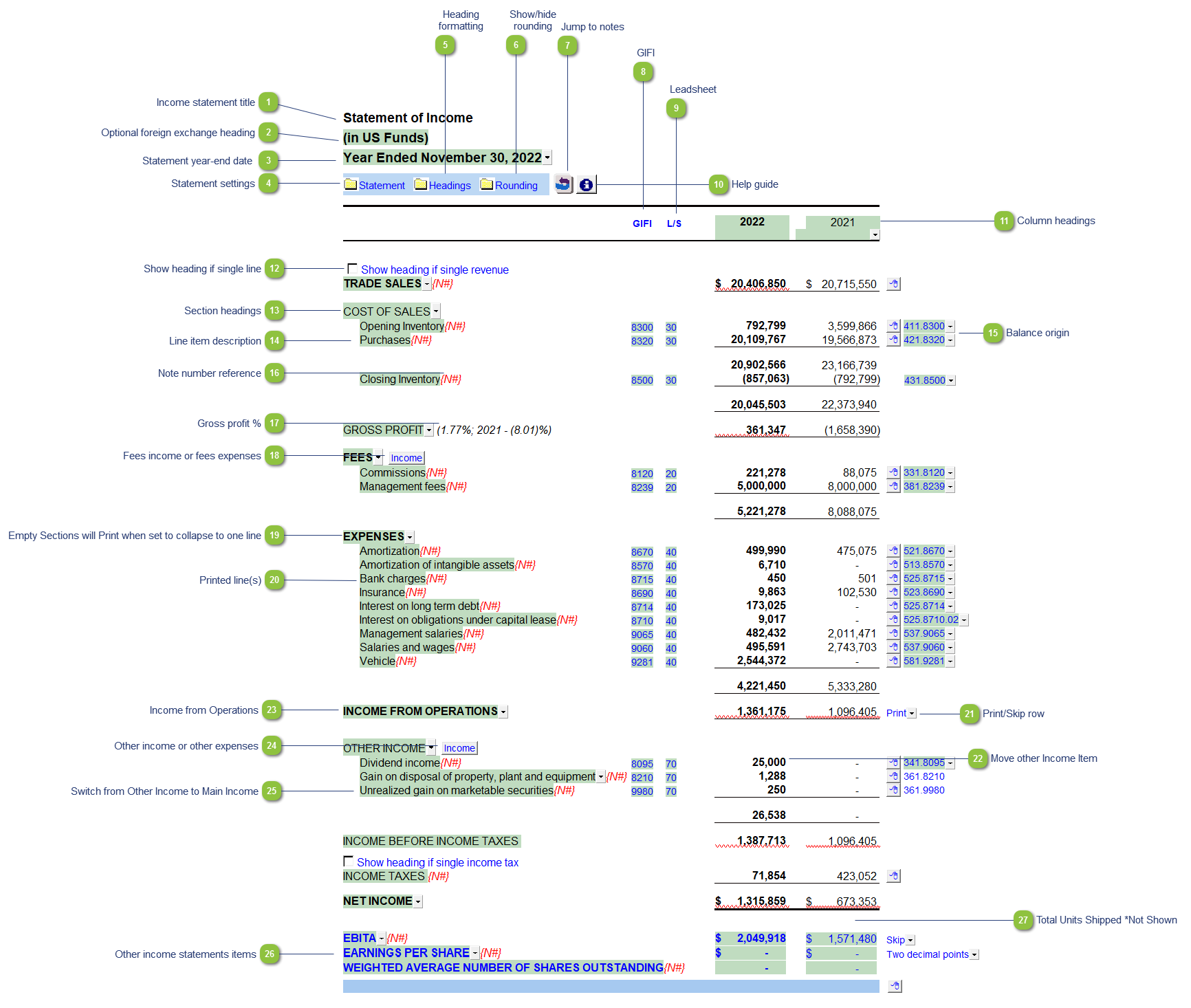
* the above screenshot was taken with the display option set to show Printing lines for illustration purposes. We recommend the default display option is set to Show all lines when drafting the financial statements.
| Number | Name | Description |
|---|---|---|

|
Income statement title |
Use the popup menu to choose an alternative name for the Income Statement. The selection you make will be updated in the Engagement Report, Letters and wherever the Income Statement title appears. The title will change depending on the structure selected under the Client profile section of the Home Menu, i.e. Not for Profit = Statement of Revenues and Expenditures. Additional naming choices can also be found in the Page options section of the Home Menu. You can also override the default description manually if your choice of description is not available. Note: When you choose a prefix for the statements (i.e. consolidated, proforma, etc.) in the Page options section of the Home Menu, this prefix will automatically appear before the Income Statement name. |

|
Optional foreign exchange heading |
The foreign exchange heading pulls from the selections made in Columns section of the Home Menu. Double-click on the cell to jump to the Home Menu. |

|
Statement year-end date |
The statement year-end date is automatically calculated based on the reporting dates set in the Engagement Properties dialog. Use the popup menu to display an alternative date format. |

|
Statement settings |
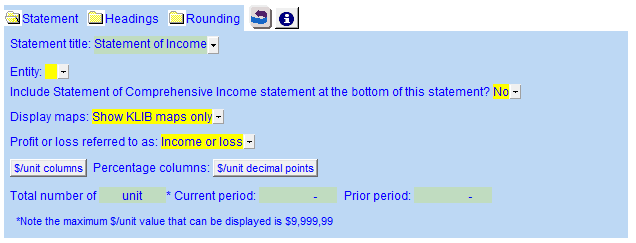
The statement settings provide additional options for the Income Statement.
|

|
Heading formatting |
The headings for the Income Statement can be formatted. Refer to Statement Section Headings Formatting for more information on the options available. |

|
Show/hide rounding |
Click on this button to show/hide the statement Rounding options. |

|
Jump to notes |
Click on this button to jump to the top of the notes to the financial statements. |

|
GIFI |
The GIFI code for each line item is shown. Double-click on the GIFI code to see which accounts are linked to that code. You can set the GIFI column to Display and print, Hide or Display in the Display section of the Home Menu. |

|
Leadsheet |
The leadsheet group for each line item is shown. Double-click on the leadsheet number to see which accounts are linked to that leadsheet. You can set the L/S column to Display and print, Hide or Display in the Display section of the Home Menu. |

|
Help guide |
Click on this button to learn more about the Income Statement settings. |

|
Column headings |
The column headings appear at the top of the Income Statement. The content of the first two rows are generated from the Engagement Properties settings in Working Papers and the Short year section of the Home Menu. The cells can also be manually overridden if necessary. |

|
Show heading if single line |
If a section only shows one line item it will print as a single line (total) by default. Check off the check box to show the section heading.
|

|
Section headings |
Use the popup menu to select an alternative section heading or type in your own description in the input cell. |

|
Line item description |
The line item description is populated from the map number description. Refer to Change a line description for information on the best way to change the description if needed. |

|
Balance origin |
If you would like to know where a balance is coming from, review the link information on the right side of each line. Refer to Balance origin for more information. You can also double-click on the balance origin for newly inserted lines to link to a generic note. |

|
Note number reference |
The note number reference indicates which note is attached to the line item. Click on the note number to jump to the referenced note. A {N#} reference either indicates that the referenced note is turned off or that there is no note assigned. Refer to Changing or adding note number references in the statements to learn more about changing or adding note references. |

|
Gross profit % |
You can set the gross profit percentage to show or hide by right-clicking on the Gross Profile dropdown. |

|
Fees income or fees expenses |
When you switch between income and expense by clicking on the button, you will see the heading for the section change and the balances within that section may appear with brackets or not depending on what you have chosen. |

|
Empty Sections will Print when set to collapse to one line |
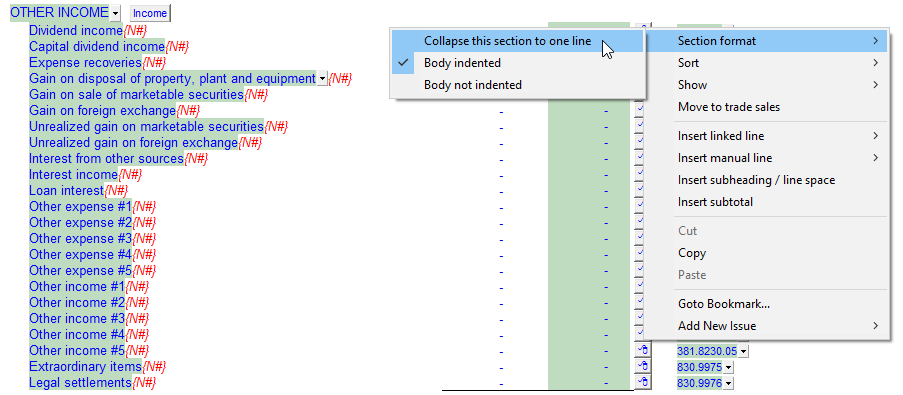
When set to 'Collapse this section to one line' the single heading will print, even if there is no numbers in that section. Other Income Section which is empty is set to collapse
The Other Income prints even when there is no amounts present
|

|
Printed line(s) |
Lines that will be printing as part of the financial statements appear in black. Blue lines will not print. |

|
Print/Skip row |
Use the popup menu to choose to skip or print a line item. |

|
Move other Income Item |
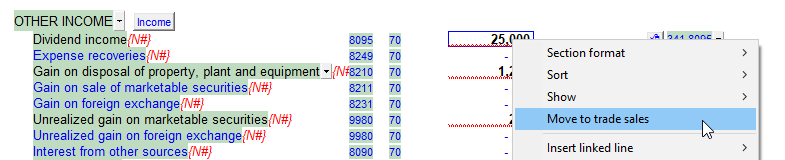
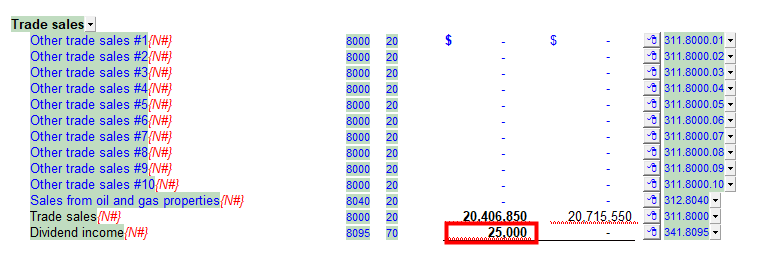
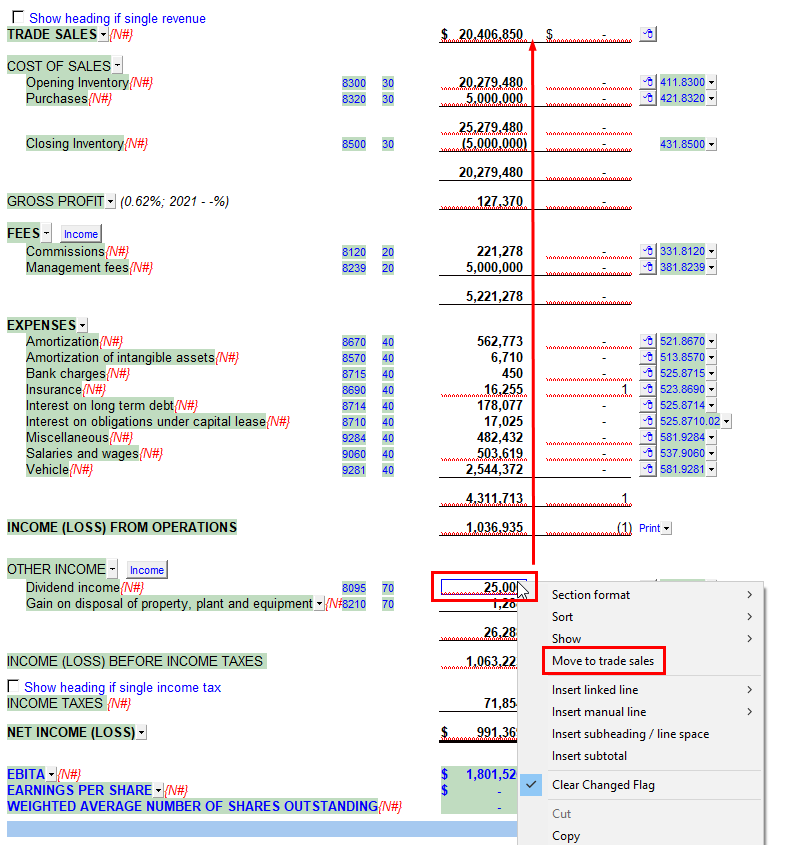
Right-click on the other income amount for the option to move it up to the Trade Sales/Revenue section. This is useful in cases where the 'other' income item is the client's primary source of income and you wish to disclose this in the primary income section proper.
|

|
Income from Operations |
Click for a popup menu for an alternate description.
|

|
Other income or other expenses |
When you switch between Other income and Other expense by clicking on the button, you will see the heading for the section change and the balances within that section may appear with brackets or not depending on what you have chosen. |

|
Switch from Other Income to Main Income |
Right-click on other income line for the option to move the amount to the main revenue section.
|

|
Other income statements items |
|

|
Total Units Shipped *Not Shown |
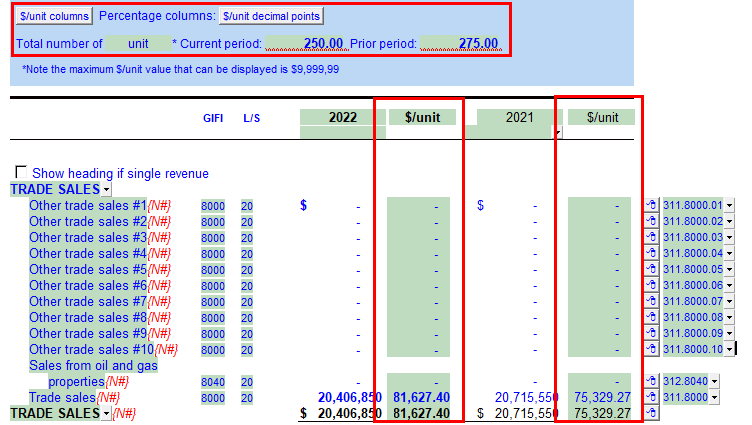
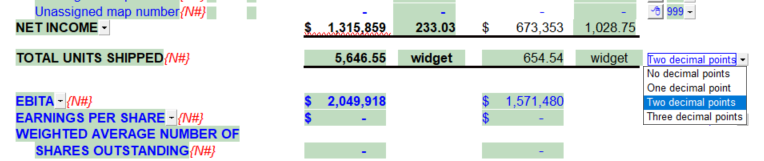
In the Statement set your percentage columns to $/unit columns to have this line show. Decimal points can also be modified here.
|




Also included: