
New in Caseware Cloud Engagements 2026-04
The 2026-04 release includes updates for Caseware Cloud Engagements, Data Link, dynamic tables and Analytics Hub.
Authoring features
Dates follow the engagement content language
Caseware Cloud Engagements now use the engagement content language to format and translate date strings. Previously, date strings followed the language set outside the engagement because the system treated them as Cloud UI content. Date translation now follows the engagement content language, which keeps date rendering consistent across views.
Features
-
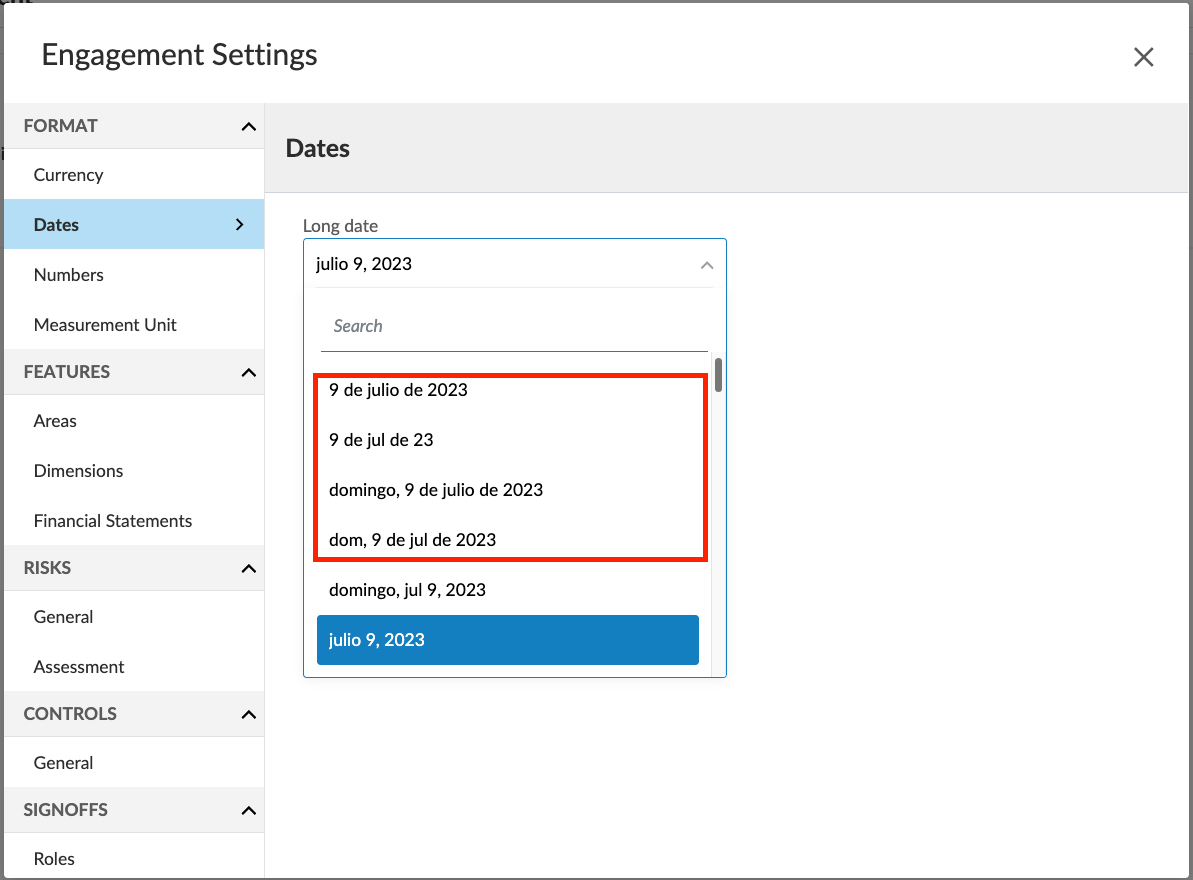
Spanish regional date formats are now available in Product Settings | Dates. This includes short formats and long formats such as 31 de diciembre de 202X and Martes, 4 de Febrero de 2026.
-
Translation is also now supported for Danish, Swedish, Finnish, Norwegian (Nynorsk), Croatian, Hungarian, Italian, Korean, Japanese (Kanji) and Turkish, in addition to English, Spanish, French, Dutch and German.
-
Dates now remain readable across views, even when some month translations are unavailable. If a translation is unavailable, the system falls back to the Cloud language, then to English, so the date still appears.
-
Existing and carried-forward engagements keep their current Long, Medium and Short date settings, so you do not need to reconfigure each file.
To learn more about language settings, see Add or modify languages for an engagement.
Control dynamic table columns with visibility conditions
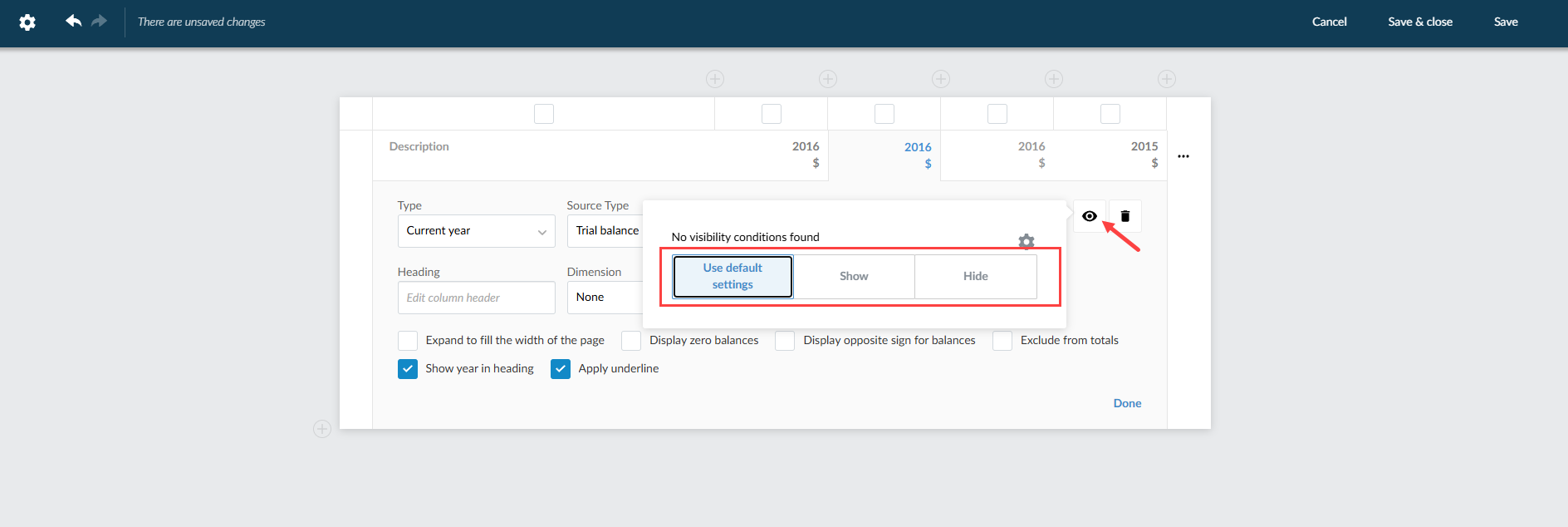
You can now apply visibility conditions to dynamic table columns. This lets you hide or show columns for your users based on standard visibility rules, such as reporting period, language, consolidation or form values, instead of duplicating tables or using workaround layouts.
This update lets you:
-
Keep the existing auto-hide behavior for empty columns.
-
Add a column-level visibility panel that mirrors document-level visibility settings.
-
Retain visibility settings when copying or carrying forward dynamic tables.
For more information about visibility settings for dynamic tables, see Add data in the financial statements tables.
Set granular permissions for limited entities and engagements
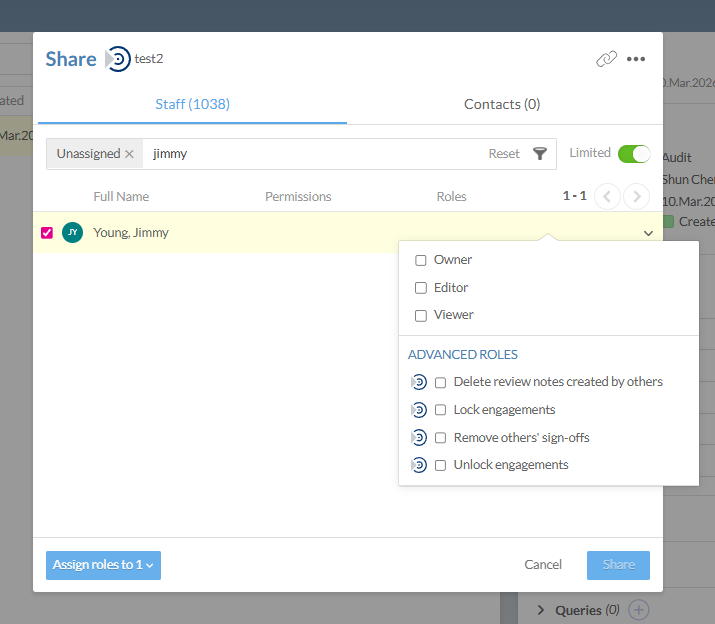
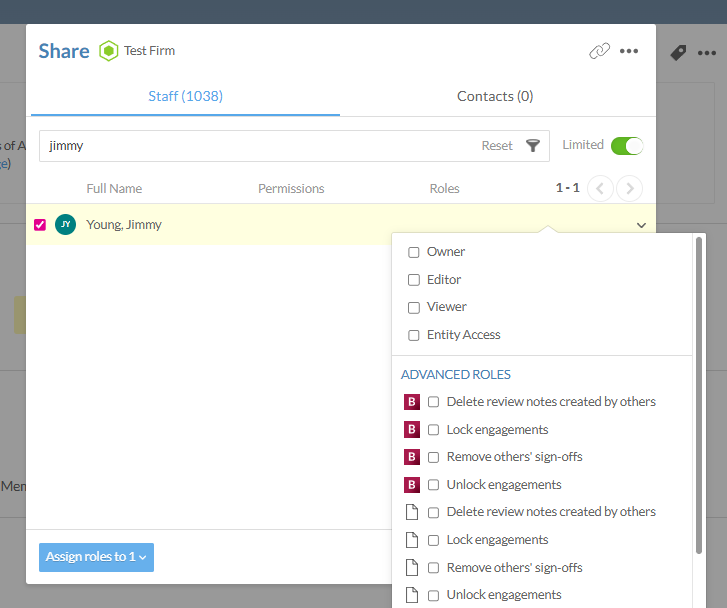
You can now set permissions in Advanced Roles from the Share dialog within entities and engagements designated as Limited. This reduces over-permissioning and improves control over who can view, edit, lock or unlock engagements.
The updated share dialog can be accessed from an entity or engagement designated as Limited.
From the engagement:
From the entity:
To learn more about permissions, see Permissions.
End-user features
Automate document and issue cleanup before engagement lockdown
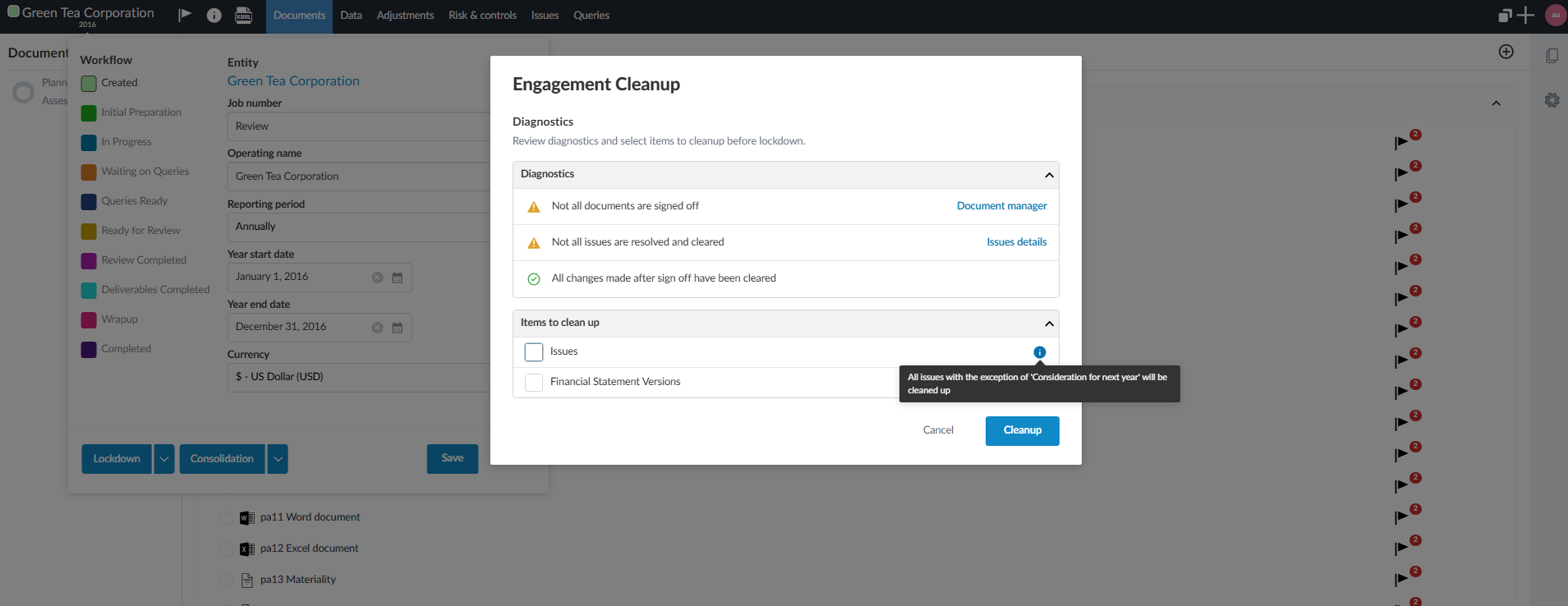
You can now use an automated cleanup process at the end of an engagement to remove unwanted versions of financial statements, such as documents and comments. In addition, you can confirm key signoff conditions are met before lockdown.
The update lets you:
-
Review diagnostics that highlight unsigned documents, unresolved issues, and un‑cleared changes after signoff.
-
Purge unwanted versions of financial statement documents that may be subject to discovery.
-
Retain selected issues that need to be carried forward to the next year while deleting the rest.
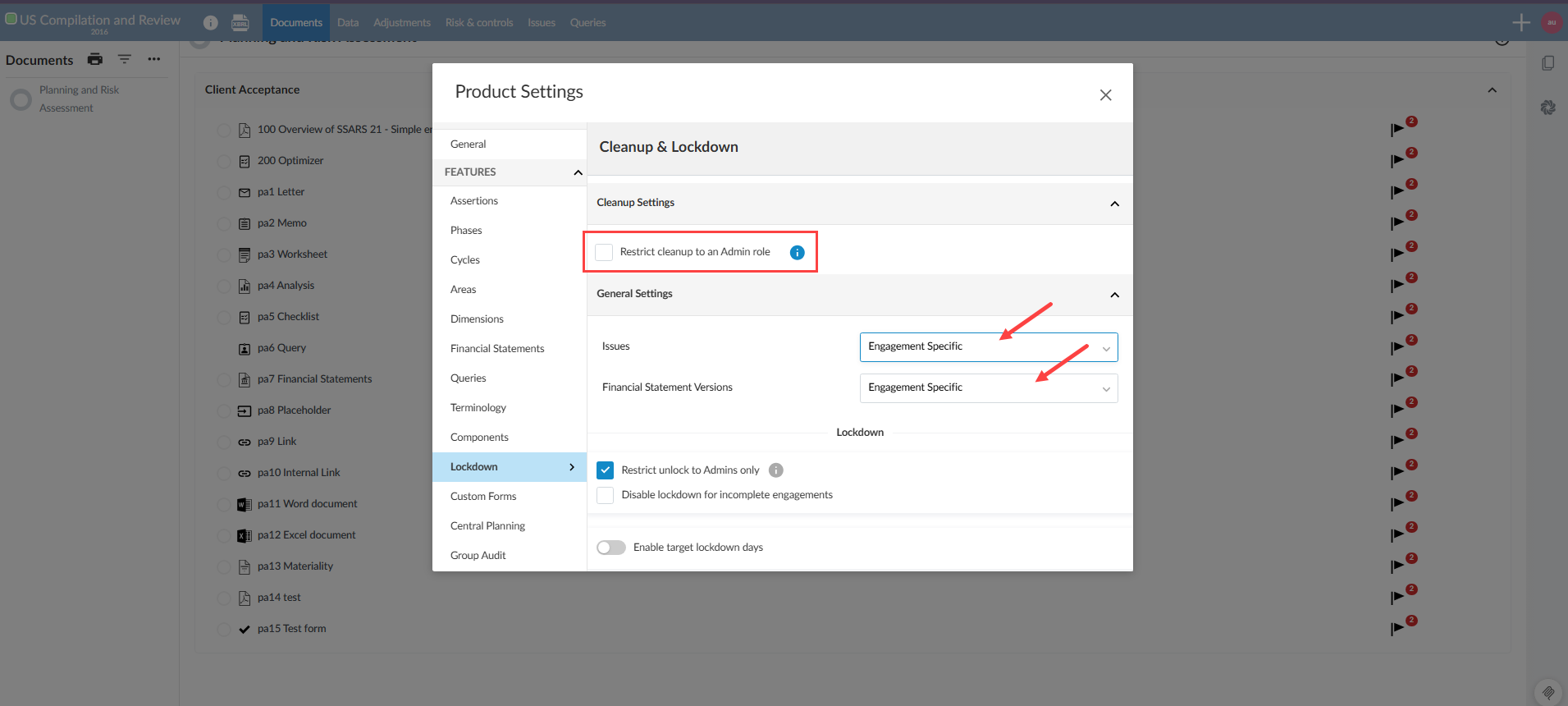
Authors can define cleanup behavior in Product Settings.
This supports document retention policies and reduces the risk that information subject to discovery remains in the engagement file.
From Product Settings:
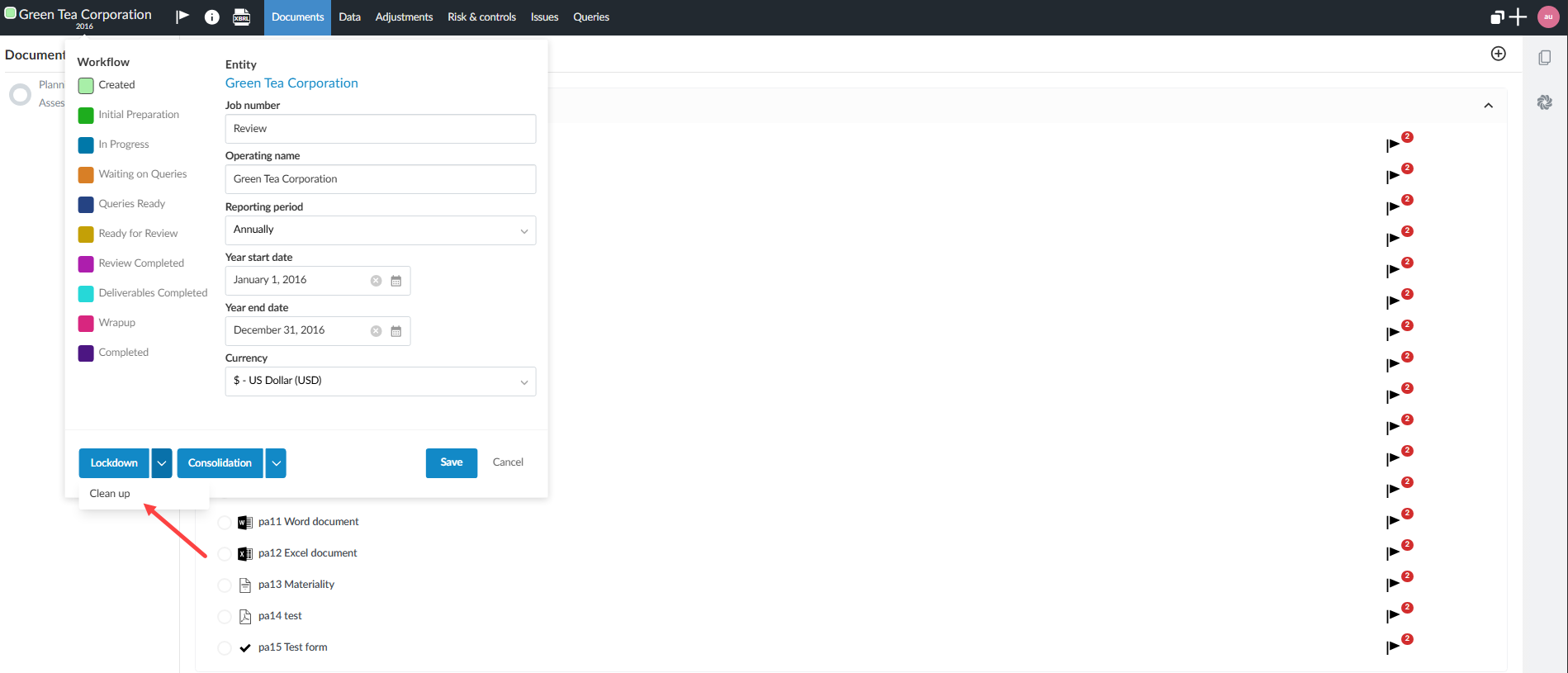
From the engagement:
The engagement cleanup settings:
To learn more about cleaning up the engagement, see Cleanup completed engagements.
Insert month-and-day values without a year in Data Link
You can now insert engagement start and end dates as month-and-day values without a year from Data Link. This reduces manual data entry and simplifies templates that use movement tables or note disclosures that require only the month and day.
These options are available for annual and nonannual reporting periods, including quarterly and monthly periods.
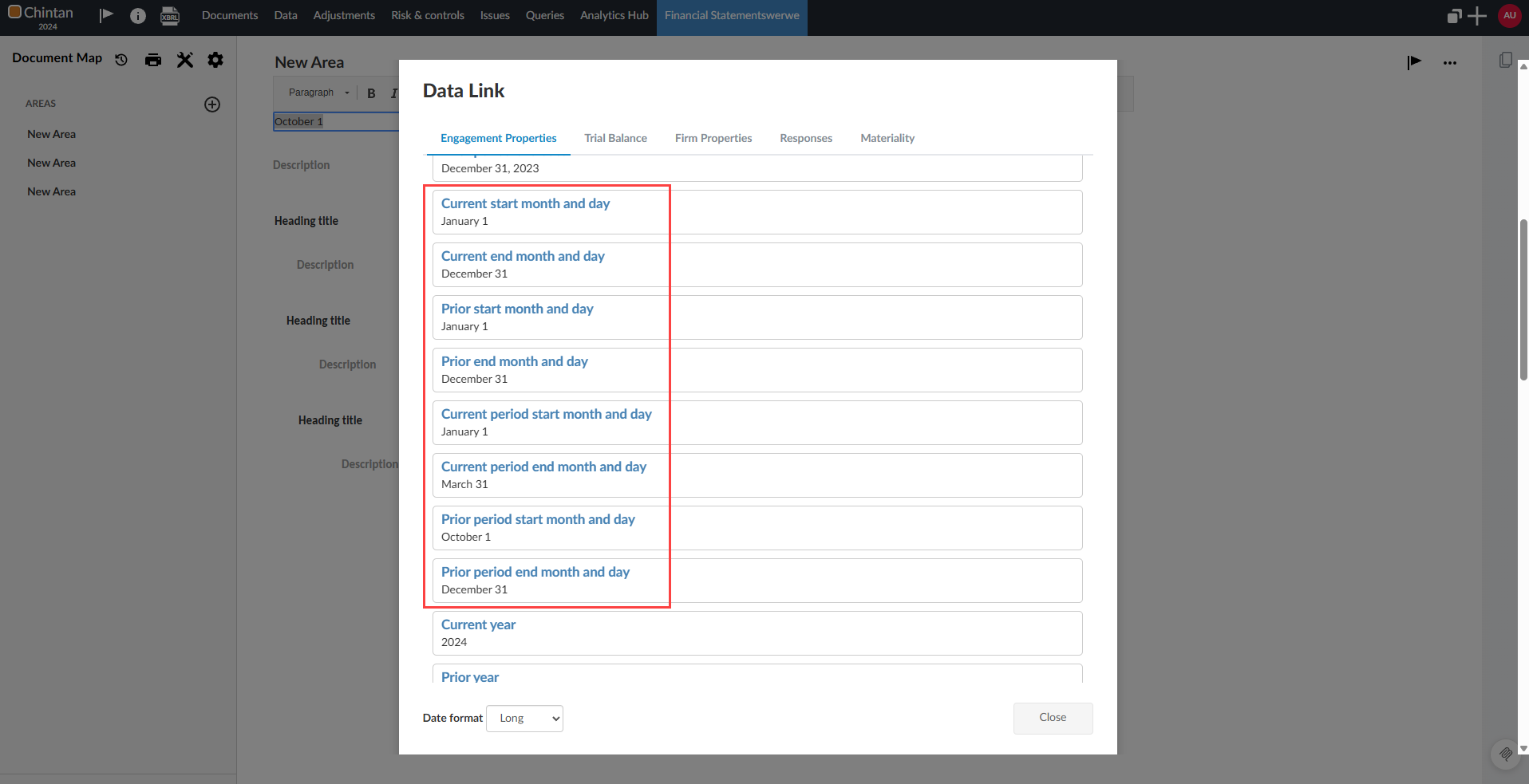
To learn more about Data Link options, see Add or remove data links to financial statements.
Control print settings for notes
You can control print settings for individual notes without changing the rest of the document. The Print Settings can be accessed from a note to set page size, margins and page numbering. These settings carry forward to the next year and appear in bulk print settings during carry forward, like area-level print settings.
This update supports manual note-level print settings only. Automatic page breaks and orientation changes are not included.
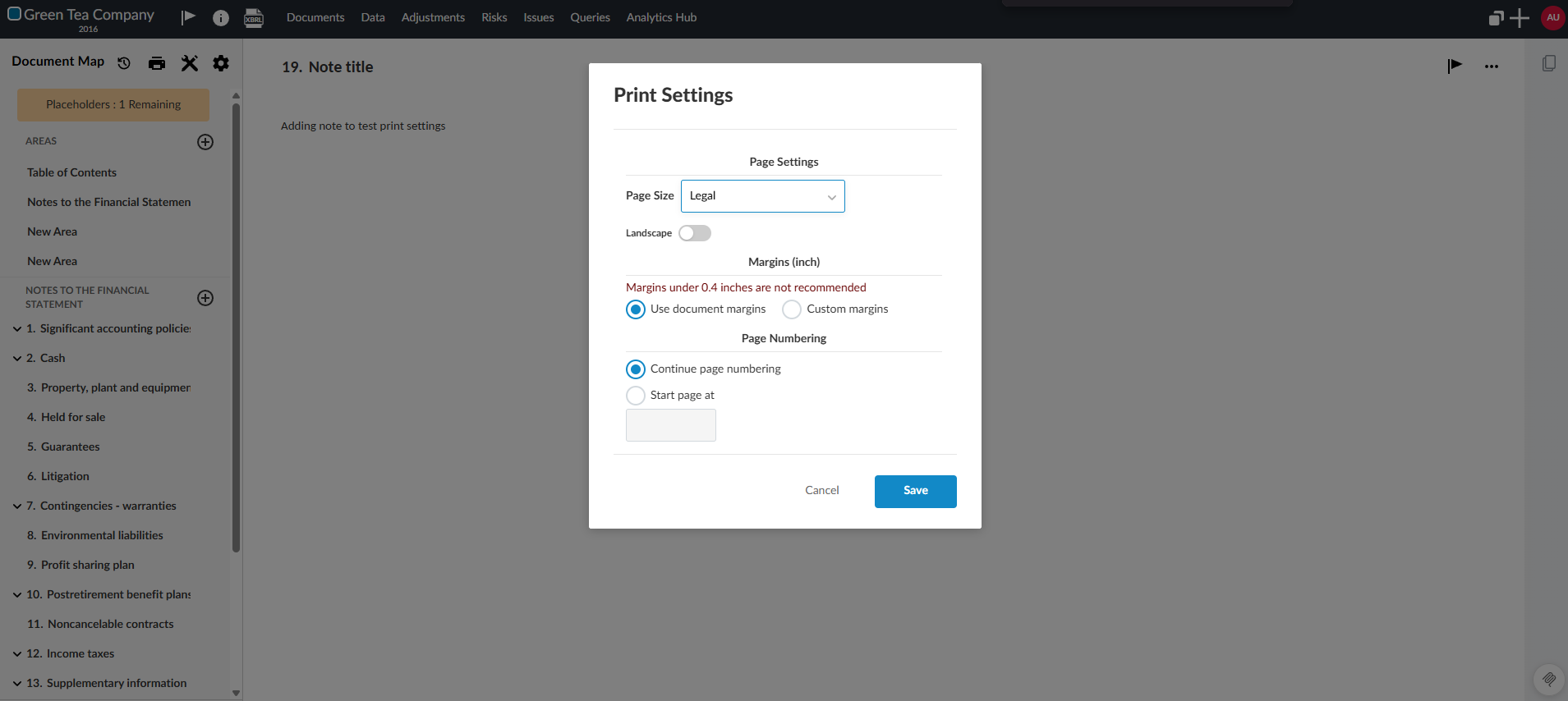
To learn more about notes, see Create a note in the financial statements.
Preserve note and area order when carrying forward financial statements
The order of notes and areas is preserved when you accept carry forward. The system now saves the underlying order field (orderby) so that the structure of notes and areas in the new file matches the structure you used in the prior year. If you choose to dismiss carry forward, the note and area order returns to the template's default order.
This reduces manual reordering after carrying forward and helps you maintain a consistent financial statements structure across periods.
To learn more about carrying forward an engagement, see Carry forward an engagement.
Non-admin unlock setting now persists after admin session ends
The ability for non-admins to unlock an engagement, once set by the admin, no longer expires after the admin's session ends. The Allow unlock for all users setting now persists like a normal firm setting. The tooltip text for lockdown is also updated to match the new behavior.
Previously, this setting was tied to the admin's unlock session. When the admin's unlock session expired, the setting reverted and only admins could unlock the engagement again. Admins needed to repeatedly sign in and re-enable the option, which slowed down work and created extra overhead support.
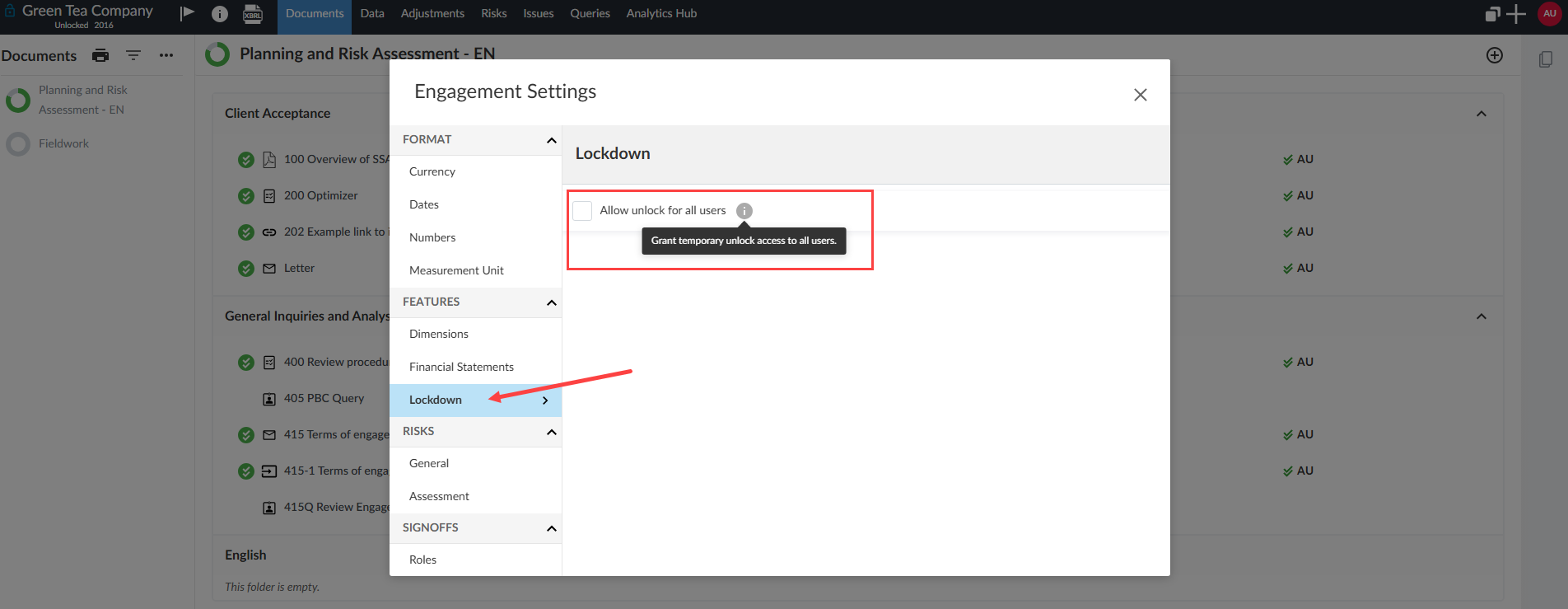
To learn more about locking down an engagement, see Lock down the engagement.
Switch between planning and final balances on the Data page
You can now switch an engagement between planning and final balances directly on the Data page when planning balances are enabled. A two-option mode selector appears at the bottom of the Data page left sidebar. When you change the mode, a confirmation dialog appears and the page refreshes after you confirm.
The control only appears when planning balances are enabled and the current engagement balance mode is planning or final. If your engagement becomes stuck in Planning mode after importing balances or updating accounts, you can use the toggle to set the correct mode without contacting support.
For authors, this feature helps to maintain consistent behavior when planning balances are enabled and simplifies troubleshooting.
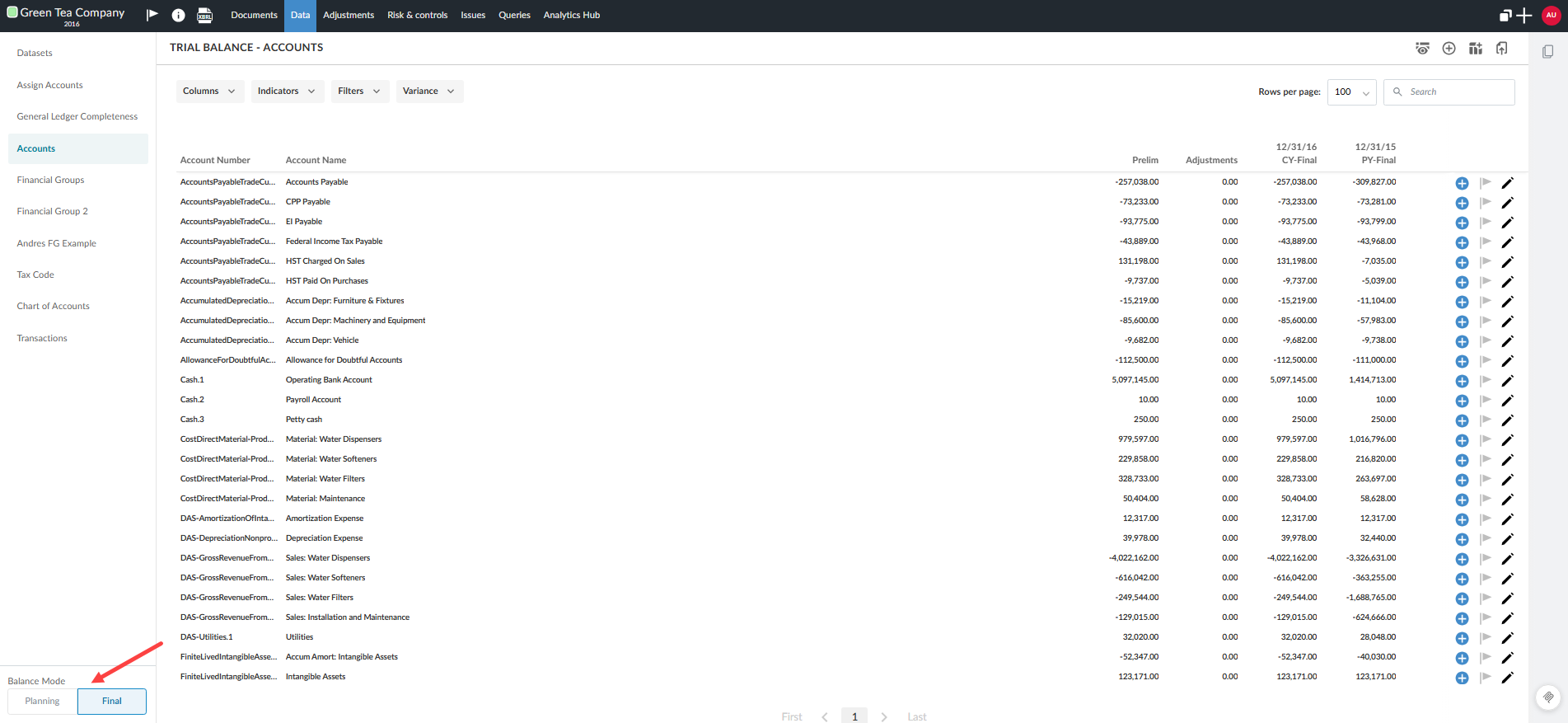
To learn more about viewing the client's trial balance data, see View the client's trial balance data.
Improved browser tab navigation
You can see more detailed page names in browser tabs when viewing pages in Caseware Cloud. This includes when you open documents and areas within an engagement. Previously, each tab began with the operating name and year, which made it hard to distinguish between multiple open tabs from the same engagement. Now, the browser tab title starts with the document number or area name followed by the operating name and year. This reduces the time you spend switching between tabs and lowers the chance that you select the wrong one.
Enable standalone sampling and subledger analytics when JERR is enabled
You can use standalone sampling and subledger analytics when Journal Entry Relevance Ranking (JERR) is enabled. This update keeps all analytics in Analytics Hub. You do not need to switch to a separate tool.
This update lets you:
-
Attach analytics to procedures, including JERR, subledger and sampling analytics.
-
Filter aggregated journal entry results by relevance ranking.
-
Show only analytics that are valid for the selected procedure.
-
Remove outdated analytics when you switch analytics types.
-
Prevent invalid analytics combinations.
Enterprise authors have more flexibility when configuring analytics and keep related analytics available under one product setting.
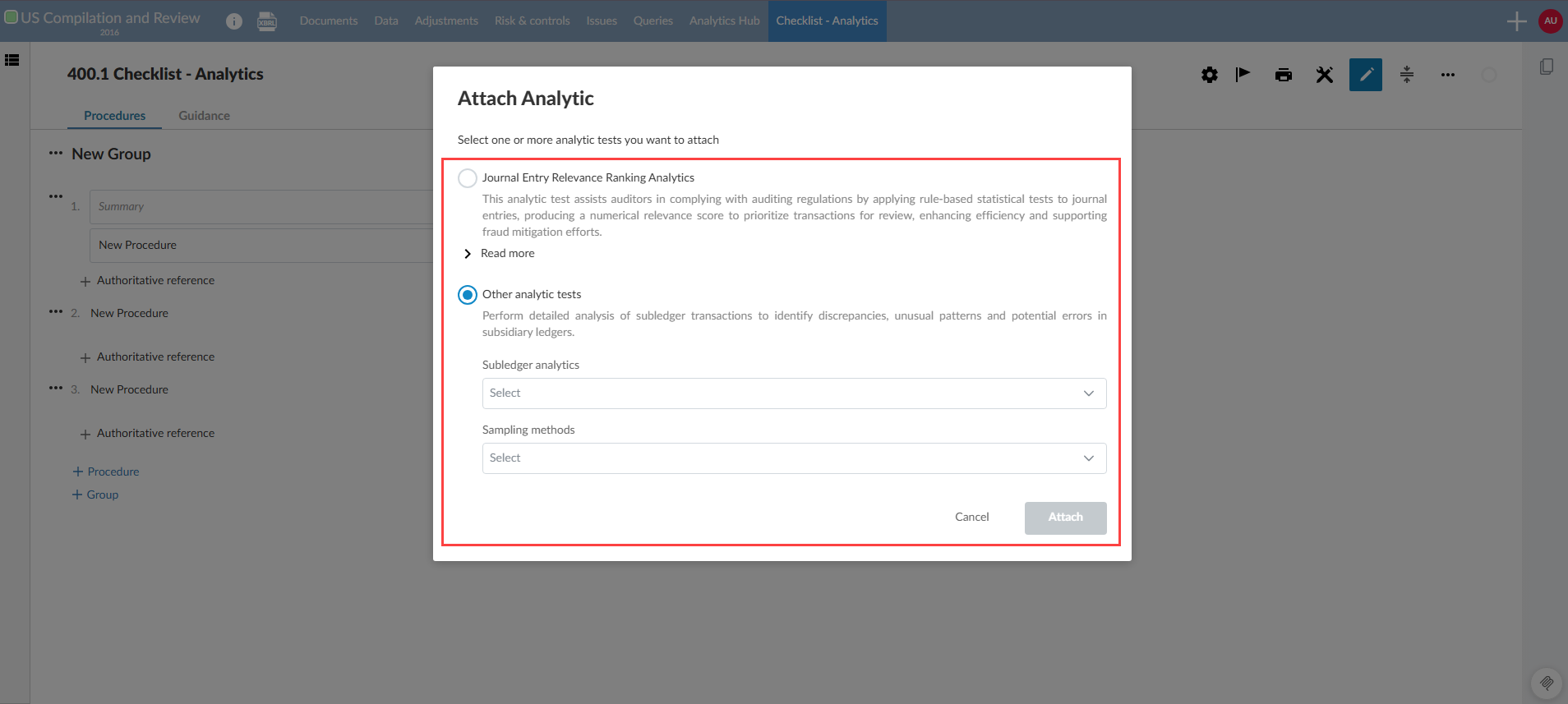
To learn more about Journal Entry Relevance Ranking, see Journal Entry Relevance Ranking.
Improved sampling workflows in Analytics Hub
Sampling workflows in Analytics Hub are now more flexible and consistent across Monetary Unit Sampling (MUS), Attribute Sampling and Random Sampling. These updates make it easier to configure sampling and use the same patterns across methods.
This update lets you:
-
Set Expected Error to zero for low-risk populations.
-
Define MUS error thresholds as an amount or a percentage.
-
Use clearer terminology across sampling methods.
-
Use more consistent formatting in sampling workflows.
To learn more about sampling, see Generate a sample dataset from Analytics Hub.
Extend the sample size for controls testing when unplanned deviations are identified
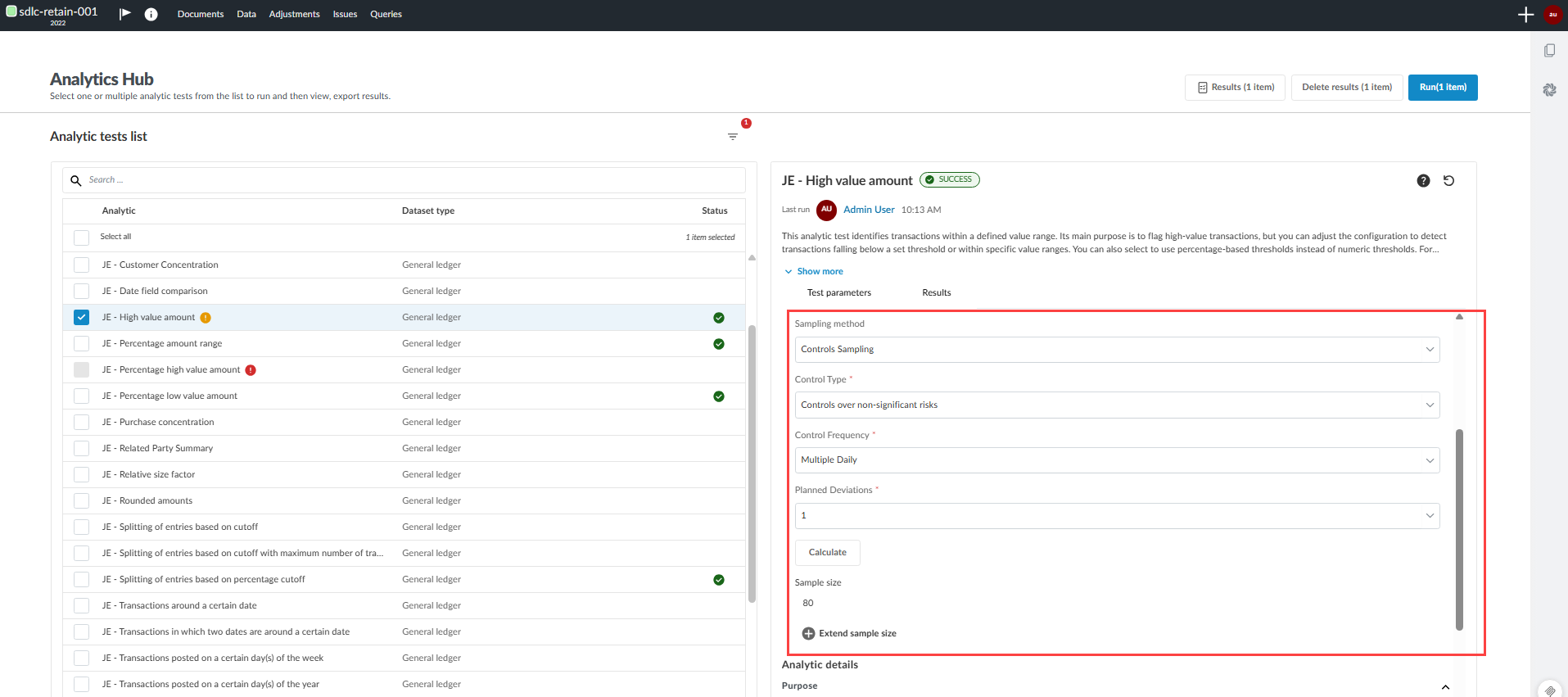
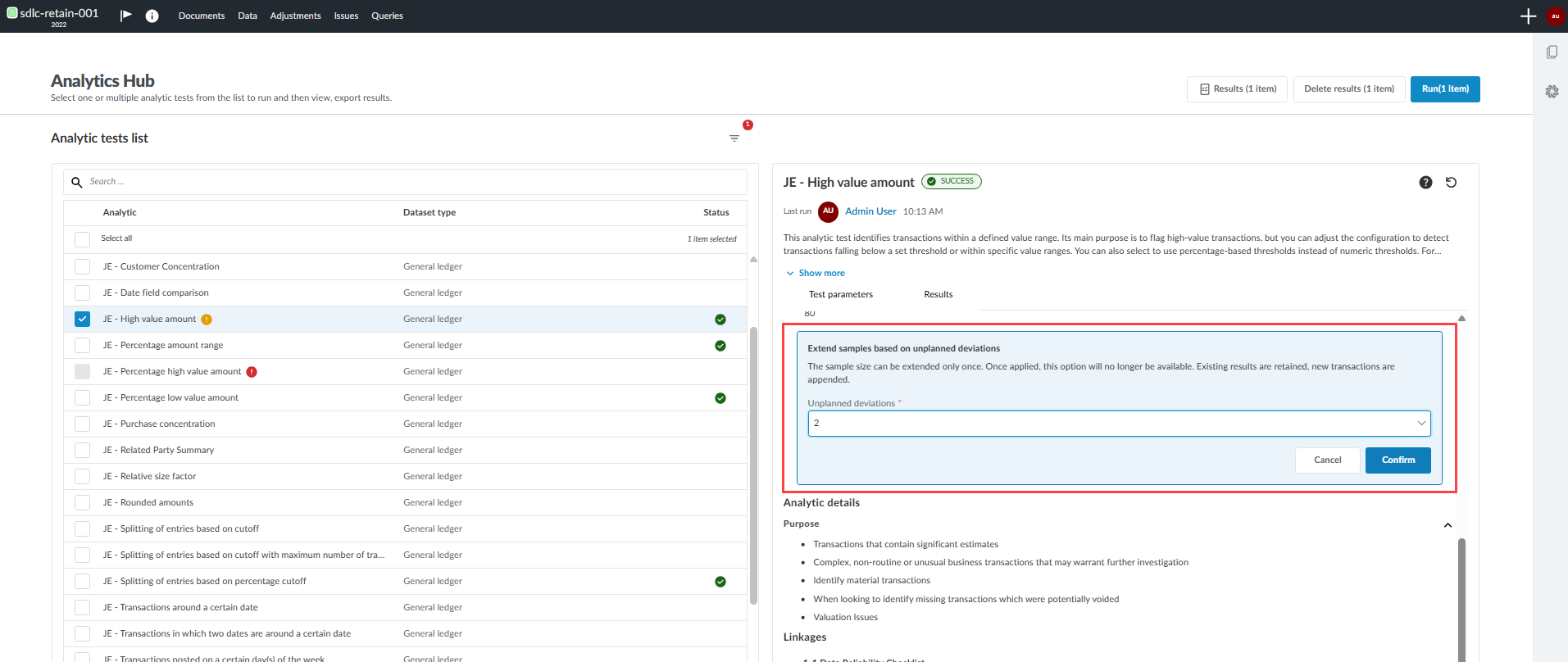
You can add unplanned deviations to an existing sample, extend the sample size, and recalculate the sample without restarting the workflow.
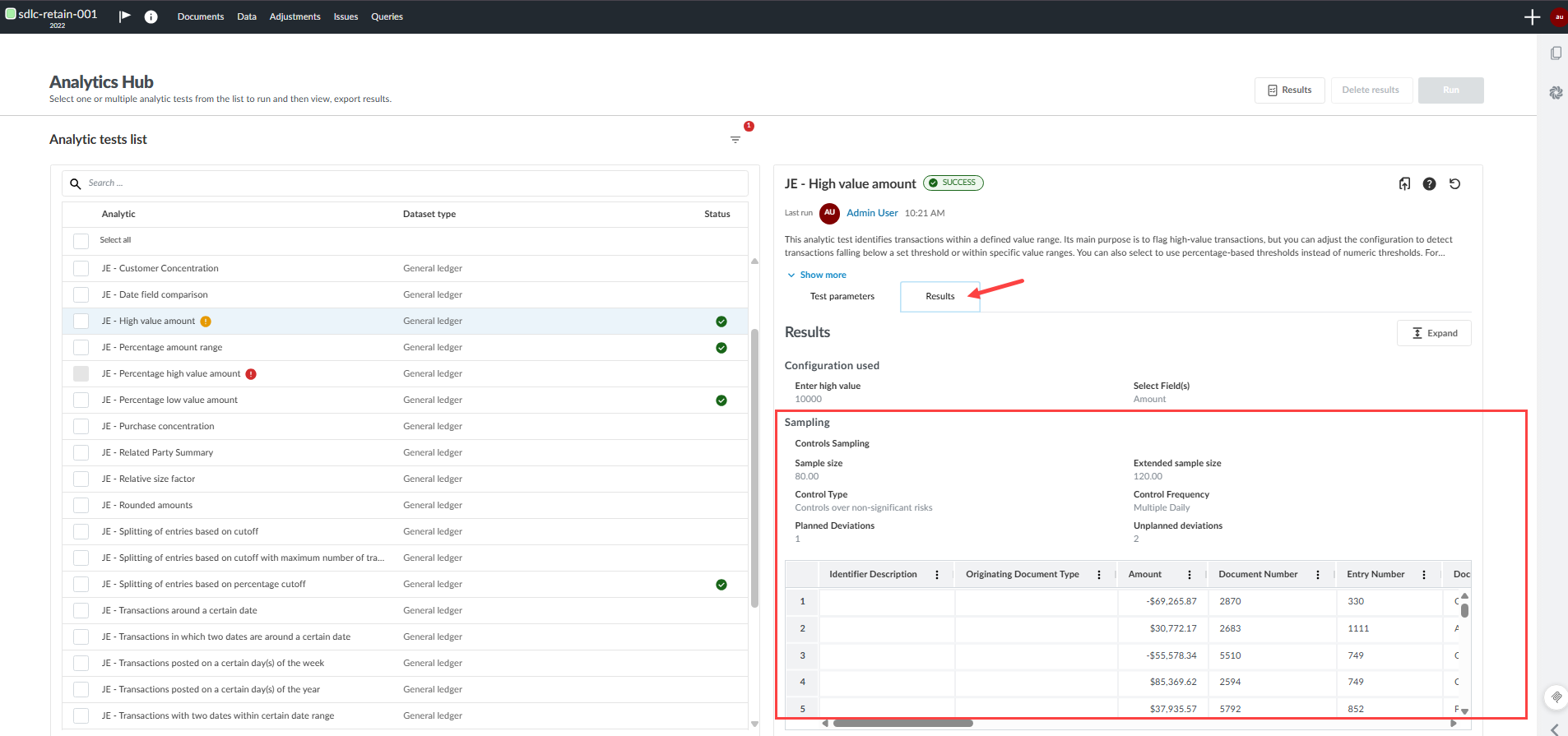
This enhancement supports a more flexible and accurate controls testing workflow, ensuring that your documentation and exports clearly reflect both planned and unplanned deviations.
This update lets you:
-
Keep the original sample and add new items without restarting the workflow.
-
Use the same extension workflow in embedded and standalone analytics.
Known limitations
-
You can extend the sample size once per test.
-
Planned and unplanned deviations combined cannot exceed 2.
-
Changing parameters other than unplanned deviations starts a new sample size calculation instead of extending the existing sample.
The panel to set Controls Sampling test parameters:
To extend the sample size:
The results of the Controls Sampling after extending the sample size:
To learn more about sampling, see Generate a sample dataset from Analytics Hub.
Exported aggregated results show names instead of internal IDs
User and procedure fields now show readable names instead of internal IDs when you export aggregated results. This makes exported results easier to review and reduces manual lookups. It also makes it easier to see who ran a procedure and how checklists and procedures are linked.
Examples of such fields are:
-
Run by
-
Procedure linkage
-
Checklist linkages
This feature helps you:
-
Share exported results with stakeholders who do not have access to Caseware but need to understand who ran procedures and how items are linked.
-
Use exports in external reporting or analytics tools without extra transformation to replace internal IDs with readable names.

To learn more about aggregated results in data analytics, see View and manage aggregated analytic test results.
Add and update metadata fields in the analytic result export
This update improves the metadata field names in exported analytic results.
When you export an analytic result, the metadata now includes the date of the most recent analytic run, labeled Last run.
The following fields have been renamed:
-
Run By → Last run by
-
Date Generated → Export date
-
Total number of line items in the dataset → Total line items in the dataset
-
Total number of line items in the population → Total line items in the population
This update helps you:
-
Verify how recent exported analytic data is.
-
See who ran the last analytic and when the export was generated.
-
Identify data metrics more easily with updated labels.
To learn more, see Manage analytic tests in Analytics Hub.
Add filtering metadata to the analytic result export
Exported analytic results now include details about the filters applied to an analytic test. This helps you review, explain, and decide whether you need to run the test again.
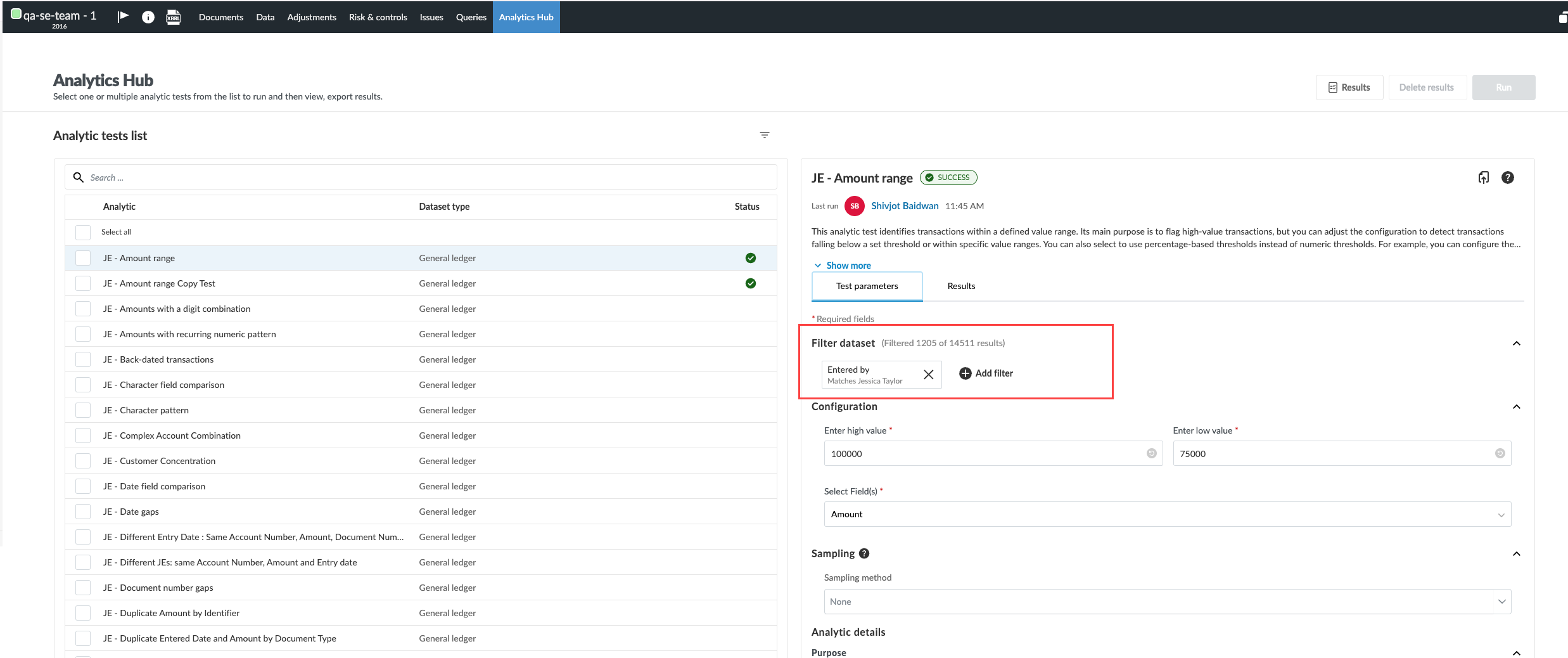
The exported results:
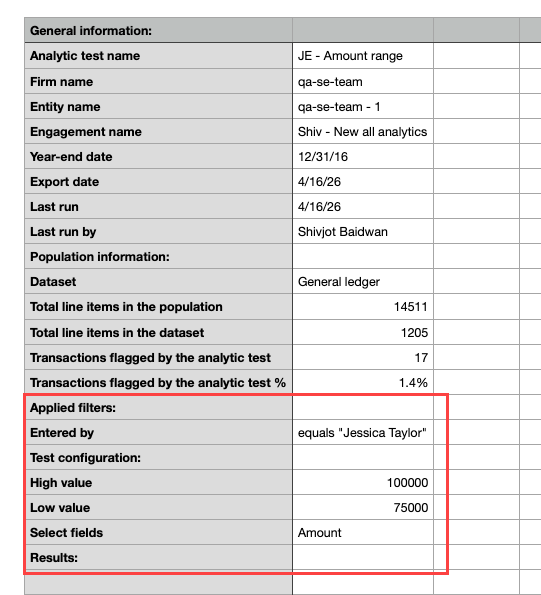
To learn more about data analytic testing, see Manage analytic tests in the Analytics Hub.
View flagged line item counts and percentages in results and exports
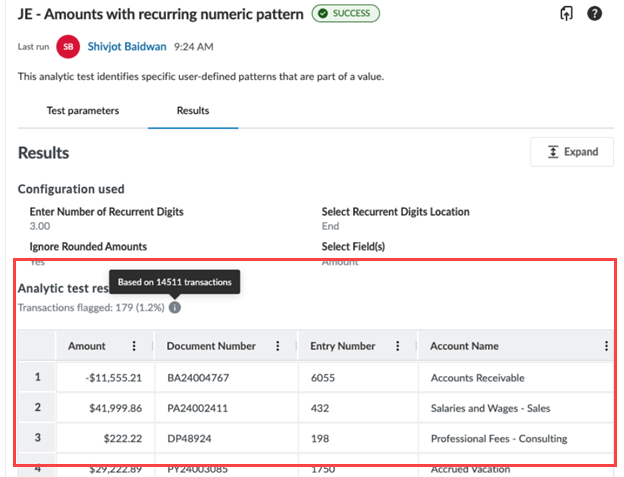
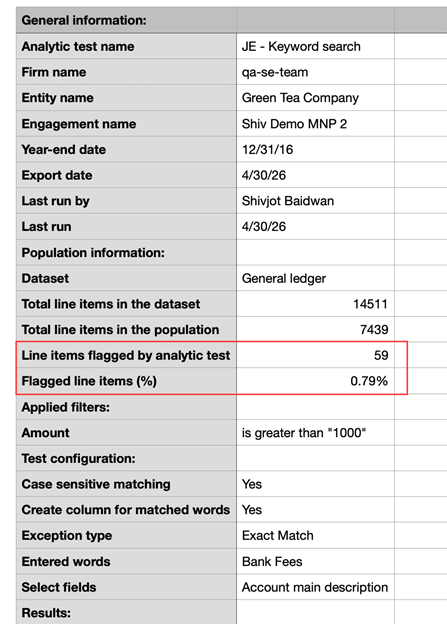
The number of flagged line items and the percentage of flagged line items are now included in the Results tab and the metadata section of the export results. This data includes:
-
The number of line items flagged by the analytic test
-
The percentage of flagged line items
This data helps you assess the size of the population and how significant the flagged items are without additional calculations.
From the Results tab:
From the export results:
To learn more, see Manage analytic tests in the Analytics Hub.
Fixes
A brief description of bug fixes resolved in Cloud Engagements 2026-04:
-
When you export the Accounts page from the Data tab, unexpected line breaks are added to the CSV files when account names contain slashes.
-
Prior-year balances are labelled as "Final" instead of "Consolidated" in the group consolidated view, and in the selected entity view they still include eliminating adjustments.
-
In Central Planning destination-synced checklists, the roll forward user interface is still visible when it should be hidden.
-
Unnecessary scrollbars are appearing under radio button groups.
-
In consolidated and group audit engagements, the materiality form uses final balances instead of consolidated balances for the overall materiality basis rows and related "materiality for circumstance" selectors.
-
Downloading a reference copy fails when the engagement entity name contains Japanese or other non-Latin characters.
-
Analytic exports show the wrong firm/entity/engagement details in the CSV metadata.
-
Aggregated Results mislabel duplicated analytics and block exports when duplicate analytic names exist.