Run an analytic test in a Group Audit consolidation
In a Group Audit engagement, you can run analytic tests on data from individual component entities (internal consolidations) and view the combined results in Analytics Hub at the parent entity level. This streamlines your workflow by allowing you to review and compare analytic data across all entities in one place, without switching between components.
Note: Analytics Hub is only available for internal consolidation within a Group Audit engagement. It is not available for standard internal consolidation engagements. For more information on setting up a Group Audit, see Group audit workflow.
Open the Group Hierarchy
-
In the engagement, select the company name to open the Workflow panel.
-
Select Group audit.
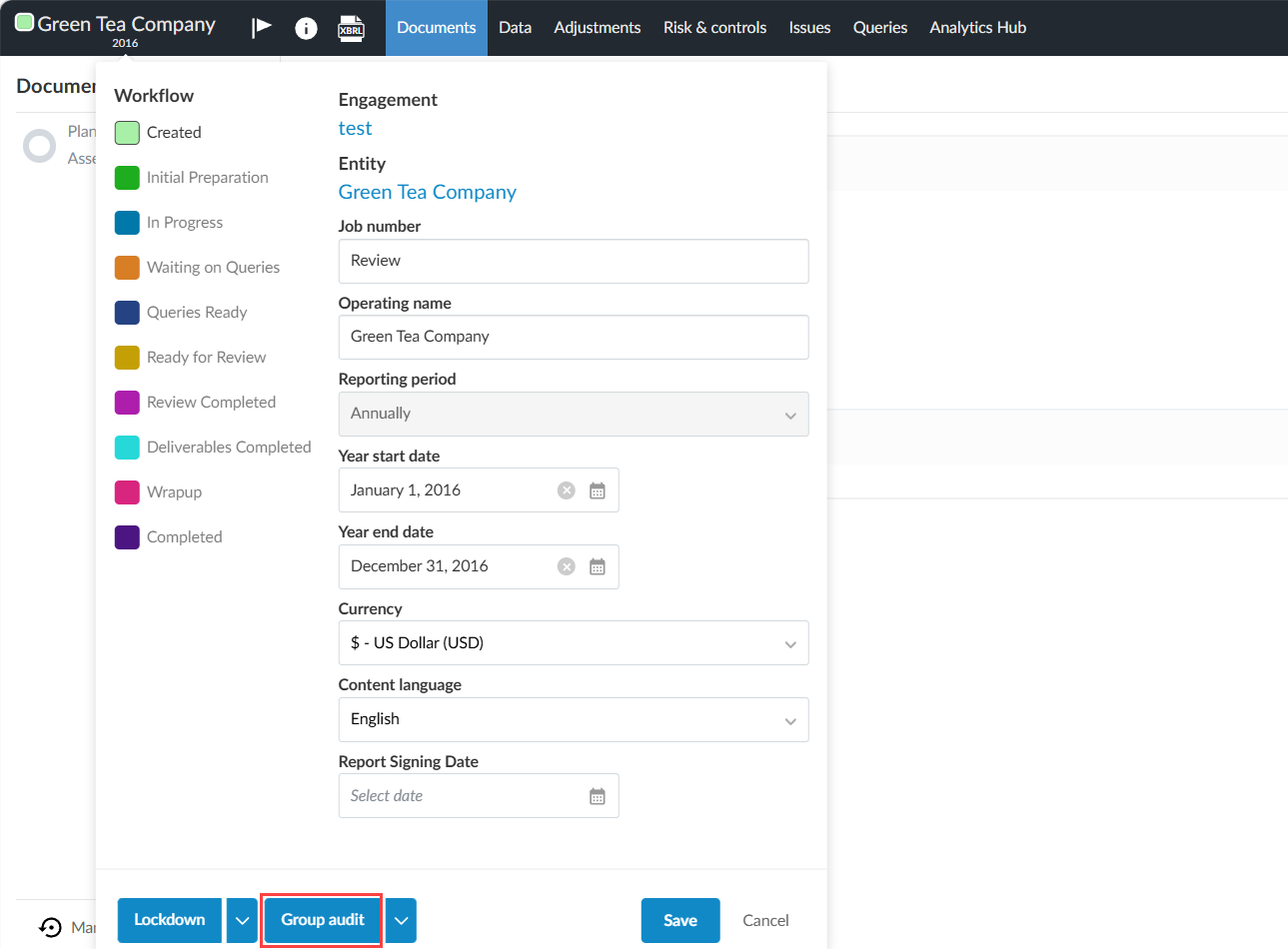
If the Group audit button is not displayed under the Workflow panel, select the dropdown arrow and the Group audit option will appear.
The Group Hierarchy page opens.
Create a component
-
In the Group Hierarchy page, select the More options icon (
 ) | Add component.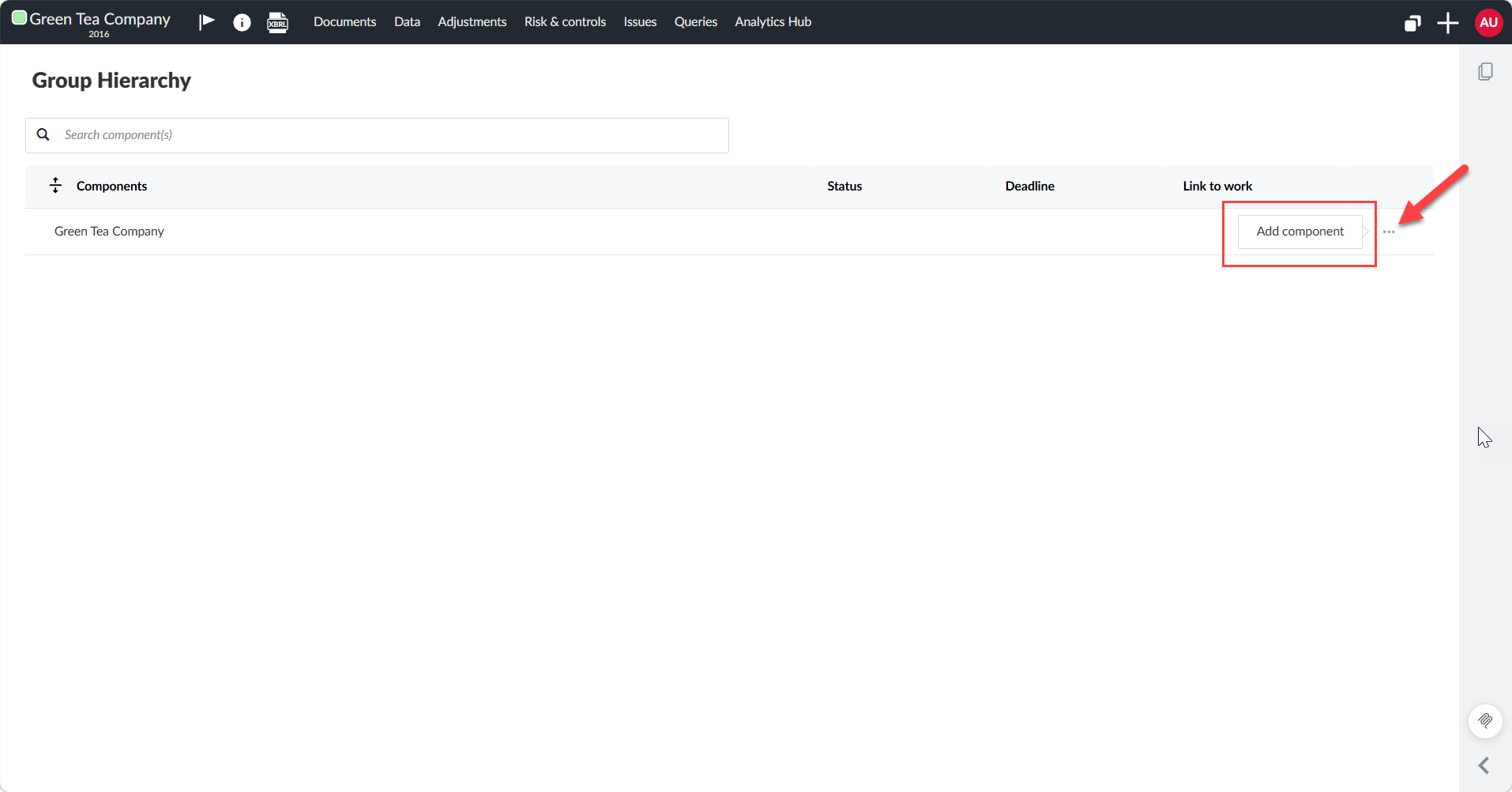
-
Enter a name for the first component in the Component name field. Select Add.
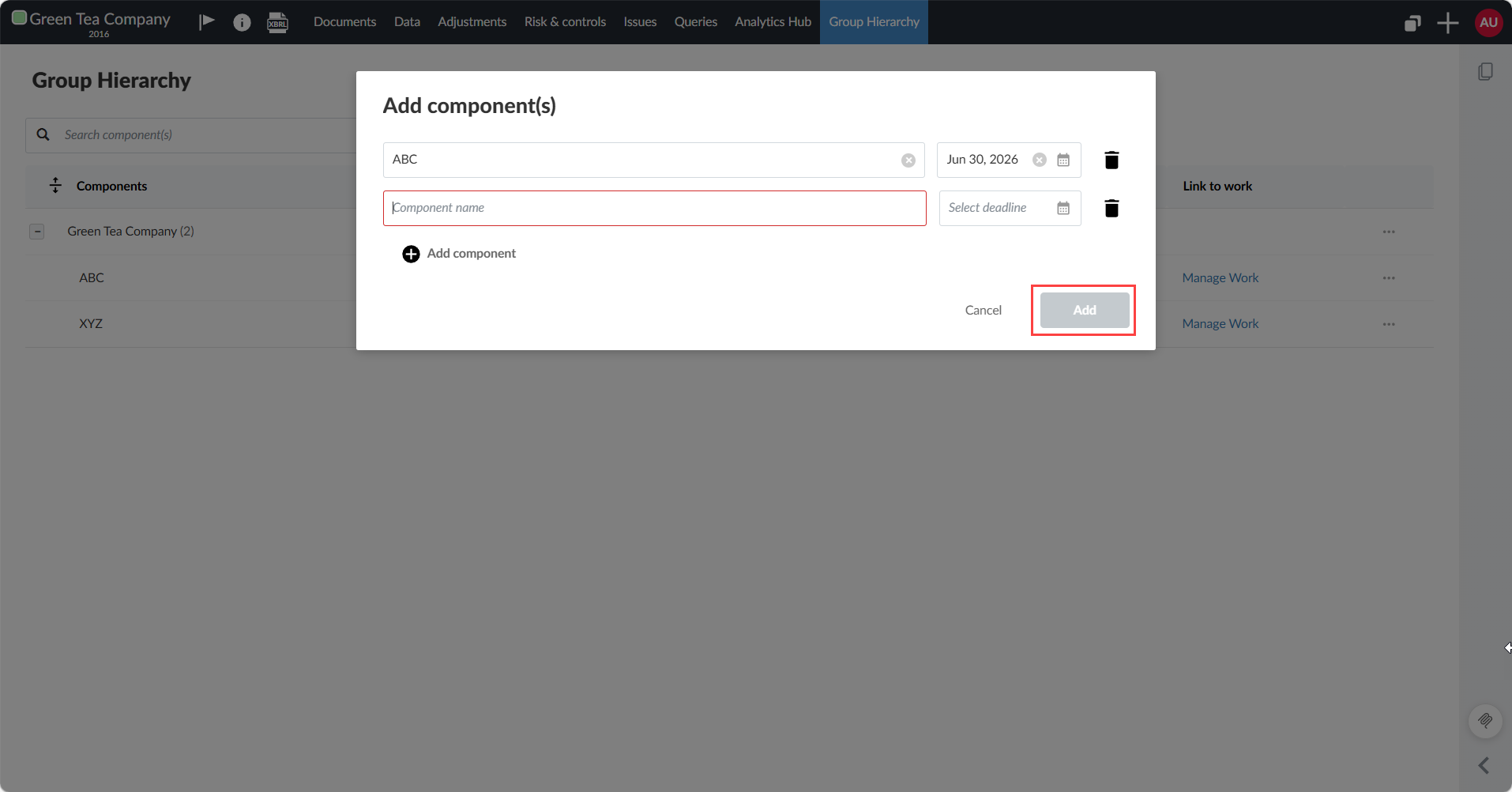
To add more components, select + Add component and enter additional component names.
The component(s) added appear under the Group Hierarchy tab with an Unassigned status.
Assign work to a component
You can assign work links to a checklist from the parent engagement to a component.
-
Select Manage Work next to the component you want to assign work to.
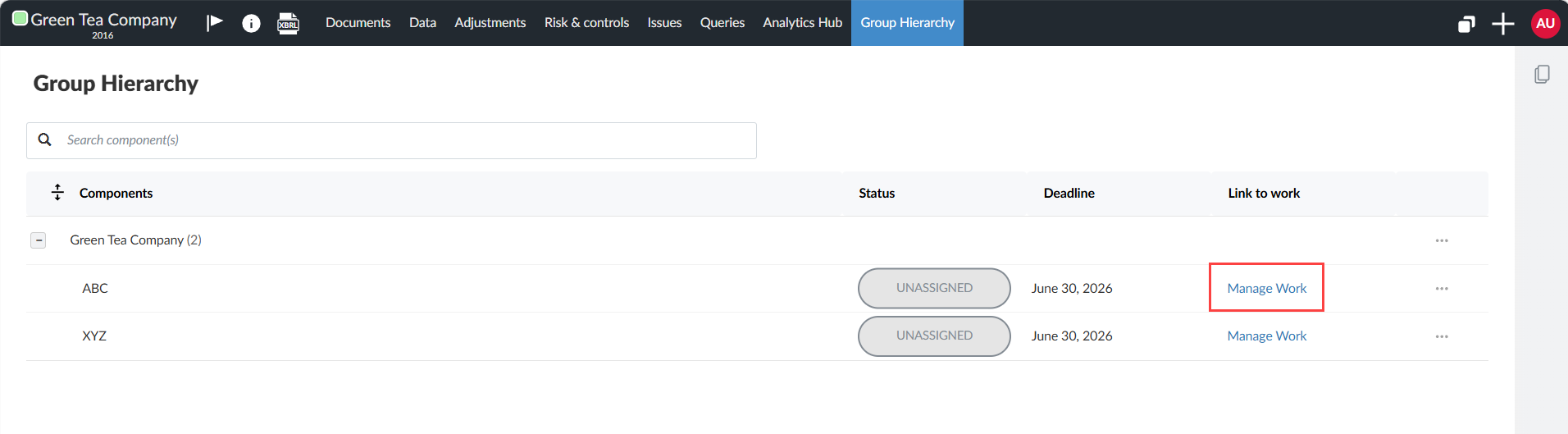
-
Select Assign Work.
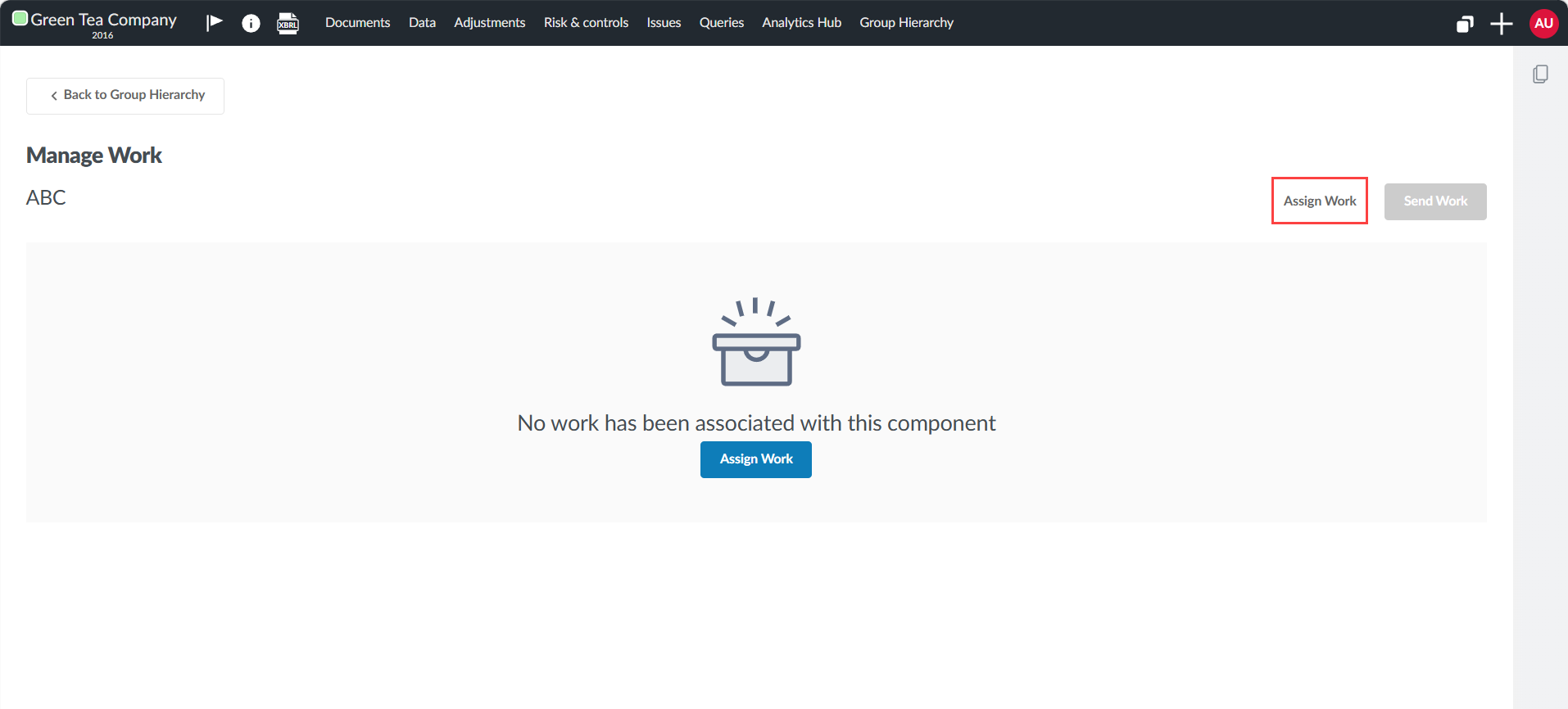
The Assign Work dialog opens.
-
Select the checklist you want to assign work to.
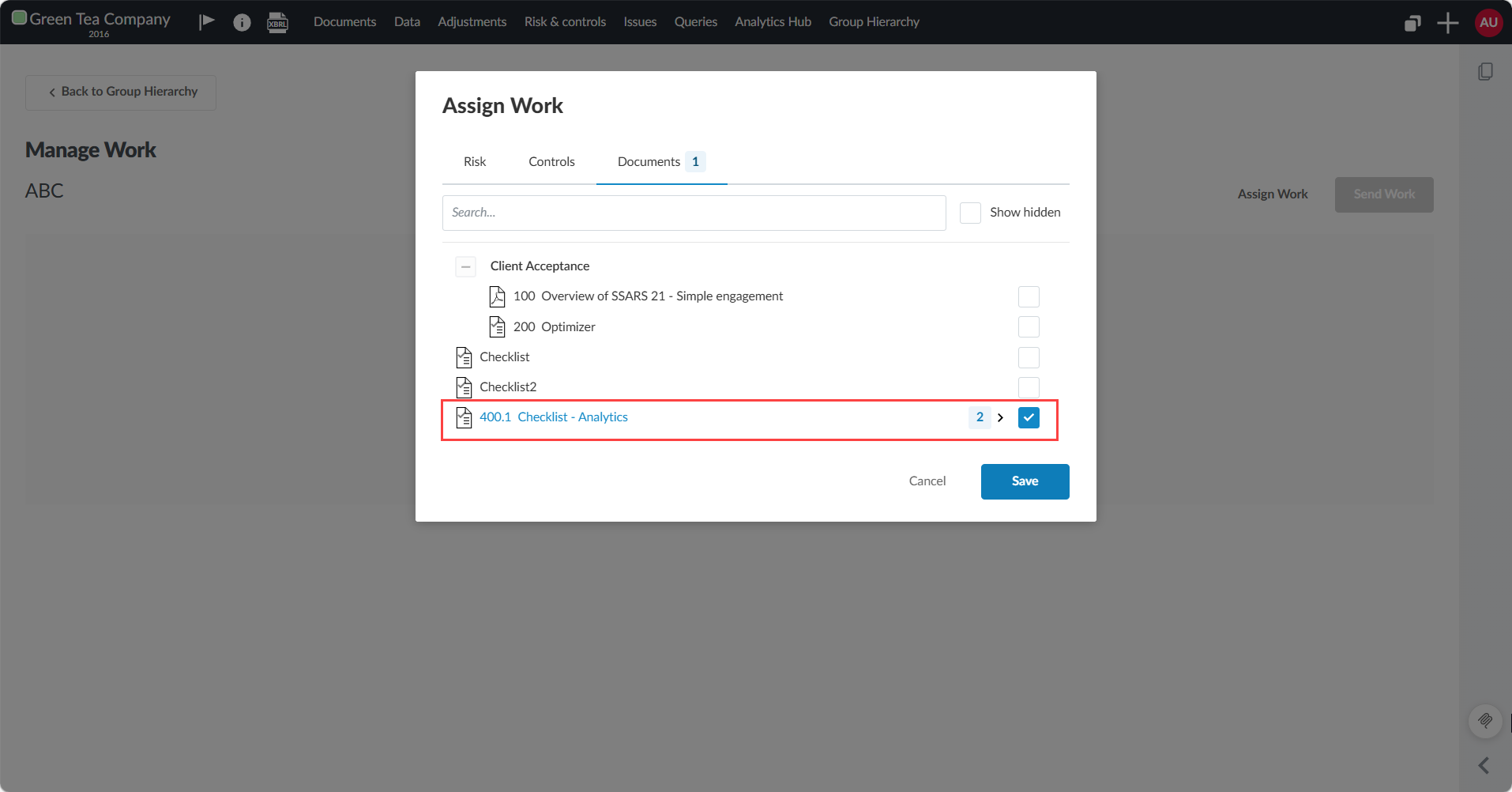
You can click the arrow next to the checklist to expand it and select specific procedures. Select all procedures or just the ones relevant to the component.
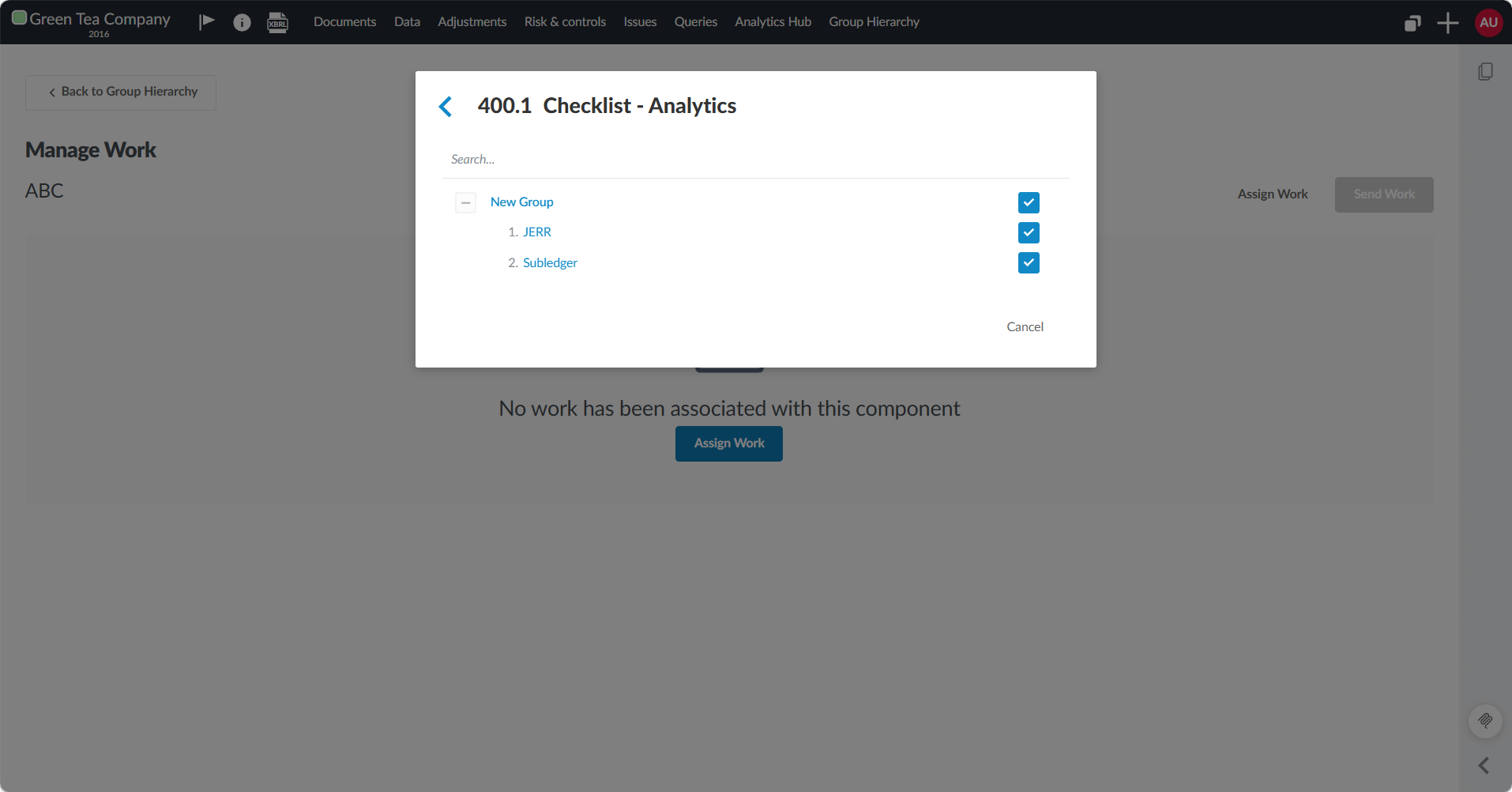
-
Once your procedures are selected, use the arrow to go back to the Assign Work page and select Save. The checklist appears in the Manage Work screen with an Assigned status.
Note: The checklist is copied in its current state at the time you send work.
Send work to the component
-
To send work to the component, select Send Work.
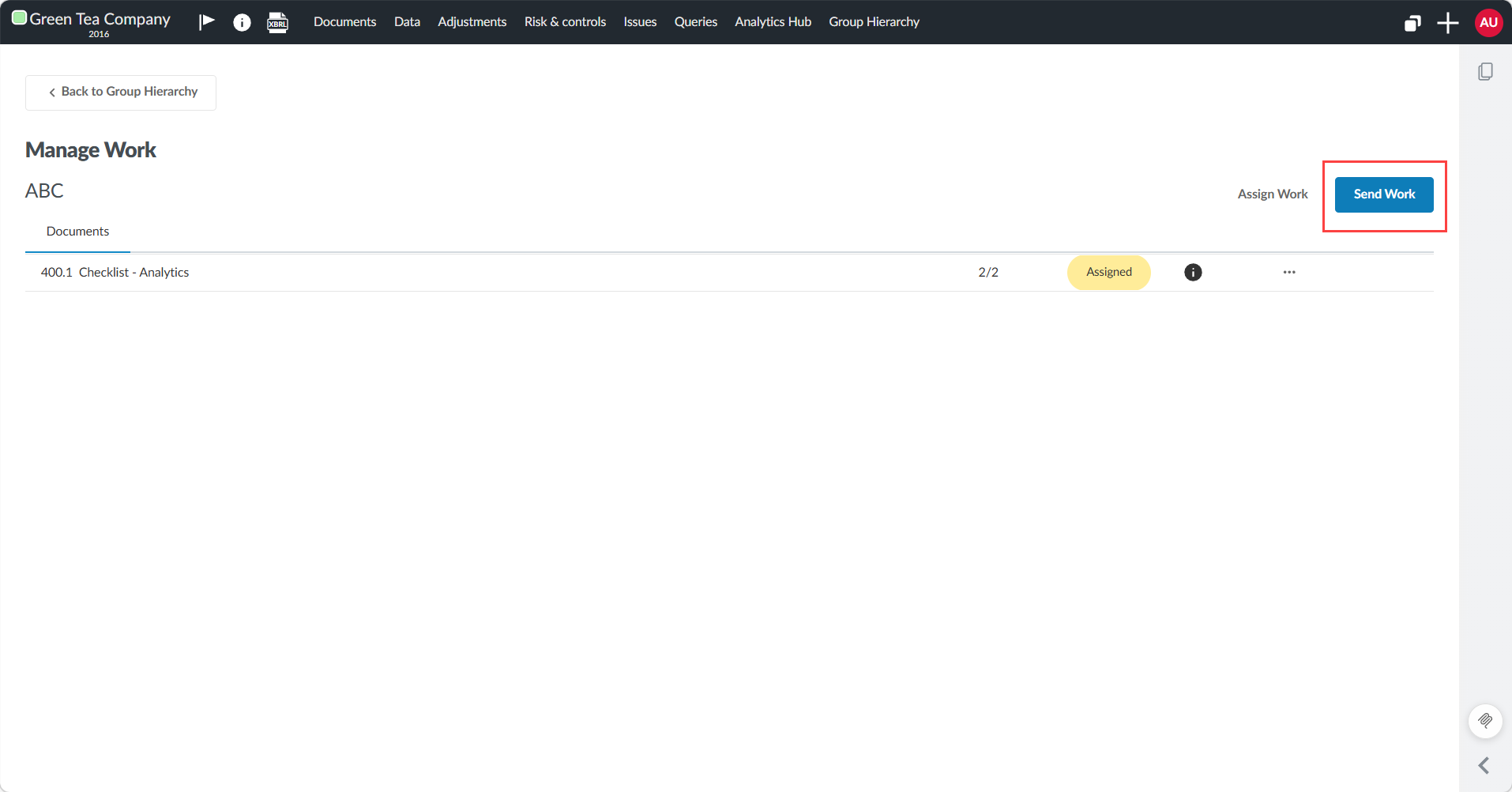
The checklist status changes to Sent.
-
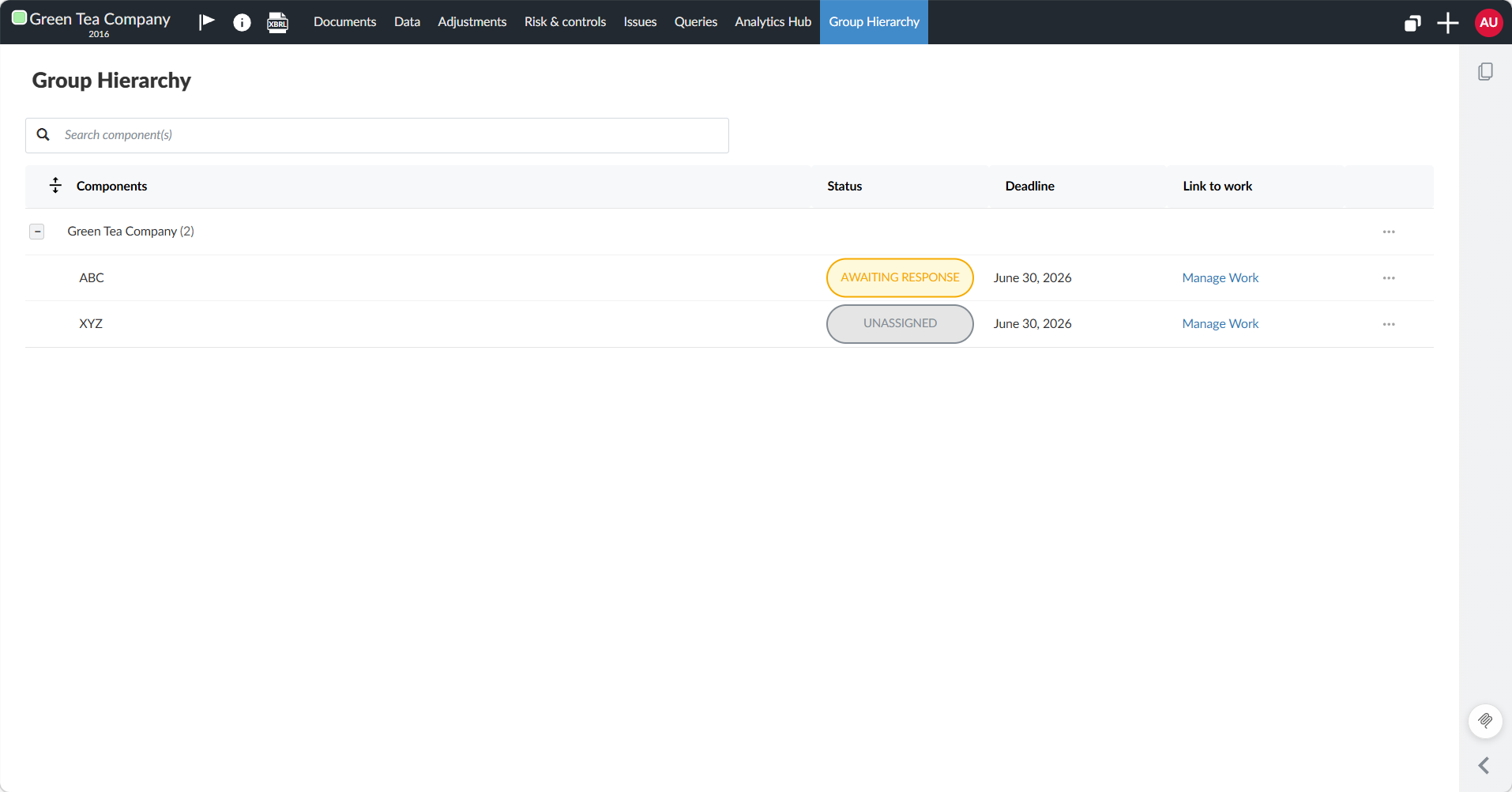
Select Back to Group Hierarchy to go back to other components. Here you can send work for the remaining components if required.
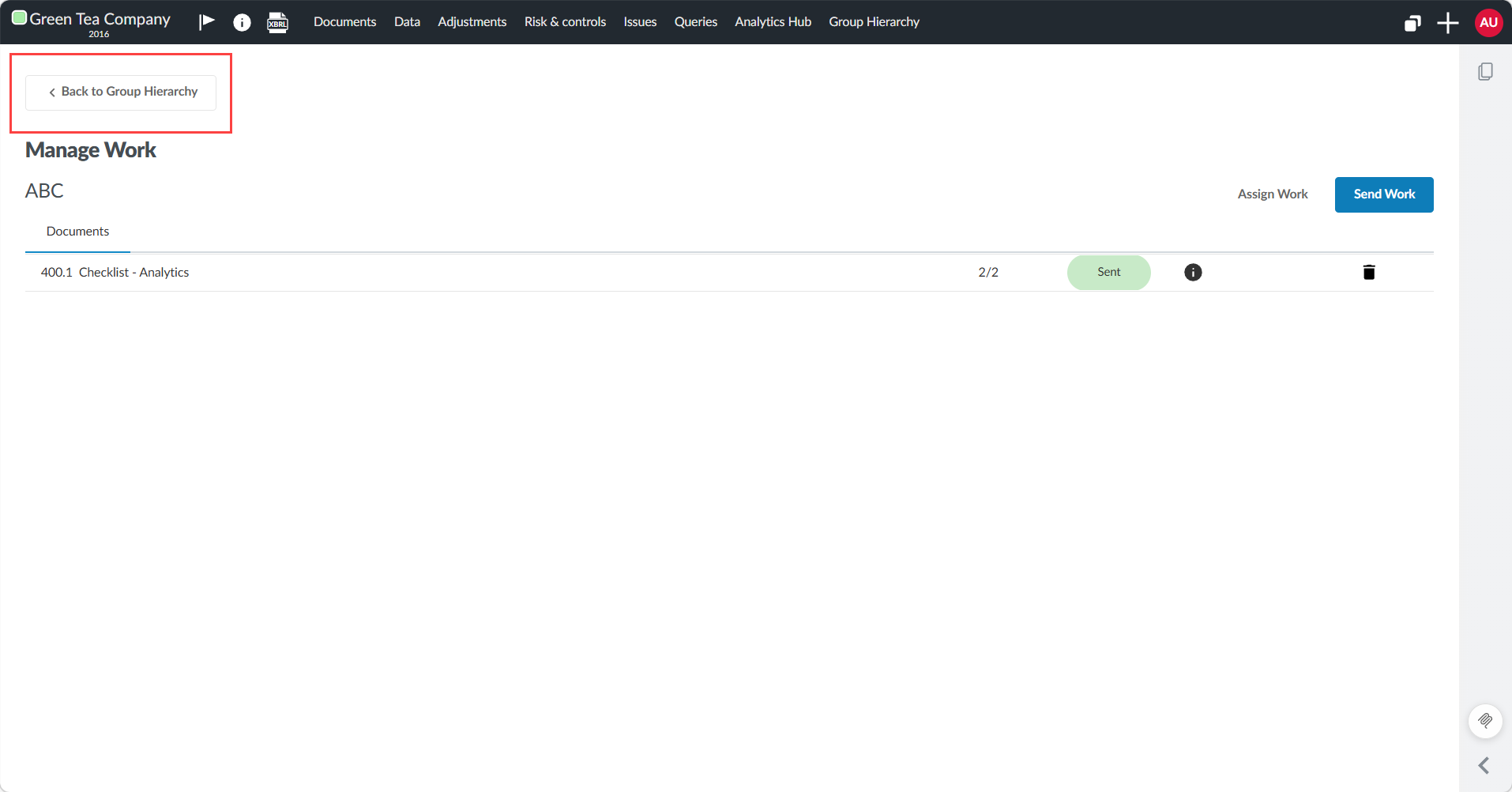
In the Group Hierarchy tab, the components with sent work show an AWAITING RESPONSE status.
Verify the copied checklist in a component
After sending work, you can confirm the copy was successful by navigating into a component.
-
In the top navigation bar, select Documents.
-
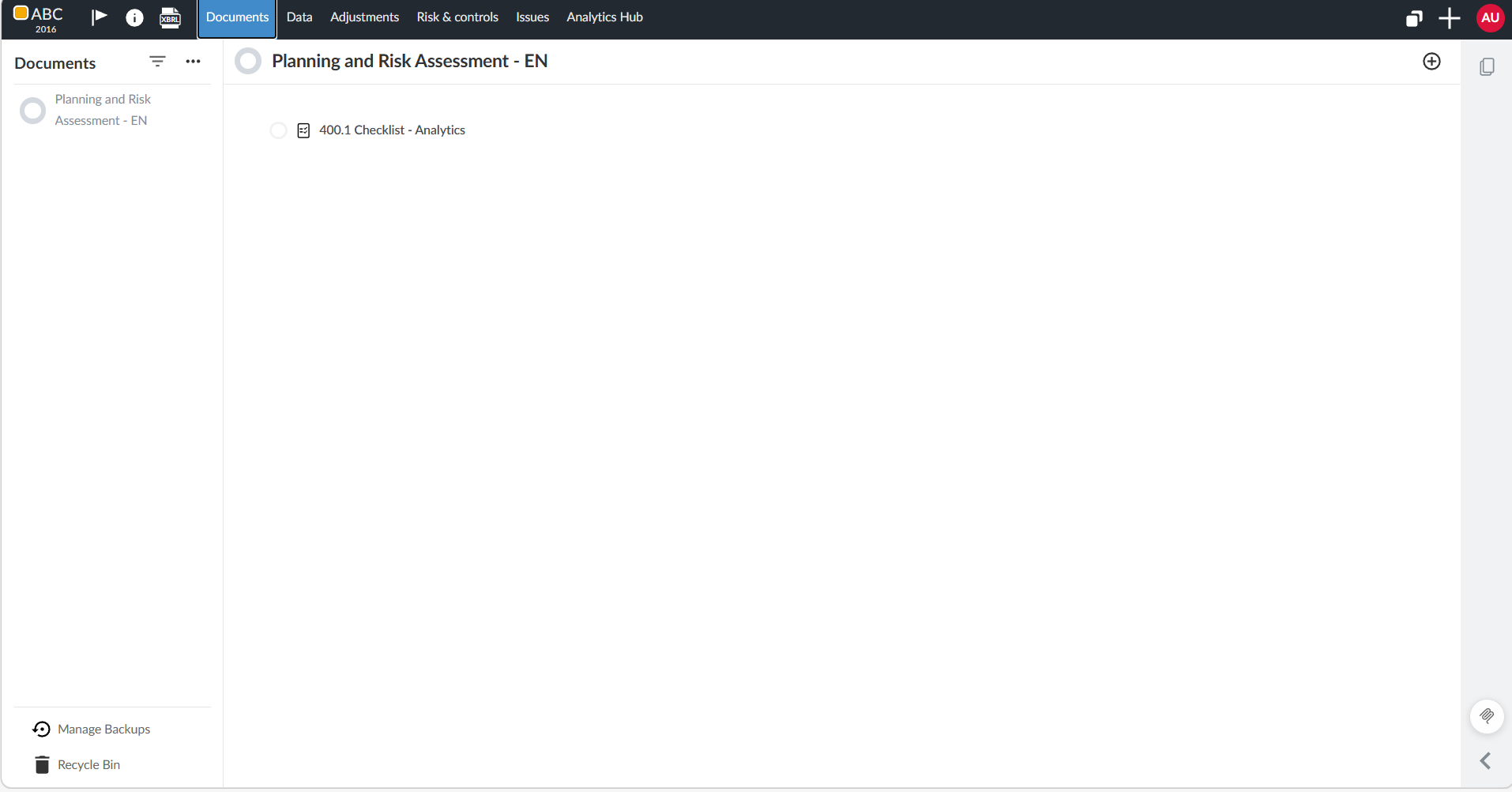
Navigate into the component entity. The document folder displays only the procedures that were assigned to that component, and not all procedures from the parent checklist.
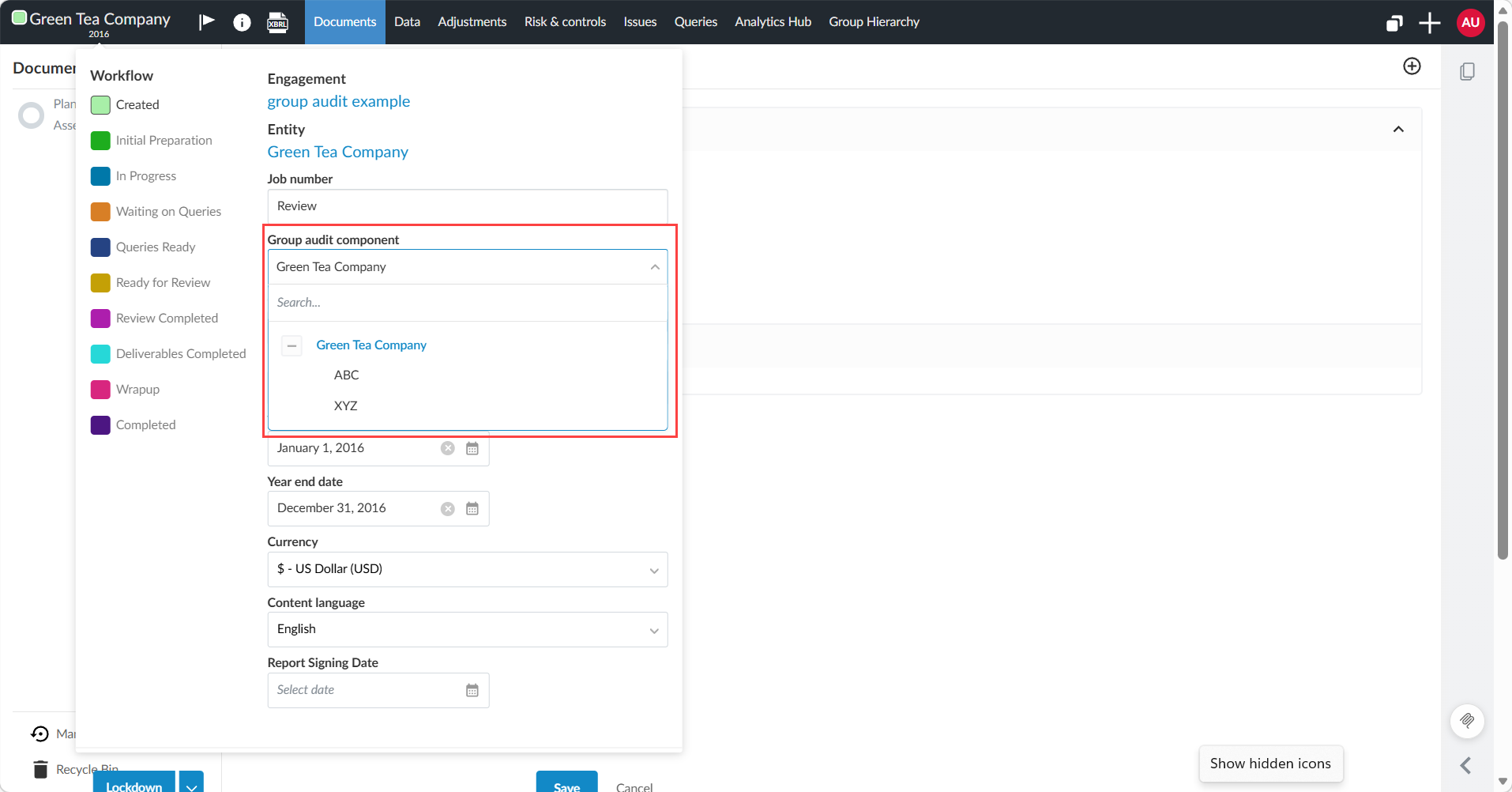
-
Select one of the components you added and select Save. The Documents tab will then only display the one checklist that has been copied over for the specific component selected.
View analytic results in Analytics Hub
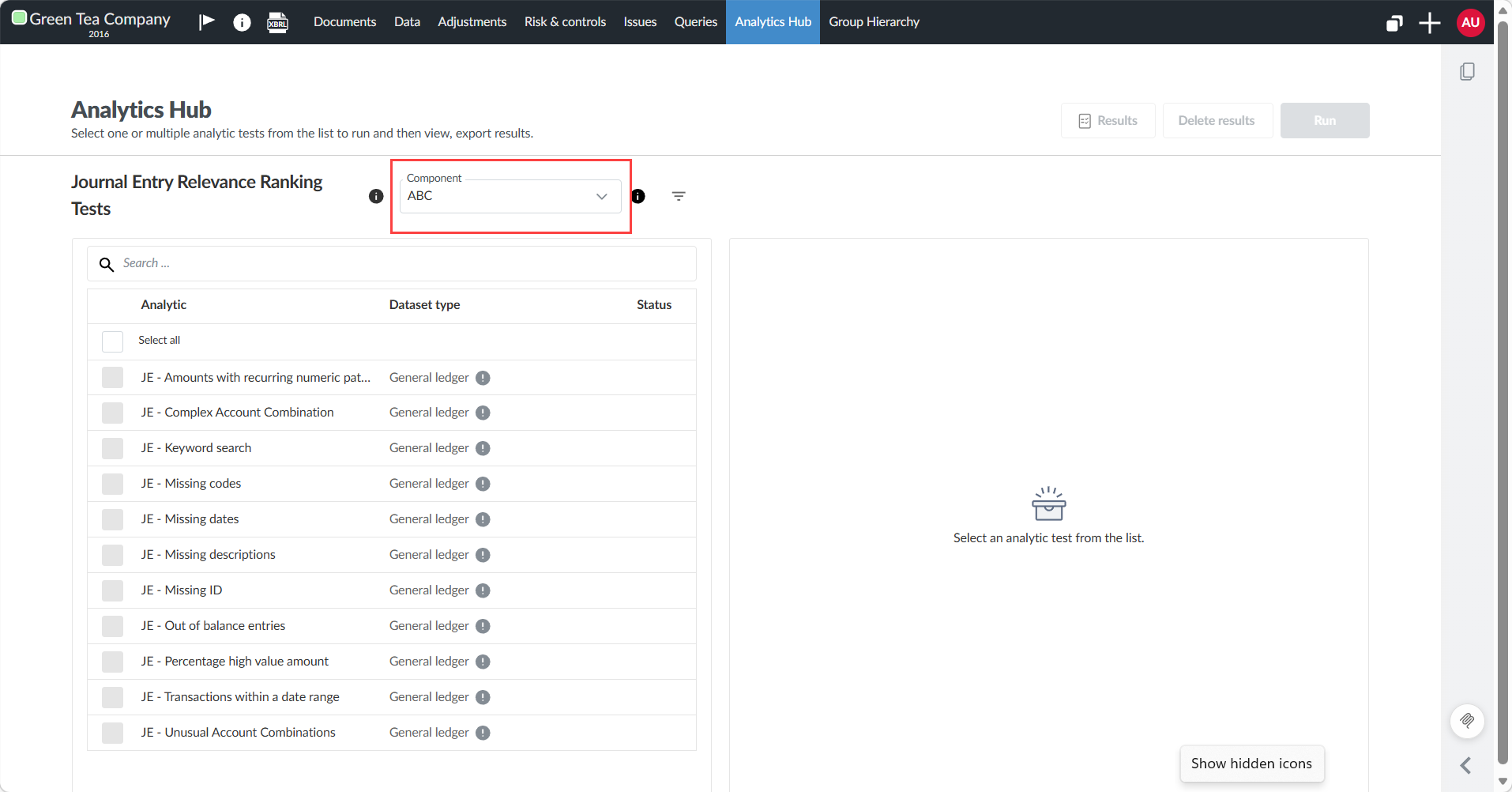
In the Analytics Hub, you can view results for all components or filter by a specific one.
-
In the top navigation bar, select Analytics Hub.
-
To filter results by component, select the Component dropdown and select a component.
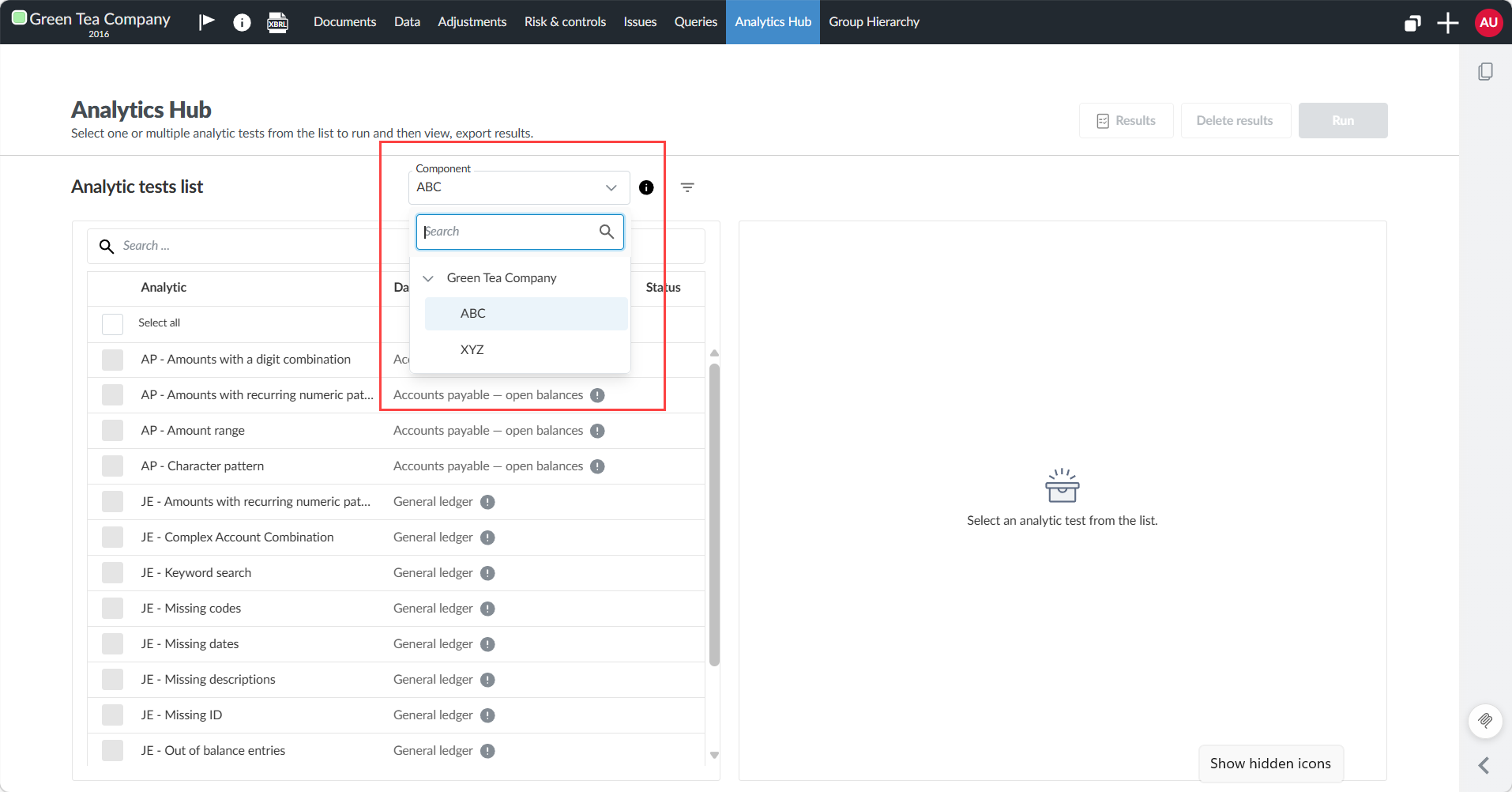
Only the analytics assigned to that component are shown. For example, selecting ABC shows only the analytics assigned to ABC.