
Enable the Client Requests experience
Queries are switching to Client Requests. To use Client Requests, enable it in each engagement before you send the first Query or Request.
Turn on Client Requests
The Enable new Client Requests experience toggle appears in a banner on the engagement Documents page. The banner appears only if Client Requests is enabled for your firm and nothing has been sent from the engagement yet. To hide the banner without turning on Client Requests, select Dismiss. The engagement stays on classic Queries.

To turn on Client Requests:
-
Open the engagement and go to the Documents page.
-
Select Enable new Client Requests experience.
-
Read the confirmation message and verify with your firm administrator that your firm is eligible, then select Enable.
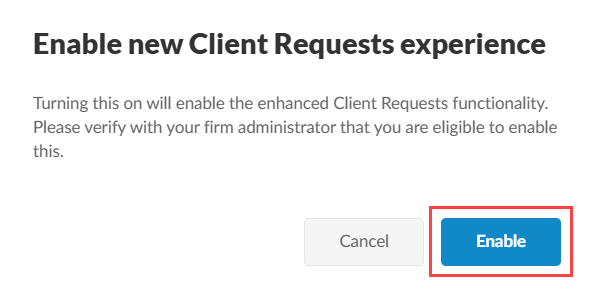
Once you enable Client Requests, Queries are renamed to Requests everywhere they appear.

You can switch the toggle as often as you like until you send the first Query or Request. After that, the engagement keeps whichever experience you sent on, the toggle disappears and you can't move the engagement to the other experience.
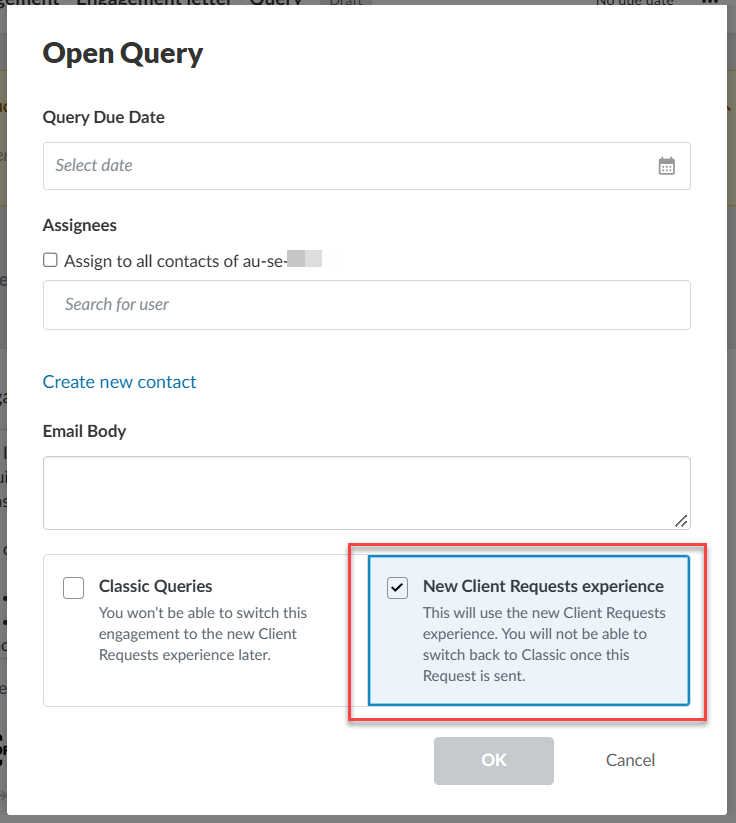
You can also make this choice on your first request, before you send it. A prompt asks whether you want to use Classic Queries or the new Client Requests experience. Once you select an experience from this prompt, you can switch back until you send the first Query or Request.
Mixed engagements
Your firm can run some engagements on Client Requests and others on Classic Queries at the same time.
Best Practice: Keep all engagements for the same Client Entity on one experience. Otherwise, some requests appear in the Client Requests portal and others in the Classic portal.
Once Client Requests is enabled, you can build and send your first request. See Request information from clients.