
Budget balances overview
Overview
Budget balances let you record budgeted amounts and compare them against actual balances in a Caseware Cloud engagement. They give you one view to track how actual figures perform against budget.
There are two budget categories:
-
Initial Budget – your first or preliminary budget.
-
Revised Budget – your updated or final budget.
Budget balances sit alongside the other balance types (Planning, Prelim and Final) in the trial balance and Analysis tab.
Budget balances apply to the current year and to the selected entity view.
Availability
Enter budget values
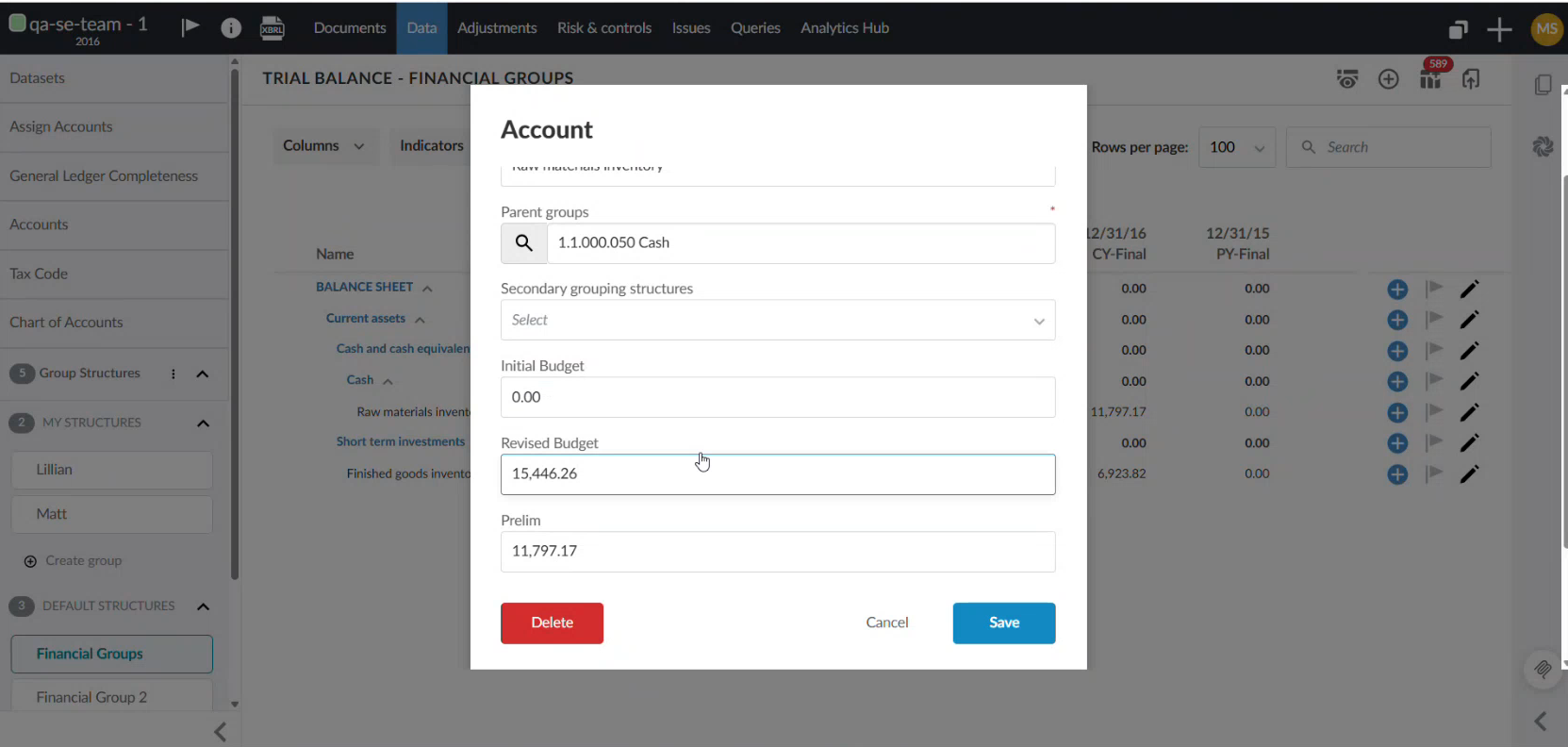
You can enter initial and revised budget amounts for an account in the Account properties dialog.
To enter budget values for an account:
-
Open the trial balance for the current year.
-
Select Edit Account[
 ]to open the Account properties dialog.
 -
Enter the amount in the Initial Budget field.
-
Enter the amount in the Revised Budget field.
-
Select Save.
Show budget columns when hidden
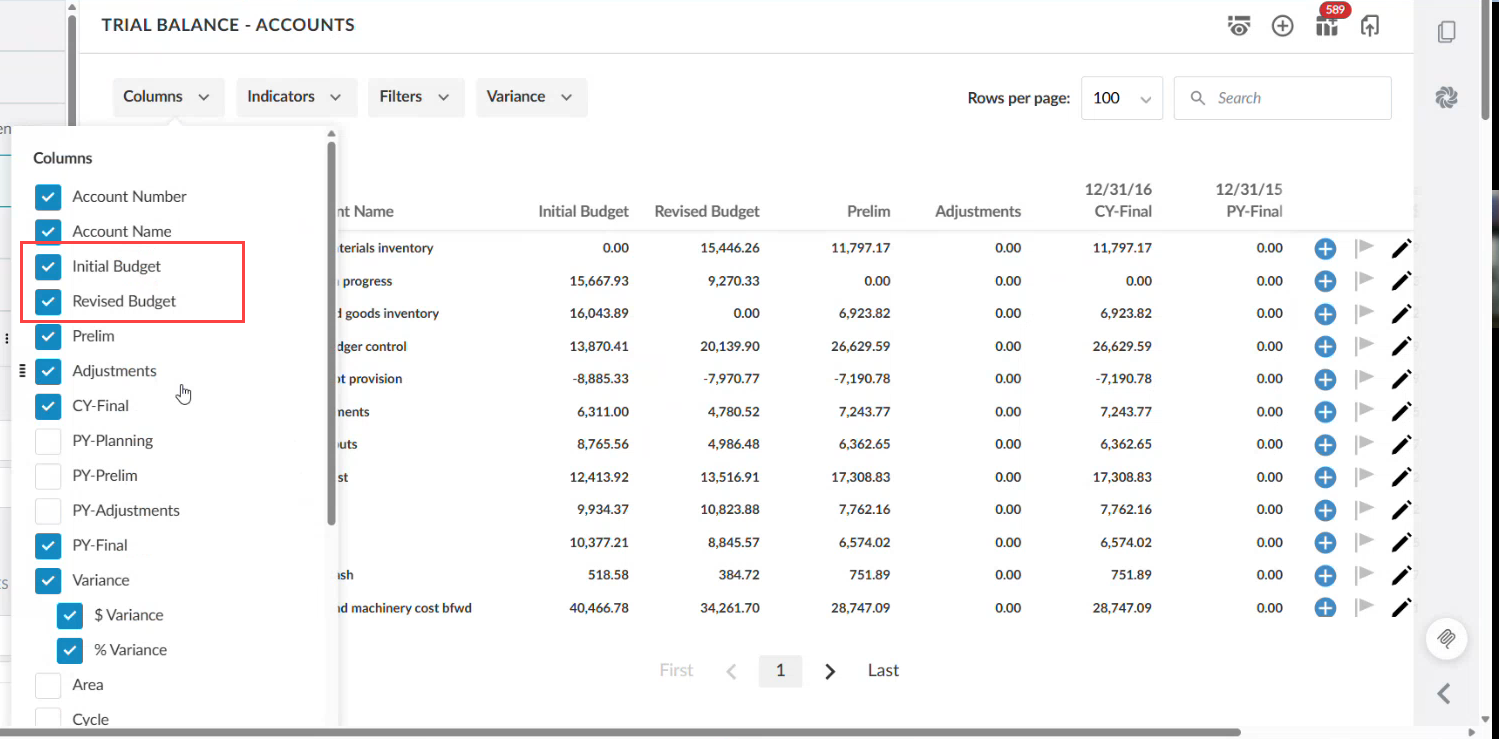
The Initial Budget and Revised Budget columns appear by default, to the left of the Prelim column. They appear in the selected entity view only, not the consolidated view.
To show the budget columns:
-
Open the trial balance for the current year.
-
Select Columns.
-
Select Initial Budget.
-
Select Revised Budget.
The columns appear to the left of the Prelim column.
Compare budget and actual figures
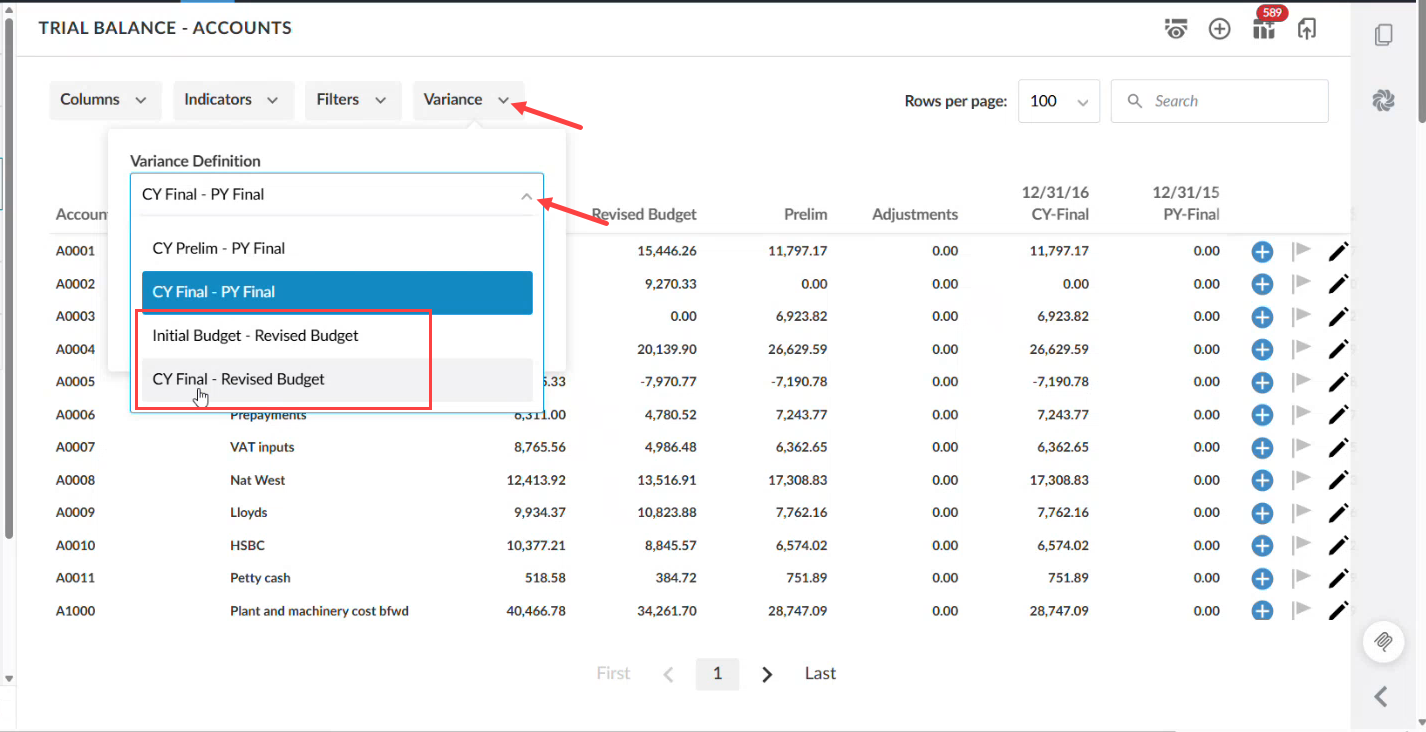
Variance selections appear when budget balances are enabled.
To compare budget and actual figures:
-
Open the trial balance.
-
Select Variance.
-
Select one of the budget variance options:
-
Initial Budget to Revised Budget
-
CY Planning to Initial Budget
-
CY Final to Revised Budget
-
Switch balance type in the dimension breakdown
A Balance type button controls which balances populate the dimension columns.
To switch the balance type:
-
Open the dimension breakdown view.
-
Select Balance type.
-
From the drop-down list, select Final, Initial Budget or Revised Budget.
In Planning mode, the options are Planning, Initial Budget and Revised Budget. The column labels update to match your selection. For example, CY-Initial Budget.
Your balance type selection is saved with the view and is included when you export and print.
View budgets on the Analysis tab
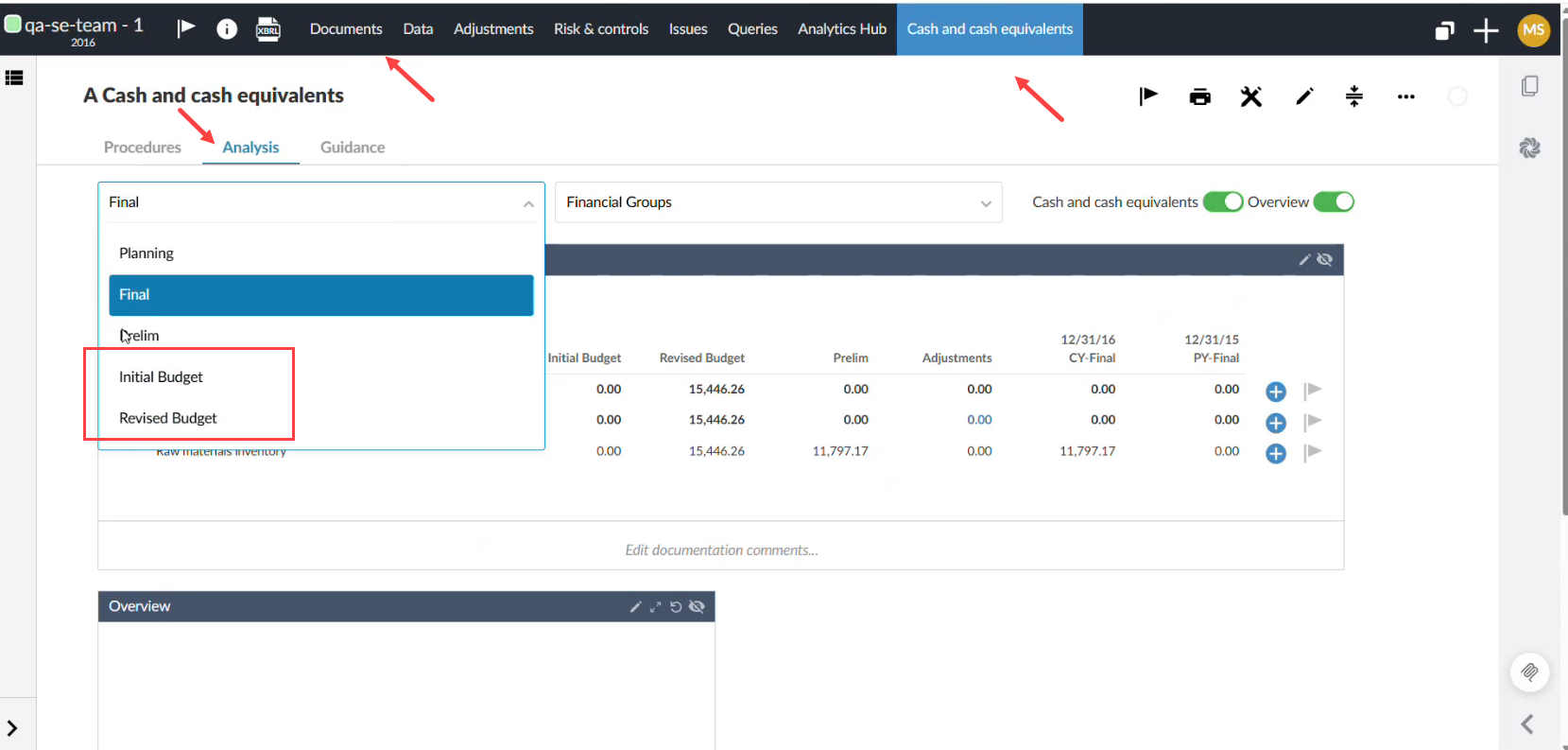
You can use the Analysis tab to view budget balances for a specific account in the context of your document. The balance type selector on the Analysis tab includes the budget categories.
To view budget balances:
-
On the Documents page, select an account from a checklist.
-
Select the Analysis tab.
-
Open the balance type selector.
-
Select Initial Budget or Revised Budget.
Your selection also drives the embedded groups pages and charts.
Where budget balances also appear
Budget balances are supported in other areas of the engagement:
-
Cloud Connector – budget balance types appear in the right pane, and budget values are available through the
cwi.groupbalance()andcwi.accountbalance()Excel formula variables. -
Datalink – budget balances are available in datalink formulas.
-
Financial Statements – budget balance column types are supported, with dimension support.
Limitations
Budget balances have the following limitations:
-
Budget columns appear in the selected entity view only, not the consolidated view.
-
Prior year import and display are not supported.
-
Visibility conditions are not included.
-
Adjustments are not supported.
-
Audit-related documents, including materiality and risk assessment, are not affected.
-
Scenarios with budget balances but no other balance type are not supported.
-
Sherlock Export is not yet supported.
-
Budget columns do not display the materiality icon or out-of-balance indicators.