
Template management overview for enterprise authors
Enterprise authors use the product template as the starting point for an enterprise template. The enterprise template helps member firms follow a consistent methodology while allowing enterprise-level customization.
Enterprise authors manage templates from the Manage Template page. The page shows the live version, active drafts, preview versions, versions pending signoff and available updates from Caseware.
To create, update and publish templates, see Manage the enterprise template.
Template types
The product template contains the default content for the app. Caseware creates and updates the product template.
The enterprise template is based on the product template. Enterprise authors customize and manage it for member firms in the network.
An enterprise firm template is based on the enterprise template. Enterprise firm authors can customize it for their firm.
The following table summarizes the relationships between these templates:
| # | Template type | Managed by | Created from | Used to create |
| 1 | product template | Caseware | latest major version release | enterprise or firm templates |
| 2 | enterprise template | enterprise authors | products template | enterprise firm templates |
| 2.1 | enterprise firm template | enterprise firm authors | enterprise template | engagements |
Enterprise author responsibilities
Enterprise authors:
-
Customize the enterprise template for the network
-
Manage template versions through preview, signoff and publication
-
Review and apply updates from Caseware
-
Maintain alignment with the product template
Template management workflow
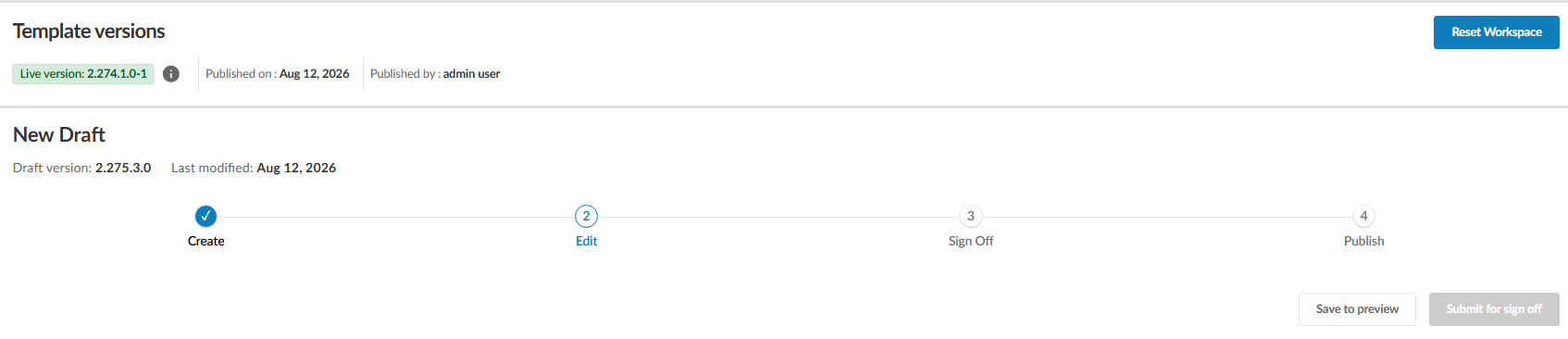
The Manage Template page guides an enterprise template from draft to publication through four stages: Create, Edit, Sign Off and Publish.
-
Create: Starts a new draft based on the latest live template version.
-
Edit: Allows you to customize the draft and save versions to preview. A preview version can be used to create test engagements without changing the live template. Saving to preview also creates a new active draft so you can continue editing.
-
Sign Off: Begins when you click Submit for sign off. The latest saved preview version is submitted for review, and the active editing draft is removed. If further changes are required, return the version to editing and complete signoff again.
-
Publish: Makes the signed-off version the new live template available to member firms.
The live template remains unchanged until you publish a signed-off version.
To learn more about the procedures for template management workflow, see Manage the enterprise template.
Glossary
The following terms are used throughout the template management workflow:
| Term | Definitions |
|---|---|
| Live version | The latest published version of the enterprise template. This is the version currently in use. |
| Active draft | The version of the enterprise template currently being edited. Changes to the active draft do not affect the live version. |
| Saved version | A version created from the active draft at a specific point in the template management process. |
| Preview version | A saved version that can be previewed before it is submitted for signoff. |
| Version pending signoff | A version that has been submitted for review and signoff. |
| Signed-off version | A version that has completed signoff and is available to publish. |
| Published version | A version that has been published. The latest published version becomes the live version. |
| Caseware update | An update to the enterprise template made available by Caseware. |
| Restore | Returning to a previous saved version so that it can be used as the basis for further template changes. |
Live and draft versions
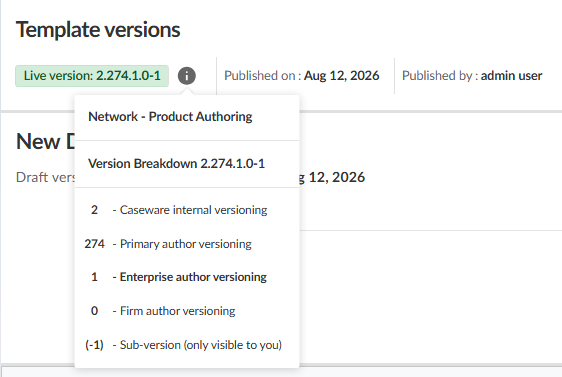
The live version is the latest published enterprise template available to member firms.
A new draft starts from the latest published version. Only one draft can be active at a time, and the active draft has its own version number.
As you work on the active draft, the Manage Template page keeps a history of saved versions. These versions let you review previous work and provide points that can be restored as the basis for a new draft.
Version numbers are not reused. When a draft is deleted, restored or updated, the next draft receives the next available version number.
For information about creating, saving, restoring, signing off on and publishing versions, see Manage the enterprise template.
Signoff and access
Any user who can access the Settings | Manage Template page can sign off on a draft version.
Access is controlled by the Admin or Firm Settings Admin role in the Entity Details page. There is no separate signoff permission.
Updates from Caseware
Caseware releases minor and major versions of the product template.
Minor-version updates
When a minor-version update is available, the Manage Template page displays an update message.
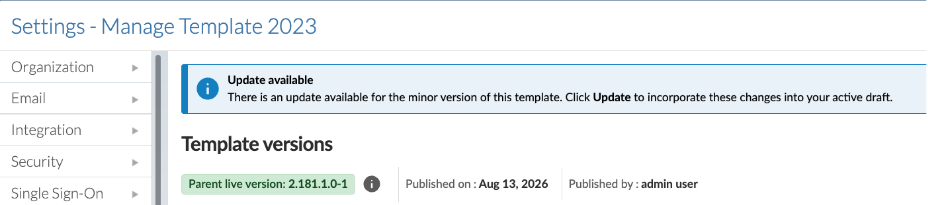
Enterprise authors can:
-
Merge the Caseware changes into the active draft.
-
Replace the active draft with the updated product template.
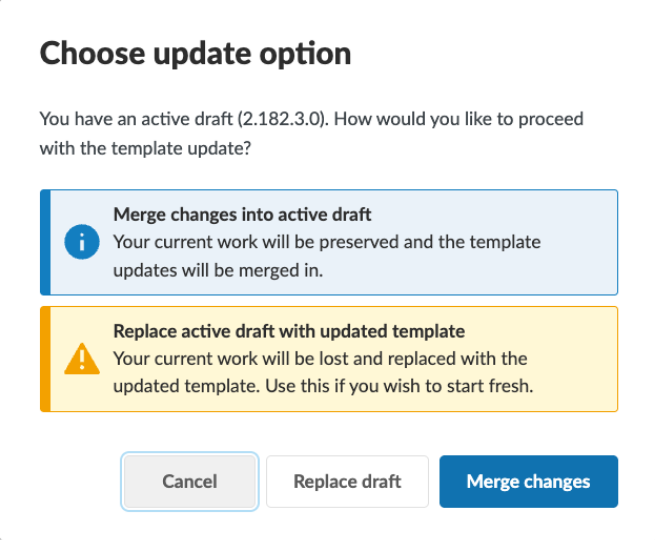
Merging keeps the enterprise changes and adds the latest Caseware changes. Replacing discards the active draft changes and starts a new draft from the updated product template.
The live enterprise template does not change until the updated draft completes preview, signoff and publication.
Major-version updates
When a major-version update is available, enterprise authors can migrate existing customizations or start a new draft without previous customizations.
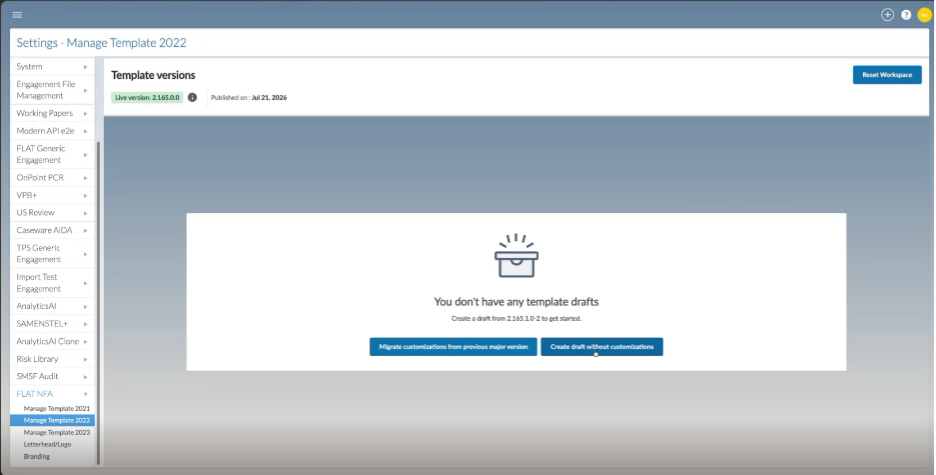
To complete either update workflow, see Manage the enterprise template.
Engagements after a template version update
Publishing a new template version does not update existing engagements.
Engagements in progress continue using the template version they were created from, and locked-down engagements remain unchanged.
New engagements use the latest published template version.
Template variants for DocuFlex-based products
Template variants are available to enterprise authors in supported apps after setup by the primary author. There are no current plans to extend this capability to primary authors or firm authors.
Contact your Caseware representative to check availability or request access.
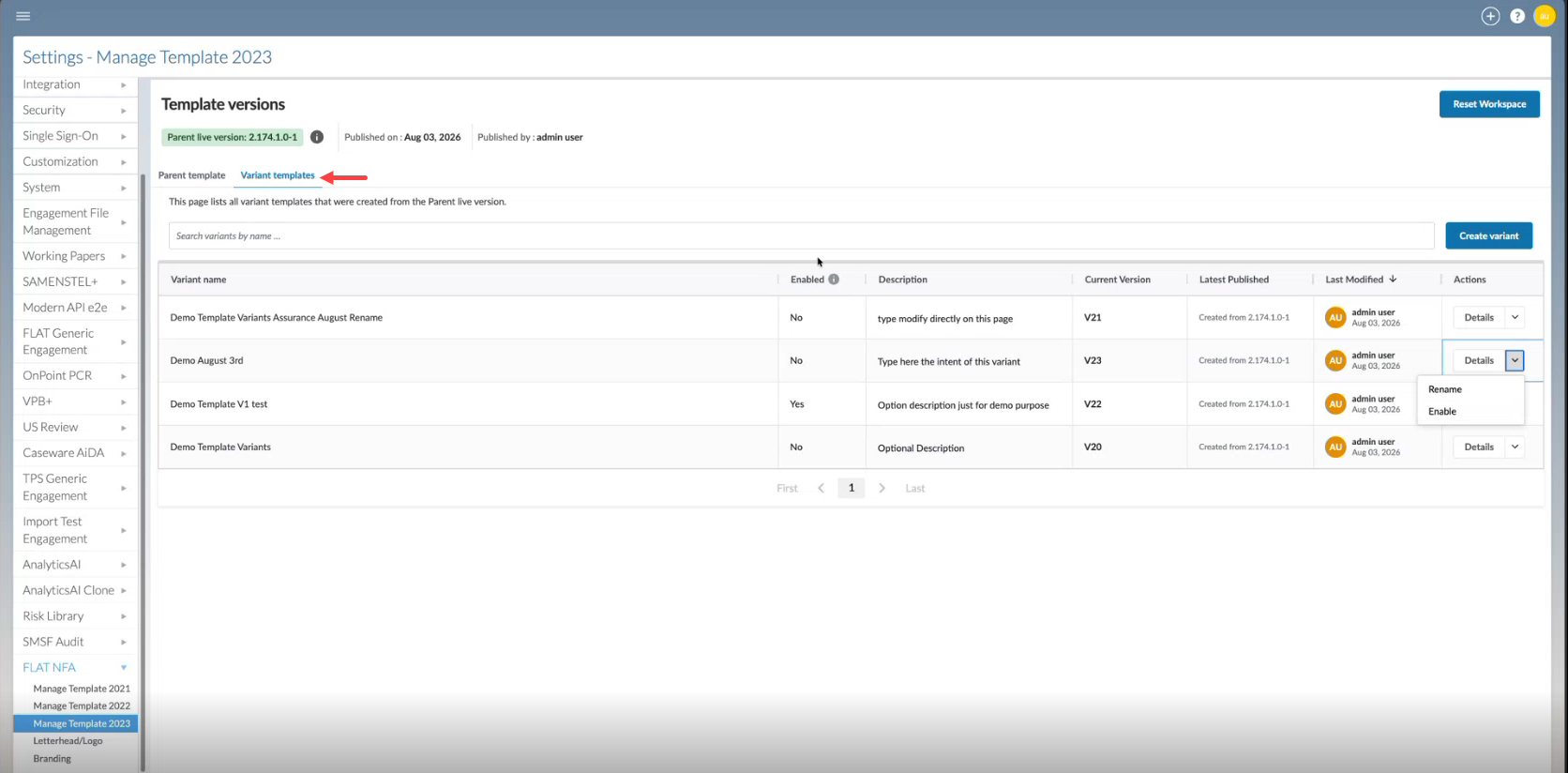
Template variants let enterprise authors create separate templates for different engagement types.
Use variants when the enterprise template contains minimal shared content and each variant requires substantially different content.
Each variant:
-
Is based on the latest published enterprise template.
-
Has its own name and description, and any variant can be renamed.
-
Has its own version history and publication workflow.
-
Receives enterprise-template updates independently.
-
Can be enabled or deactivated.
-
Cannot be deleted.
You can create up to 20 variants for an enterprise template.
Variant updates
Each variant receives an update when the enterprise template it is based on is updated or a new enterprise-template version is published.
Enterprise authors can merge the update into an active variant draft or replace the active draft with the updated enterprise template.
There is no global action to update all variants.
Variants and new engagements
Staff can select an enabled variant when they create a new engagement.
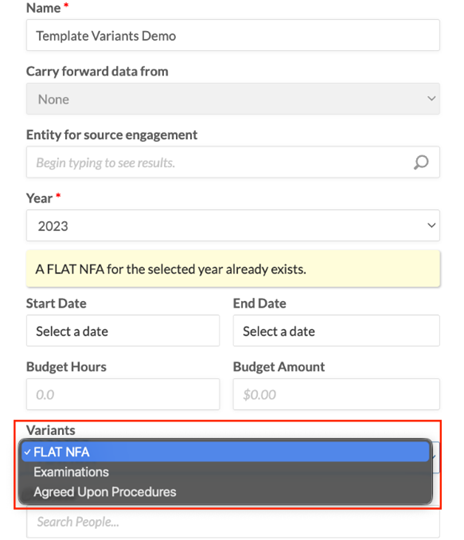
Deactivating a variant removes it from the options for new engagements but does not affect engagements already created from it.
To create and manage variants, see Manage the enterprise template.
Feature customization
Enterprise authors can customize template workflows, components and content to reflect the network’s methodology and requirements.
To learn more about authoring in Caseware, see Authoring index.