
Manage the enterprise template
The Manage Template page provides a central place to manage the enterprise template from draft to publication.
An enterprise template moves through four stages: Create, Edit, Sign Off and Publish. You can create and edit a draft, save versions for preview, submit a version for signoff and publish a signed-off version. You can also restore a previous version and apply updates from Caseware.
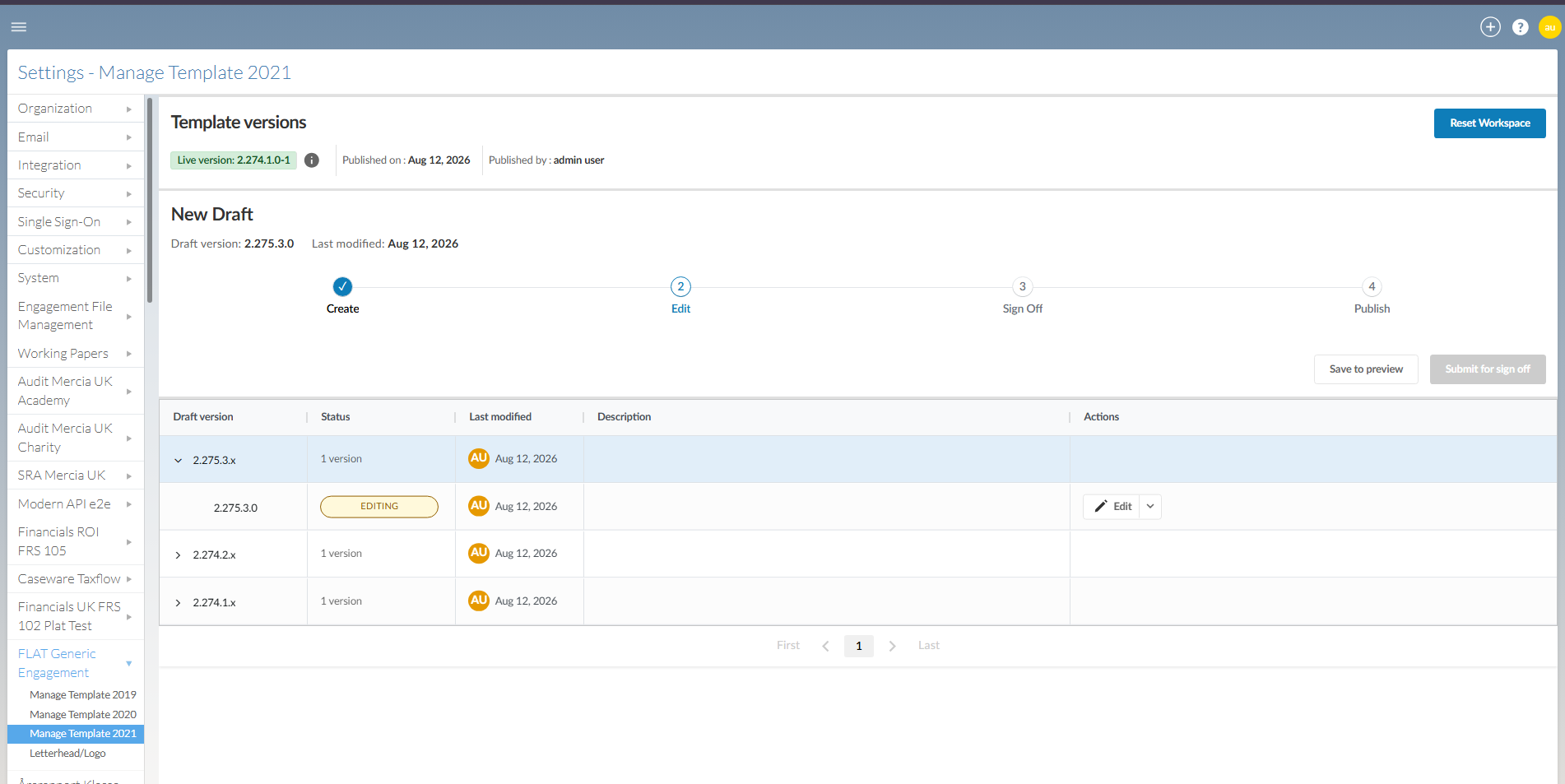
The latest published version is the live version. It remains available to users while you prepare and review a new version. Publishing a signed-off version replaces the current live version with the newly published version.
Understand enterprise template versions
As you work on an enterprise template, the Manage Template page tracks the live version, active draft and versions you save throughout the workflow.
A version can have one of these roles:
-
Live version: The latest published version of the enterprise template.
-
Active draft: The version currently available for editing.
-
Preview version: A saved version that you can preview or submit for signoff.
-
Pending signoff version: A version that has been submitted for review before publication.
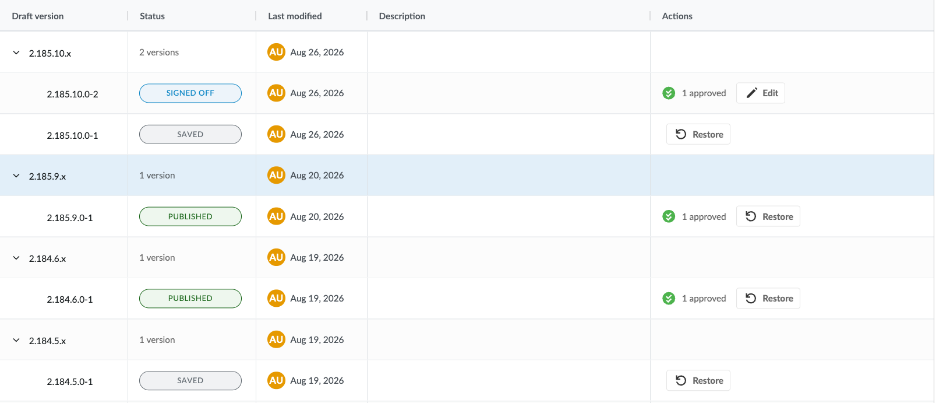
The version history also keeps previously saved and published versions available for reference or restoration. Available Caseware updates appear separately on the Manage Template page.
Version numbering
Each draft and saved version has a version number. Version numbers increase as new versions are created and saved.
Version numbers are not reused. For example, deleting, restoring or replacing a draft does not make its version number available again. The next draft receives the next available version number.
Saved preview versions can also include an incremental preview suffix:
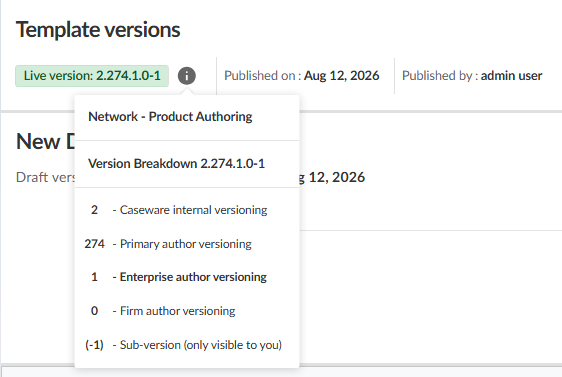
The version number identifies the underlying template version. The preview suffix distinguishes saved iterations of that version.
Before you begin
Ensure that you have the Admin or Firm Settings Admin role in the Entity Details page.
To open the Manage Template page:
-
Open the Cloud menu.
-
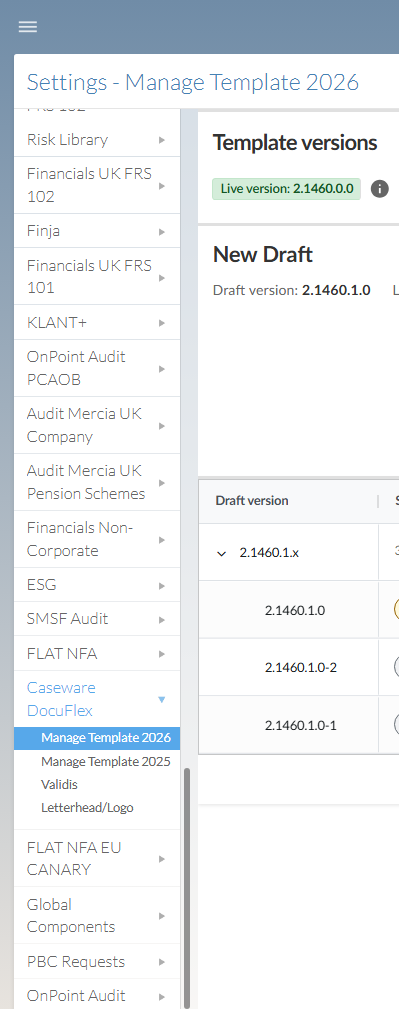
Select Settings | <your product name> | Manage Template.
Create a draft
This procedure begins with the assumption that no active draft currently exists.
To create a draft:
-
Open the Manage Template page.
-
Select Create draft.
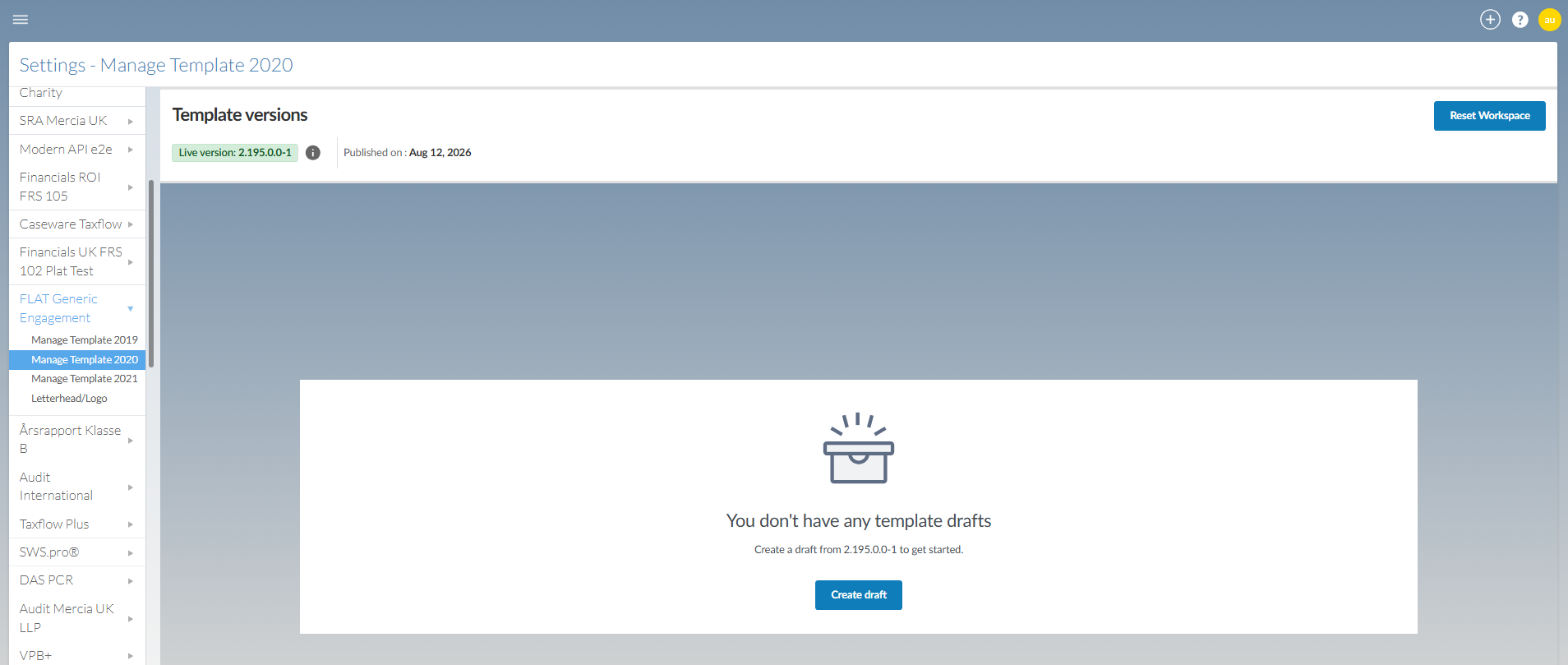
-
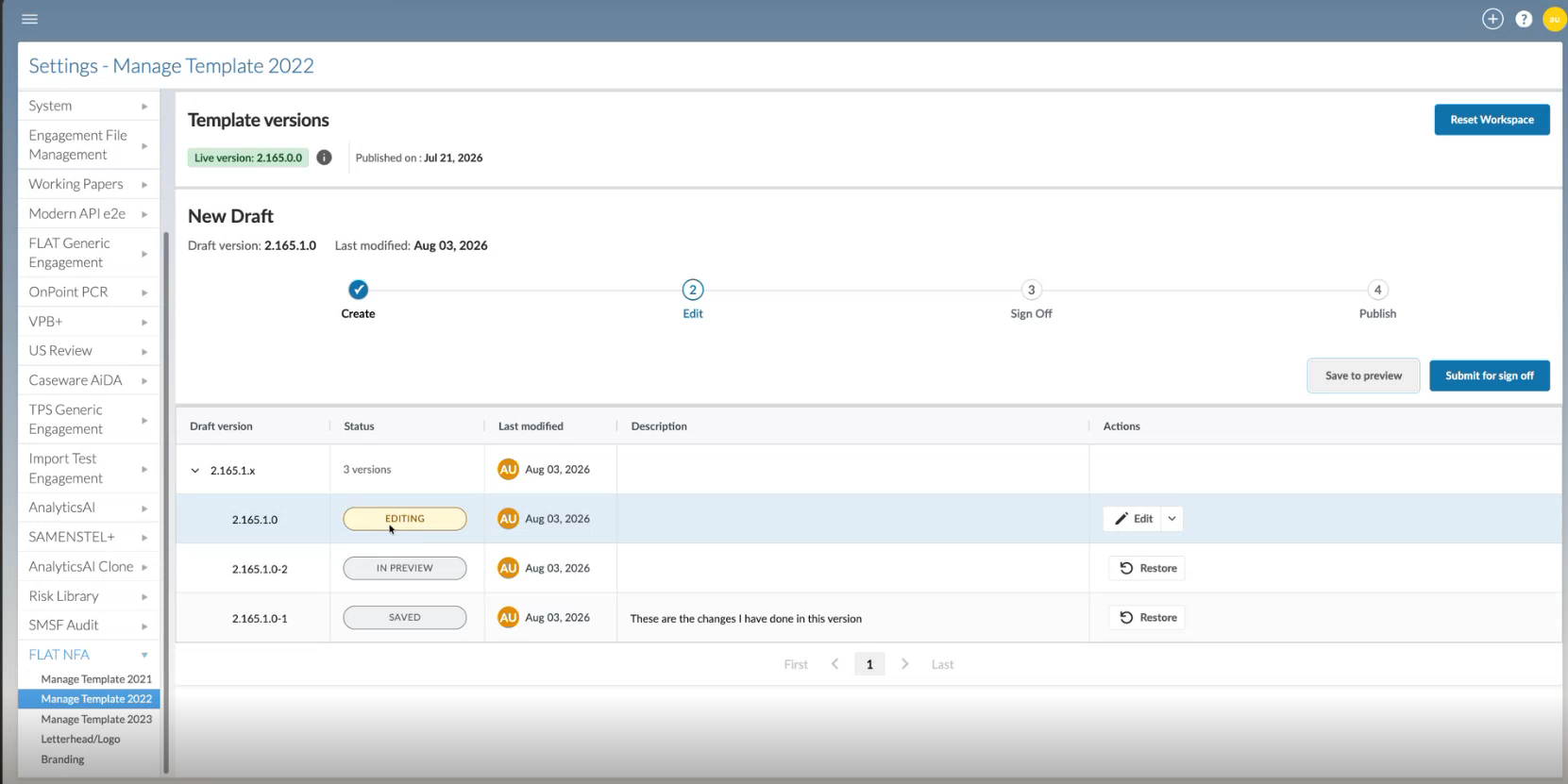
The draft opens in edit mode.
A new draft starts from the latest published template version and the Manage Template page loads:
Edit a draft
You can edit the active draft before you submit a version for signoff.
To edit a draft:
-
Open the Manage Template page.
-
Locate the active draft.
-
Select Edit on the same row.
-
Make the required changes.
-
Close the template to return to the Manage Template page.
To learn more about the features you can customize, see Authoring index.
Save a draft to preview
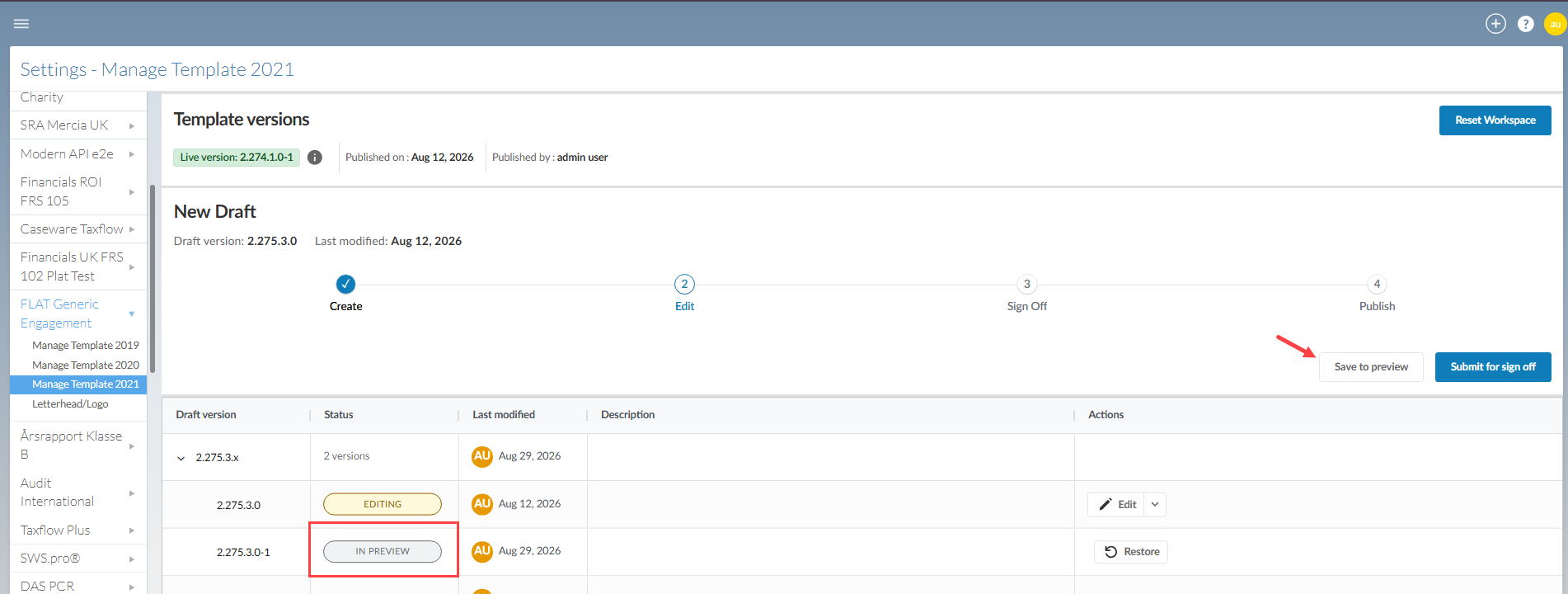
Select Save to preview to preserve the current draft as a preview version.
Saving to preview:
-
Saves the current draft as a preview version
-
Assigns the next preview iteration to the saved version
-
Keeps an active draft so you can continue editing
Each preview version remains available in the version history.
To save a draft to preview:
-
Open the Manage Template page.
-
Select Save to preview.
The saved version appears in preview status and an active draft is available for editing:
Submit a version for signoff
Submit the latest saved preview version when it is ready for signoff.
If the active draft contains changes that have not been saved to preview, those changes are not included in the submitted version. The active draft is removed when you submit the preview version.
Save any changes you want to keep to preview before submitting.
To submit a version for signoff:
-
Open the Manage Template page.
-
Review the latest preview version.
-
Select Submit for sign off.
-
Review the version number and confirmation message.
-
Select Submit.
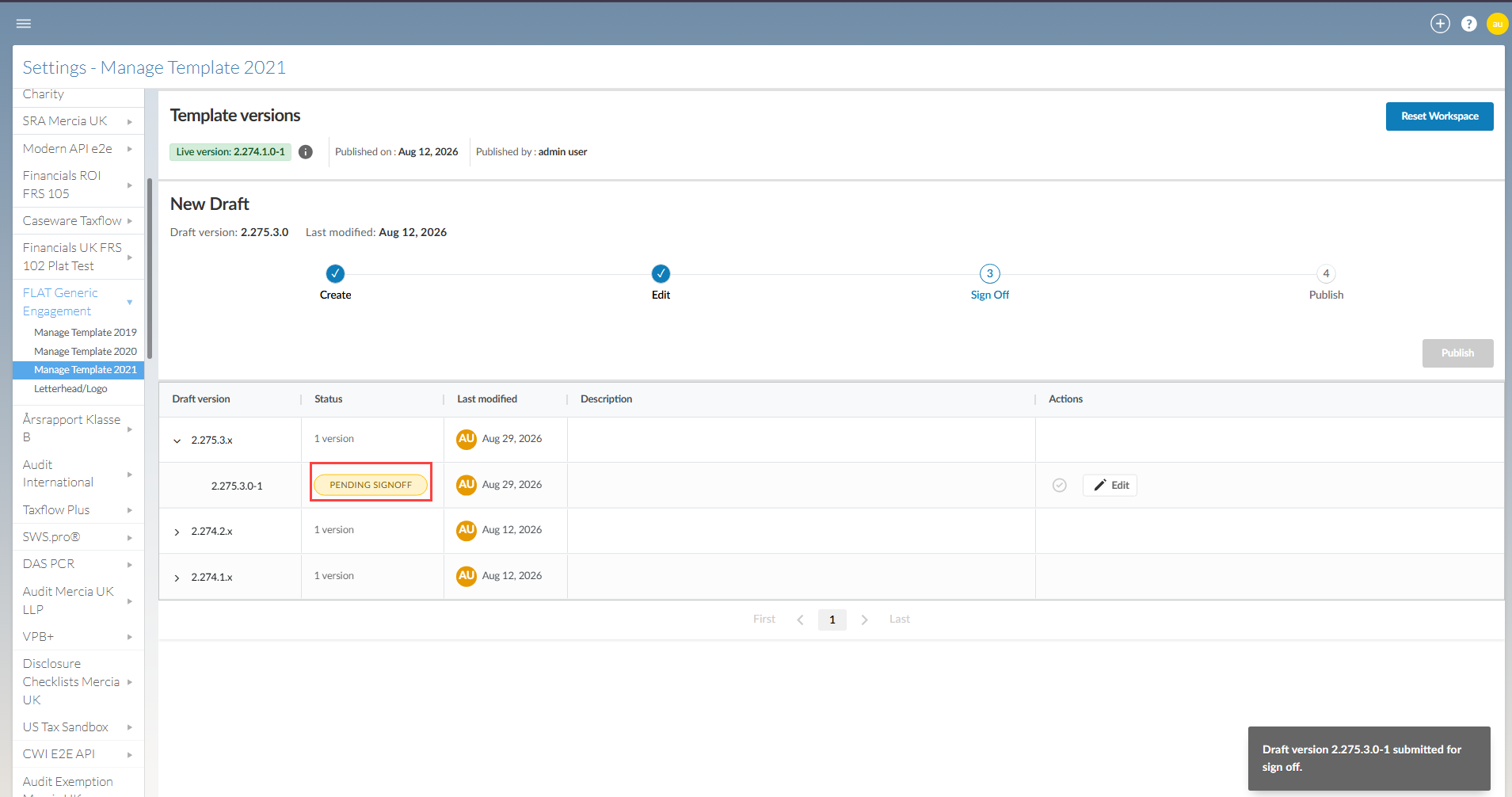
The submitted version moves to pending signoff:
Sign off on a version
Any user who can access the Manage Template page can sign off on a version. Access is controlled by the Admin or Firm Settings Admin role in the Entity Details page. There is no separate signoff permission.
To sign off on a version:
-
Open the Manage Template page.
-
Locate the version pending signoff.
-
Select the Sign off icon [
 ].
]. -
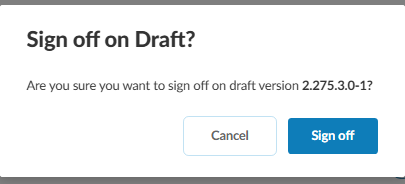
Review the version information and confirmation message:
-
Select Sign off.
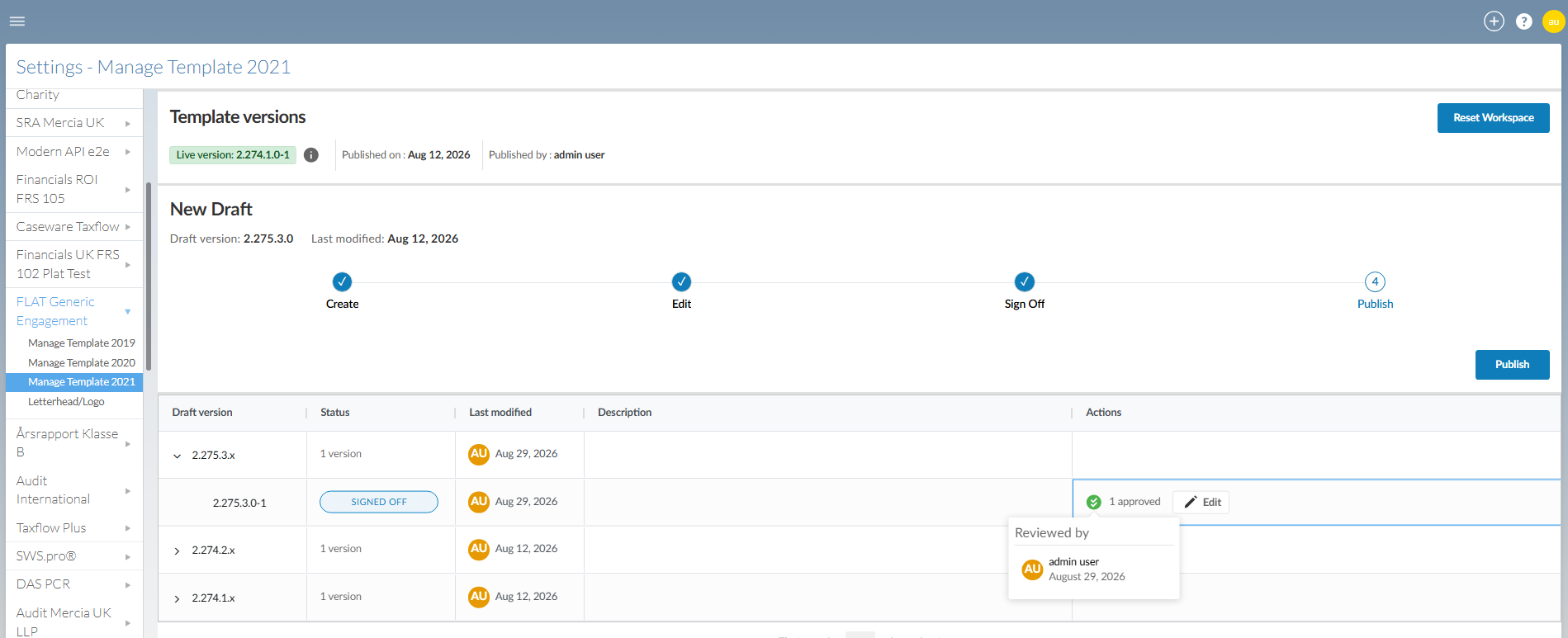
The version is ready to publish:
Edit a version after submission
You can return a version to the Edit stage after you submit it for signoff.
Returning the version to editing removes its pending signoff status and creates the next active draft version. You must save, submit and complete signoff again before publishing.
Version numbers are never reused. If you delete or replace a draft, the next draft receives the next available version number.
To return a version to editing:
-
Open the Manage Template page.
-
Locate the version pending signoff.
-
Select Edit.
-
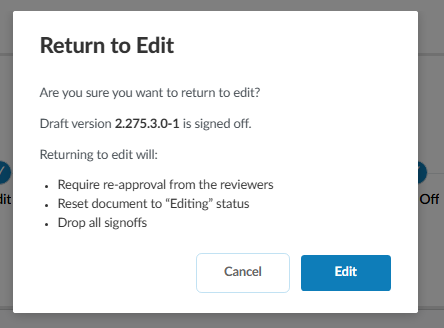
Review the confirmation message.
-
Select Edit.
A new active draft opens in the editing workflow.
Publish a version
Publish a signed-off version to make it the live enterprise template.
To publish a version:
-
Open the Manage Template page.
-
Locate the signed-off version.
-
Select Publish.
-
Review the version number and confirmation message.
-
Select Publish.
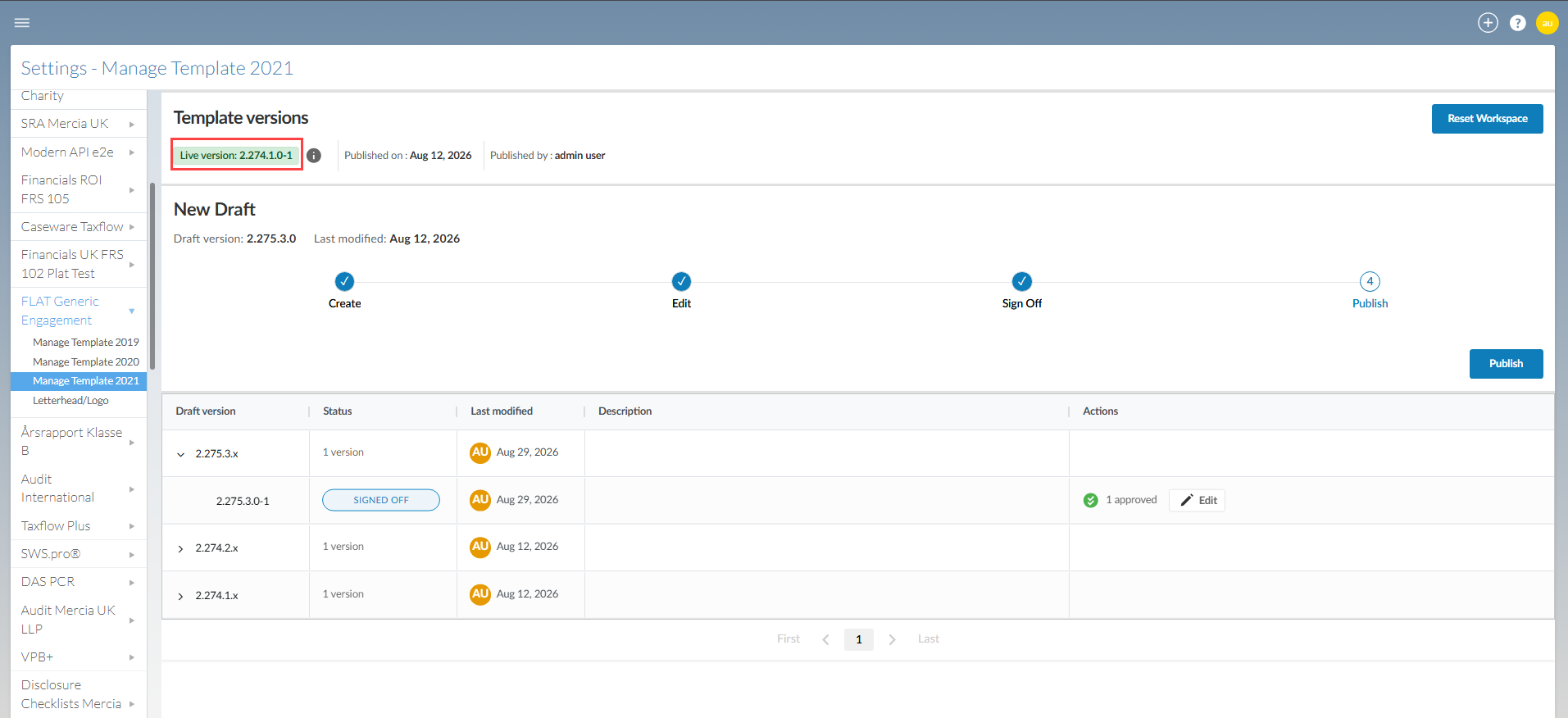
The published version becomes the new live version.
Delete an active draft
Delete an active draft when you no longer need its changes.
You can delete an active draft. You cannot delete a published version.
Deleting a draft does not make its version number available for reuse.
To delete an active draft:
-
Open the Manage Template page.
-
Locate the active draft.
-
Open the Edit dropdown list on the same row.
-
Select Delete.
-
Review the confirmation message.
-
Select Delete.
Restore a previous version
Restore a saved or published version when you want to use it as the basis for a new draft.
Restoring does not merge versions. The selected version becomes the basis for a new active draft.
The restored content receives the next available draft version number. The original version number is not reused.
To restore a previous version:
-
Open the Manage Template page.
-
Locate the version you want to restore.
-
Select Restore from the Actions column.
-
Choose one of the following:
-
Save and restore: Saves the current draft before restoring the selected version.
-
Restore: Discards the current draft changes before restoring the selected version.
-
-
Confirm the restore.
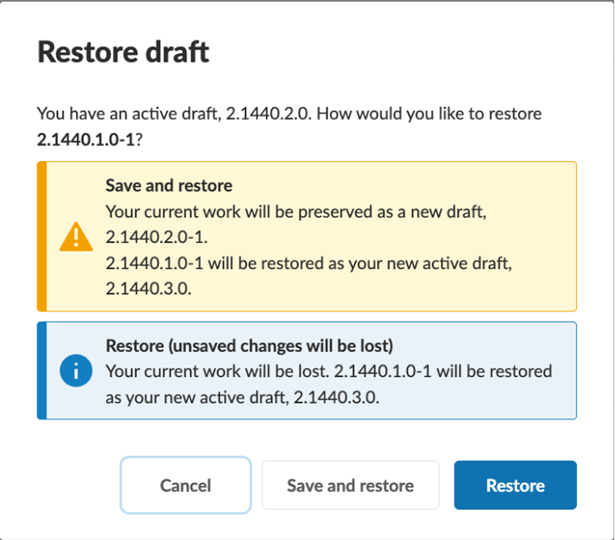
A new active draft opens based on the restored version.
Update the enterprise template after a version release
Caseware may release minor and major versions of the product template.
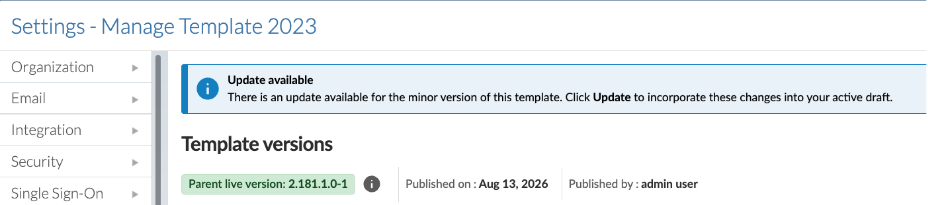
When a minor-version update is available, an update message appears at the top of the Manage Template page. Select Update to review the available options.
The live enterprise template does not change until you publish an updated version.
Apply a minor-version update
When you click Update, you can apply a minor-version update in the following ways:
-
Update now or later
-
Merge or replace the active draft
Update now or later
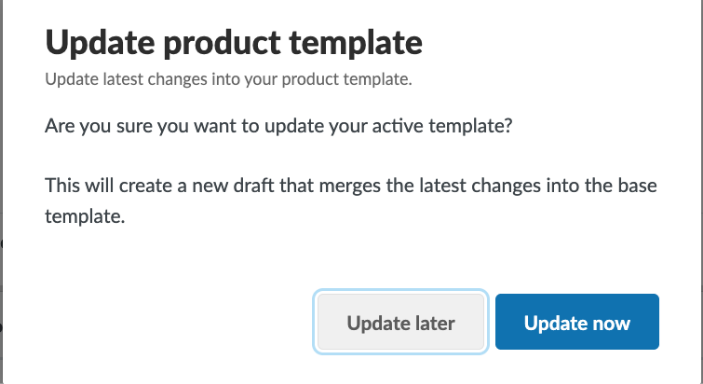
If you don't have an active draft, you can update the published version now or later.
-
Update later: Closes the dialog without making any changes.
-
Update now: Updates the published version and automatically creates an active draft.
Merge or replace
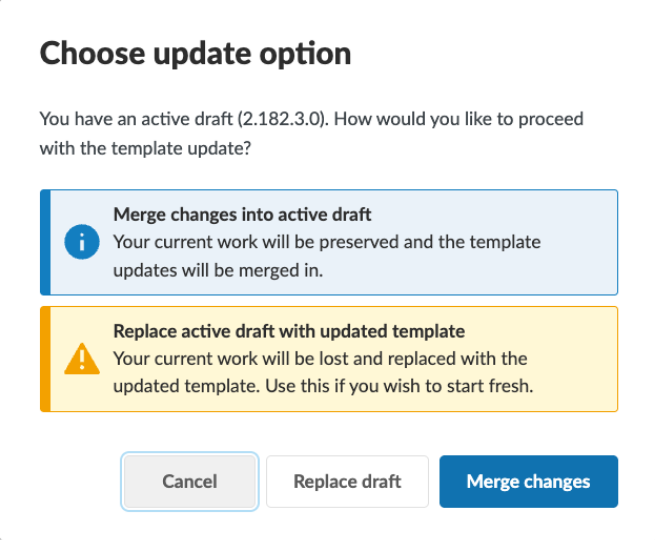
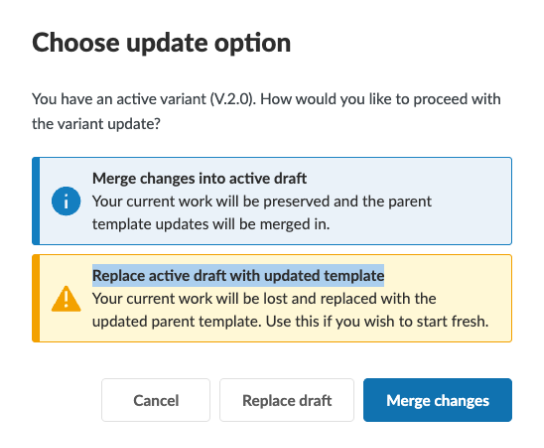
If you have an active draft, you can merge the update into the active draft or replace the active draft.
-
Merge keeps your enterprise changes in the active draft and adds the latest Caseware changes.
-
Replace discards the changes in the active draft and creates a new draft from the updated product template.
Apply the update
To apply a minor-version update:
-
Open the Manage Template page.
-
Select Update in the update message.
-
Choose how to apply the update:
-
If you don't have an active draft, select Update now or Update later.
-
If you have an active draft, select Merge or Replace.
-
-
If you selected Update now, Merge or Replace, review the confirmation message.
-
Confirm your choice.
A new active draft is created.
The current live version remains unchanged. Save the new draft to preview, then complete signoff and publish the signed-off version to make the changes live.
Apply a major-version update
When a major-version update is available, choose whether to:
-
Migrate customizations from the previous enterprise-template version
-
Create a new draft without previous customizations
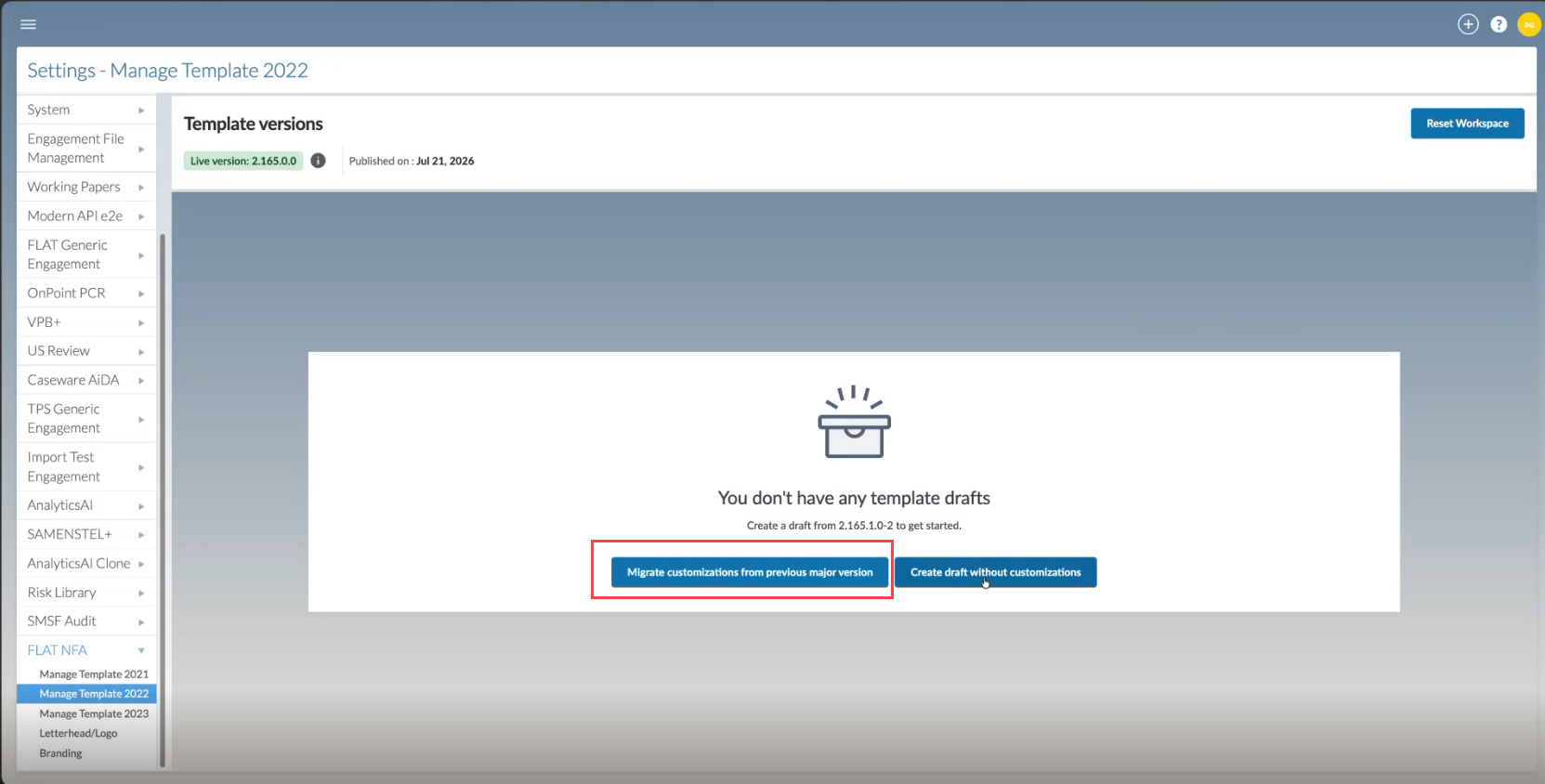
Migrate existing customizations
To migrate customizations to a major version:
-
Open the major-version update from the Manage Template page.
-
Select Migrate customization from previous major version.
-
Confirm the migration.
-
Open the new draft.
-
Review the migrated customizations and Caseware changes.
-
Make any required changes.
-
Save the draft to preview.
-
Complete signoff and publish the new version.
Start without previous customizations
To create a draft without previous customizations:
-
Open the major-version update from the Manage Template page.
-
Select Create draft without customizations.
-
Confirm the selection.
-
Open the new draft.
-
Add the required enterprise customizations.
-
Save the draft to preview.
-
Complete signoff and publish the new version.
Engagement behavior after an update
Publishing a new template version does not automatically update every engagement. The following table describes how each type of engagement is affected:
| Engagement status | Behavior |
|---|---|
| In progress | Continues using the version active when the engagement was created. |
| Locked down | Remains unchanged. |
| New engagements | Use the latest published enterprise template. |
Template variants for DocuFlex-based products
Template variants are available to enterprise authors in supported apps after setup by the primary author.
Use template variants when the enterprise template contains minimal shared content and each variant requires substantially different content.
Each variant:
-
Is based on the latest published enterprise template.
-
Has its own name and description.
-
Uses its own draft, preview, signoff and publication workflow.
-
Receives enterprise-template updates independently.
-
Can be enabled or deactivated.
-
Cannot be deleted.
You can create up to 20 variants for an enterprise template.
Drafts and versions
An enterprise template can have multiple variant templates. Each variant has its own draft and versions, which are managed independently from other variants.
For example:
Enterprise template
			  → Variant A
			    → Active draft
			    → Versions
			  → Variant B
			    → Active draft
			    → Versions
			  → Variant C
			    → Active draft
		    → Versions
A new variant is based on the latest published enterprise template. Each variant then follows its own draft, preview, signoff and publication workflow.
The active draft and saved versions have their own version numbers. Version numbers are not reused when a draft is deleted, restored or replaced.
The workflow for managing template variants follows the same four major stages as managing the enterprise template: Create, Edit, Sign Off and Publish.
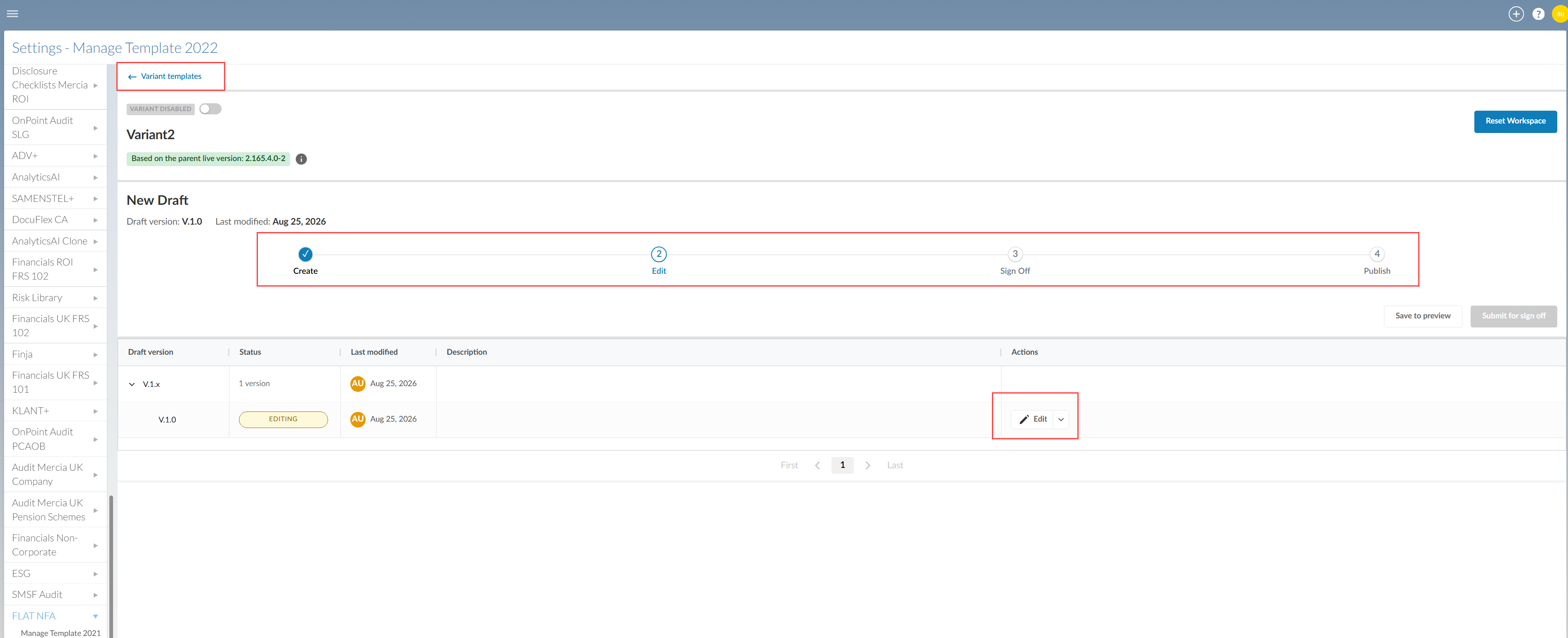
Before you begin
To see the workflow options on the variant template page:
-
Open the Manage Template page.
-
Select the Variant templates tab.
-
Open the variant template view by one of these methods:
-
To edit an existing variant, if any are available for your product, select Details on the variant row. The variant template view opens.
-
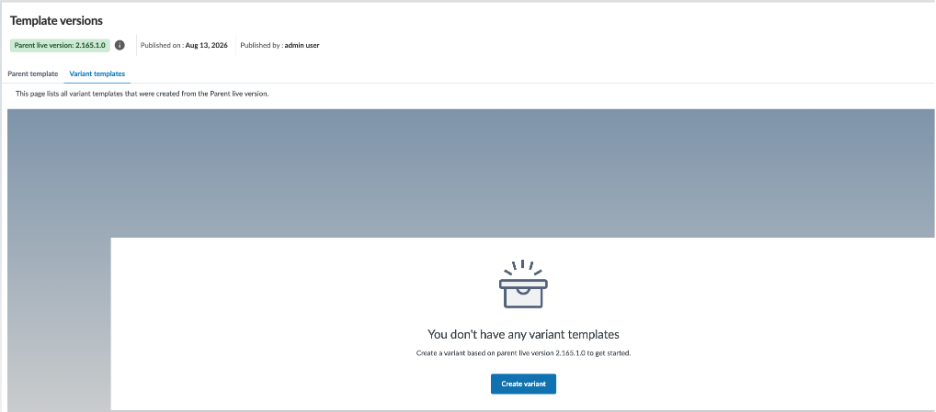
To create a new variant template, select Create variant on the right side of the window. A window prompts you to create a draft from the new variant template.
-
Create a variant template draft
A new variant template is based on the latest published enterprise template. A new variant template draft is based on the latest published variant template.
To create a variant template draft:
-
When no active draft exists, select Create Variant.
-
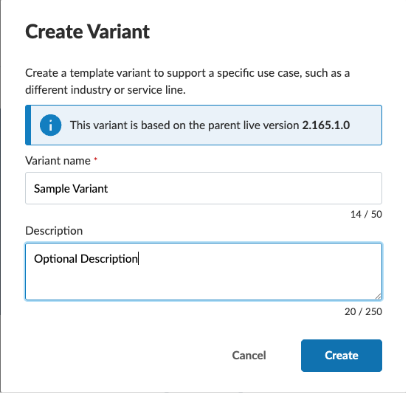
Enter a name.
-
Enter an optional description.
-
Select Create. The variant template appears in the variant templates list.
-
When an initial variant template exists, you can create other variant templates by selecting Create variant to the right of the Variant templates window. Fill out a name and description as for the initial template.
-
When you open the variant template for the first time, a dialog prompts you to create a variant template draft. The new draft becomes the active draft.
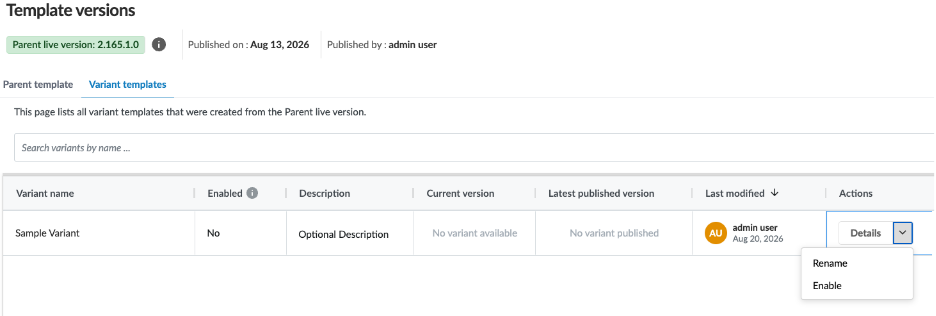
Edit variant template details
You can change the name or description of a variant template.
To edit variant details:
-
Open the Variant templates tab.
-
Locate the variant template.
-
Edit the variant details:
-
To rename the variant, select the Details dropdown on the same row.
-
Select Rename.
-
Update the name.
-
Select Save.
-
-
-
Click on the text under Description to update that text.
Edit the variant template draft
You can edit the active draft before you submit a version for signoff.
To edit a draft:
-
Open the Variant templates tab on the Manage Template page.
-
Locate the variant template.
-
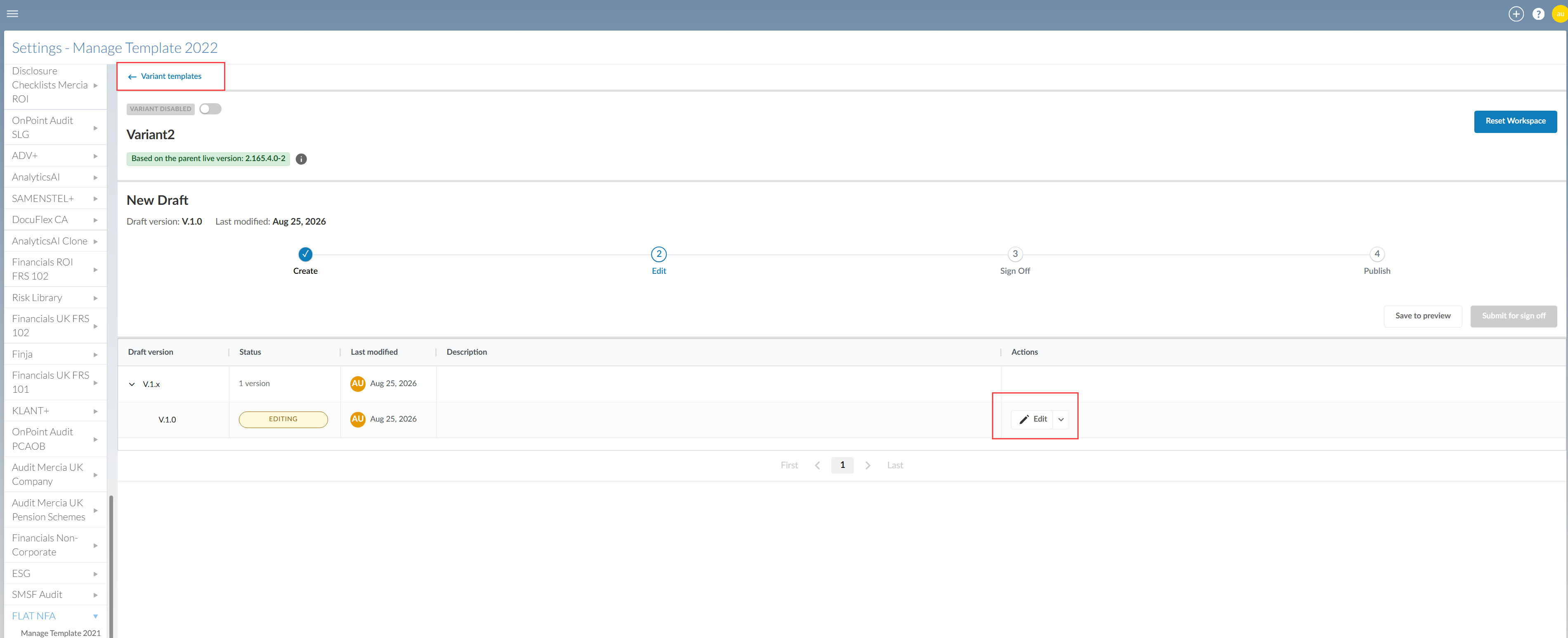
Select Details on the same row. The variant template view opens.
-
Locate the active variant draft.
-
Select Edit on the same row. The template opens.
-
Make the required changes.
-
Select Variant templates at the top left of the window to close the variant template view and return to the Variant templates tab.
To learn more about the features you can customize, see Authoring index.
Save a variant template draft to preview
Select Save to preview to preserve the current draft as a preview version.
Saving to preview:
-
Saves the current draft as a preview version
-
Assigns the next preview iteration to the saved version
-
Keeps an active draft so you can continue editing
Each preview version remains available in the version history.
To save a draft to preview:
-
Open the active variant template draft.
-
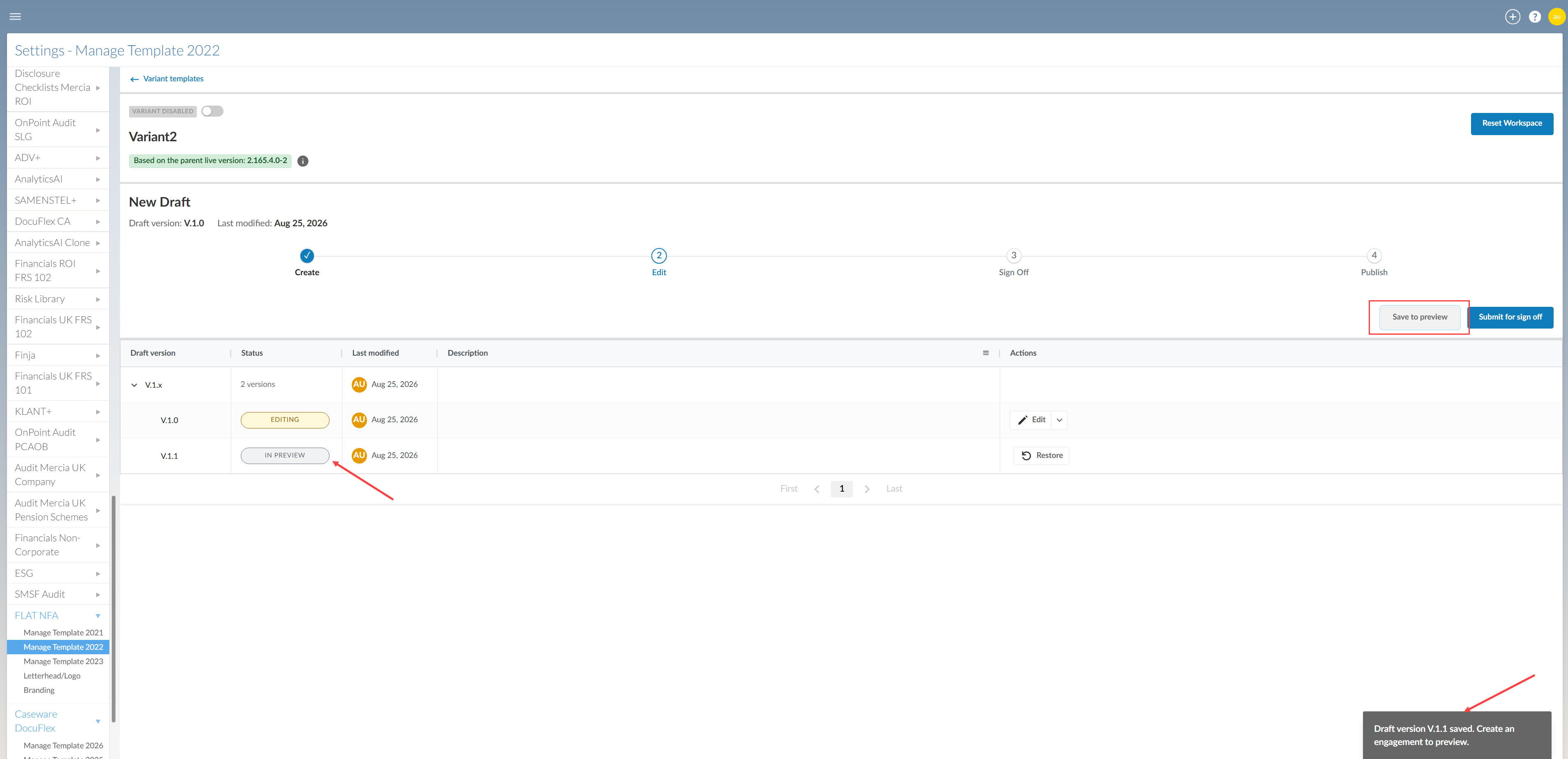
Select Save to preview.
The saved version appears in preview status and an active draft is available for editing:
Submit a variant template draft for signoff
Submit the latest saved preview version when it is ready for signoff.
If the active draft contains changes that have not been saved to preview, those changes are not included in the submitted version. The active draft is removed when you submit the preview version.
Save any changes you want to keep to preview before submitting.
To submit a version for signoff:
-
Open the variant template and locate the version pending signoff.
-
Review the latest preview version.
-
Select Submit for sign off.
-
Review the version number and confirmation message.
-
Select Submit.
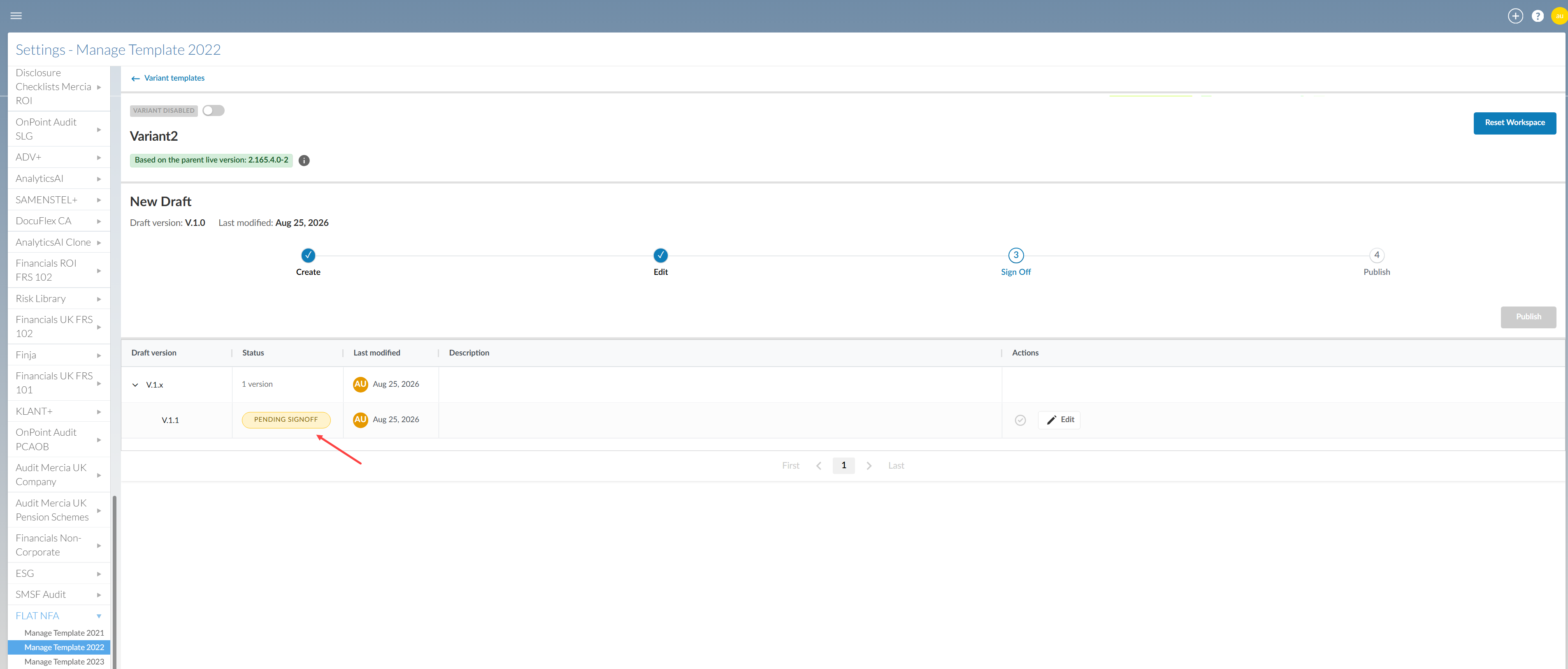
The submitted version moves to pending signoff:
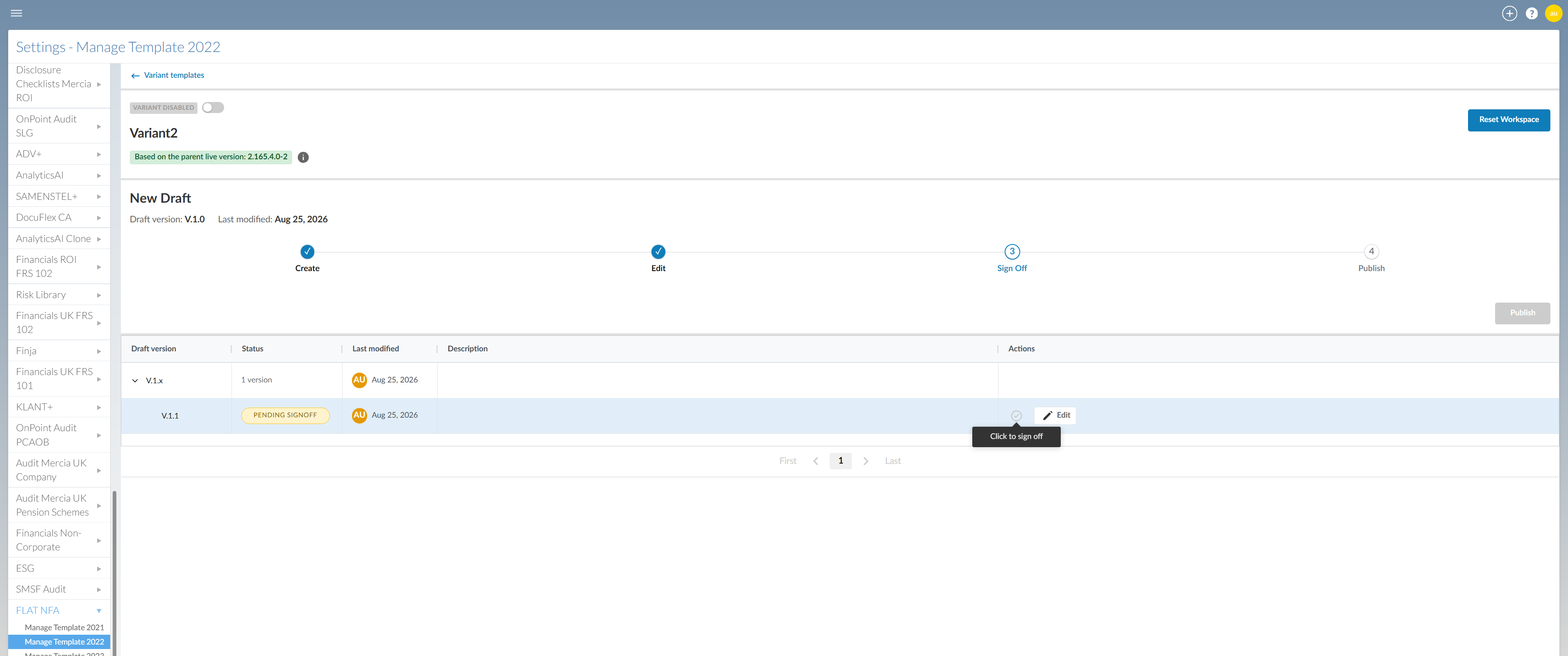
Sign off on a variant template draft
Any user who can access the Manage Template page can sign off on a version. Access is controlled by the Admin or Firm Settings Admin role in the Entity Details page. There is no separate signoff permission.
To sign off on a version:
-
Open the active variant template draft pending signoff.
-
Select the Sign off icon [
 ].
]. -
Review the version information and confirmation message:
-
Select Sign off.
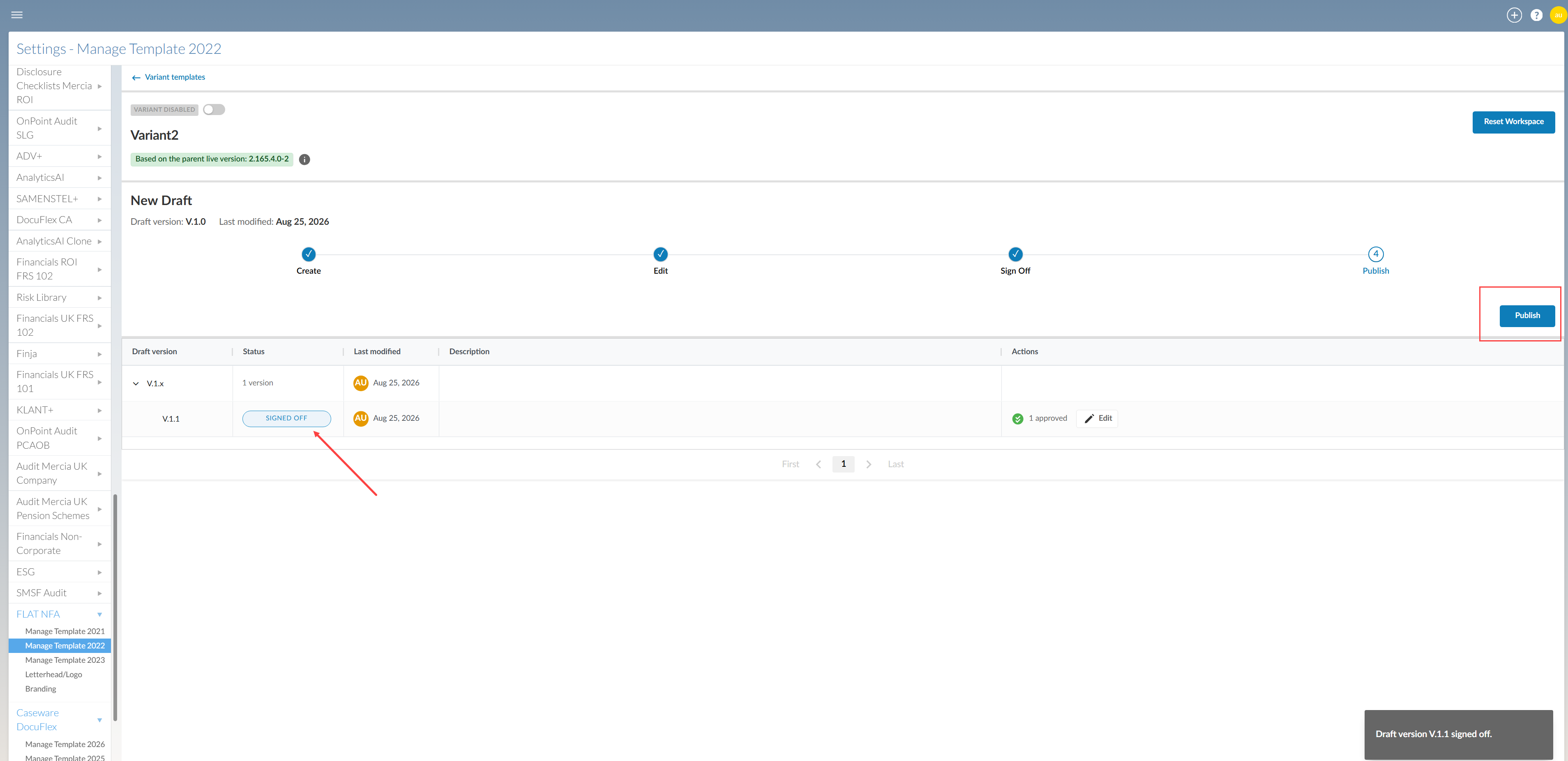
The version is ready to publish:
Edit a variant template draft after submission
You can return a version to the Edit stage after you submit it for signoff.
Returning the version to editing removes its pending signoff status and creates the next active draft version. You must save, submit and complete signoff again before publishing.
Version numbers are never reused. If you delete or replace a draft, the next draft receives the next available version number.
To return a version to editing:
-
Locate the version pending signoff.
-
Select Edit on the same row.
-
Review the confirmation message.
-
Select Edit.
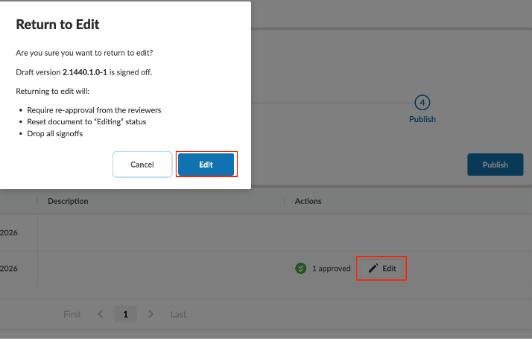
A new active draft opens in the editing workflow.
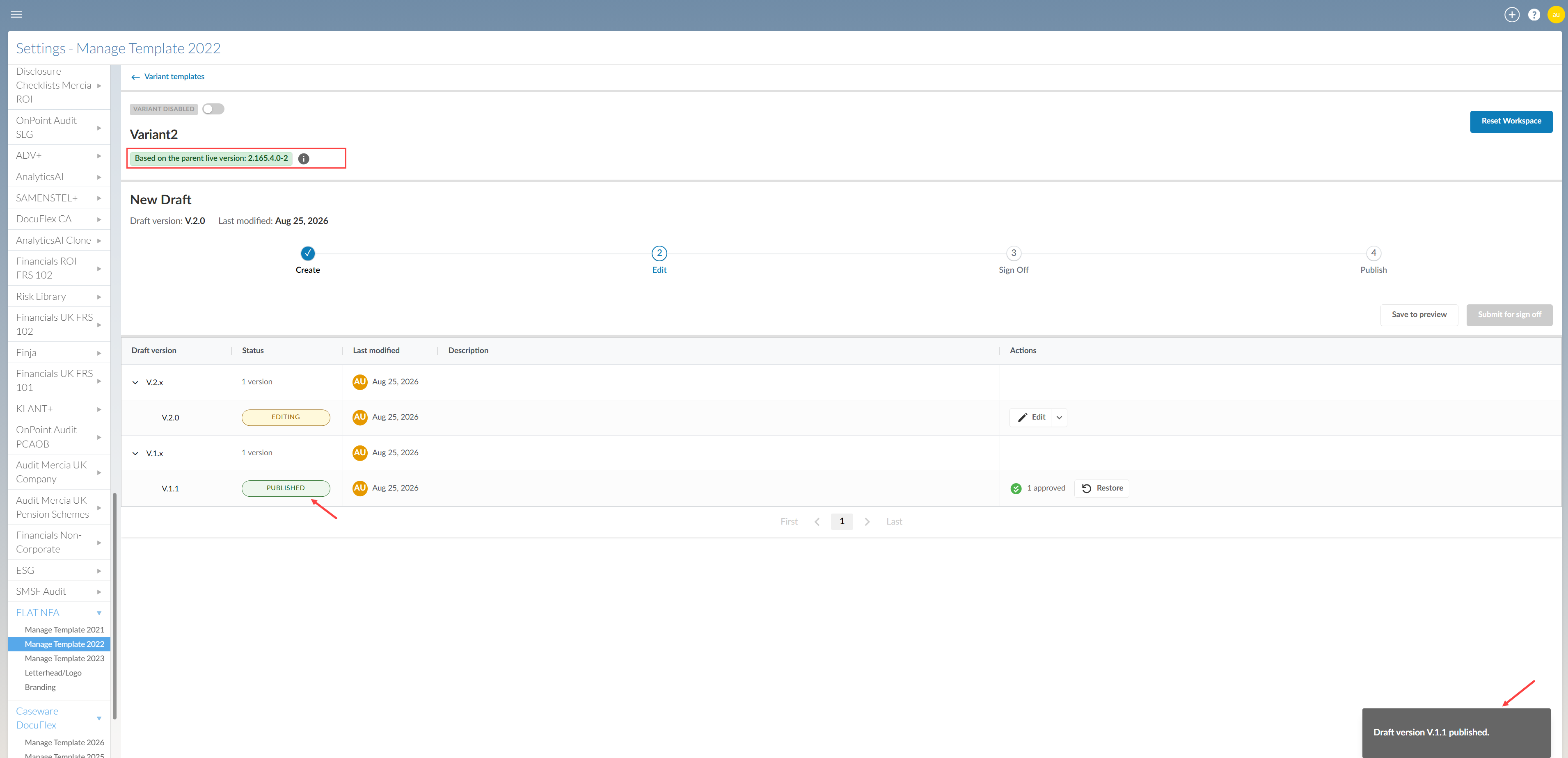
Publish a variant template draft
Publish a signed-off version to make it the live variant template.
To publish a version:
-
Locate the signed-off version.
-
Select Publish.
-
Review the version number and confirmation message.
-
Select Publish.
The published version becomes the new live version.
Delete an active variant template draft
Delete an active variant template draft when you no longer need its changes.
You can delete an active draft. You cannot delete a published version.
Deleting a draft does not make its version number available for reuse.
To delete an active draft:
-
Locate the active variant template draft.
-
Open the Edit dropdown list on the same row.
-
Select Delete.
-
Review the confirmation message.
-
Select Delete.
Restore a previous variant template draft
Restore a saved or published version when you want to use it as the basis for a new draft.
Restoring does not merge versions. The selected version becomes the basis for a new active draft.
The restored content receives the next available draft version number. The original version number is not reused.
To restore a previous version:
-
Locate the version you want to restore.
-
Select Restore from the Actions column.
-
Choose one of the following:
-
Save and restore: Saves the current draft before restoring the selected version.
-
Restore: Discards the current draft changes before restoring the selected version.
-
-
Confirm the restore.
A new active draft opens based on the restored version.
Enable a variant
Enable a published variant to make it available for new engagements.
To enable a variant:
-
Open the Variant templates tab.
-
Locate the published variant.
-
Select the dropdown next to Details.
-
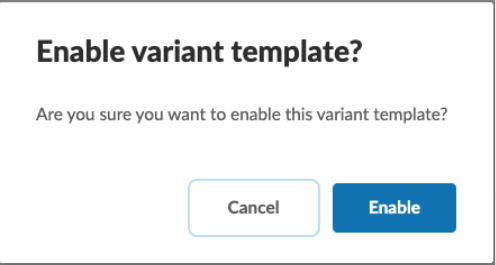
Select Enable.
-
Confirm the change.
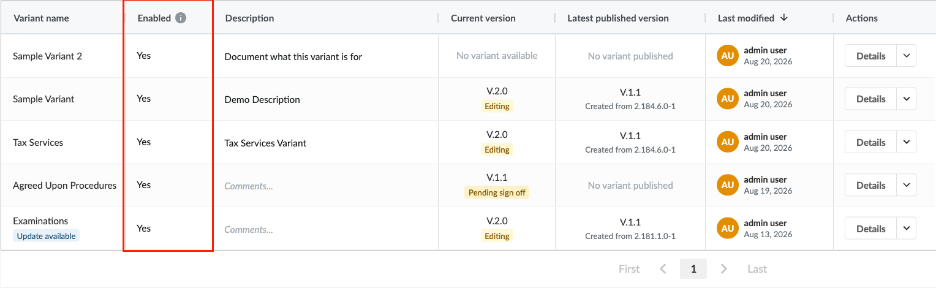
The enabled variant becomes available for new engagements. You can see immediately which variants are enabled and which are not on the Variant templates page.
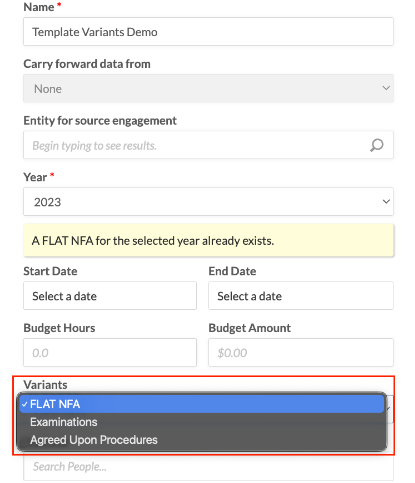
Create an engagement from a variant
Staff can select from enabled variants when they create a new engagement.
The engagement is created from the selected variant.
Apply an enterprise-template update to a variant
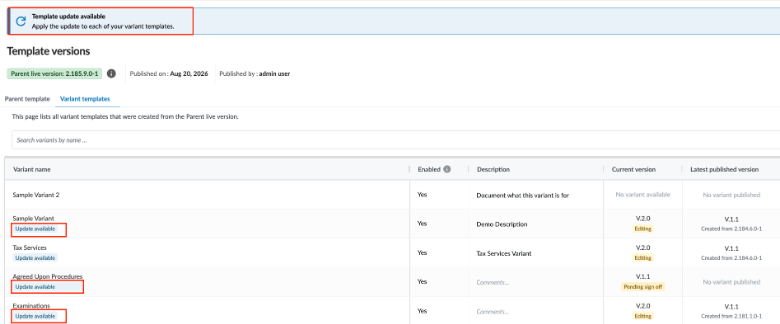
When an updated enterprise template is published, each affected variant receives an update notification. A variant can receive this notification when only the enterprise template has changed.
There is no global action to update all variants. An update remains available for a variant until you merge or replace it.
To update a variant:
-
Open the Variant templates tab.
-
Locate a variant with an available update.
-
Open the variant Details.
-
Select Update.
-
Review the confirmation message.
-
Choose Merge changes or Replace draft.
-
Confirm the update.
-
Review the new active draft.
-
Complete the standard preview, signoff and publication workflow.
Deactivate a variant
Deactivate a variant to prevent staff from using it for new engagements.
Deactivating a variant does not affect existing engagements created from it. Variants cannot be deleted.
To deactivate a variant:
-
Open the Variant templates tab.
-
Locate the variant.
-
You can either select the dropdown next to Details and select Disable or select Details and toggle off the enable variant
-
Select Disable.
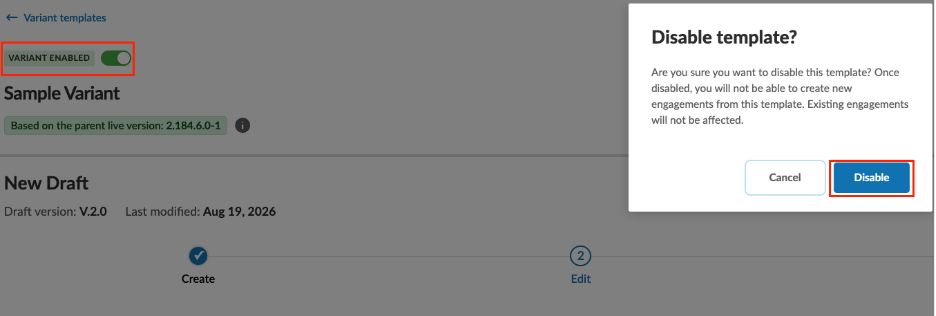
The variant is no longer available for new engagements.
To learn more about customizations available to enterprise authors, see Enterprise-only customizations under Authoring | Get started | Enterprise authors.