
Transport SmartExporter Settings
You can only transport SmartExporter settings in the display mode. Additionally, it is checked if another user is editing the settings in the change mode. If this is the case, a message will be prompted showing the user name of the user working in the change mode.
- Click the Transport settings button to select the settings to be transported.
-
In the Transport Parameters dialog you can specify the scope of the data to be transported.
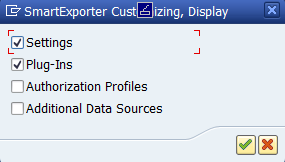
Figure: Transport Parameters Select the content to be transported and click OK (Enter)
 to start the export of the data.
 - Select the available transport request or create a new one by clicking the Create Request
 button.
 -
Click Next
to add the settings to the selected transport request.