
Creating and Maintaining Authorization Profiles
In change mode you can edit existing authorization profiles and create new authorization profiles using the New Entries button. An authorization profile cannot be configured by several users simultaneously and therefore this is prevented by the program.
To avoid a loss of data save all changes in the change mode by clicking the Save button or select the STRG+S shortcut. If some changes are not saved yet when quitting an action, a message will be displayed so you can choose if you want to save or discard the changes.
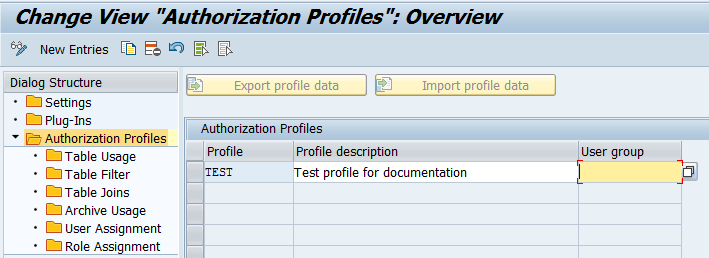
| Field | Description |
|---|---|
|
Profile |
Unique name of an authorization profile |
|
Profile description |
Short description of the profile. If you need the profile description in multiple languages, you can enter the corresponding translations via the Translation entry in the Goto menu. |
|
User group |
Assignment to the SAP® user group Use the User Assignment or Role Assignment folders to either assign SAP® users directly or via role to an authorization profile. |
Select the New Entries button to open the form for new authorization profiles.
Add a new authorization profile as shown in the following image.
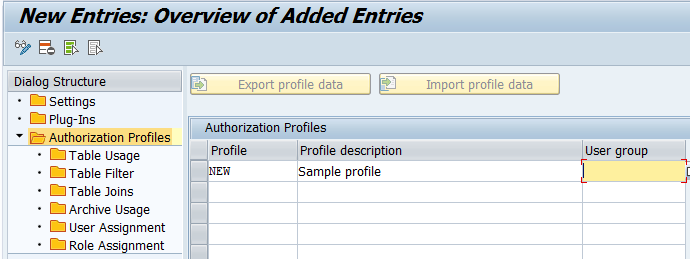
Use the Back icon or the F3 key to return to the overview page of the authorization profiles. The newly added authorization profiles are shown here.
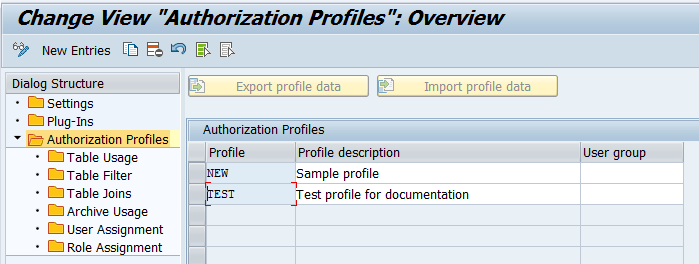
Select an authorization profile to configure table usage, table filter or table joins, archive usage and user assignment.
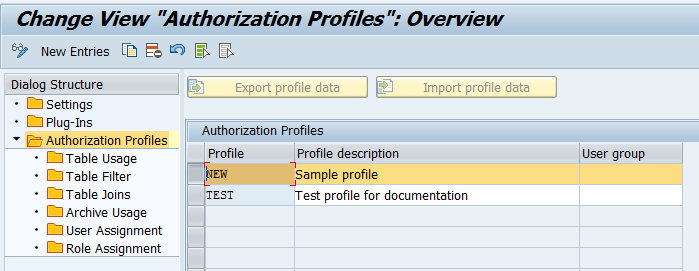
Select a subfolder to define further settings:
Click the Table Usage subfolder to open the maintenance of the tables. Here you can select the tables to assign the authorization.
The tables already configured will be displayed.
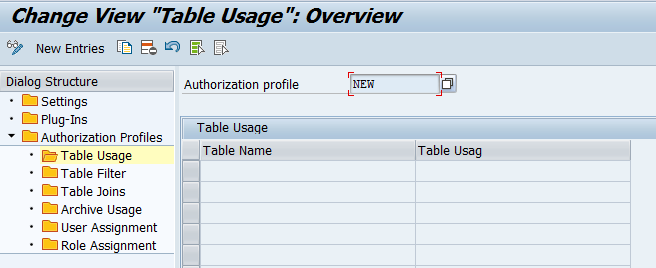
| Table usage | |
|---|---|
|
Table Name |
Table name of an SAP® database table or view. The generic (*) value allows access to all tables. Except for the (*) value no other wildcard definitions such as "XY*" are allowed. Using the search help for the field you can select tables from the SAP repository. |
|
Table Usage |
Selection field containing the following values:
|
Add new entries using the New Entries button.
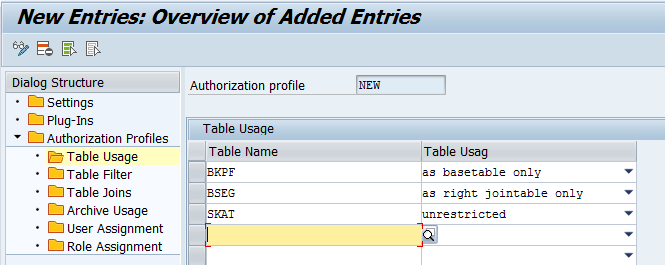
Click the Table Filter subfolder to switch to the maintenance of the filters to be used.
The filters already configured will be displayed.
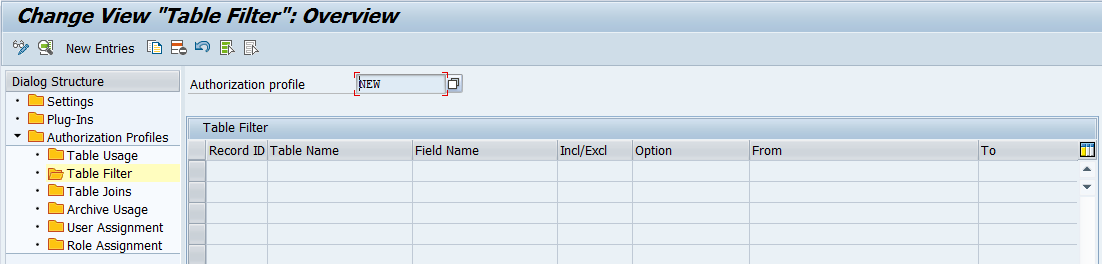
| Field | Description |
|---|---|
|
Record ID |
Record ID for internal administration, display only |
|
Table Name |
Table name of an SAP® database table or view. The generic (*) value sets the filter for all tables for which the field name is defined. Except for the (*) value no other wildcard definitions such as "XY*" are allowed. |
|
Field Name |
Name of a database field |
|
Inclusive/Exclusive |
|
|
Option |
Filter condition:
|
|
From |
Filter value for all conditions |
|
To |
Upper limit (only valid for filter condition Between). |
|
Object |
Name of authorization object |
|
Fieldname in Object |
Field name in authorization project |
Notes on the use of table filters
In the database view you have to enter filter values as follows:
- Date values (DATS) in the YYYYMMDD format
- Time values (TIMS) in the HHMMSS format
- Document numbers have to be entered with leading zeros
- Language keys (SPRAS) have to be entered using the single-character language key
- Language keys (LANGU), however, have to be entered using the double-character language key
- The special value INITIAL can be used for the filter value in LOW and HIGH to explicitly check the initial field values.
Note:
The table filters are used in an additive manner. An incorrectly defined table filter will have an impact on the result of the database request.
The specified table filters will be added to the filters defined in the Data Request.
Using filter values could increase the runtime significantly when performing a database request.
- Therefore you should only use filters for key fields of the tables.
- Complex criteria such as Contains Pattern or Between should be avoided in tables with a huge data volume.
If the field is used in the right table of a Left Outer Join, only the defined "Inclusive Equal to" filters will be used and specified as a join condition to avoid SQL syntax errors.
After importing an authorization profile template the filter values have to be adjusted according to requirements of the local SAP® system. Particularly empty filter values have to be considered as these might lead to an incomplete result.
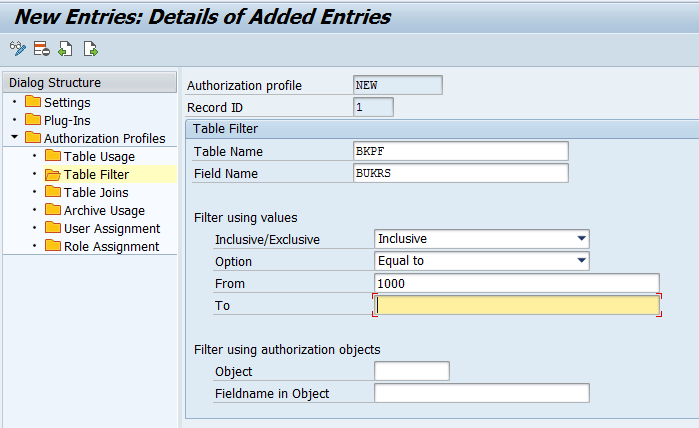
Instead of manually entering the filter values, filters can also be specified using authorization objects. In order to do so, please enter the corresponding object and authorization field. In that case only the table name and field name are required.
If the authorization object is defined accordingly, the existing authorizations of the user will be used automatically. If changes are necessary, the SAP® administrator can adjust the authorization object centrally instead of having to change the relevant filter values for all tables.
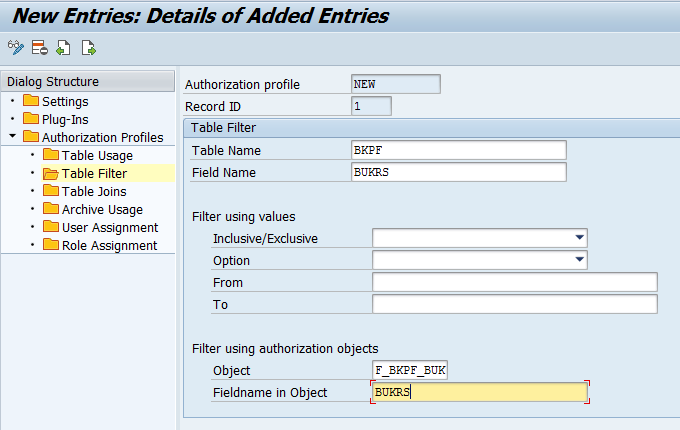
Use the Back icon or the F3 key to return to the overview page of the table filters. The newly added table filters are shown here.
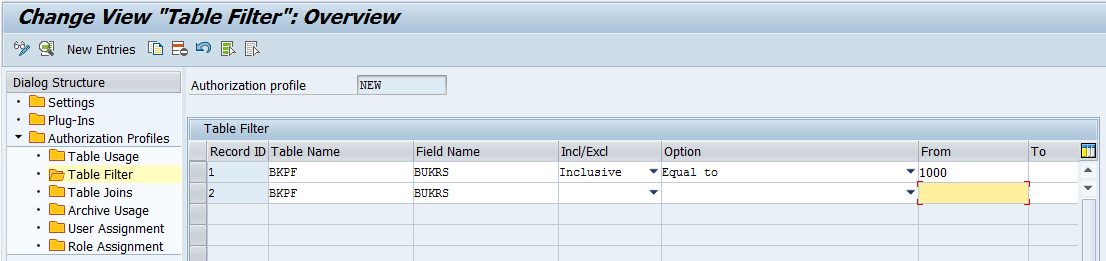
Click the Table joins subfolder to switch to the maintenance of the filters to be used.
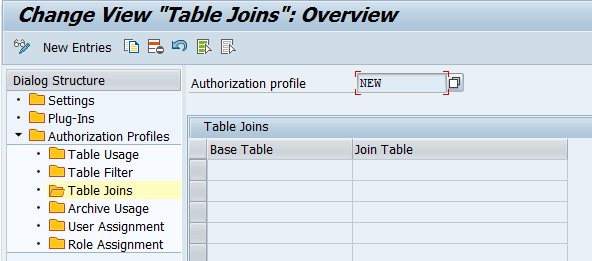
The table joins already configured will be displayed.
| Field | Description |
|---|---|
|
Base Table |
Table name of the base table (left or primary table respectively) of a join definition The generic (*) value allows the use of each table as a base table in a join definition. |
|
Join Table |
Table name of a subtable (right or secondary table) of a join definition The generic (*) value allows the use of each table as a subtable in a join definition. |
All table joins which should be allowed have to be defined. By using the generic values for Table Name and Join Table you can reduce the number of table joins that have to be defined.
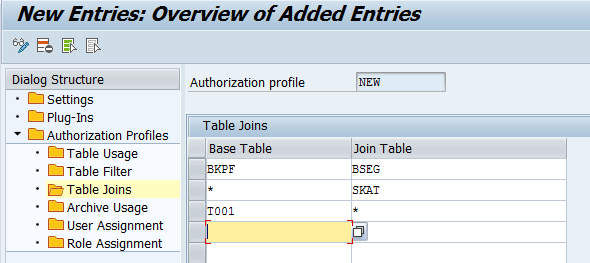
Click the Archive Usage subfolder to switch to the maintenance of the filters to be used.
The archiving objects already configured will be displayed.
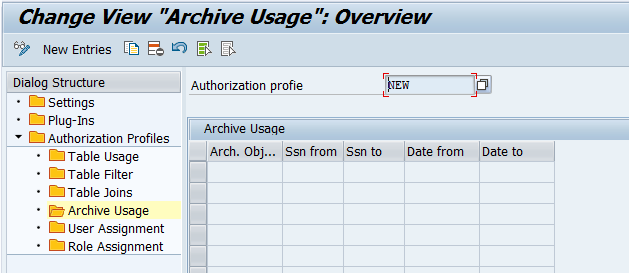
| Field | Description |
|---|---|
|
Arch. Object |
Name of the archiving object (see transaction SARA) The generic value (*) allows the use of any archiving object. Using the search help attachment (F4 key) you can select the archiving objects and archiving sessions which were activated in the system. |
|
Ssn from |
Unique number of an archiving session This value defines the lower limit of an interval for archiving sessions. The value 0 allows the use of any archiving session up to the upper limit. |
|
Ssn to |
Unique number of an archiving session This value defines the upper limit of an interval for archiving sessions. If this value is 0 and also the value for "Ssn from" is 0, all archiving sessions will be authorized. |
|
Date from |
Date of an archiving session Lower limit of a date interval in which an archiving session was run. If this field is empty, all archiving sessions up to the date "Date to" will be authorized. |
|
Date to |
Date of an archiving session Upper limit of a date interval in which an archiving session was run. If this field is empty, all archiving sessions since the date "Date from" will be authorized. |
Note:
If you want to cover several entries for the same archiving object, the restriction for all entries should be done using either the Ssn from and Ssn to values or the Date from and Date to values. Using a mixed definition may lead to undesirable combinations.
Click the User Assignment subfolder to switch to the maintenance of the SAP® users to be authorized.
The users already configured will be displayed.
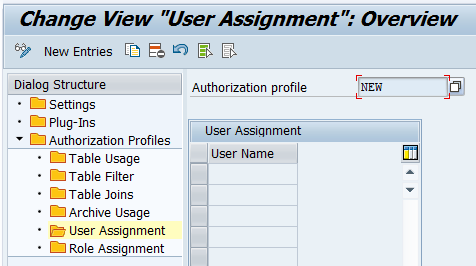
Within the authorization profiles in the user assignment you can configure SAP® users.
| Field | Description |
|---|---|
|
User Name |
Name of an SAP® user |
As an alternative for the user assignment you can also use roles to assign the authorization profile to relevant users. In order to do so, click the Role assignment subfolder.