Sending queries
The Query Overview provides you with an overview of all queries. Assign the queries in this document to your contacts and monitor the process.
Note:
Queries can only be sent to users who have previously been registered as a Contact in Caseware Cloud and added to the corresponding entity with the Entity Collaborator role. They also need the Contact - Editor role for the specific engagement.
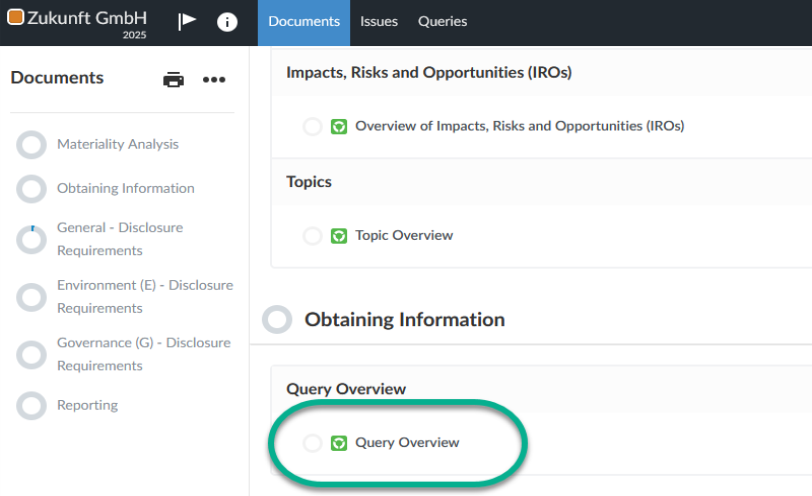
First open the Query Overview via the link of the same name in the Documents Page.
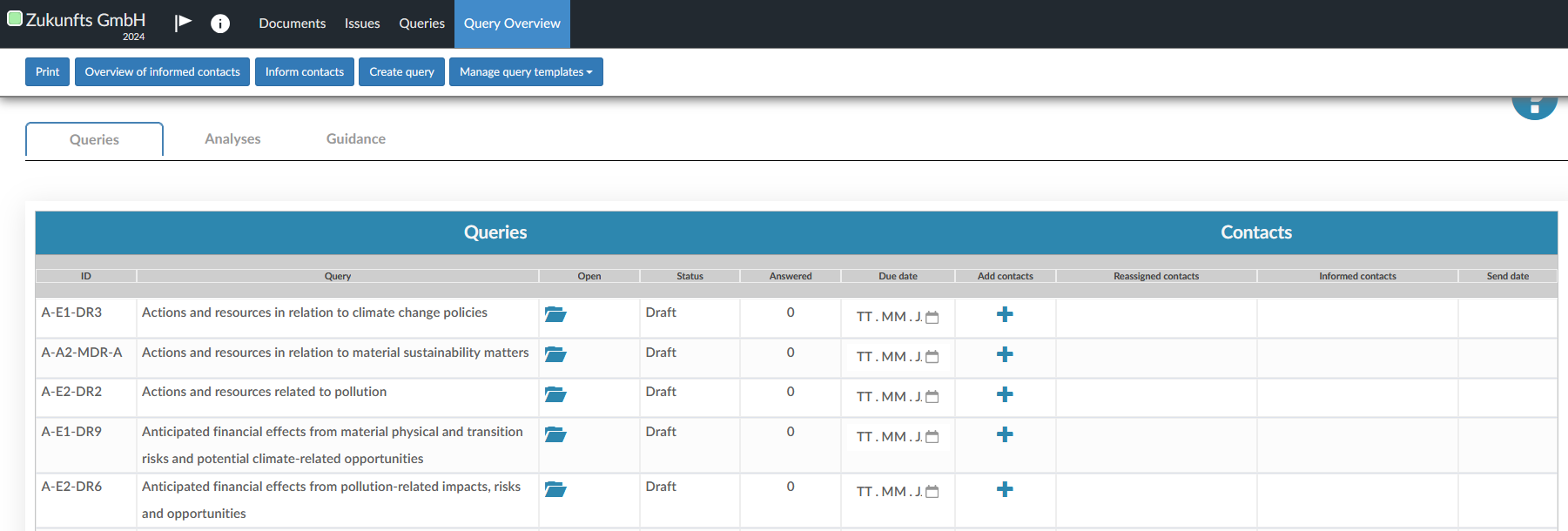
A list of queries is displayed.
Sending queries
-
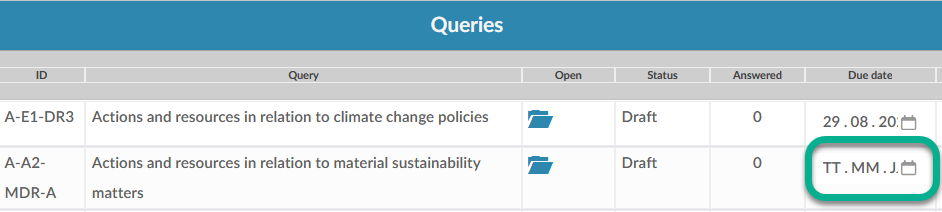
Before sending a query you first have to determine a due date. To do this, click on the calendar symbol in the Due date column and set a date.
-
In the Add contacts column, use the plus symbol to select the contacts who should respond to the query.

-
To do this, activate the check boxes next to the names of the users you want to assign the query to.
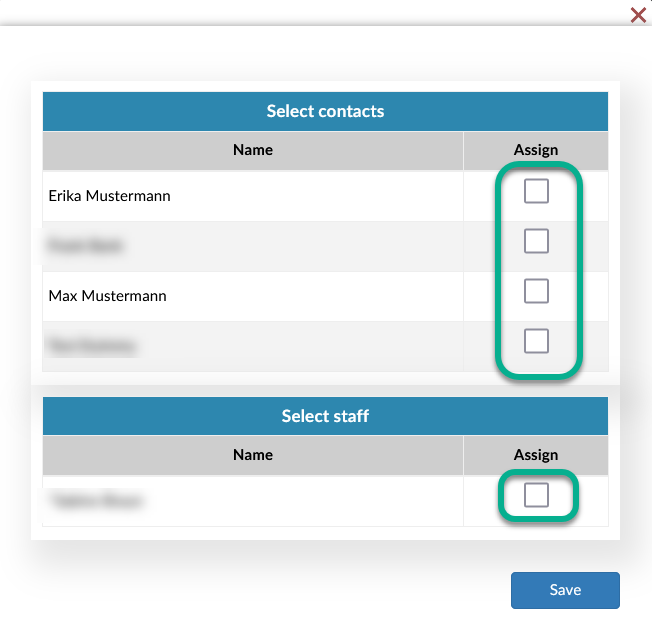
- Save your selection by clicking the Save button.
-
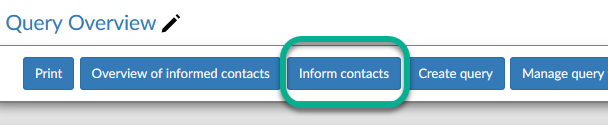
Click on the Inform contacts button at the top of the query overview.
-
Send the query/queries by clicking on the Send button.
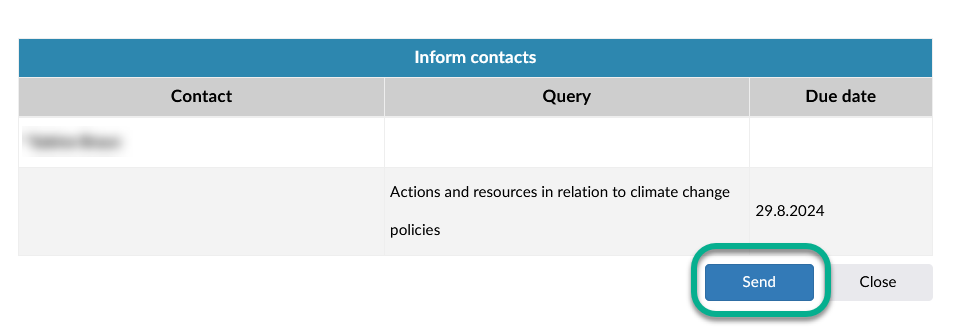
The added contacts will now receive an email with a link to the respective query and a link which they can use to create a calendar entry for the due date.
After sending a query
Once a query has been responded to you can View the responses.
Overview of answered and unanswered queries:
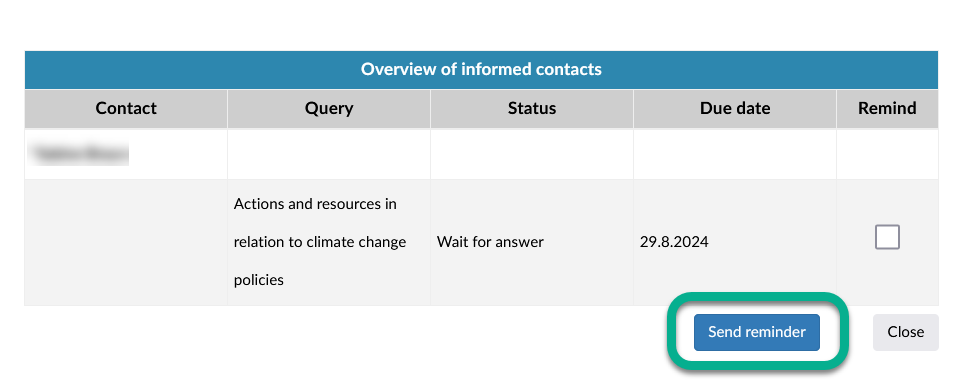
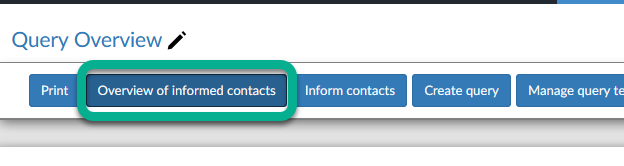
- Use the Overview of informed contacts view to gain an overview of the contacts who have been assigned to the queries.
-
Use the Send reminder button in the Overview of informed contacts to send reminders to the assigned contacts. To do this, activate the check boxes next to the queries and click on Send reminder.