
API Settings
Integrate Cloud with external applications using API clients. You can create a maximum of 50 API clients for your firm. We recommend integrating one application per API client.
Client information from integrated applications is automatically updated in Cloud through the use of API tokens. API tokens are used by firm developers to authenticate the integration process.
To create a new API client:
-
Ensure you have the Admin role or equivalent permissions.
-
From the Cloud menu (
 ), select Settings | Integration | API Settings.
 -
Select Create API client.

-
In the Create API client dialog, complete each tab:
-
General: Enter an alias for the API client.
-
Roles: Select the applicable roles for the API client. As a best practice, we recommend limiting the roles given to only what is absolutely necessary. See Built-in roles for more information on role permissions.
-
Apps: Select the applicable apps for the API client and define whether they have Read-only or Full access.
-
-
Select Save.
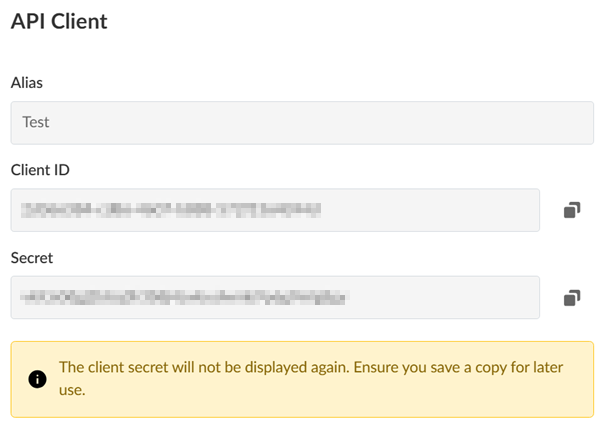
Details of the new API client display.
-
Ensure you copy the client ID and secret to a text document for later use. The client secret will not be displayed again. Select Close.
-
The API client is created.

- Edit: Change the client alias, roles, or app access.
- Reset client secret: Generate a new client secret. We recommend resetting the secret after regular intervals for security purposes. Note that you'll need to update any external applications that were using the previous secret.
- Delete: Delete the API client.
-
Provide the API client ID and secret to your firm's developers so that they can generate the API token.