
Export XBRL reports
After you review the XBRL tags, export the report to check that it generates as expected. The export format depends on your product:
-
iXBRL (Inline XBRL) reports can also be read by people, for example in a browser.
-
XBRL reports are primarily read by machines.
For iXBRL reports, you can also generate a review document during the export, before the report is created. Use it to check tags, contexts and dimension members. The review document doesn't affect the exported report.
To learn more about the XBRL review, see Review and add XBRL tags.
Export XBRL report
To export an XBRL report:
-
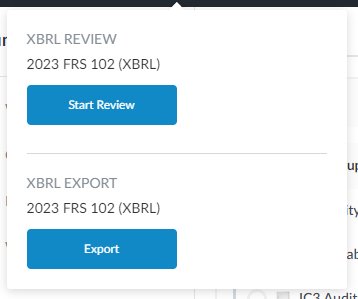
Select the XBRL (
 ) icon in the top menu.
-
In the XBRL Export section, select the XBRL taxonomy you want to export if there are multiple options and then select Export.
-
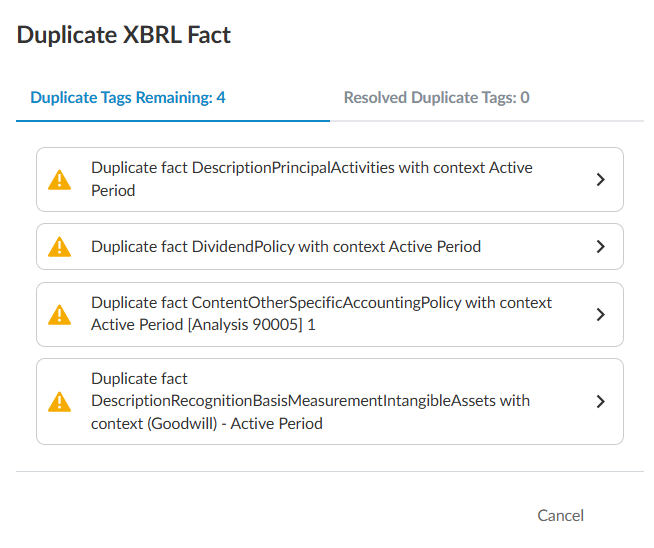
If any duplicate facts exist in the financial statements, the Duplicate XBRL fact dialog appears. Duplicate facts occur when the same tag is present in multiple locations of the financial statements and contains different values. They are often caused by rounding errors.
You can select which of the duplicate values to export in the Duplicate XBRL Fact dialog:
-
Select a duplicate fact to correct and then select Correct.
-
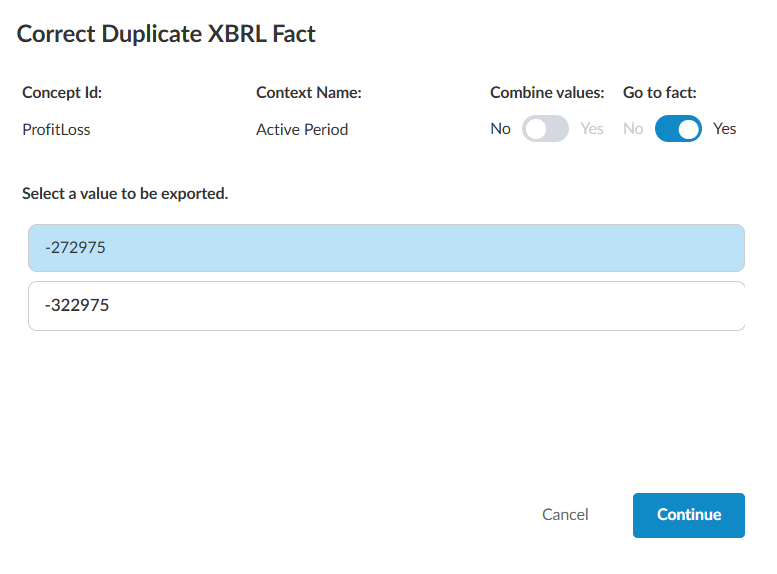
In the Correct Duplicate XBRL Fact dialog, you can select the values to open the financial statements to the location of the tagged fact so you can determine which value to export.
You can move and resize the Duplicate XBRL Fact and Correct Duplicate XBRL Fact dialogs to view the content in your financial statements. When you select a fact, it will jump to that location in the accounts. You can toggle this function on or off with the Go to fact control.
-
Identify the value you want to export and select Continue.
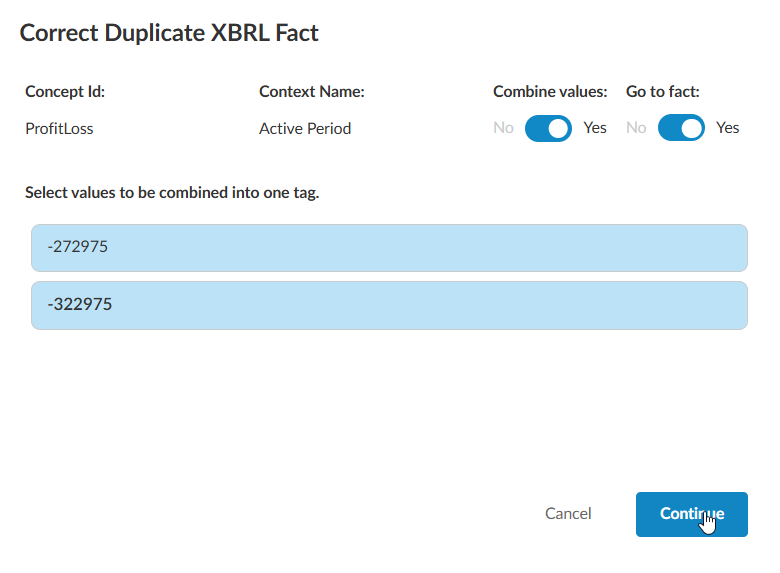
If you want to combine the values to export them, set the Combine values option to Yes, and select any number of values to be combined. If the tag is numeric, this will add the selected values together. If it is alphanumeric, it will concatenate the values.
-
Repeat the steps above until you have corrected all the duplicate facts and then select Proceed.
Note: Your selections here have no impact on the financial statements, and only affect the report generation.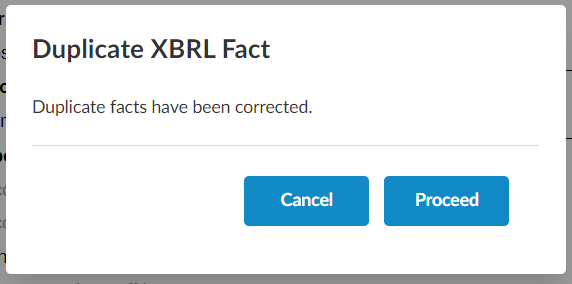
-
The system now retains duplicate fact selections if you return to this screen on a subsequent report generation in the same session (i.e. you have not refreshed your browser).
This can save you significant time if you are diagnosing errors which may appear later in the process, as addressing duplicate facts in mandatory.
To update or change the selections in the event of error, click on the Resolved Duplicate Tags tab.
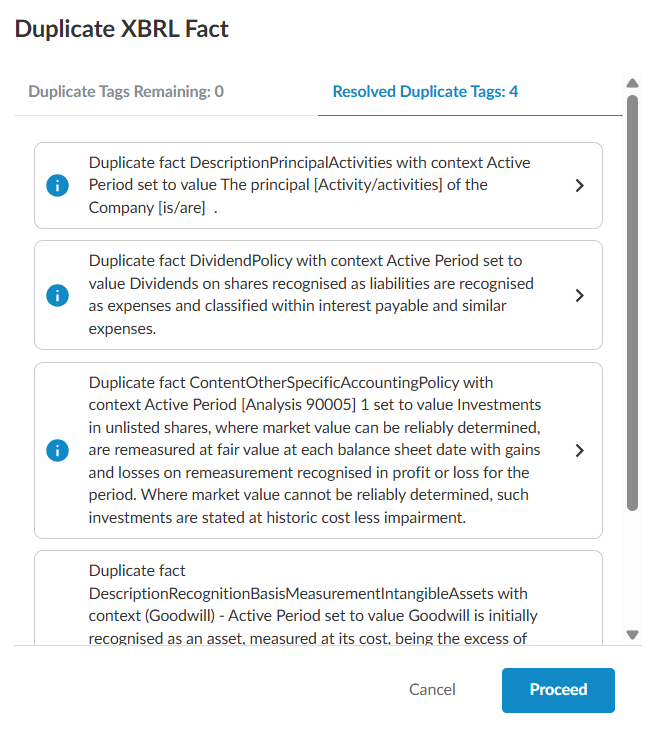
You can then interact with and update the saved selections with the same interface as the initial selection.
-
-
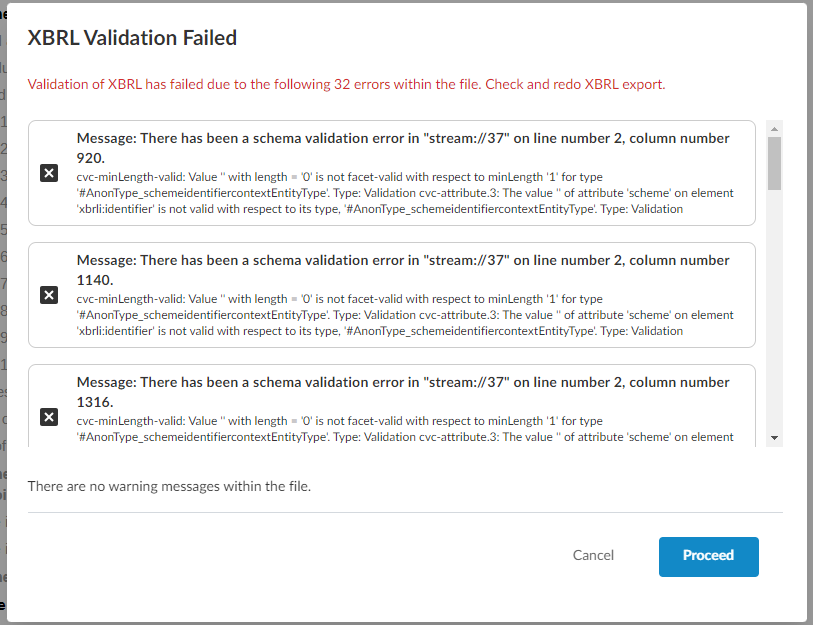
If there are validation errors in the report, they will be flagged at this point. Select Cancel to cancel the export process and address the errors or select Proceed to continue the export process.
-
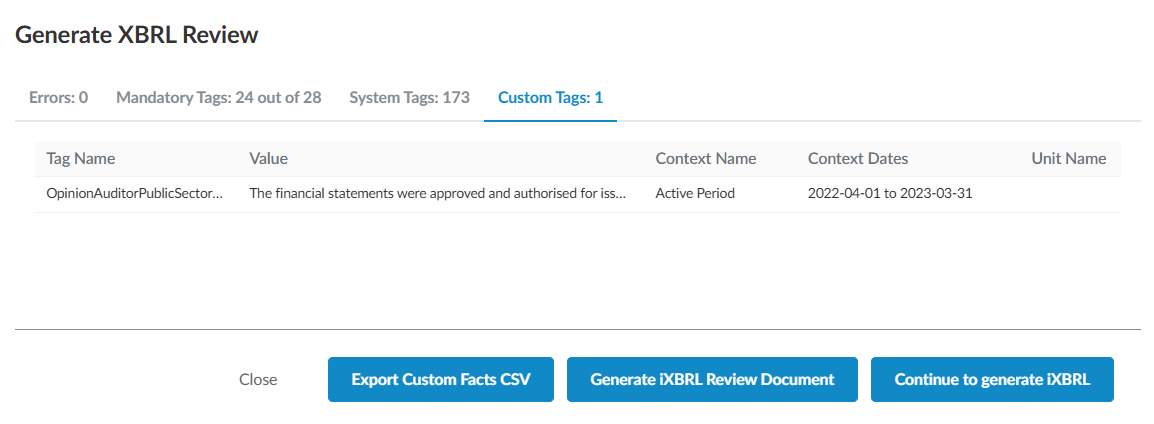
In the Generate XBRL Review dialog, you can review the content of the report before you generate it.
There are four tabs in the dialog. On each tab, you can select Export CSV to export the content of the tab to a CSV file to review it more easily.
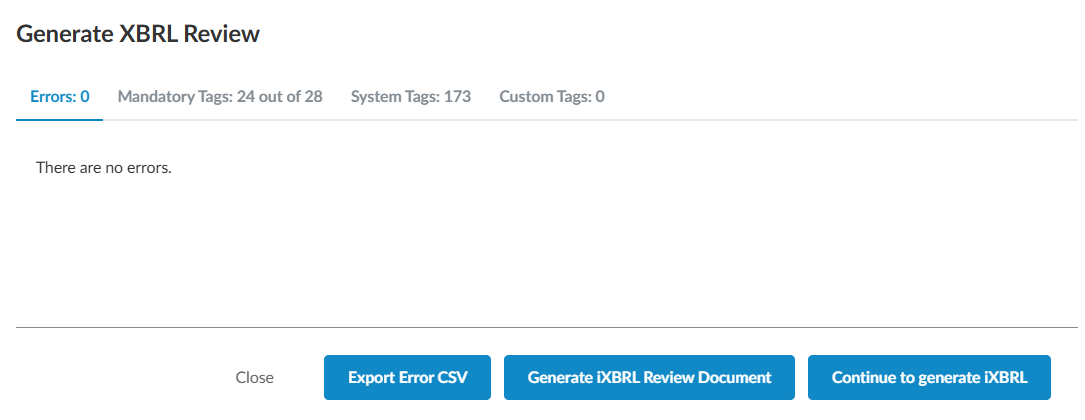
The four tabs are:
-
Errors - Indicates diagnostic errors not picked up earlier in the process, such as tags containing data of incorrect type, or tags missing required phrases.
-
Mandatory Tags - Indicates whether the report is missing any tags considered required by the relevant regulatory body. Missing tags are displayed in red, and a quick reference summary is presented in the tab for this area.

-
System Tags - Lists the tags, value and relevant information surrounding the system tags within your report. This can be useful for confirming the duplicate values addressed earlier in the process have been handled correctly.

-
Custom Tags - Lists the tags which have been applied by you in the engagement.
-
-
When you’ve finished reviewing the information in the dialog, select Continue to generate iXBRL.
XBRL export features
-
XBRL reporting period dates align with an engagement's short or long year. The XBRL export pulls the current-year and prior-year period beginning and end dates from the engagement properties, ensuring that the XBRL period metadata stays consistent with the engagement configuration. This prevents period mismatches that could produce invalid XBRL filings.
iXBRL report features
-
The iXBRL html report with the company name, date and time of export is saved to the Documents page in your engagement.
-
The report includes all images and embedded PDFs from the financial statement.
XBRL export features
-
XBRL reporting period dates align with an engagement's short or long year. The XBRL export pulls the current-year and prior-year period beginning and end dates from the engagement properties, ensuring that the XBRL period metadata stays consistent with the engagement configuration. This prevents period mismatches that could produce invalid XBRL filings.
Export iXBRL report
To generate an iXBRL review document:
Before you begin, complete steps 1–5 in To export an XBRL report.
-
In the Generate XBRL Review dialog, select Generate iXBRL Review Document.
-
On the Documents page, open the iXBRL review document.
-
Optional: To print the document or save it as a PDF, use your browser's print option.
-
The printout includes all tag columns.
-
Tab headers become links to each tag group.
-
Check tags in the iXBRL review document
Each tagged fact has a reference number beside it. Reference numbers restart at 1 on each page and follow reading order. The review document also includes:
-
A key beside each page, which shows the context, tag name and any non-default dimension for each numbered fact.
-
Tabs, which split the key on pages with more than 25 tags. Each tab holds up to 25 tags.
-
A legend, which lists only the markers used in your document, such as D (duration) or Dim (dimension).
-
A list of non-visible tags at the end of the document, which shows each tag's name, value, context and dimension where they apply.
iXBRL report features
-
The iXBRL html report with the company name, date and time of export is saved to the Documents page in your engagement.
-
The report includes all images and embedded PDFs from the financial statement.