
Create an engagement for an interim period
You can create engagement files for monthly, quarterly and semi-annual interim periods.
For interim engagements, you can only import Excel or CSV files to your trial balance.
To create an interim engagement file:
-
Create the initial engagement file.
For more information, see Create an engagement file.
-
From the engagement's properties, select the Reporting period and the Year end date.
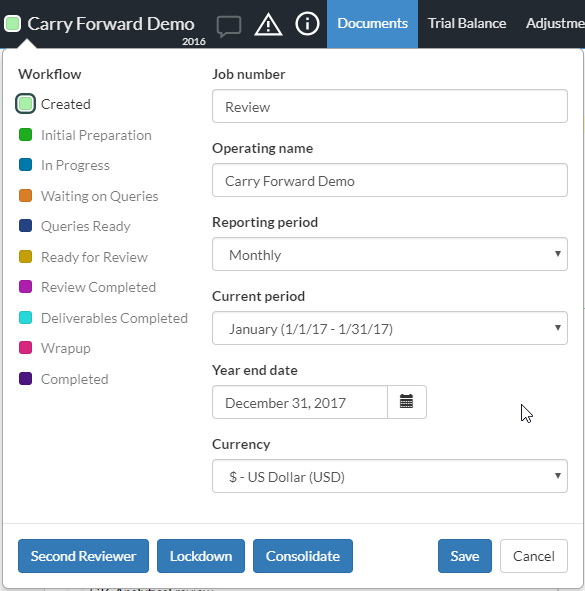
-
Select the Trial Balance tab, then select Excel or CSV to import the trial balance.
Trial balances must be YTD (year-to-date), not period balances. After you import a trial balance, you won't be able to change the engagement's reporting period.
To create the next period's engagement file:
-
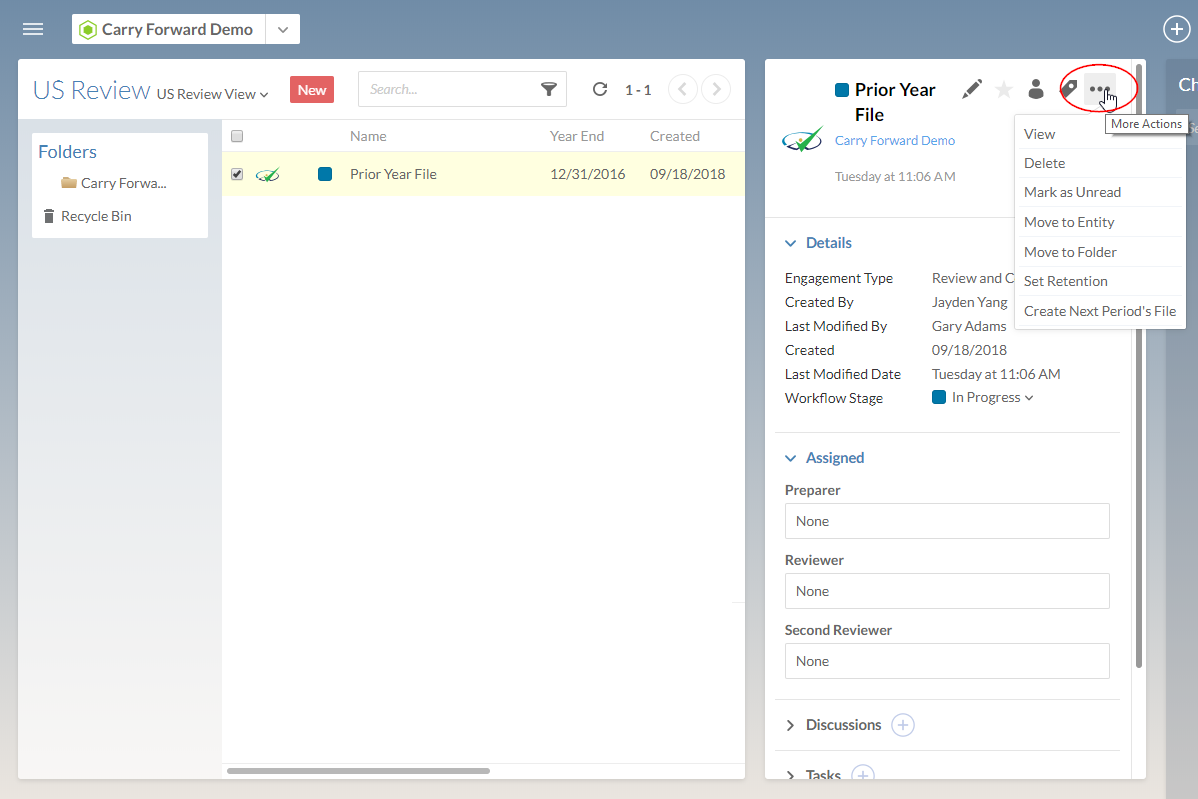
Select Create Next Period's File from More actions (
 ).
).
-
Complete the Carry Forward dialog as required.
-
In the Carry forward data from field, select the engagement file with the data you want to carry forward.
The engagement properties in the new engagement update to Current period.
-
Accept or reject any responses, modified queries or new documents from the previous period. For more information, see Carry forward an engagement.
-
From the Trial Balance tab, select More actions (
) | Reimport, and Excel or CSV to import the trial balance for the new period. Columns in the trial balance now reflect the YTD balances for the new period.Trial balances must be YTD (year-to-date), not period balances. After you import a trial balance, you won't be able to change the engagement's reporting period.
-
From the Documents tab, select Financial Statements and scroll down to the Statement of Income.
Notice the columns for period specific balance and YTD balances for the current and prior year.
-
Complete the engagement in the same way you would an annual engagement.
Create a short or long year engagement
You can create engagements with reporting periods that are shorter or longer than 12 months by adjusting the engagement start and end dates. The application validates that the start date is not after the end date and updates related period calculations accordingly.
To set up a short or long year engagement:
-
Open the engagement and go to Engagement properties.
-
Set Reporting period to Yearly/Annual.
-
Set the Year end date to the correct fiscal year end.
-
Set the Year start date so the reporting period matches the engagement:
-
Use fewer than 365 days for a short year.
-
Use more than 365 days for a long year.
-
Click Save.
The system checks that the start date is not after the end date.
To reset the engagement to a standard 12-month year:
-
Go to Engagement Properties.
-
Click Reset next to Year start date.
Note: The Reset button appears only when the engagement is not using a standard 365-day year.