
Generate a sample from Analytics Hub
Each analytic test in the Analytics Hub includes a sample calculator in the Test Parameters tab. This tool lets you generate Random, Attribute, Monetary unit or Controls samples. You can also apply Systematic sampling manually without the calculator. Sampling helps you quickly gain insights from large datasets by analyzing a smaller, representative portion, whether you're working with structured data like client transactions or unstructured inputs such as natural language descriptions.
You can use sampling within an analytic test or as a standalone tool.
Sampling methods
The following sampling methods are available:
Attribute sampling
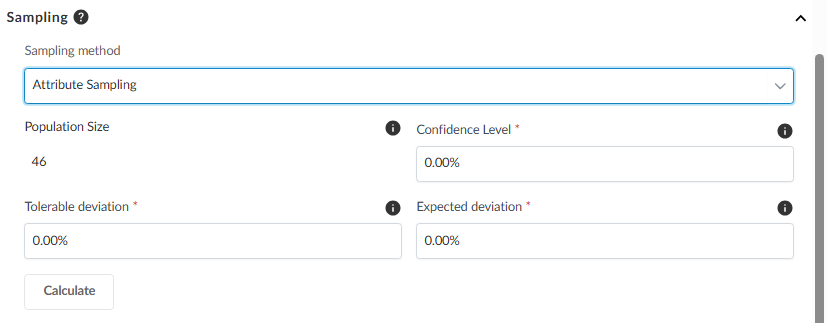
Attribute sampling is a statistical method used to evaluate the frequency of a specific attribute within a dataset. Each attribute is binary, having only two possible outcomes: true or false, and is commonly used for testing controls or compliance.
Monetary unit sampling
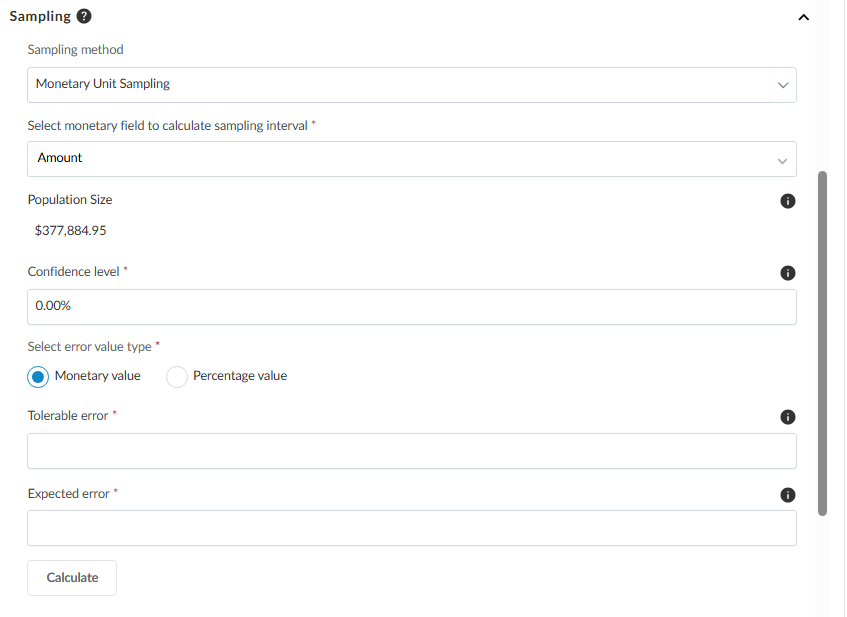
Monetary unit sampling (MUS) selects records based on the monetary value of a specified column. Each monetary unit (for example, each dollar) is treated as a sampling unit, giving larger transactions a higher probability of selection compared to smaller ones. The sample size is determined by parameters, such as risk tolerances and confidence levels. This method is especially useful in financial auditing, as it focuses on transactions with greater monetary impact. MUS is applicable to both the general ledger and subledgers, offering a reliable way to prioritize high-value transactions for review.
You can define the tolerable error threshold as an amount or a percentage. For low-risk populations, you can also set the expected error to zero.
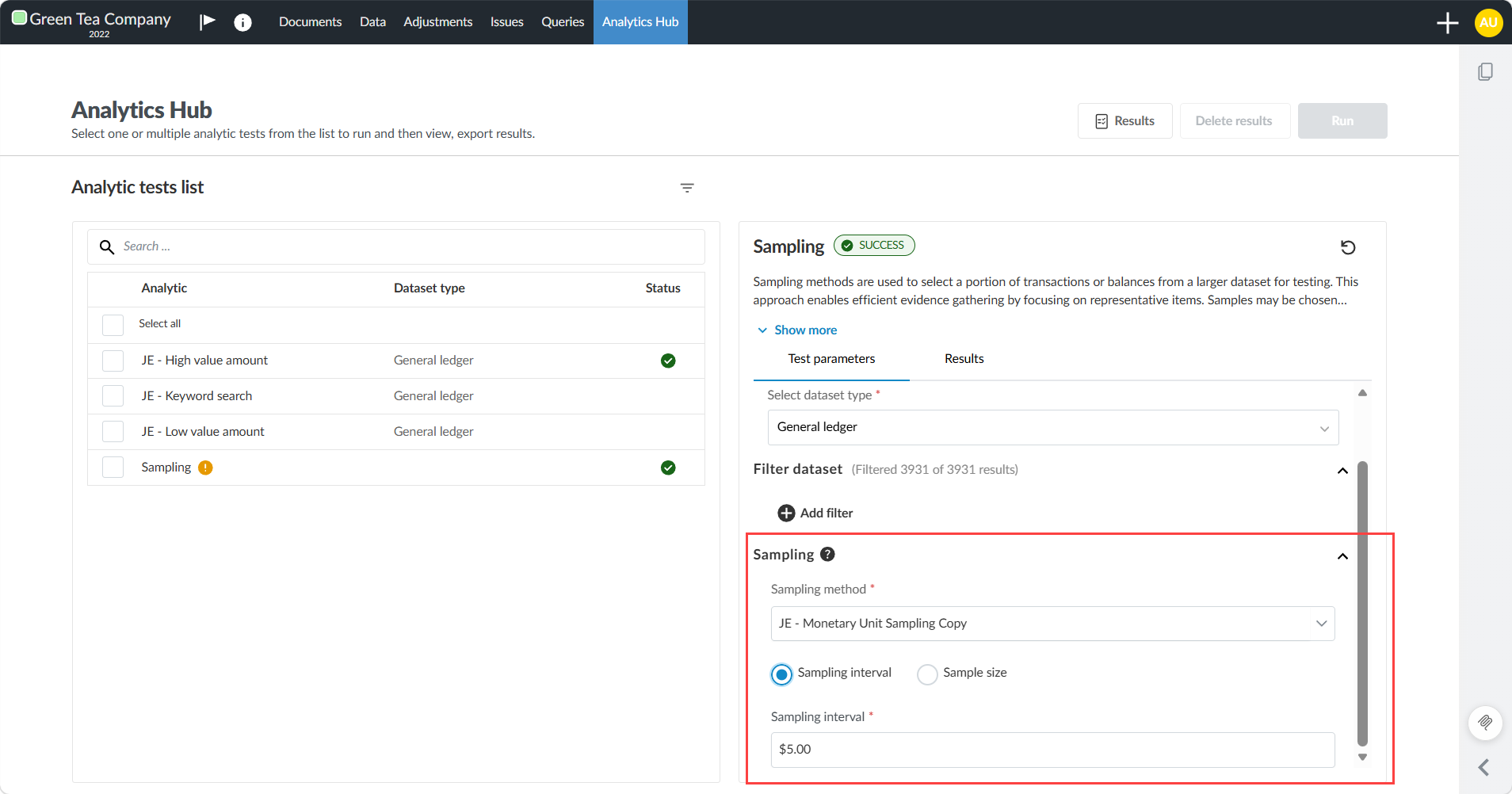
If manual sample size input is enabled, you can choose to enter a sampling interval or a sample size directly for MUS.
To learn more about manual sample size input, see Use manual sample size input.
Random sampling
Random sampling selects a randomly chosen subset of records from a dataset. This approach is useful for unbiased testing or validation processes, ensuring each record has an equal probability of being included in the sample. It can be applied to both the general ledger and subledgers.
Control sampling
Controls sampling is a sampling method used for tests of controls. It selects a sample of control occurrences from a defined population to evaluate the operating effectiveness of controls. You can include parameters such as:
-
Controls type
-
Controls frequency
-
Planned deviations
If you identify unplanned deviations, you can extend the existing controls sample and recalculate the sample size without restarting the workflow. This workflow is available in embedded and standalone analytics.
Systematic sampling
Systematic sampling selects records at regular intervals based on a predefined frequency (for example, every 10th record). This method ensures an evenly distributed sample across the dataset and can uncover patterns or anomalies within a dataset. It is particularly effective for structured financial reviews and can be applied to both the general ledger and subledgers for identifying irregularities in transaction posting or trends in financial data.
Manual sample size input
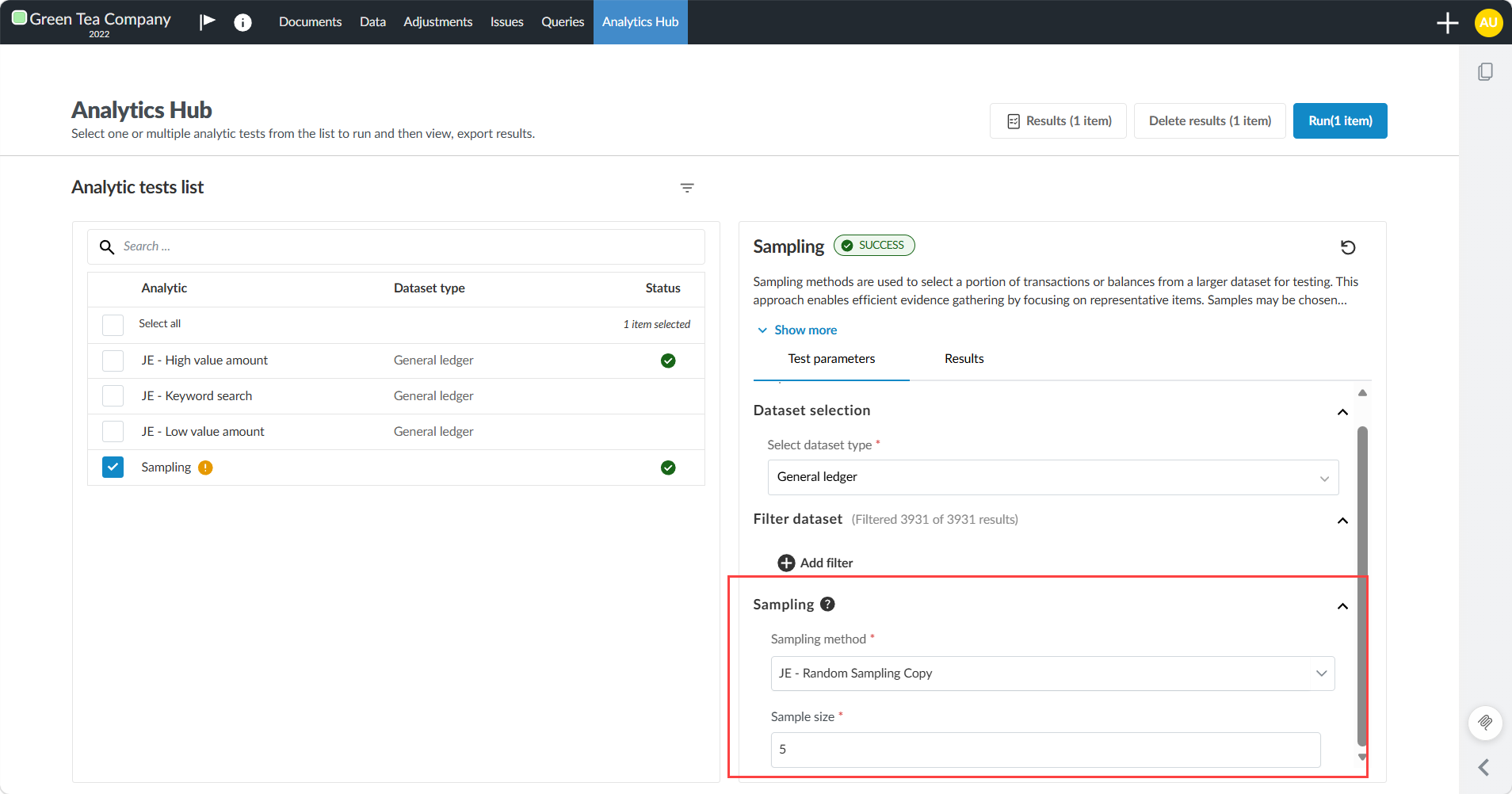
If your firm has enabled manual sample size input, the sample calculator is replaced by manual entry fields. You can enter a sample size directly instead of using the calculator.
Manual sample size input is available for the following sampling modules:
-
Attribute sampling
-
Monetary unit sampling — you can choose to enter a sampling interval or a sample size directly
-
Random sampling
-
Systematic sampling
Your firm may set a default sample size in Product Settings. You can view and adjust this default before selecting a sampling method and running the test.
To use manual sample size input:
-
Select Analytics Hub from the top menu.
-
Select an analytic test from the left panel.
-
Select the Test parameters tab and scroll down to Sampling.
-
Select a sampling method.
-
Enter a value in the Sample size field.
For Monetary Unit Sampling, you can also choose to enter a Sampling interval instead.
-
Select Run. The sample transaction is generated.
Generate a sample from analytic test results
To generate a sample from analytic test results:
-
Open the Analytics Hub. This can be done in two ways:
-
From the Documents page, click the Analytics icon (
 ) next to any checklist procedure where an analytic test is available. The Analytics tab will open providing a list of tests available for that checklist item.
 -
Select Analytics Hub at the top of the screen to display all checklist procedures that are available for an analytic test. Data must already be imported, or no data will be displayed.
-
Select an analytic test from the left panel. Results appear on the right. If there are no results, then run the analytic test first.
-
Select the Test parameters tab and scroll down to Sampling.
-
Select a Sampling method to apply to the selected analytic test results:
-
Attribute Sampling
-
Monetary Unit Sampling
-
On the right panel, in Select monetary field to calculate sampling interval select Amount.
-
-
Random Sampling
-
Controls Sampling
-
Systematic Sampling
-
Adjust your parameters as needed. See the Calculator parameters table below. Click Calculate.
Calculator parameters
| Calculator parameter | Description |
|---|---|
| Population size |
The total number of records available for sampling, based on the full dataset defined by the analytic tests selected and previously run. Select the Calculate Population Size icon ( This is required when:
|
| Confidence level |
Specify the percentage certainty (for example, 90%, 95%) that you want to achieve in concluding that the control is effective. |
| Tolerable error | Enter the maximum percentage or amount of control failures (for example, 5% or $500) you are willing to accept while still considering the control effective. |
| Expected error | Estimate and enter the percentage of control failures (for example, 4%) you expect to find in the population based on prior audits or professional judgment. A value of zero can be applied for low-risk populations. |

The Sample size will generate in the fields below the Calculate button based on the selected analytic test results.
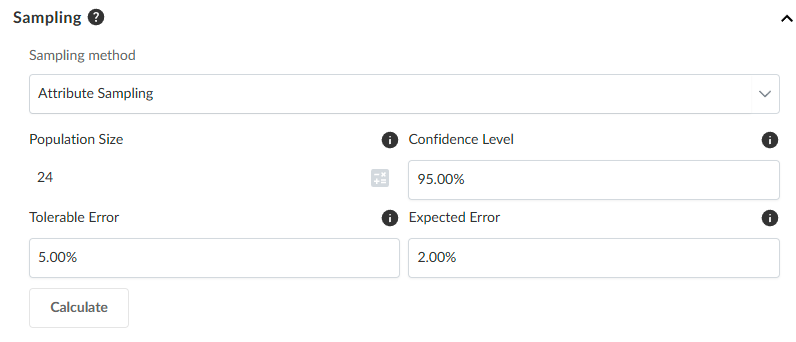
An attribute sample:
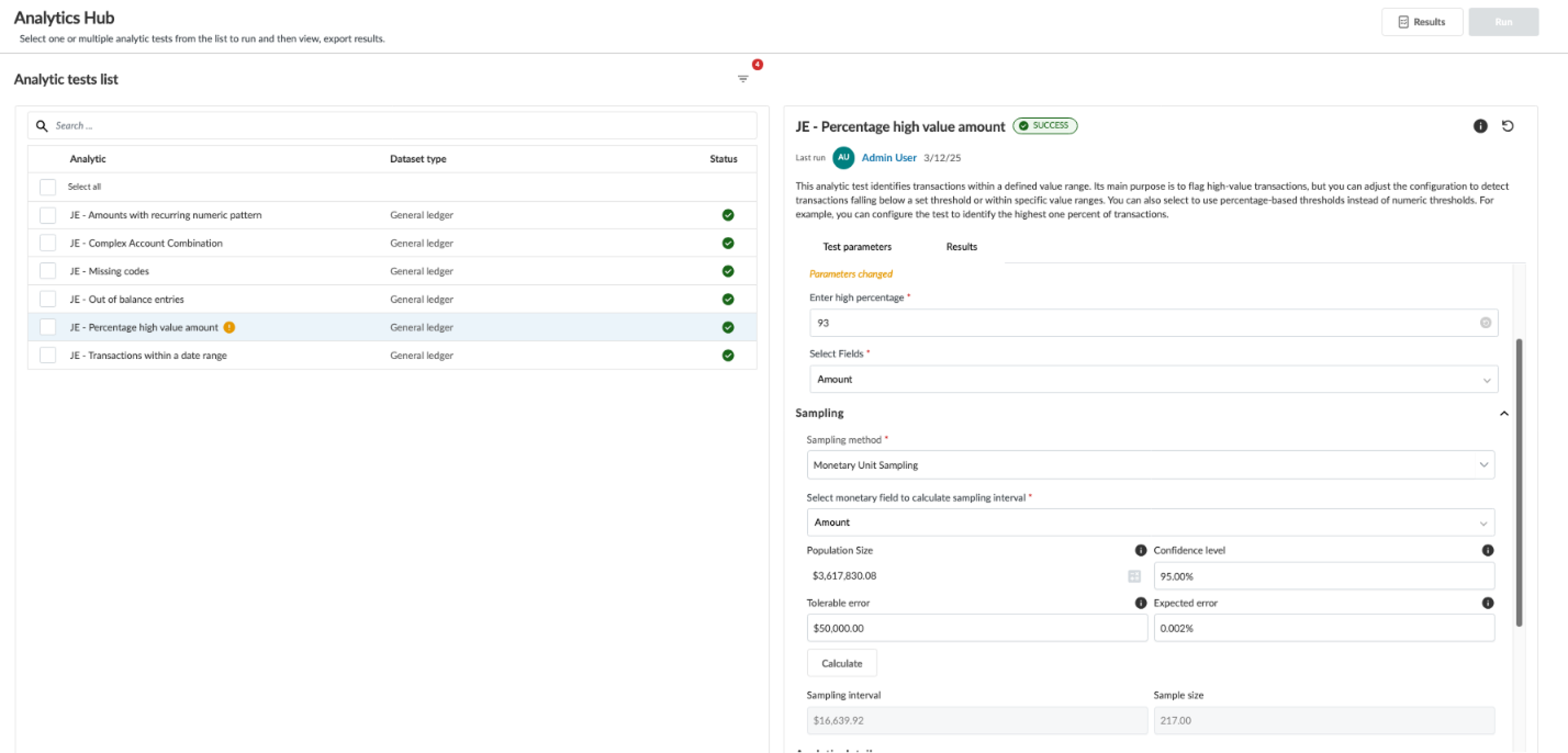
A monetary unit sample:
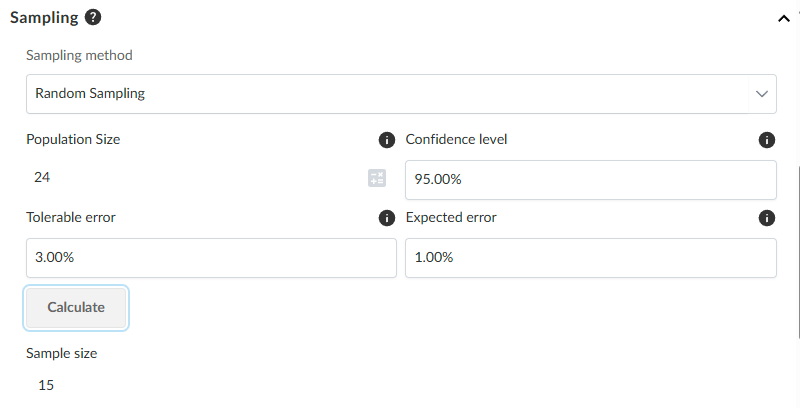
A random sample:
Generate a controls sample
Note: The total number of planned and unplanned deviations cannot exceed 2.
To run a controls sampling test:
-
Open the Analytics Hub and run a control sampling test.
-
Select the Test parameters tab.
-
In the Controls Sampling parameters panel, enter the number of planned deviations.
-
Click Calculate.
-
Click Run at the top right on the screen. Wait for the test to finish.
Extend a controls sample
You can extend a controls sample when you identify unplanned deviations from the generated sample set.
To extend a controls sample:
-
Click Extend sample size.
-
Choose number of unplanned deviations.
-
Click Run at the top right on the screen. The extended sample results will show in the Results tab.
The new sample items are added to the end of the existing sample. The updated sample size and unplanned deviations appear in the results metadata and export metadata.
Examples:
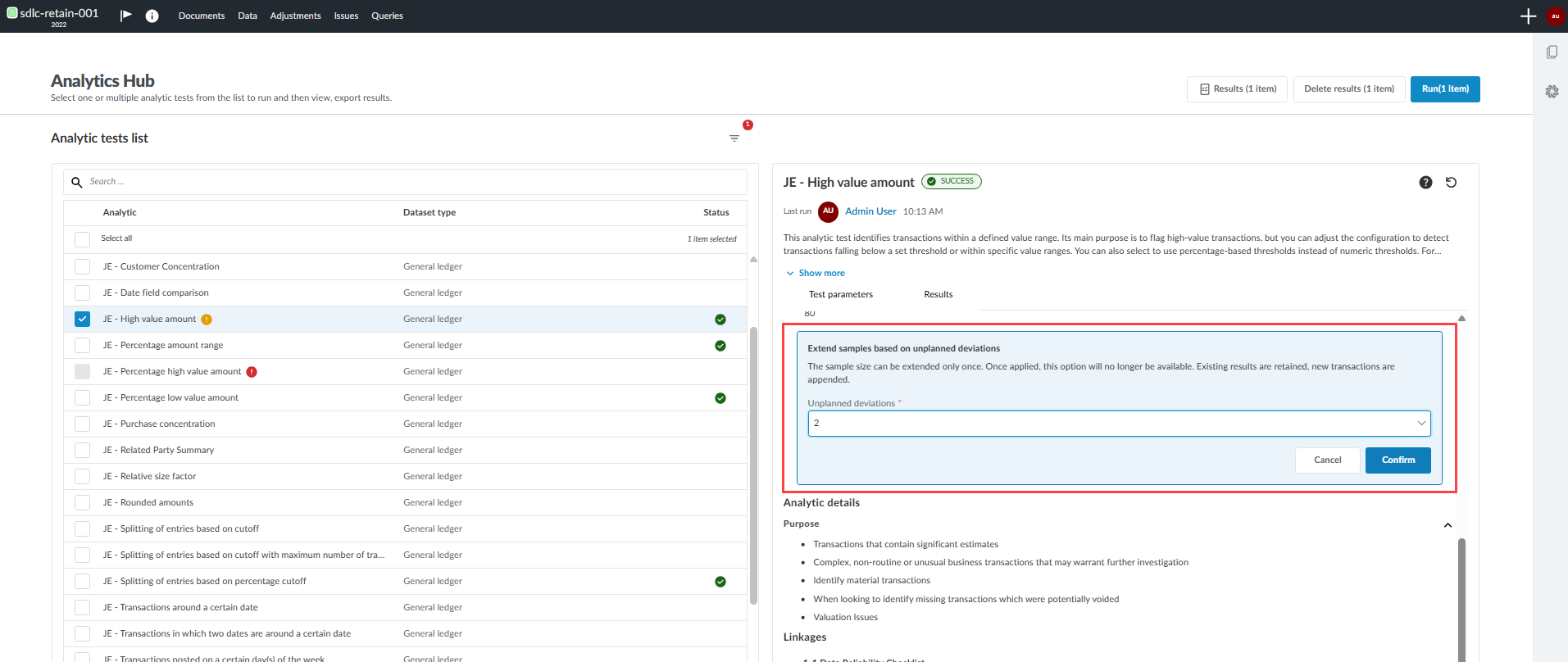
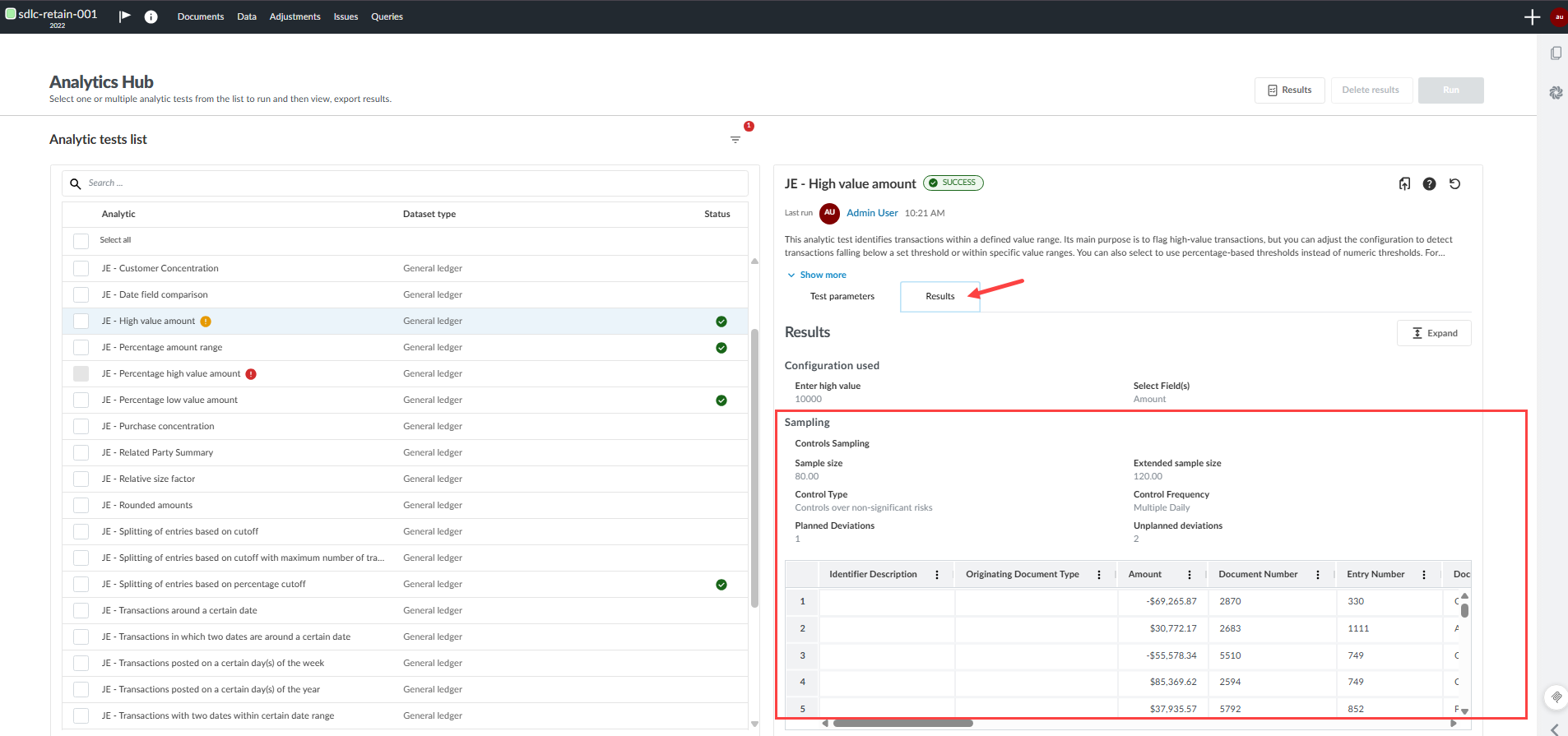
The sample size extends and the results show the original sample together with the additional sample items.
Generate a standalone sample
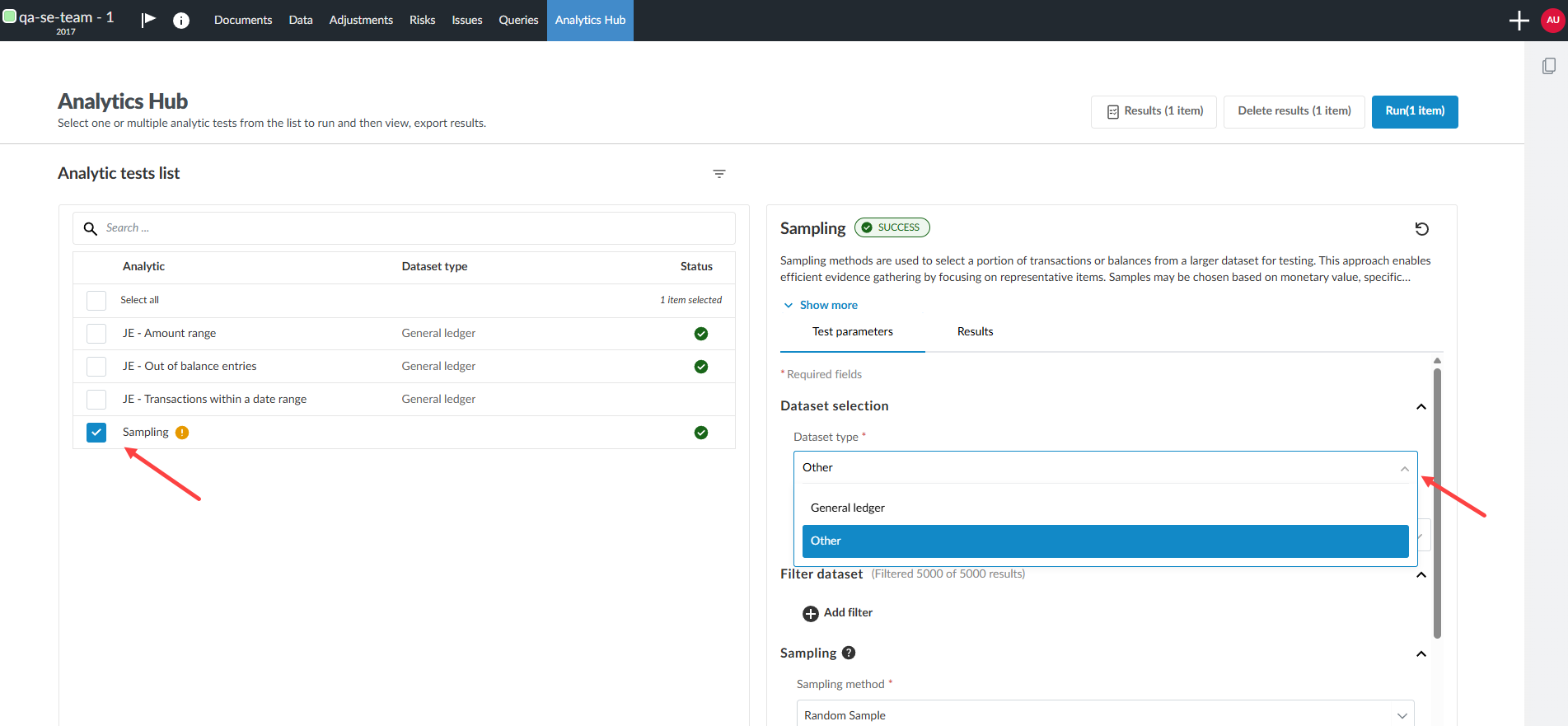
You can generate a standalone sample from Analytics Hub. The Sampling test can generate a sample from any dataset type that you have imported into your engagement. This includes schemaless data that is not designated as a trial balance or general ledger.
To perform a standalone sample test:
-
Select Sampling from the left panel in the Analytics Hub.
-
Select the Test parameters tab on the right panel.
-
Select a dataset type from the Select dataset type drop-down menu.
-
You can select any dataset that you have imported into the Data page.
-
Schemaless data appears as Other in the drop-down menu. If you wish to use schemaless data, select Other and select an available schemaless dataset type from the additional drop-down menu.
-
-
Apply any filters you wish to include in the sample test.
-
Select the dropdown menu under Sampling method and choose the sample method you wish to apply to the dataset type. The test will automatically generate.
Note: If you wish to generate another sample method and keep the results of the current test, export the results before performing the next sampling. Be sure you have imported the dataset required before calculating a standalone sample. The type of dataset required is listed under Dataset type. See Import the client's data from a CSV or Excel file for more information.
Select a dataset type:
Select a sampling method:
![[SCREENSHOT: describe what this image shows]](https://cdn.prod.website-files.com/69b9dbfccc04f4e9a5670d03/69ebe5bfe51bfa8276a7407b_Sampling-method-select-control-sampling.png)
Export a sample
After you generate a data sample, you can export the sample to a CSV file by using the Export icon [ ] on the right-side of the analytic test in Analytics Hub.