Use non-consolidated balances in the financial statements
Once you create a consolidation engagement, consolidated balances are used throughout the document and display in every table. However, you have three options to view non-consolidated balances:
-
Set the entire document to use non-consolidated balances.
-
Set one or more table to display non-consolidated balances.
-
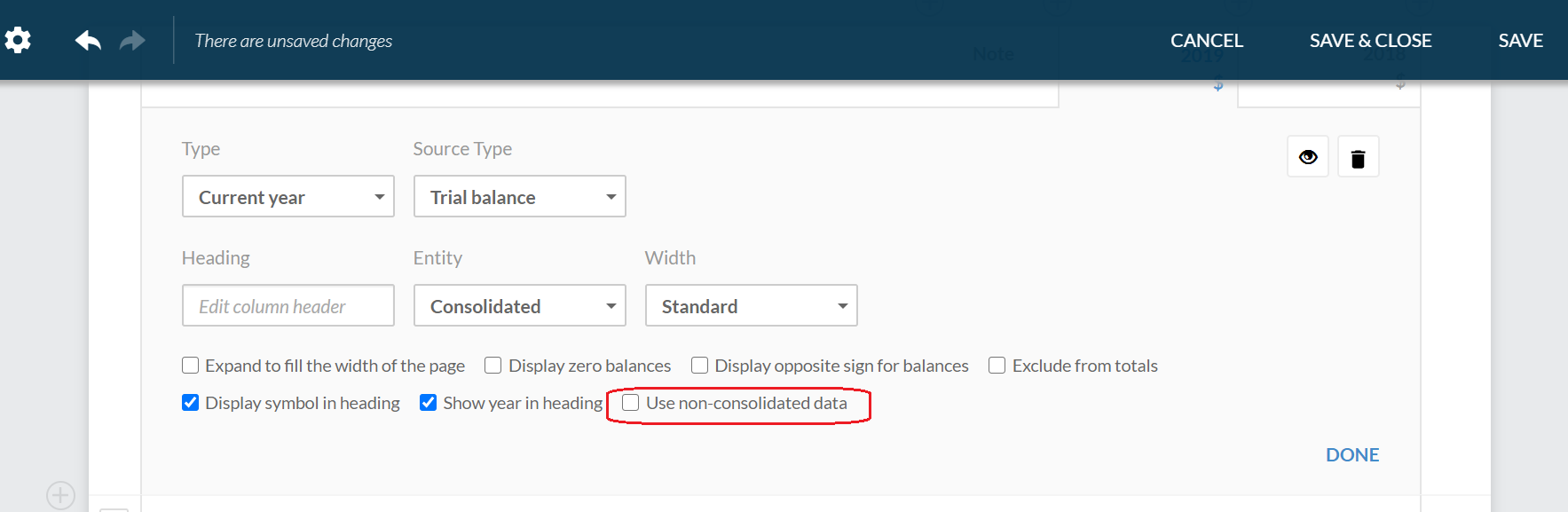
Set one or more table column to display non-consolidated balances.
For example, you can set the document to use non-consolidated data if you need to prepare separate sets of financial statements for the parent entity and its subsidiaries.
Set the document to use non-consolidated balances
To use non-consolidated data in your financial statements:
-
Open the financial statement and go to the Document Map.
-
Select Settings (
 ) , then select the Use non-consolidated data check box.
The consolidated data is no longer available in the financial statement.
To include the consolidated data in the financial statements once again, clear the Use non-consolidated data check box.
Set a table to display non-consolidated balances
To display non-consolidated data in a table:
-
Select the desired table.
Icons for table options display on the right.
-
Select More actions (
 ) | Edit Dynamic Table.
The table opens in edit mode.
-
Select Settings (
 ) | Consolidation, then select the Use non-consolidated data check box.
To include the consolidated data in the table once again, clear the Use non-consolidated data check box.
Set a table column to display non-consolidated balances
To display non-consolidated data in a table column:
-
Select the desired table.
Icons for table options display on the right.
-
Select More actions (
) | Edit Dynamic Table.The table opens in edit mode.
-
Select the desired column.
-
Select the Use non-consolidated data check box.
To include the consolidated data in the column once again, clear the Use non-consolidated data check box.