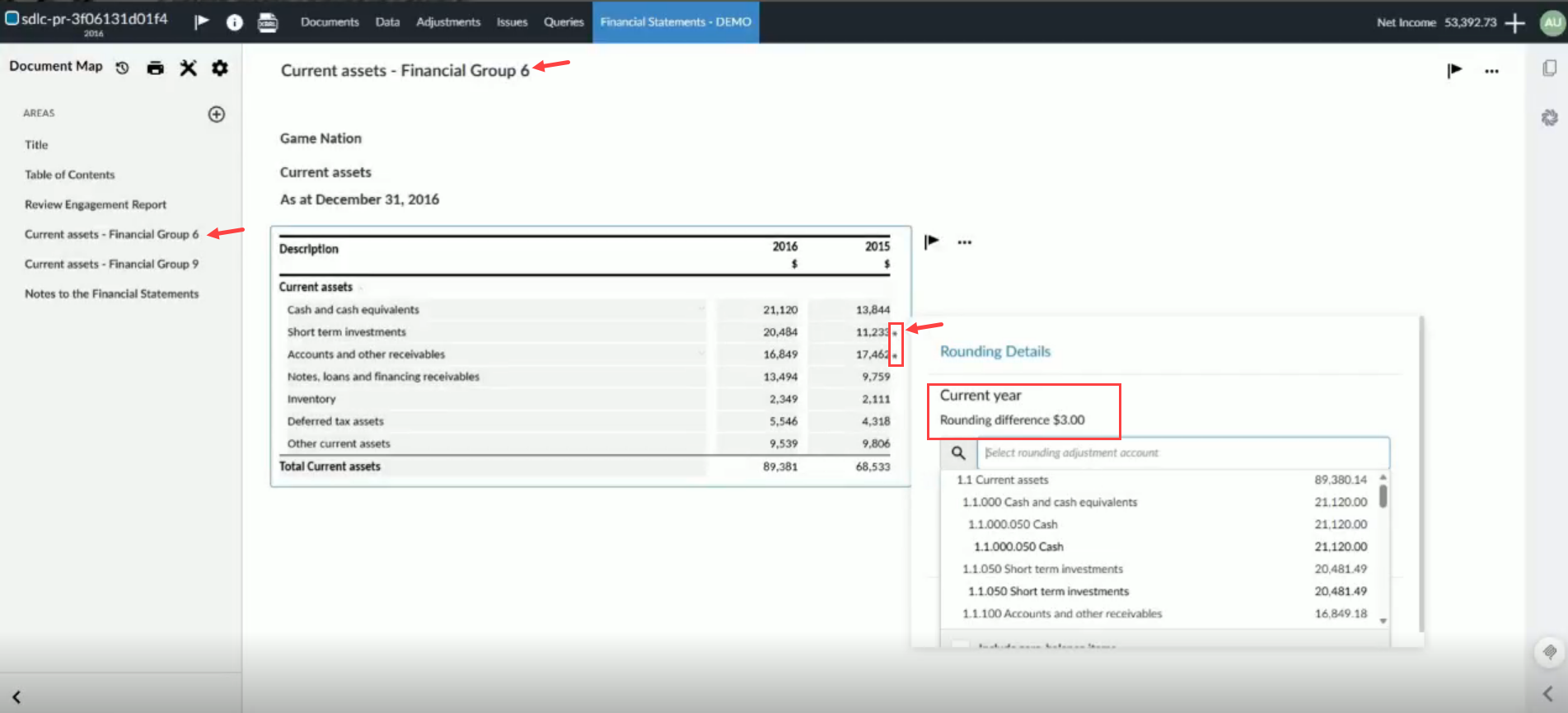
Rounding differences in financial statements
 ) marking the out of balance columns.
Rounding account balances in financial statements tables follows specific rules:
-
The total of the rounding differences in all balances is applied to the first account with non-zero balance within the default group that's predefined in your product.
Note that "applied to the first account" means "added to the balance of the first account".
Example:
Let's assume that:
- the total of rounding differences in the current year is $3,
- the default group in your product is Cash and Cash Equivalents,
- and the first account with non-zero balance in this group is Cash with balance $12,400
In this case, rounding differences apply to Cash and the new balance for Cash becomes $12,403.
-
Rounding differences can only apply to accounts.
-
You can change the account where rounding differences apply and select a different account.
In the financial statements tables, the row where the rounding differences are applied is marked with an asterisk (*).
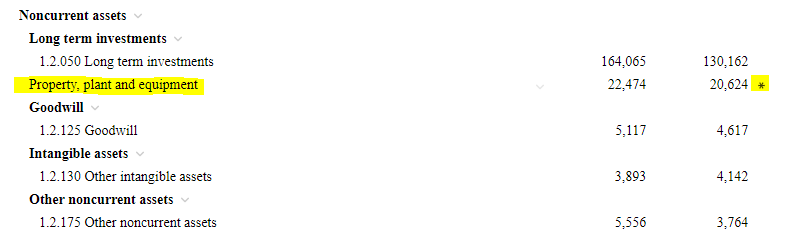
In this figure, the asterisk (*) marks Property, Plant and equipment row to denote that rounding differences apply to an account in this group.
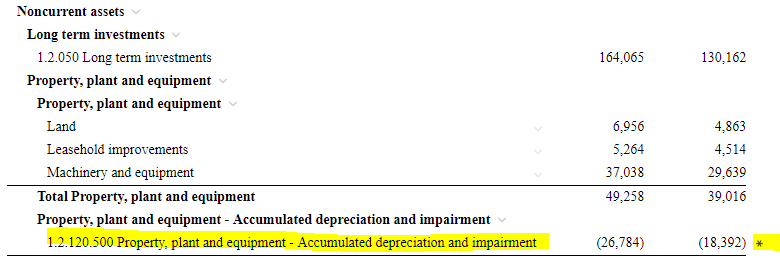
As you expand the group, the asterisk (*) relocates until you reach the account where the rounding differences apply.
Rounding and Carry Forward
In Carry Forward, rounding differences apply to the same accounts in prior years (that is, no change for prior years). As for the current year, rounding differences apply to the account of the most recent prior year. Here is an example:
if you carry forward data for 2018, 2017 and 2016, where,
- Rounding differences for 2018 applied to Cash
- Rounding differences for 2016 and 2017 applied to Liabilities
then,
- Rounding differences for 2019 apply to Cash (same account for the most recent prior year - 2018)
- Rounding differences in 2018 apply to Cash (no change)
- Rounding differences in 2016 and 2017 apply to Liabilities (no change)
Rounding differences across grouping structures
Rounding differences appear in financial statements for every grouping structure enabled in your engagement. This includes additional grouping structures added by other user levels.
Your totals scale correctly and you see the same rounding difference values in every grouping structure.
To view rounding differences across grouping structures:
-
Select Edit dynamic tables within a dynamic table in your financial statement.
-
Select the Settings icon [
 ]in the upper-left corner of the Edit dynamic tables window.
 -
Select a financial group from the Financial Group drop-down list.
-
Select Close. You return to the dynamic table. An asterisk (*) marks the row where rounding differences are applied in that grouping structure.
-
Select the asterisk (*) to open Rounding settings.
-
Optionally, select a different account from Current Year or Prior Year to change where the rounding difference is applied.
-
Select Close. The asterisk (*) moves to reflect the account where rounding differences now apply.
An example of selecting the Rounding settings within a dynamic table: