View and manage aggregated analytic test results
Aggregated results help you review and manage analytic test results in one place. Analytics Hub shows all the analytics within the engagement. The aggregated result can show a subset of available analytics or all of them, including Journal Entry Relevance Ranking (JERR) tests, additional journal entry tests and subledger analytics.
This feature lets you open aggregated results from a checklist procedure by clicking the Analytics icon. You can also filter the results, update the status of line items and export the results to a CSV file.
To view the aggregate results for multiple analytic tests:
- On the Documents page, navigate to a checklist procedure where multiple analytic tests have been linked. The Analytics icon (
 ) appears next to any checklist procedures where an analytic test is available.
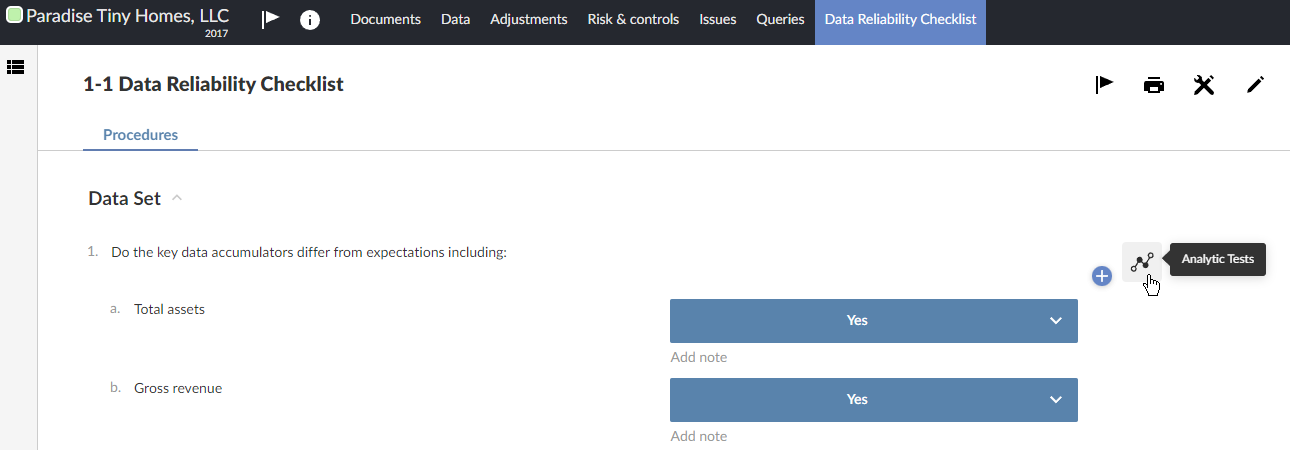
- Select the Analytics icon () to view the test results:
If multiple analytic tests have been linked to the checklist in your product, the Analytics Hub opens.
If only a single analytic test is available for the procedure, a Results tab showing only results for that analytic test opens. See View analytic test results for checklists for more information.
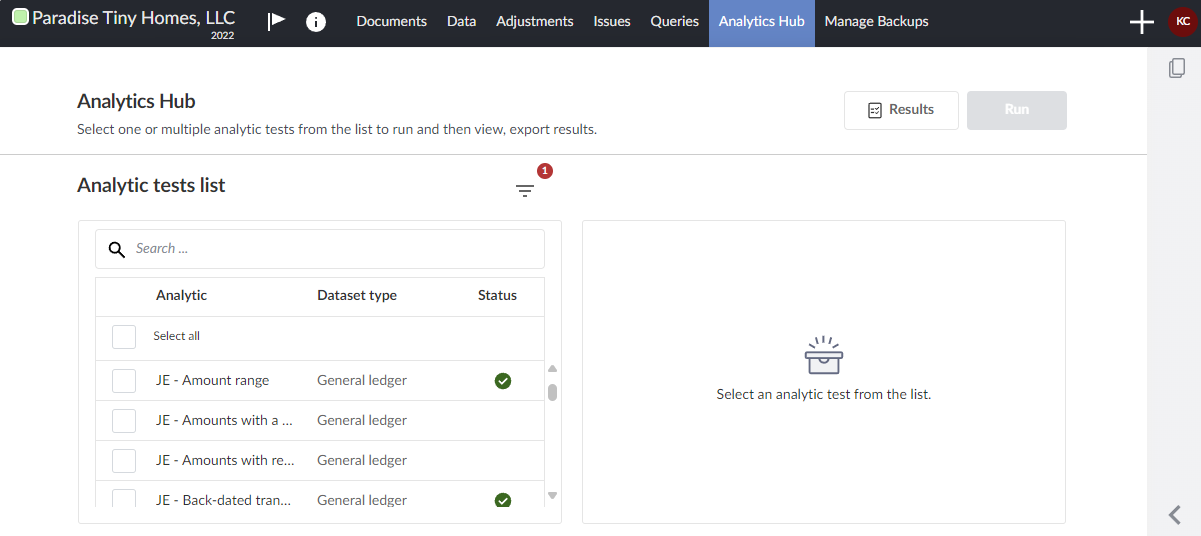
- Select the analytic tests you want to run and click Run.
-
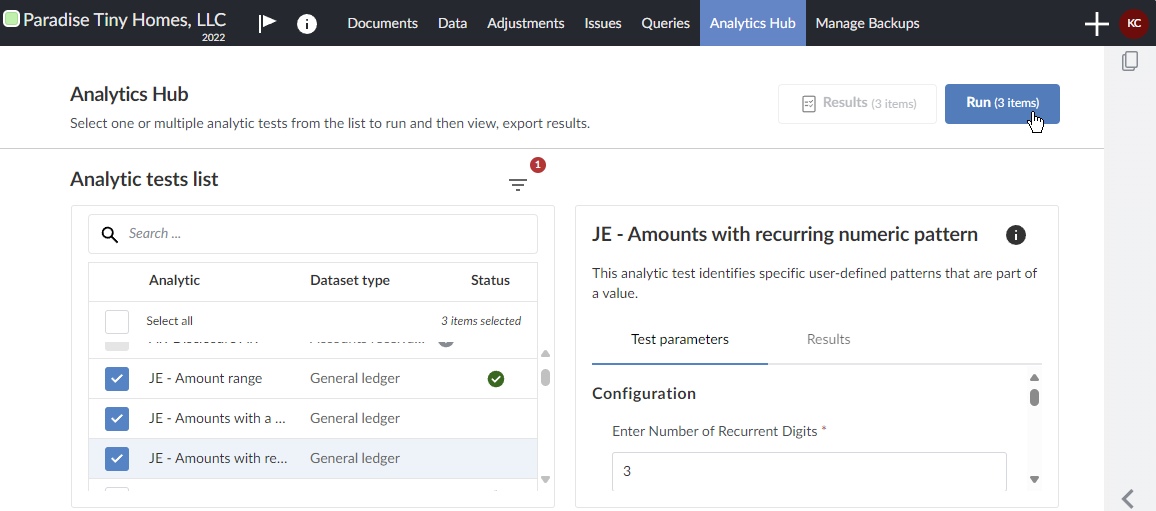
Select the analytics for which you want to see aggregated results.
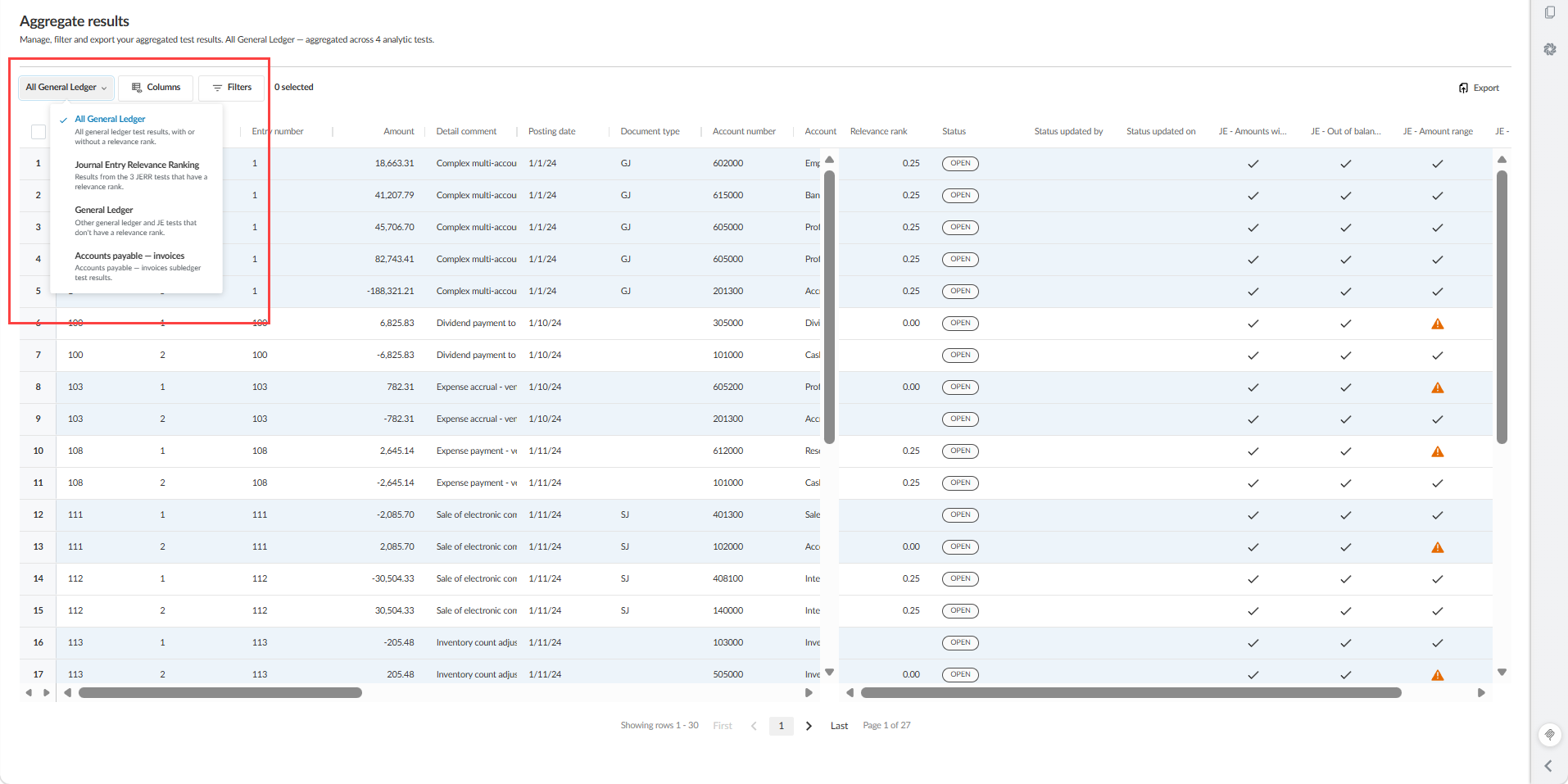
You can switch the Aggregate results between views using the dropdown menu at the top of the page:
-
Journal Entry Relevance Ranking view displays the JERR tests, with relevance rank scoring.
-
All General Ledger view displays all general ledger tests together (Journal Entry Relevance Ranking and additional Journal Entry tests), with or without a relevance rank.
-
General Ledger view displays the other general ledger tests, which do not have a relevance rank.
-
Each subledger, such as Accounts payable — invoices, displays that subledger's test results, which do not have a relevance rank.
In the All General Ledger view, analytic tests that do not contribute to the relevance ranking appear as columns, and entries where a relevance rank does not apply are left blank.
-
On the Aggregate results page, you also have these options:
Exclude columns or analytic tests
To exclude columns or analytic tests from aggregate results:
- Click Columns.
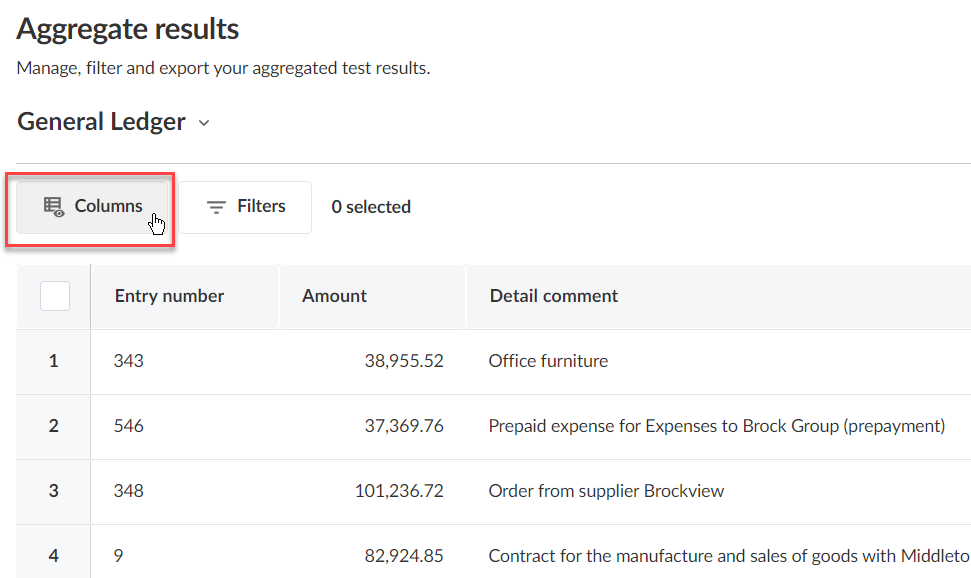
- Deselect the columns or analytic tests you want to exclude from the aggregate results.
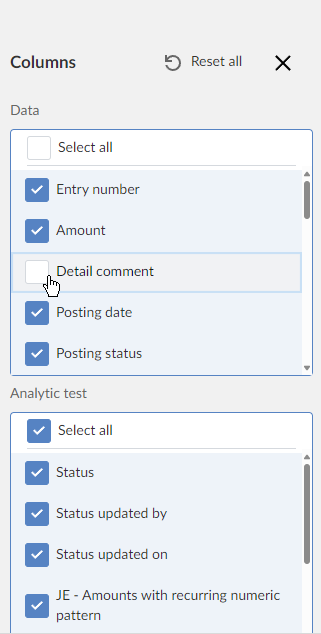
The columns or analytics tests you deselected are excluded from the Aggregate results page.
Filter aggregate data results
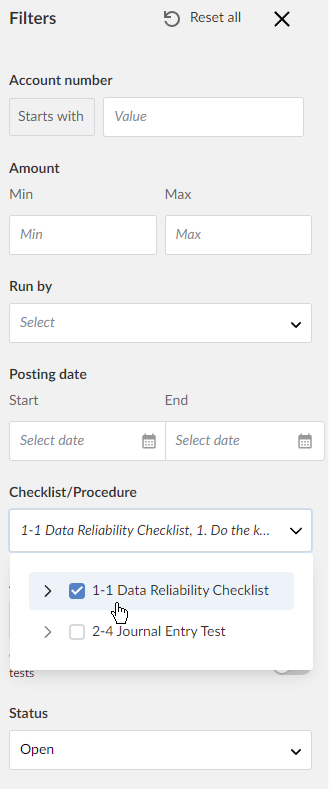
You can filter the aggregate results by clicking Filters and then in the Filters panel, making selections for any of the columns in the dataset. All the column filters use the CONTAIN operator, whereas the entire set of filters use the AND operator.
To filter aggregate data results:
- Click Filters.
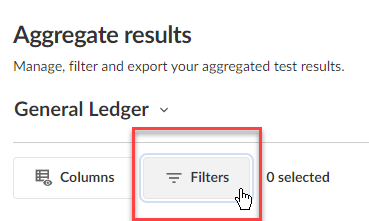
- On the Filters panel, make selections to filter the data in the columns making up the aggregate results data. The filtering conditions you can apply depend on the format of the data in the column you're filtering. For example, in a date column such as Posting date, you can filter by a range of dates. If the column contains numerical data, you might filter by numerical ranges or specific values.
The entire set of filters uses the AND operator.
In the example below, transactions will be retained by the filter if
Checklist/Procedure = `1-1 Data Reliability Checklist`> (any transaction line where Checklist/Procedure is set to the value `1-1 Data Reliability Checklist`)
AND
Status = `Open` (any transaction line where Status is set to the value `Open`)
- Click Apply.
Set statuses of transactions flagged in analytic tests
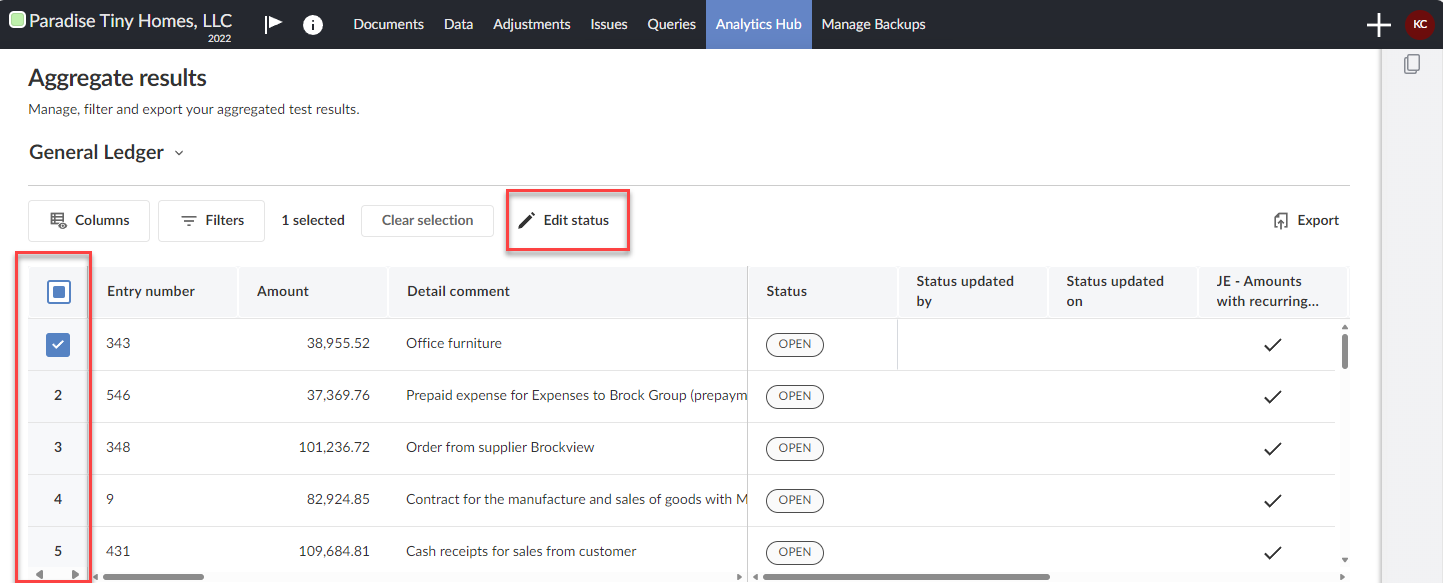
The Aggregate results page lists all the transactions flagged in the analytic tests that were run. You have the option of setting a status to track each transaction that was flagged. All flagged transactions start off set to Open.
To set the status of one or multiple transactions:
- In the leftmost column, select the list number of the one or more transactions whose status you want to edit.
-
Click Edit Status.
-
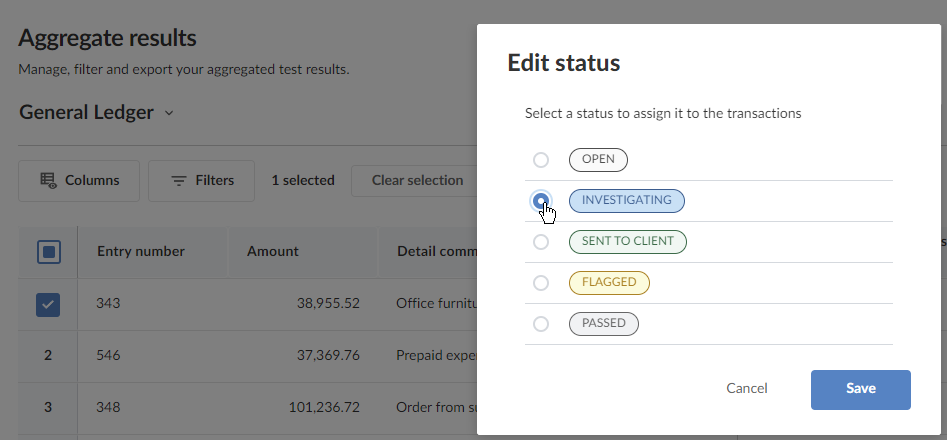
Select the status to which you want to set the transactions you selected. In the example below, we are setting the transaction to the Investigating status.
-
Click Save.
Export aggregated results
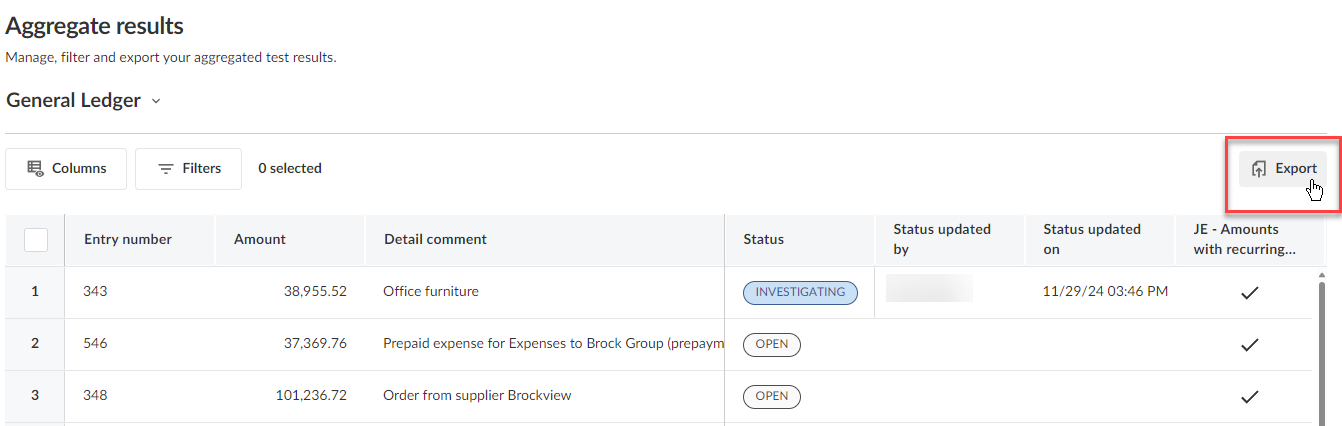
You can export the aggregated analytic test results shown on the Aggregate results page to a CSV file.
In new engagements, exported CSV files show readable names instead of internal IDs in user and procedure fields. This applies to fields such as Run by, Procedure linkage and Checklist linkages.
If different procedures have the same name, the exported CSV lists the procedure name once and shows all associated checklists in the checklist field. Use the checklist names to identify the linked procedures.
To export aggregated results:
-
Click Export.
-
When the export message appears, click Export.

Delete analytic test results
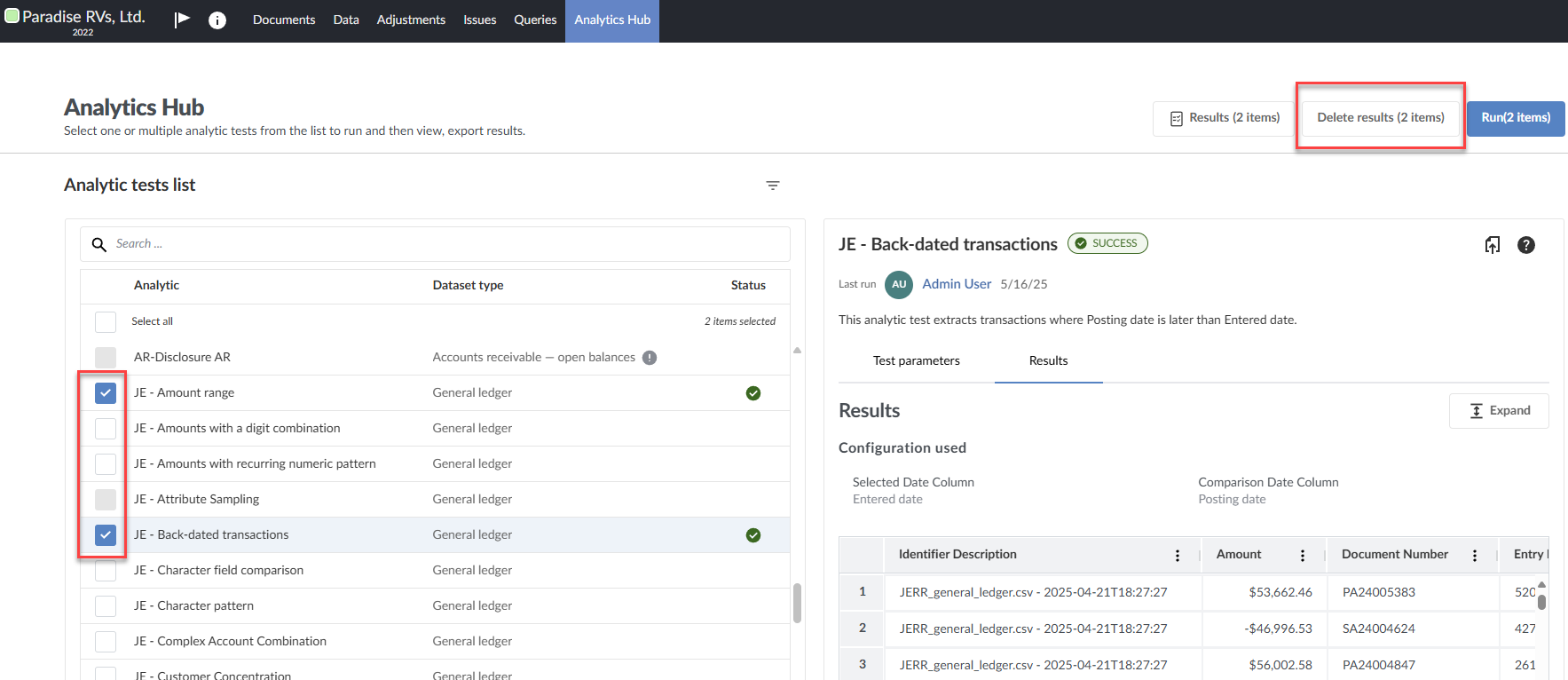
You can delete results from one or more analytic tests from Analytics Hub.
To delete analytic test results:
-
Go to Analytics Hub.
-
Select the analytic tests that have been run and whose results you want to delete.
-
Click Delete results.
-
In the Delete analytic results dialog, click Delete.