Issues page overview
The Issues page is a central place to review, organize and follow up on issues raised across an engagement. It helps you see what needs attention and move to the related location without opening each issue individually. This is useful during manager review, partner review and engagement wrap-up.
You create issues while working in the engagement – in documents, checklists and other areas. The Issues page collects every issue from across the engagement into one view.
To learn how to create issues, see Add review notes (issues).
The Issues page:
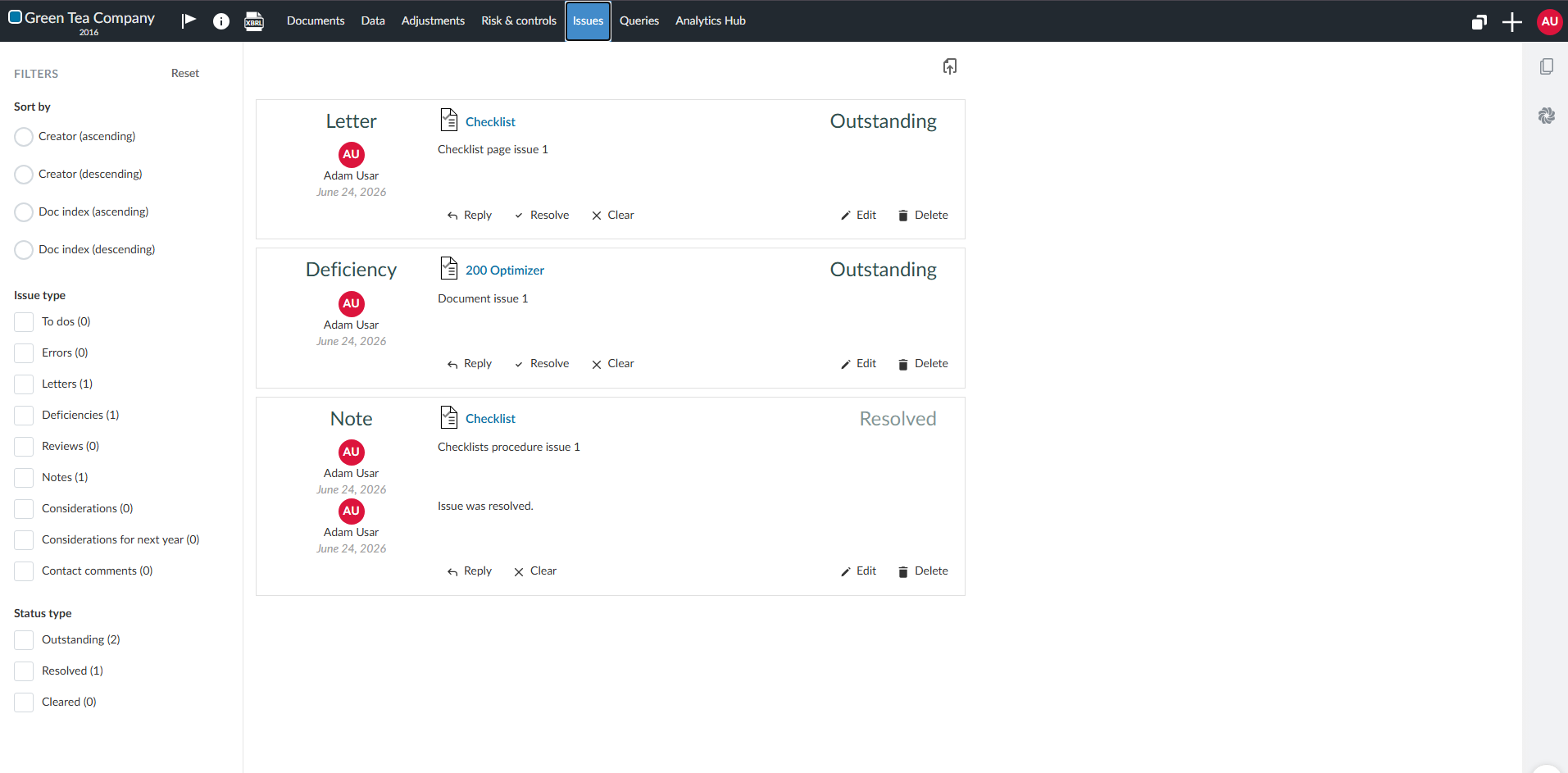
From the Issues page, you can:
-
View issues across the engagement
-
Filter the list to focus on a subset of issues
-
Sort issues into a useful review order
-
Open the related location in the engagement
-
Reply to, resolve, clear, edit or delete an issue
-
Export the current list to Microsoft Excel
Filter the list
You can filter the list by issue type and status. The filters are in the Filters panel on the left. Select more than one check box to combine values.
You can filter by:
-
Issue type, such as To dos, Errors or Notes
-
Status type – Outstanding, Resolved or Cleared
To filter the issue list:
-
In the Filters panel, under Issue type, select the check box for each type you want to see.
-
Under Status type, select the check box for each status you want to see.
-
To clear all filters, click Reset.
Sort the list
You change the issue order to match how you want to work through the list. You can sort by creator or document index, each in ascending or descending order.
To sort the list, in the Filters panel under Sort by, select one of the Creator or Doc index options. Issues with no document association appear at the top when you sort by document index.
Go to an issue location
Each issue shows the document or item it relates to as a link. You can move from the list to that location without searching manually.
To go to an issue's location, click the linked document name on the issue.
Work with an issue
From each issue on the page, you can:
-
Reply to the issue
-
Resolve the issue
-
Clear the issue
-
Edit the issue
-
Delete the issue
You can delete only issues you created. An admin can delete issues created by others. To learn more, see Complete review notes (issues or tasks).
Export to Microsoft Excel
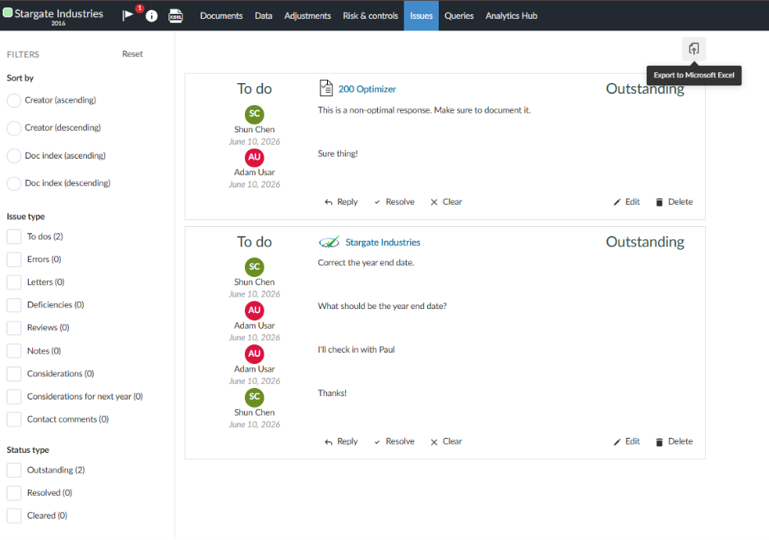
The Issues page includes an Export icon [ ] at the top right that downloads the current list as a Microsoft Excel file.
The export:
-
Includes all issues and their comments
-
Respects the filters currently applied on the page
-
Respects the sort order currently applied on the page
-
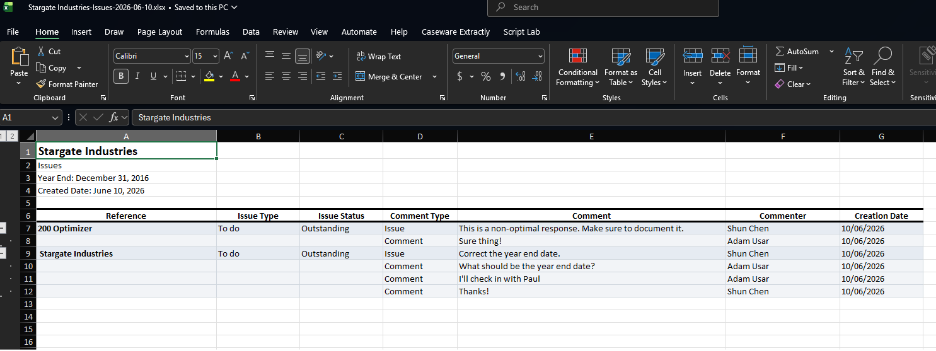
Lists each issue as one row, followed by one row for each comment
-
Repeats issue-level fields on comment rows, which keeps the file easy to filter in Excel
To export the issue list:
-
Filter and sort the list to show the issues you want to export.
-
Select the Export icon
.The Microsoft Excel file downloads to your computer.
The Export icon appears at the top right of the Issues page:
Results in Excel: