Clean up completed engagements
You can use an automated cleanup process at the end of an engagement to remove unwanted versions of financial statements, such as documents and comments. You can also confirm that key signoff conditions are met before lockdown.
You can use this feature to:
-
Review diagnostics that highlight unsigned documents, unresolved issues and un-cleared changes after signoff
-
Purge unwanted versions of financial statement documents that may be subject to discovery
-
Retain selected issues that need to be carried forward to the next year while deleting the rest
Authors can define cleanup behavior in Product Settings.
This supports document retention policies and reduces the risk that information subject to discovery remains in the engagement file.
Before you begin
Ensure that:
-
You have permission to complete engagement cleanup
-
The engagement is ready for final review
To clean up a completed engagement:
-
Open the engagement that you want to close.
-
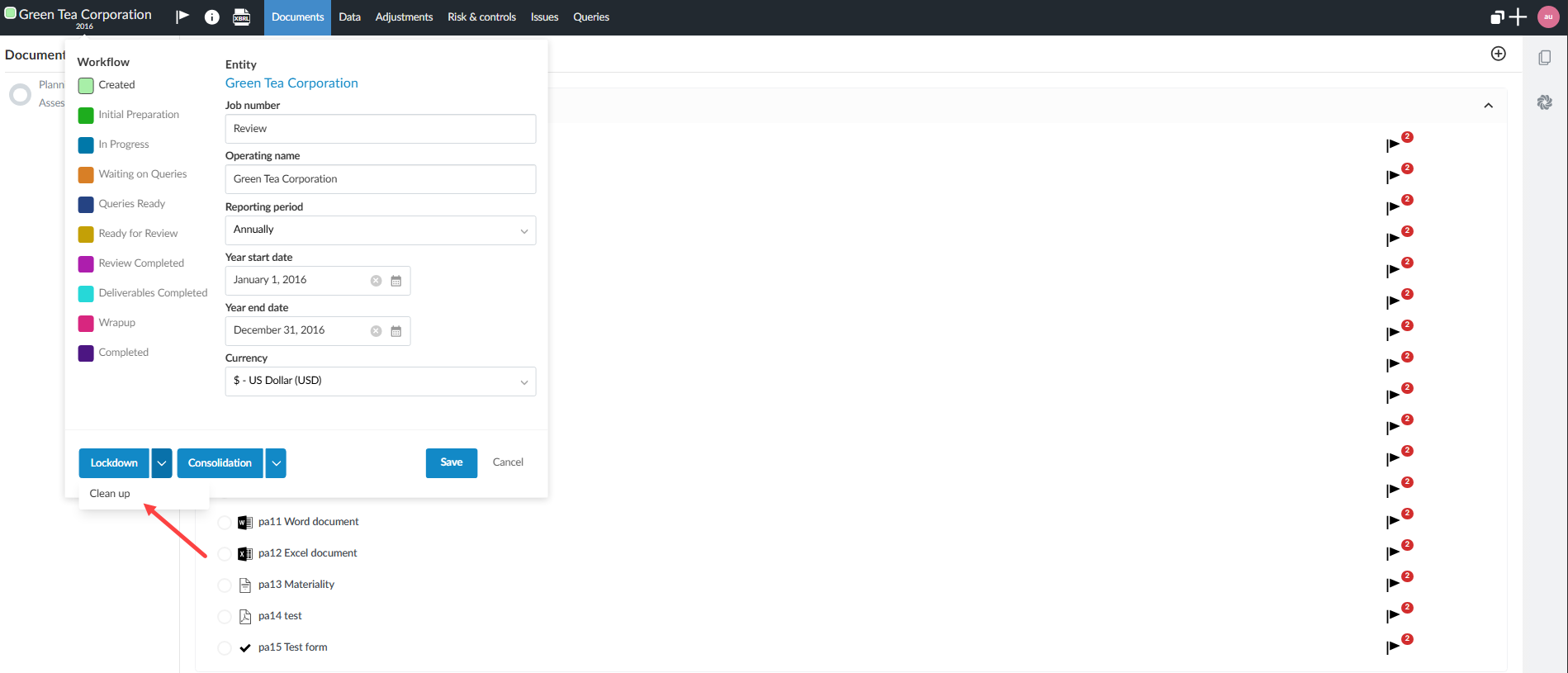
Click the Entity name at the top left of the screen.
-
Click the dropdown arrow beside Lockdown.
-
Click Cleanup.
-
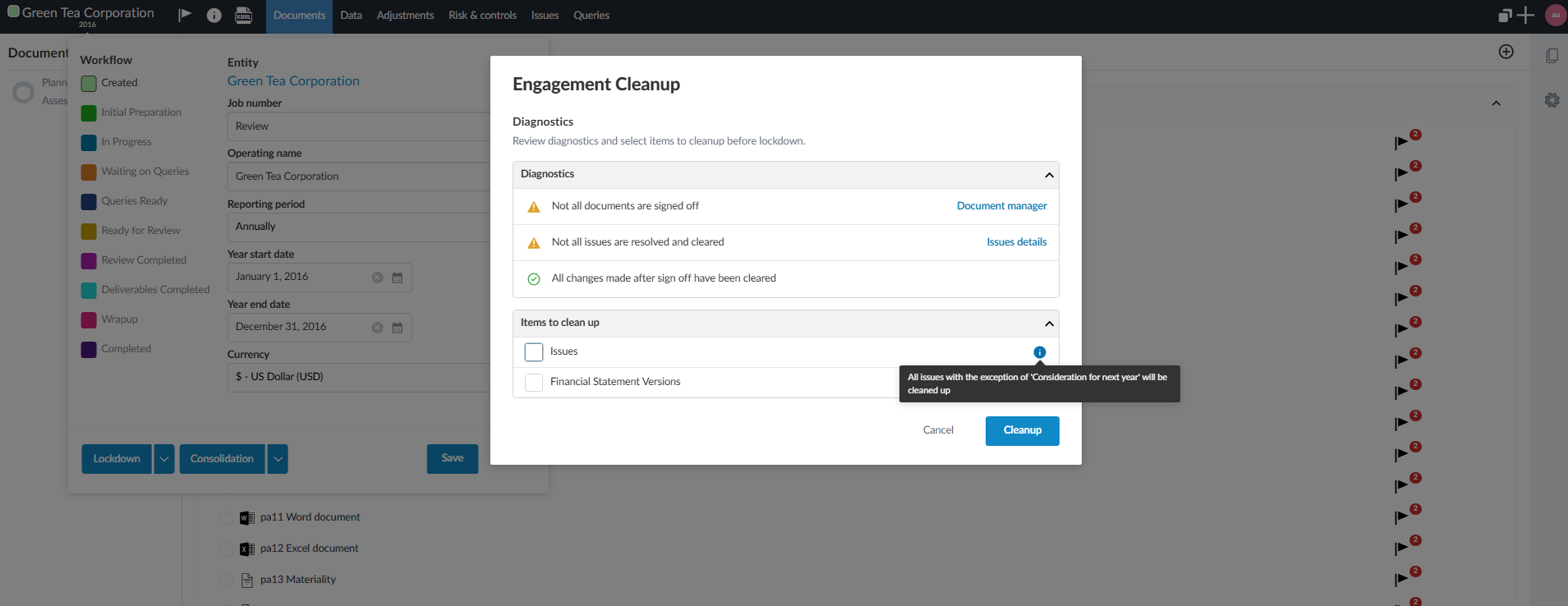
Review the diagnostics for unsigned documents, unresolved issues and uncleared changes after signoff.
-
Select the content you want to remove.
-
Keep any issues that should carry forward to next year.
-
Click Cleanup.
-
Continue to lockdown when the engagement is ready.
From an engagement:
The engagement cleanup settings:
Limitations
-
Internal history is not included in cleanup.
-
Cleanup of the recycle bin and engagement backups is not covered in the current material.
Define cleanup settings
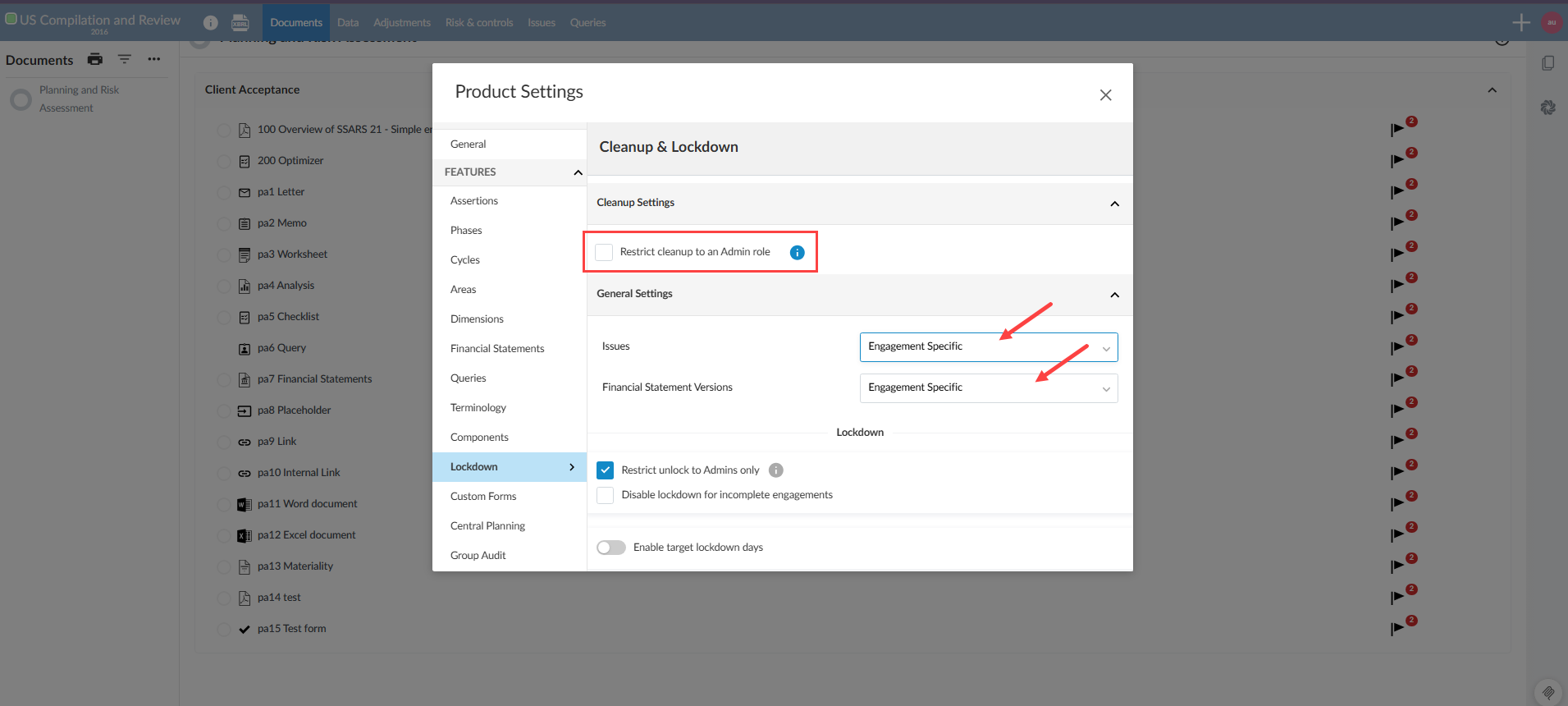
As an author, you define cleanup behavior from Product Settings.
To define cleanup settings:
-
Open settings from your product template.
-
Click Cleanup & Lockdown.
-
Select options to restrict cleanup to the admin as well as what to include in the cleanup as needed.
From Product Settings: