
Get started with Verity — Staff
Before you begin: Verity must be enabled for you by a firm administrator before you can use it. If you do not see the Verity icon [ ] in your engagement, contact your firm administrator. See Enable access to Verity for your team for more information.
This section covers everything you need to start using Verity in your Caseware Cloud engagements.
Set up knowledge bases
Verity automatically draws from two types of knowledge bases when answering questions.
Caseware-published knowledge bases
These include authoritative standards relevant to your engagement type. For US engagements, this includes AICPA standards. Caseware-published knowledge bases are available automatically — no setup required.
Firm-managed knowledge bases
These contain your firm's methodology, procedures, policies, and guidance. Firm administrators set these up in Settings. If your firm has uploaded content, Verity draws from it when relevant.
To create or update your firm's knowledge bases, see Create firm-managed knowledge bases and Edit firm-managed knowledge bases.
Ask Verity questions
Open Verity
To open Verity in an engagement:
Select the Verity icon [] in the engagement sidebar. The Verity chat panel opens to the right.
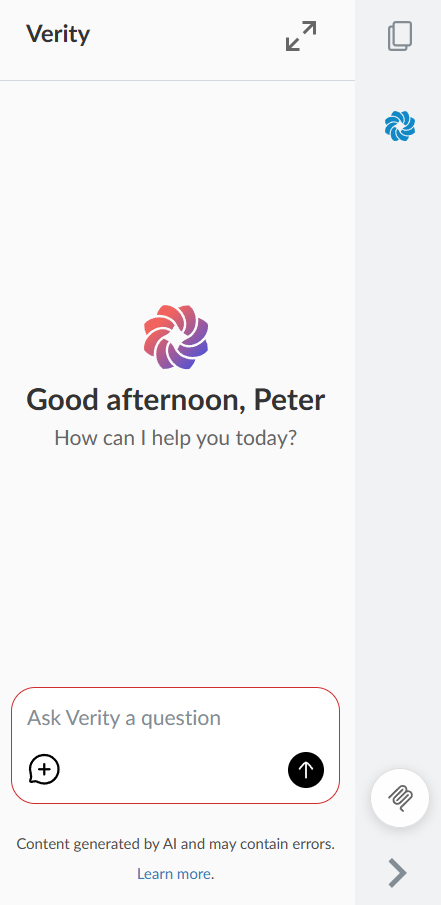
How Verity reasons
When you ask a question, Verity searches across three layers of context:
-
Your engagement — live data including checklists, financial statements, trial balance, risks and controls, materiality, adjustments, issues, engagement properties and uploaded PDFs
-
Your firm's knowledge bases — methodology, procedures and guidance your firm has uploaded
-
Authoritative standards — Caseware-published knowledge bases such as AICPA standards available in some specific US solutions
Verity determines which sources are relevant and cites each one in its response.
Types of questions you can ask
Verity works best when you ask about something specific to the engagement you are working on. Here are some hypothetical examples that may arise during the engagement life cycle.
During planning:
-
"What risks have been identified on this engagement so far?"
-
"What does our firm methodology say about materiality for a manufacturing client?"
-
"Summarize the board minutes I uploaded and flag anything relevant to audit planning."
During fieldwork:
-
"What are the open procedures linked to the revenue recognition risk?"
-
"What is the performance materiality threshold for this engagement?"
-
"Does AU-C 330 require anything specific about the timing of substantive procedures for this risk?"
-
"Summarize the key terms in this loan agreement." (where the document has been uploaded as a PDF)
During review:
-
"Are there any inconsistencies between the financial statement balances and the trial balance?"
-
"Summarize the issues documented in this engagement."
-
"What does AU-C 265 require for communicating significant deficiencies to management?"
Tips for better results
-
Name the specific area you want Verity to look at. Verity knows your engagement, but a targeted question gets a more precise answer. "What are the open procedures for the revenue recognition risk?" is more effective than "tell me about revenue recognition."
-
Use multi-turn conversations. Verity maintains context within a thread. Follow up, ask it to explain its reasoning, or drill into a specific part of the response. You can start multiple threads within an engagement and navigate between them.
-
Ask specific questions before broad ones. Targeted questions are faster and more precise. Once you have a feel for how Verity responds, try broader or more complex queries.
-
Ask about your firm's knowledge base explicitly. If your firm has uploaded methodology or guidance, ask directly: "Does our knowledge base have guidance on [topic]?"
Read Verity responses
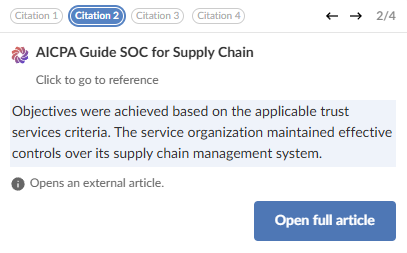
Every Verity response includes citations identifying the source of each claim.
Select the citation badge to navigate directly to the source.
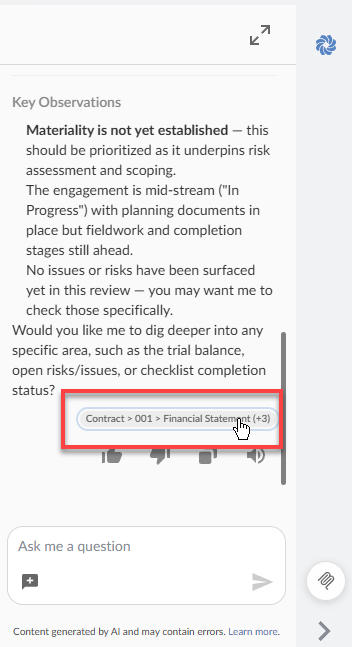
Select the citation you want to view by clicking its matching chip and then clicking the action button. Citations work differently depending on the source type:
-
Engagement data — Verity displays a badge citation that navigates to the relevant area of your engagement. Engagement data citations may link to a checklist or checklist response, a risk or control, a financial statement or note, the trial balance, a proposed or posted adjustment, a documented issue, or engagement properties.
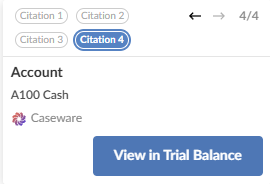
-
PDF content — Verity links to the exact passage in the source document, with the relevant text highlighted so you can verify the claim directly. PDF citations may link to an uploaded engagement document or a firm-managed knowledge base.
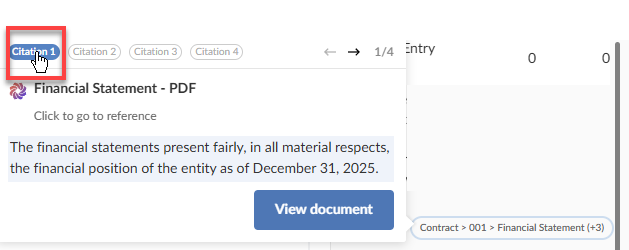
-
Authoritative standards — Verity links to the relevant section of the Caseware-published knowledge base, such as AICPA standards available in some specific US solutions.
When Verity flags uncertainty
Verity tells you when it does not have sufficient information to answer confidently, or when a question requires judgment that goes beyond what is documented in the engagement. If Verity cannot find relevant information in your engagement or knowledge bases, it will say so rather than guessing.
If Verity cannot answer your question, consider whether the relevant information is available in the engagement — for example, whether a document has been uploaded or whether the relevant checklist has been completed.
Professional judgment
Verity surfaces information to support your work. Responsibility for professional judgment, conclusions, and documentation remains with you. Verity's responses are drafts for your review, not final answers.
Give feedback on responses
Your feedback directly improves Verity's accuracy and usefulness.
To give feedback on a response:
-
Select the thumbs-up (
 ) or thumbs-down (
 ) icon on any Verity response.
 -
Fill in the free-form text field with your feedback and select Send feedback.
Note: To be able to submit feedback, you must consent to sharing your full conversation with Caseware employees for debugging and evaluation.