
Enable access to Caseware Verity/AiDA
Caseware's AI assistant is available to all Caseware Cloud firms. Depending on your region, it may appear as Verity (North America and Latin America) or AiDA (all other regions). The steps to enable access are the same regardless of which version your firm uses.
Access is not enabled automatically for individual users. As a firm administrator, you grant access on a per-user or per-group basis. Users have no access by default until you enable it.
In most cases, enabling access for a group is the most efficient approach. When you enable access for a group, every member of that group receives it. For example, you can enable access for the All Staff group to give every member access at once.
You can also enable access on an individual basis. For example, if your firm works with external consultants, you may want to grant access to specific users rather than an entire group.
To enable access to AiDA or Verity for a user or group:
-
Ensure you have the Staff Admin role or equivalent privileges.
-
From the Cloud menu (
 ), select Groups or Staff.

-
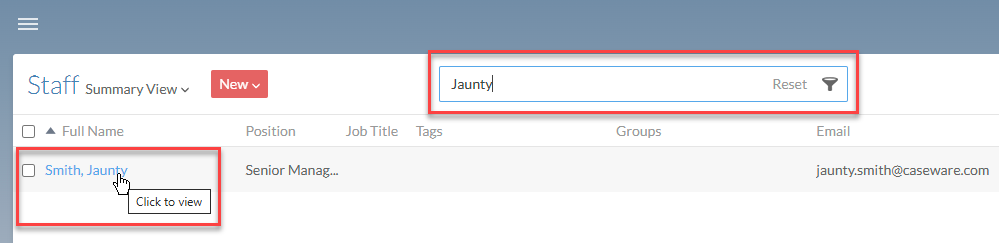
If you do not see the user or group, specify part or all of the user or group name in Search.
-
Select the user or group for whom you want to enable access.
-
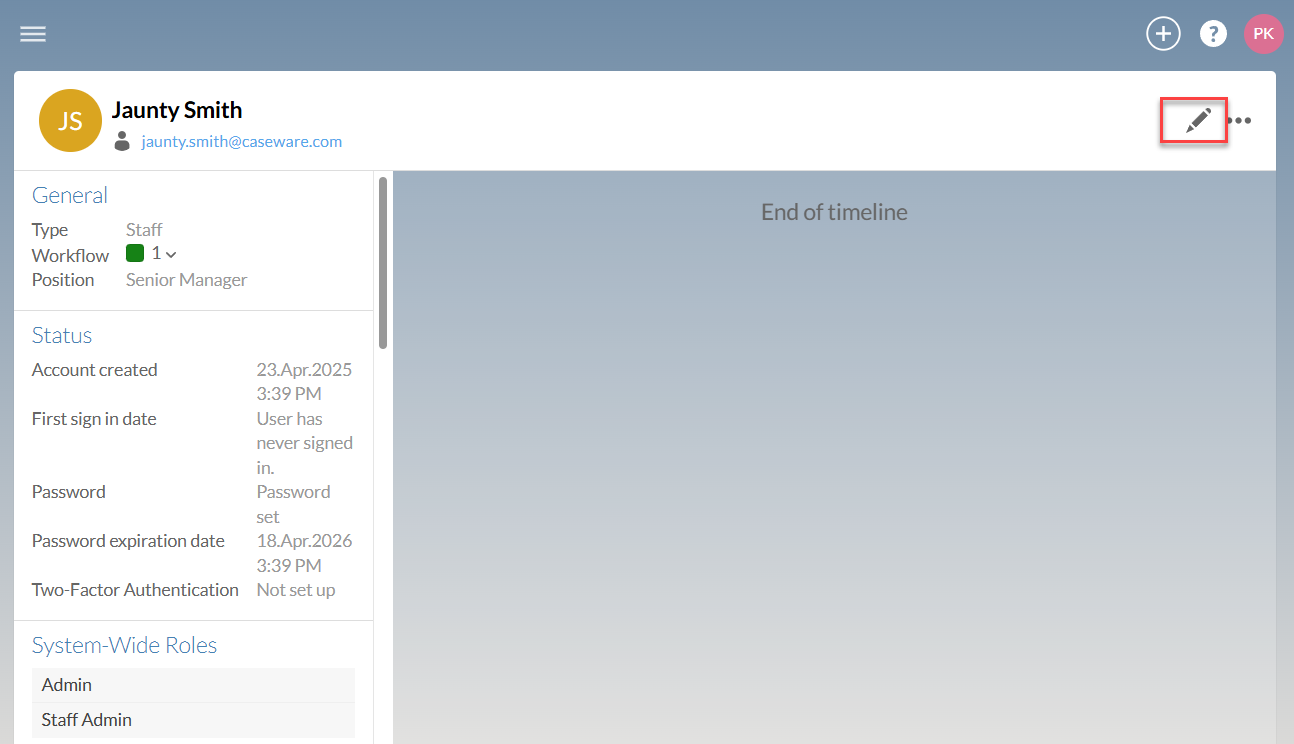
Select Edit (
 ) in the top left.
-
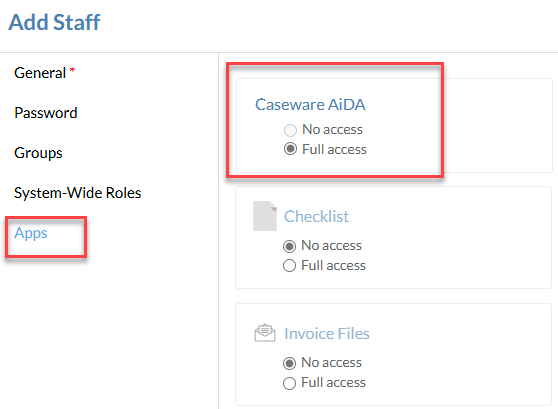
Select Apps, and locate the tile for Caseware AiDA, then choose the appropriate access type..
-
No access: Do not enable access to the app for the user or group. This is the default option and does not use any licenses.
-
Full access: Enable the app for the user or group. This option uses a license for each user that receives app access.
-
-
Click Save.