Add visibility settings in queries
You can set visibility conditions for the document, question sets and query questions.
Add visibility settings to queries
Open the document to get started on setting visibility logic.
To set visibility for the document:
-
Select the document name.
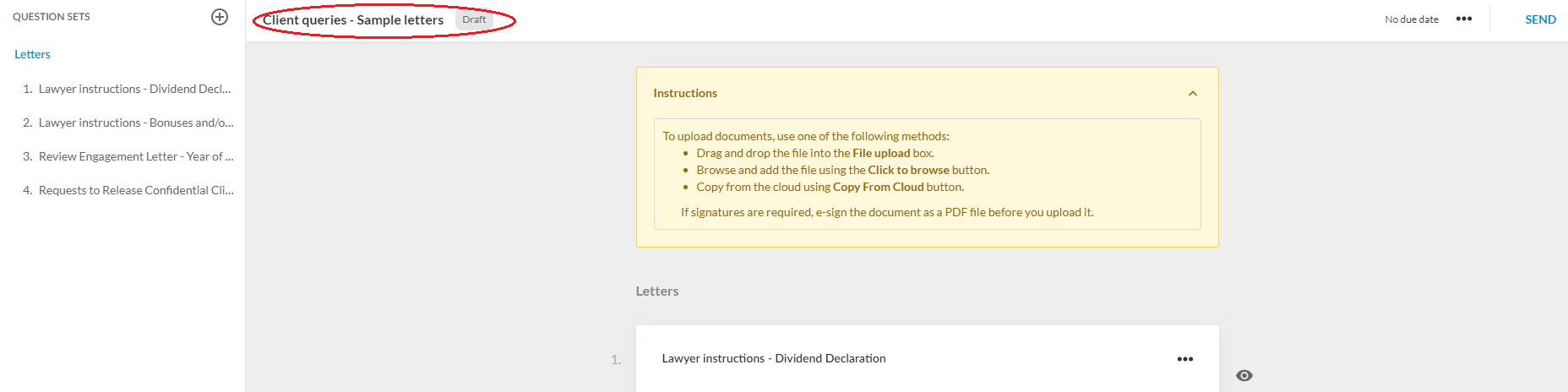
The Document Properties dialog displays.
-
Select Edit Visibility to display the Visibility Settings dialog.
-
Select Hide or Show from the blue drop-down list to specify the visibility action.
-
Select all or any to determine whether all conditions must be met or one condition must be met for the visibility action (from Step 3) to apply.
-
Select Add Condition.
-
Choose a condition type from the list, then specify the condition parameters.
-
Once you're done, select Save.
Add visibility settings to a question set
Open the document to get started on setting visibility logic.
To set visibility for a question set:
-
Select the question set that you want to set visibility for.
-
Select Edit Visibility (
 ) to display the Visibility Settings dialog.
 -
Select Hide or Show from the blue drop-down list to specify the visibility action.
-
Select all or any to determine whether all conditions must be met or one condition must be met for the visibility action (from Step 3) to apply.
-
Select Add Condition.
-
Choose a condition type from the list, then specify the condition parameters.
-
Once you're done, select Save.
Add visibility settings to a query question
Open the document to get started on setting visibility logic.
To set visibility for a query question:
-
Select the query question that you want to set visibility for.
-
Select More actions (
 ) | Settings.
 -
Select Edit Visibility to display the Visibility Settings dialog.
You can also select the Visibility (
) | Settings ( ).
). -
Select Hide or Show from the blue drop-down list to specify the visibility action.
-
Select all or any to determine whether all conditions must be met or one condition must be met for the visibility action (from Step 4) to apply.
-
Select Add Condition.
-
Choose a condition type from the list, then specify the condition parameters.
-
Once you're done, select Save.
You can select Clear to clear all conditions and start over.
You can also copy the visibility settings to another item. Select Copy to copy the visibility settings into clipboard, then open the Edit Visibility dialog for the other item and select Paste to paste the copied settings.
Add visibility logic for a picklist response option
You can add visibility logic for an individual picklist response.
To set visibility for a picklist response:
-
Navigate to the query question whose response options you want to set visibility for.
-
Select More actions (
) | Settings. -
Select the Edit (
 ) icon for the picklist responses.
 -
Select the Visibility (
) icon for the response you want to edit.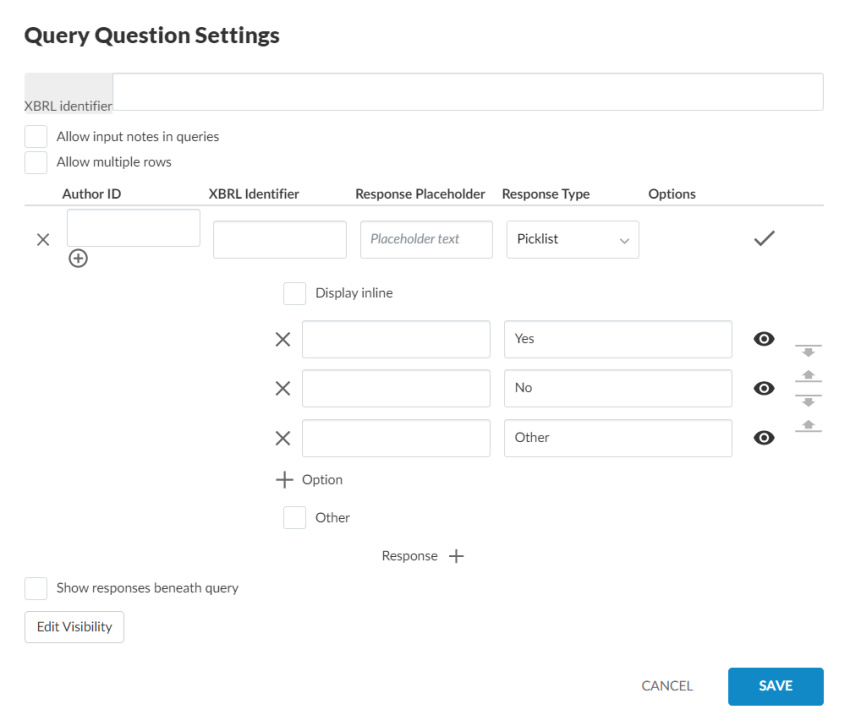
-
Select Hide or Show from the blue drop-down list to specify the visibility action.
-
Select all or any to determine whether all conditions must be met or one condition must be met for the visibility action (from Step 5) to apply.
-
Select Add Condition.
-
Choose a condition type from the list, then specify the condition parameters.
-
Once you're done, select Save.
You can select Clear to clear all conditions and start over.
You can also copy the visibility settings to another item. Select Copy to copy the visibility settings into clipboard, then open the Edit Visibility dialog for the other item and select Paste to paste the copied settings.
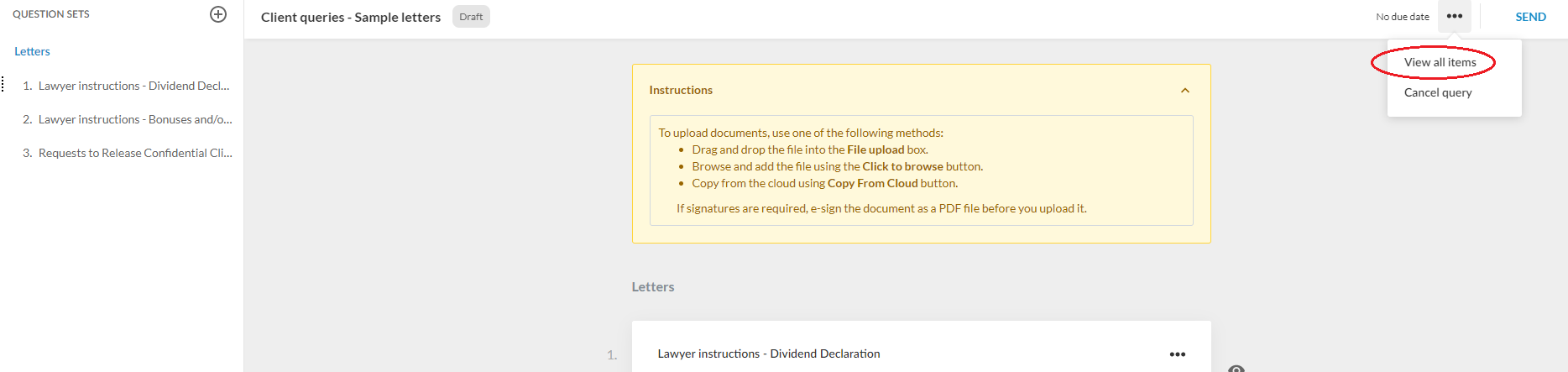
) | View all items. To only view the visible items, select More actions () | View visible items.