
Review and customize procedure settings
If you want to view or customize the settings for a specific procedure or sub-procedure in the checklist, open the document and select Edit ( ). Select More actions (
 ) | Settings, then select the Override the checklist settings check box.
The following options are available in the Procedure Settings dialog:
|
Setting |
Description |
|
Allow sign offs |
Select this option to add a signoff ( |
|
Allow input notes in procedures |
Select this option to add a text box below the response where users can enter notes. You can add a note placeholder in the displayed field. |
|
Allow multiple rows |
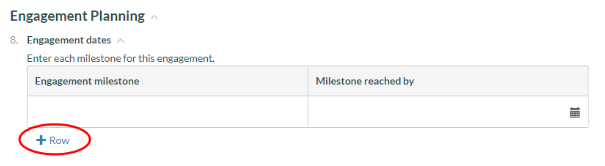
Select this option to allow users to provide more than one response for the procedure. This option enables the +Row button in the procedure.
Note: If your procedure has more than one response, selecting this setting will automatically display your responses in a table beneath the procedure. The response placeholder labels are displayed in the header row.
|
|
Response sets |
Select +Response to add a response type. Select Remove ( Select Edit ( |
|
Show responses beneath procedure |
Select this option to display the responses below the procedure. |


Once you're done, select Save.