CasewareDocs
New in Caseware Cloud Engagements 2026-05See what's new

Change personal preferences

Users can personalize their account preferences, including which content they receive notifications about and even how the Cloud site appears to them. To do so, select your avatar at the top-right of Cloud.
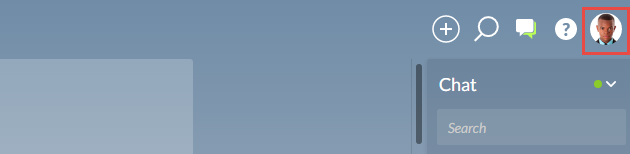
User avatar in the top-right corner of the Cloud interface.

Notifications

Global notifications

From My Settings | Notifications | Global Notifications, you can configure what events will result in you receiving a notification email.

The Global Notifications section of the My Settings page.

Name Description
Quick Subscription Options Select the checkbox to receive notifications on all actions performed by contacts on entities, activities, or files you're subscribed to.
System-Wide Subscription Settings

Select a checkmark to subscribe to all actions of that type taken across Cloud.

For example, if you select the Entities checkmark in the Edit column, you will receive a notification email whenever any user edits any Entity.

Individual Subscription Settings

Select a checkmark to subscribe to all actions of that type taken on activities, files, entities, or content within entities.

For example, if you select Activities under Content of Subscribed Entities in the Create column, you will receive a notification email whenever a new activity is created in an entity you're subscribed to.

If you select the top-levelEntities checkmark, you will receive notification emails for all cloud content associated with entities you're subscribed to.

Subscribed items

From My Settings | Notifications | Subscribed Items, you can view and update your subscription status for individual content. Subscribed content is displayed with hyperlinks to the content.

You are automatically subscribed to all content that you have added to Cloud. An email notification is sent whenever modifications are made to your content. For example, if a user comments on an activity that you posted, you will be notified by email.

Email notifications are not sent to you for updates you make.

The Subscribed Items page.

Number Name Description
Remove Unsubscribes you from the selected content.
Subscribed items list The list of content you are currently subscribed to.

Other

Account settings

From My Settings | Other | Account Settings, you can change your existing password and enable two-factor authentication.

You can also change your password prior to signing in via the login page.

Change your password and two-factor authentication details from Account Settings.

Name Description
Current password Enter the current password used to sign into your Caseware Cloud account.

New password

Enter the new password you want to use for your Cloud account. This password cannot be one of the last ten used.

Confirm new password

Re-enter the new password.
Password Quality Requirements Displays the standards for password quality.
Country Select your country of residence
Mobile phone Enter your phone number.
Update Phone Number Select to change the phone number associated with your account.
Verification code Enter the verification code sent to your phone number.

Startup settings

Specify the default page that opens when you sign in. Select your preferred page from the drop-down list. Optionally, you can choose Last Used App so that Cloud always opens to the last app or page used prior to signing out:

The Startup settings page.

Regional settings

From My Settings | Other | Regional Settings, you can override your organization's Regional Settings for Date and Time formats and for Numeric values.

Regional settings for Date and Time

Name Description
Date and Time

Sets the appearance of the date and time format:

  • Preview - a preview of the date and time format using the selected options.
  • Use Organization Default - clear to override the date format set by the organization.
  • Date Format - the date format.
  • Use Organization Default - clear to override the time format set by the organization.
  • Time Format - the time format.
Numeric

Sets the appearance of numeric values:

  • Preview - a preview of a positive number using the selected options.
  • Use Defaults - clear to override the decimal symbol and digit grouping symbol set by the organization.
  • Decimal Symbol - the symbol used to denote decimal values.
  • Digit Grouping Symbol - the symbol used to group digits (e.g. 10,000).

My profile picture

Add a picture to your account on My Settings | Other | My Picture. Each post or comment appearing in the Activity content pane or Chat window is personalized with this picture.

The My Picture page.

VoIP settings

From My Settings | Other | VoIP Settings, you can enable VoIP integration in Cloud. When enabled, all telephone numbers are converted into links that can be dialed by your computer. Clicking on these links will launch your default VoIP application. A VoIP application must be installed on your computer for this feature to work.

Supported phone clients include:

  • Google Voice
  • Microsoft NetMeeting

If no country calling code is specified in a phone number, the Default country calling code is prefixed to the phone number. Ask your Cloud administrator if this setting is specified in Settings.

Change personal preferences | Caseware Docs