
Defining Period Dates
Specify the Year End Date and other period information to set up your firm dates for processing and reporting time and expense transactions.
 Note: For Time users with Cloud Integration enabled, this operation can also be performed from CaseWare Cloud.
Prerequisites
 With Protection activated, you require the following right in the file
- Company profile under the File category
If Cloud Integration is enabled,
-
You must be Online to perform this operation. When you are Offline, this operation is disabled.
- Your account on Cloud must be assigned a role that grants Edit permission on the Firm object.
Procedure
- Access the Company Profile dialog from the menu File | Company Profile.
-
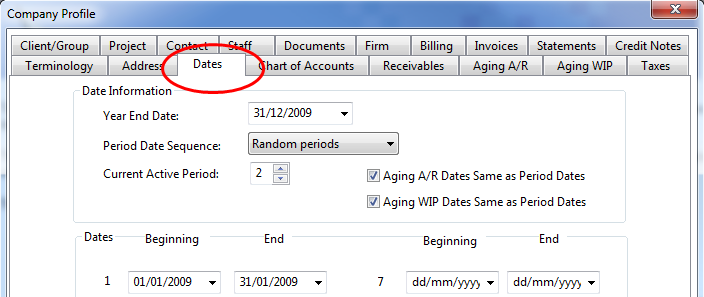
Click the Dates tab.
-
Complete the Date Information section, selecting the:
-
Year End Date
Represents the fiscal year end date of the file.
-
Period Date Sequence
Monthly, quarterly, random, or yearly periods are available.
-
Current Active Period
Represents the current active period of the transactions and is set by default to 1.
Click the Quick Reference link for more detailed descriptions to options and fields: >>Quick Reference
Note: If Cloud Integration is enabled and you are working Online, then a merge is automatically performed with CaseWare Cloud immediately after this step. -
- Click Close to finish.
Notes
- If Cloud integration is enabled, you cannot move a period date forward unless all Time and Expense entries (with transaction dates prior to the start of the new period) have been submitted from CaseWare Cloud or have been deleted.