
Whitelist for reports and transaction codes (/AUDIC/SE_REPORTS transaction)
With the help of the whitelist for reports, the SAP® administrator can easily ensure that no SmartExporter end user can access reports to which they should not have access.
Note:
As of SmartExporter SAP® components version 8, only reports or SAP® transactions that have been previously entered by the SAP® administrator in the reports whitelist /AUDIC/SE_REPORTS can be called.
This reports whitelist is taken into account when executing any reports of the Additional Data Source Reports, such as RFSBSA00 for /AUDIC/RFSBSA00_PRINT, and also when executing the generic report call. If a user tries to call a report or transaction for which he does not have authorization, he will receive a corresponding error message when the Data Request is checked.
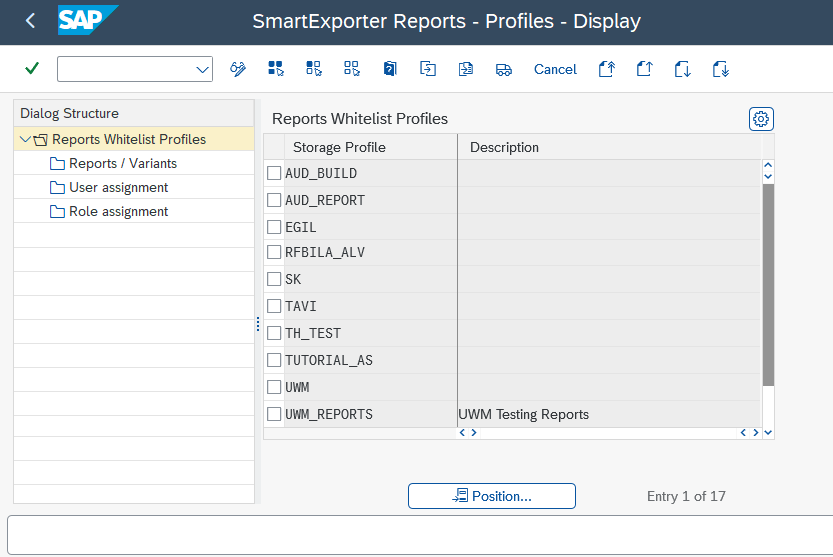
Run the /AUDIC/SE_REPORTS transaction and select the first entry Reports Whitelist Profiles from the folder structure.
Fill in the following fields to create a Reports Whitelist profile:
|
Field |
Description |
|---|---|
|
Storage Profile |
Enter a name for the profile. The profile name must be unique. |
|
Description |
Short description of the profile (optional). If you need the profile description in multiple languages, you can enter the corresponding translations via the Translation entry in the Goto menu. |
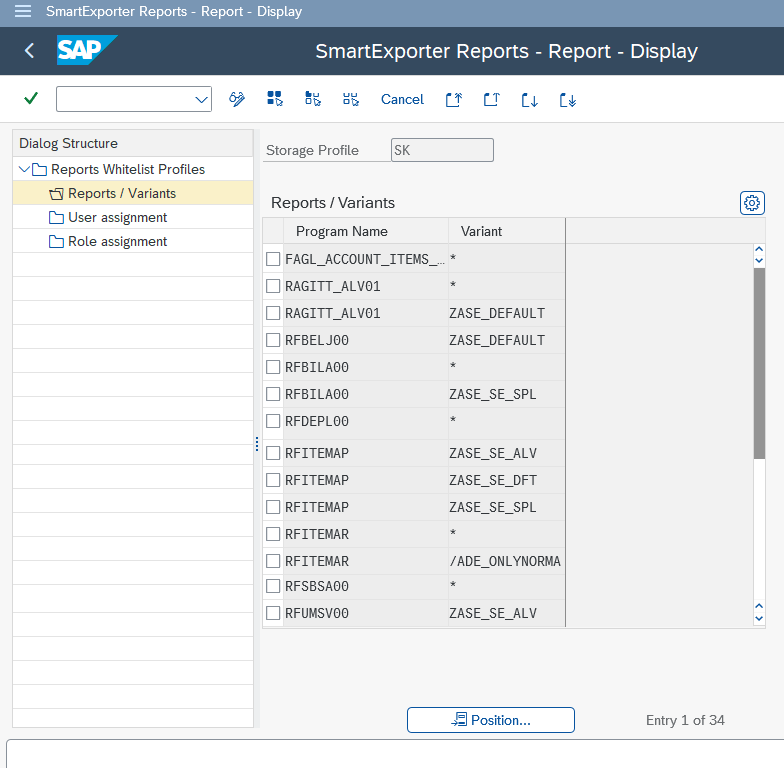
Select the Reports / Variants entry to restrict access to reports or SAP® transactions. In addition, it is possible to restrict the report to a specific variant.
|
Field |
Description |
|---|---|
|
Program name |
Specific name of a report, e.g. RSPFPAR |
|
Variant |
Enter the name of a variant here if you only want to allow access to a specific variant. If you do not want to restrict access to certain variants, enter an asterisk (*). |
Select the User assignment entry to assign the selected profile to specific users.
Select the Role assignment entry to assign specific users to the selected profile using roles. This step is optional.