
Assign authorization role to the SAP® user
Finally, you have to assign the role created for the SmartExporter access to the SAP® users that will be used by the SmartExporter Windows client. Call the transaction SU01 and select your SAP® user.
Switch to the Roles tab and select the generated role.
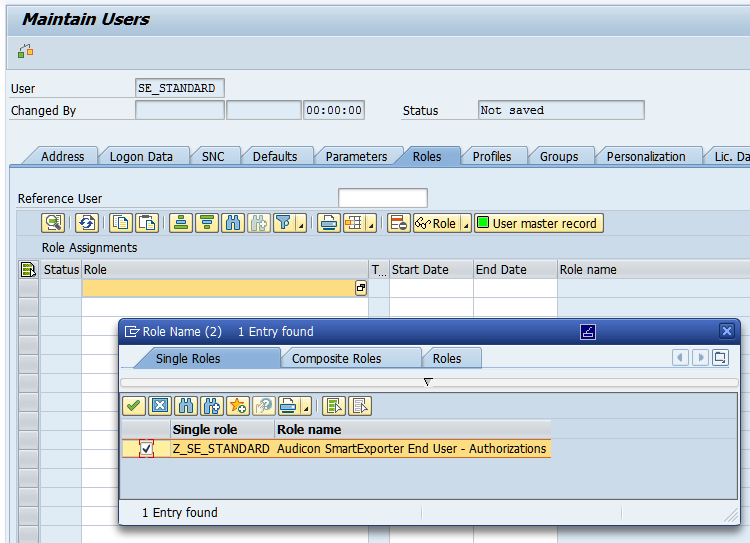
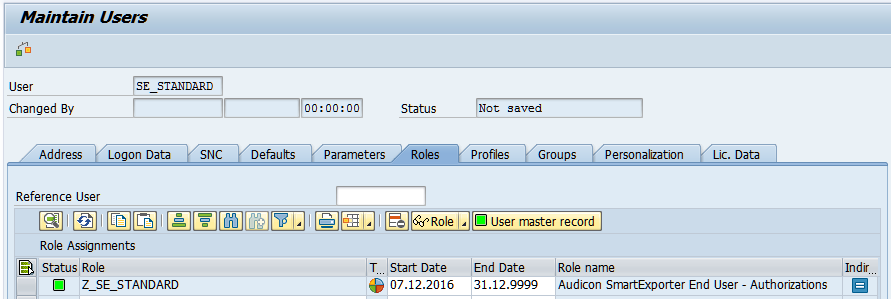
The generated role has to be assigned to the user.
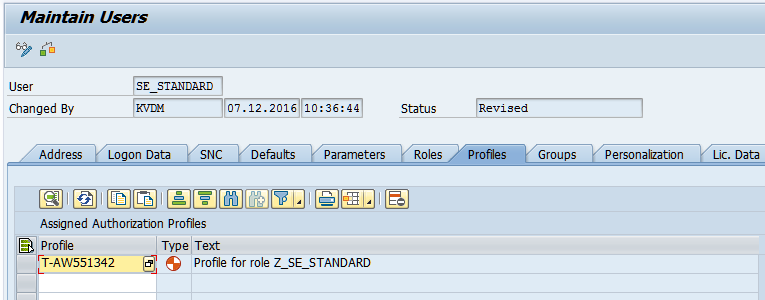
The automatic allocation is done in the Profiles tab.
Save the changes by clicking the Save  icon.
icon.
The access authorizations for SmartExporter via standard RFC modules are implemented now.