
Installing the Add-On
Please select your SAP® base release to display the correct paths and file names.
Paths and file names depending on the SAP® base release used:
For the SmartExporter SAP® components version 7.0.0000 or higher the Add-On and the transport will be shipped in two different versions for the SAP® base release 700 and higher: one version for SAP® base releases 700 to 740 SP7 (in the subfolder 700 in the download package) and one version for SAP® base release 740 SP8 or higher (in the subfolder 740). The reason for this is that the implementation of the storage locations for SAP® base releases lower than version 740 SP8 are not supported for Azure services.
To not impair the readability of the help topics, all topics with version specific paths or file names contain a drop-down list at the start of the topic. After switching to your SAP® base release in this drop-down list, all paths and file names will be shown in the correct form throughout the topic.
Do you need any help checking your SAP® base release?
Note:
If you install the Add-On and use any other logon language than English or German, some dialogs may not be displayed correctly. If you still want to use a different logon language, you can supplement your logon language with German or English in the client 000 with the SMLT transaction. This ensures that all dialogs are displayed correctly and user interface strings that are not available in your logon language will be displayed in the selected supplementation language (German or English).
The Add-On will be installed using the SAINT transaction (Add-On Installation Tool).
-
Please open the Installation Package menu and select the Load Packages entry and then From Front End. If you are using a more recent versions of the Add-On Installation Tool, select SAR archives from Front End.
Alternatively, move the PAT files located in the DATA folder to your transport directory’s EPS Inbox. In this case open the Installation Package menu, select the Load Packages entry and then From Application Server. If you are using a more recent version of the Add-On Installation Tool, select EPS files from application server.
In more recent versions of the Add-On Installation Tool, as an alternative, you can also copy the SAR files to the directory EPS\download (or EPS/download respectively) of your transport directory. In this case open the Installation Package menu and select the Load Packages entry and then SAR archives from application server.
Please refer to the "Readme.txt" file in the SAP Components folder for the assignment of the PAT files to the various installation, attribute and patch versions.
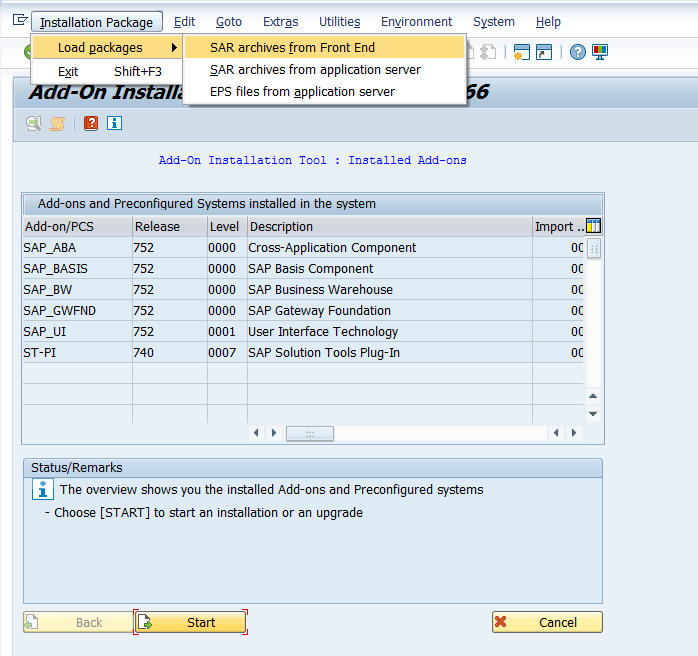
Figure: Add-On Installation Tool -
Now load the ASE_XXX_740.SAR file via SAP Front End from the SAP Components/SmartExporter SAP Components/AddOn/740/DATA folder of the download package.
Now load the ASE_XXX_700.SAR file via SAP Front End from the SAP Components/SmartExporter SAP Components/AddOn/700/DATA folder of the download package.
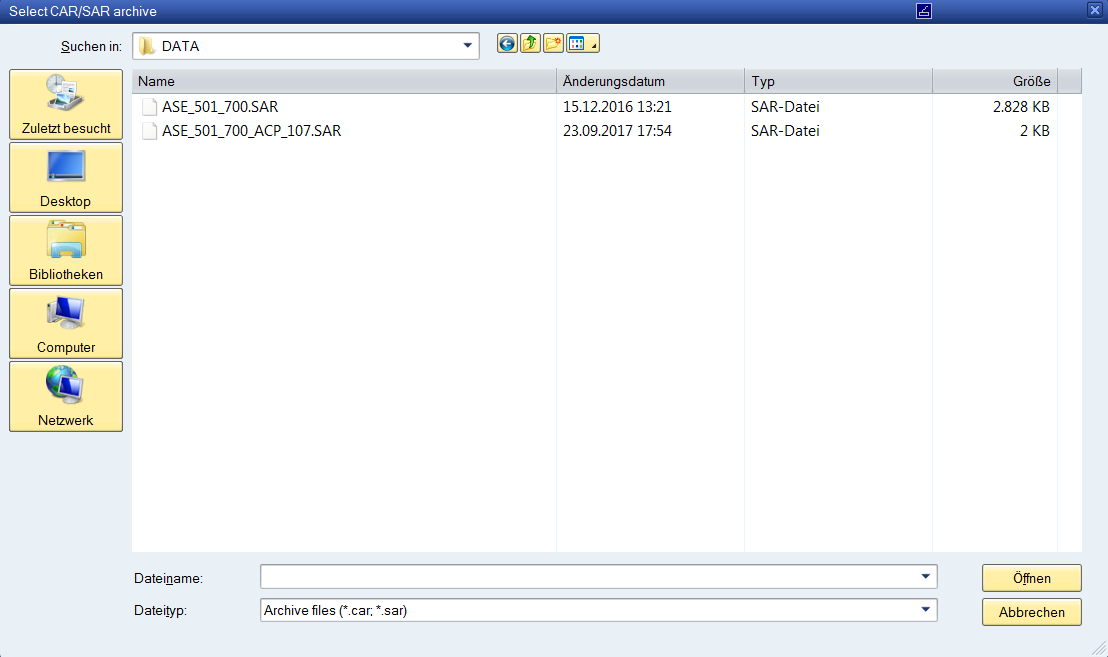
Figure: Selecting the SAR file -
In the confirmation prompt (the dialog may differ depending on the version and configuration of your Windows operating system) click the Allow button.
Note:
If the version of the SPAM/SAINT component is higher than 64, you can also load the ASE_XXX_740_ACP_NNN.SAR Attribute Change Package into your system here so that the Add-On can be uninstalled later on. If the version of the SPAM/SAINT component is higher than 64, you can also load the ASE_XXX_700_ACP_NNN.SAR Attribute Change Package into your system here so that the Add-On can be uninstalled later on.
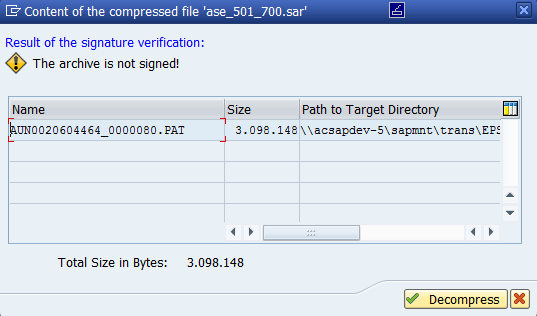
Figure: Decompress The warning “The archive is not signed!” can be ignored because only archives that were created by SAP® can be signed.
You can determine the SHA-1 hash values of the corresponding files and compare them with the information in the checksums.txt file. Please note that this link always leads to the SHA-1 hash values of the latest Add-On. If the linked SHA-1 hash values do not match your checksums, please contact the Caseware Support.
Click the Decompress button.
The archive will be loaded, decompressed, moved to the EPS Inbox and deleted.
-
Load all available SAR files in the same way as the Add-On from the SAP Components/SmartExporter SAP Components/AddOn/740/DATA folder in the download package or copy the PAT files that are also contained in this directory to the EPS Inbox of your transport directory. Load all available SAR files in the same way as the Add-On from the SAP Components/SmartExporter SAP Components/AddOn/700/DATA folder in the download package or copy the PAT files that are also contained in this directory to the EPS Inbox of your transport directory.
-
Start the installation process by clicking the Start button.
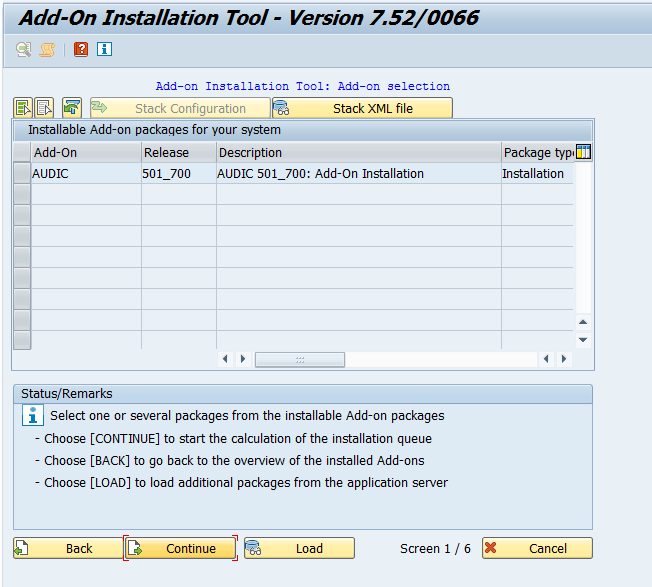
Figure: Starting the wizard The available Add-Ons are displayed.
-
Select the AUDIC Add-On and click Continue.
-
In the following step select all loaded support packages for the AUDIC Add-On to be able to run the installation in one step without further support package installation using the SPAM transaction.
Click the Target Support Package drop-down list of the AUDIC component and select the highest support package available.
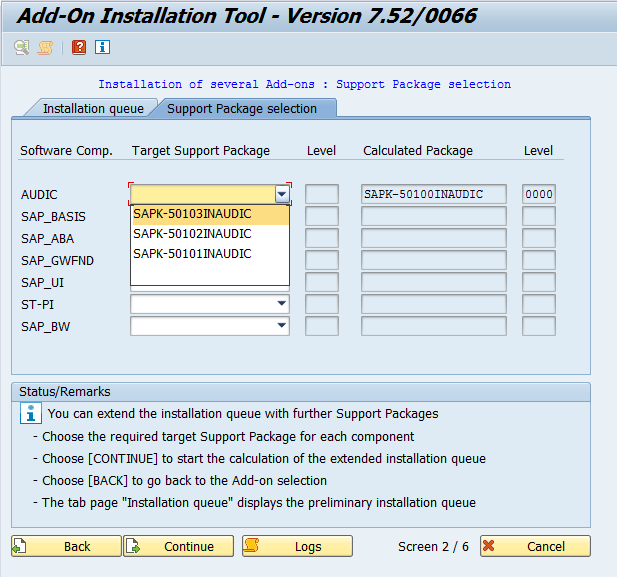
Figure: Support Package selection -
Click Continue to proceed.
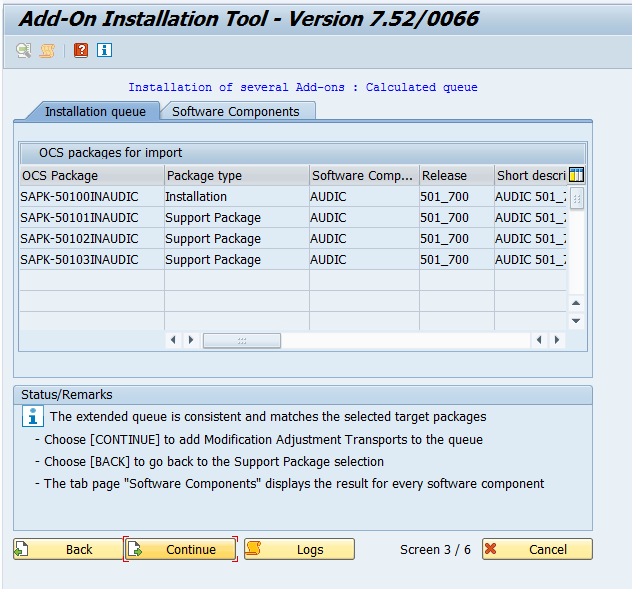
Figure: Installation Queue -
No modification adjustment transport will be required. Click Continue. A corresponding message will be displayed.
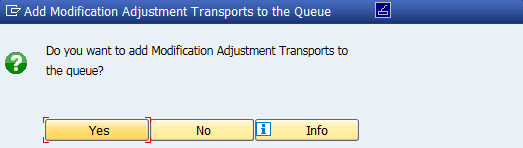
Figure: Add Modification Adjustment Transports to the Queue Click "No" because no modification adjustment transports are necessary.
-
Due to the small data volume of the Add-On the installation may be run in dialog mode.
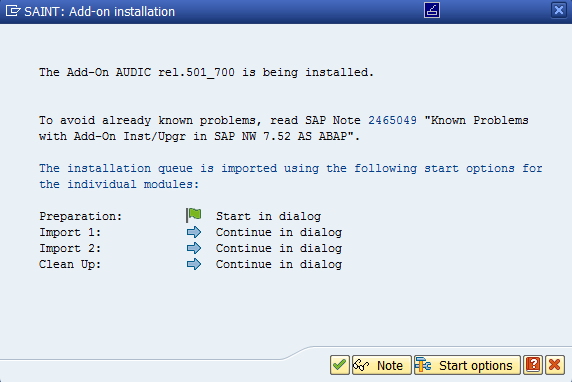
Figure: Installing the Add-On Warning messages concerning open BW data extraction requests can be ignored because the Add-On does not contain any BI data structures.
-
Click the
 button.
The Add-On will be installed.
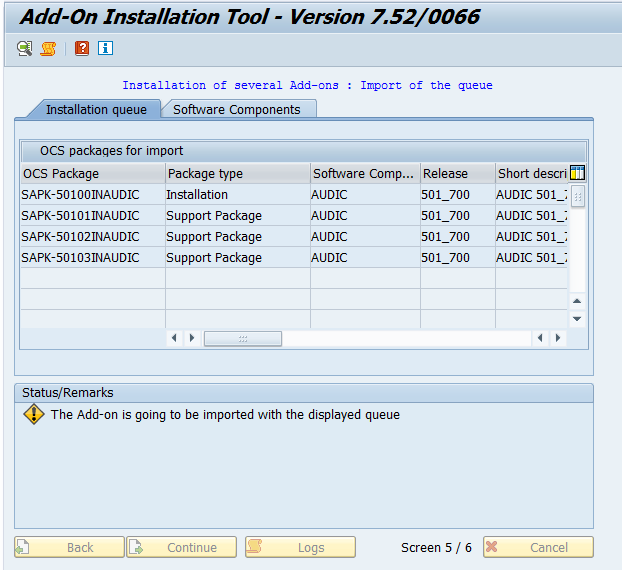
Figure: Installing the Add-On Depending on the version of the SPAM/SAINT installation tool an error message may be shown stating that the files have no digital signature. The warning “The OCS Package ... is not signed!” can be ignored because only archives that were created by SAP® can be signed.
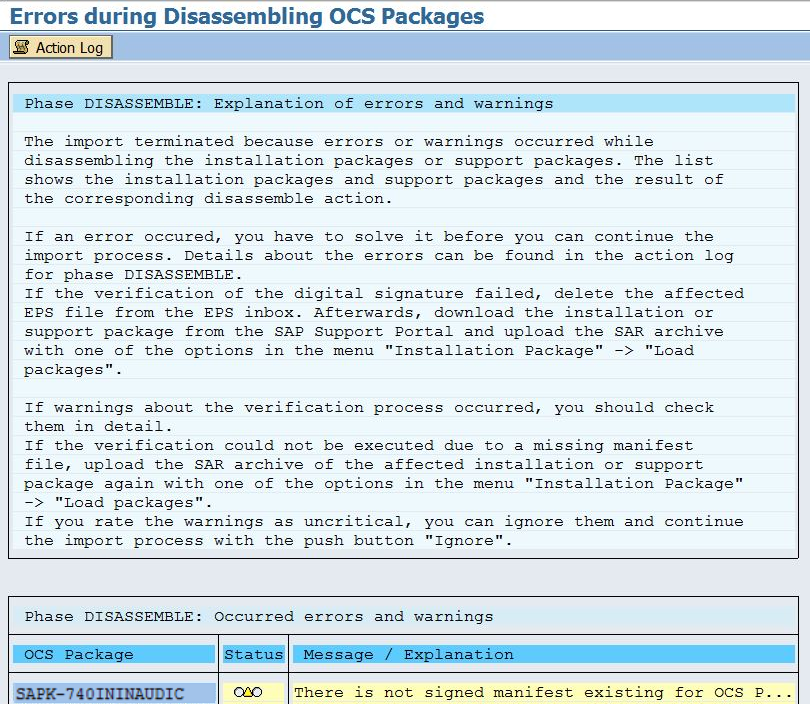
Figure: Error when disassembling the OCS Packages When the installation of the Add-On is completed the AUDIC component is shown in the system component list. Click Finish.
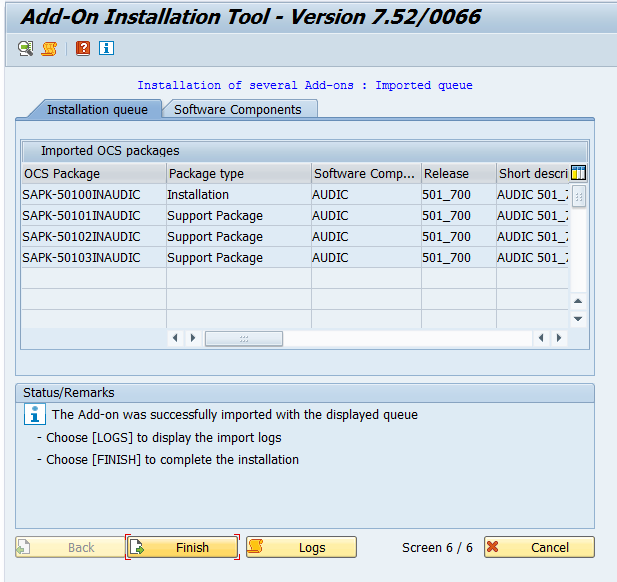
Figure: Installation of Add-On was successful -
Depending on the SAP® basis and SPAM/SAINT version the Sending the runtime analysis dialog will be displayed. Read the description of the available options and select the desired option by clicking the corresponding button.
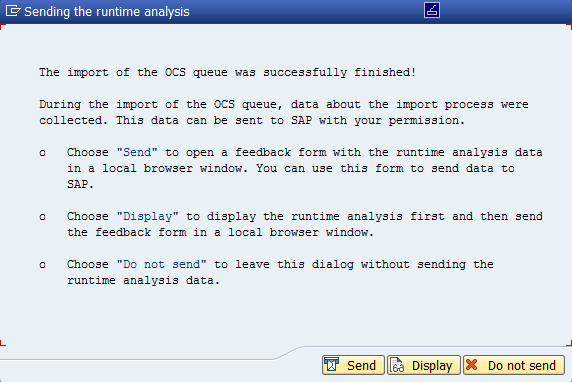
Figure: Sending the runtime analysis The list of installed Add-Ons will be updated accordingly.
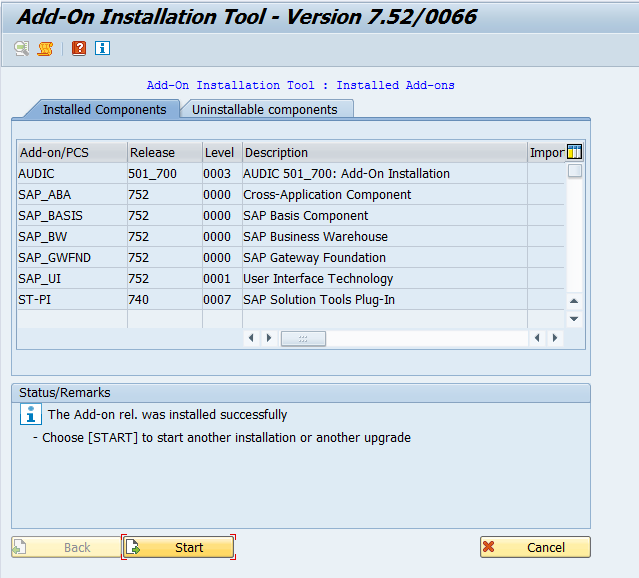
Figure: Updated list of installed Add-Ons The installation is now complete.
-
After the installation of the Add-Ons you have to configure the authorizations and make the necessary adjustments of the system settings for each of the clients of your SAP® system for which the SmartExporter SAP® components will be used.
An overview over the next steps is shown in the Checklist for the installation of SmartExporter SAP® components topic.