
Using a license manager server
To use SmartExporter you have to activate the corresponding license key. When starting SmartExporter, the application checks the license key to determine which SmartExporter Edition can be used. For SmartExporter 2018 R1 or previous versions the required license manager had to be installed locally. With SmartExporter 2020 R1 or higher you can use a system environment variable to define whether to search for a license manager server on the network, or you can directly specify the host name or IP address of the computer running the license manager. This allows you to use a central license server.
Note regarding the use of SmartExporter Corporate Edition
Especially for the There are different SmartExporter editions (Desktop, Corporate, Client and Server Edition) available. The Corporate Edition has the same scope of functionality as the Desktop Edition. While the Desktop Edition is for single person use, the Corporate Edition can be used by several persons at the same time., it makes sense to use a central SmartExporter license manager server so that SmartExporter can get its license information from there.
I.e., if SmartExporter is installed e.g. on several physical or virtual machines, the Corporate Edition license should not be activated on those machines. Rather a central SmartExporter license manager server should be set up so that SmartExporter gets the license information from there. This central license manager server should always be available so that SmartExporter can get the license information from it.
Note:
Please consult your IT department before setting up the license manager server to make sure that it complies with your company’s IT policies.
Specify the SE_LICENSE_MANAGER system environment variable using one of the following values:
-
Local
Uses the local license manager on the computer SmartExporter is installed. This is the default setting if no environment variable is defined.
-
Hostname or IP address
Enter the hostname or IP address of the license server.
-
Remote
Searches a license manager on a different computer in the network.
Note:
The values are not case-sensitive. This means you can enter, e.g. "Local", "local" or "LOCAL" if you want to use the local license manager.
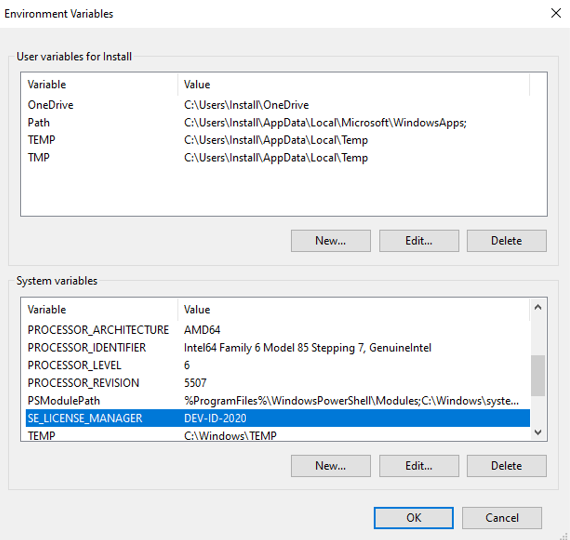
Order for setting up a license manager server
If you want to use a license manager server (i.e., you specify the Remote value or the hostname/IP address as an environment variable), the machine used as the license manager machine must have SmartExporter installed as the local administrator.
Note
However, as an alternative to installing SmartExporter on the license manager machine, you can install only the license manager (Sentinel LDK License Manager) on it. The advantage is that in this case you do not have to run the entire SmartExporter installation. However, in this case, you can only run an offline activation.
If you want to use this alternative, please read the topic Installing only license manager (without SmartExporter) on the license manager machine, follow the instructions and then continue with step 3 below.
Order when using a license manager server:
- Install SmartExporter on the license manager machine. This installs the license manager on the machine and also makes the activation tool for the license activation available.
- Activate the licenses on the license manager machine.
- Install SmartExporter on the machine the SmartExporter user has access to.
- Define the license manager to be used by entering the corresponding system environment variable on this machine.
More details
-
SmartExporter uses the Sentinel LDK License Manager. It communicates locally with SmartExporter or with other license managers in the network via the TCP and UDP protocol and port 1947.
-
On the computer of the SmartExporter user you can check in a browser by entering the URL http://localhost:1947/_int_/features.html if the corresponding license manager was found by SmartExporter. If this is the case, the computer should be listed for Vendor 99285 in the Location column with the licenses activated there.
-
When you enter the “Remote” value, a broadcast request for other license managers is started. These requests may not work in certain network types, e.g. if the license manager and the computer of the SmartExporter user are not located in the same local network.
-
The SmartExporter License Activation creates a file called ActivationLog.txt in the local temporary directory of the Windows user. This file contains further information on the SmartExporter version and the licenses that were found and the licenses in use.
-
If SmartExporter cannot connect to the license manager on another machine, open the URL http://localhost:1947/_int_/config.html in a browser on the license manager machine.
In the Access from Remote Clients tab check if access from remote clients is allowed. If this is not the case, select the corresponding option, e.g. All licenses are accessible without need of identity.
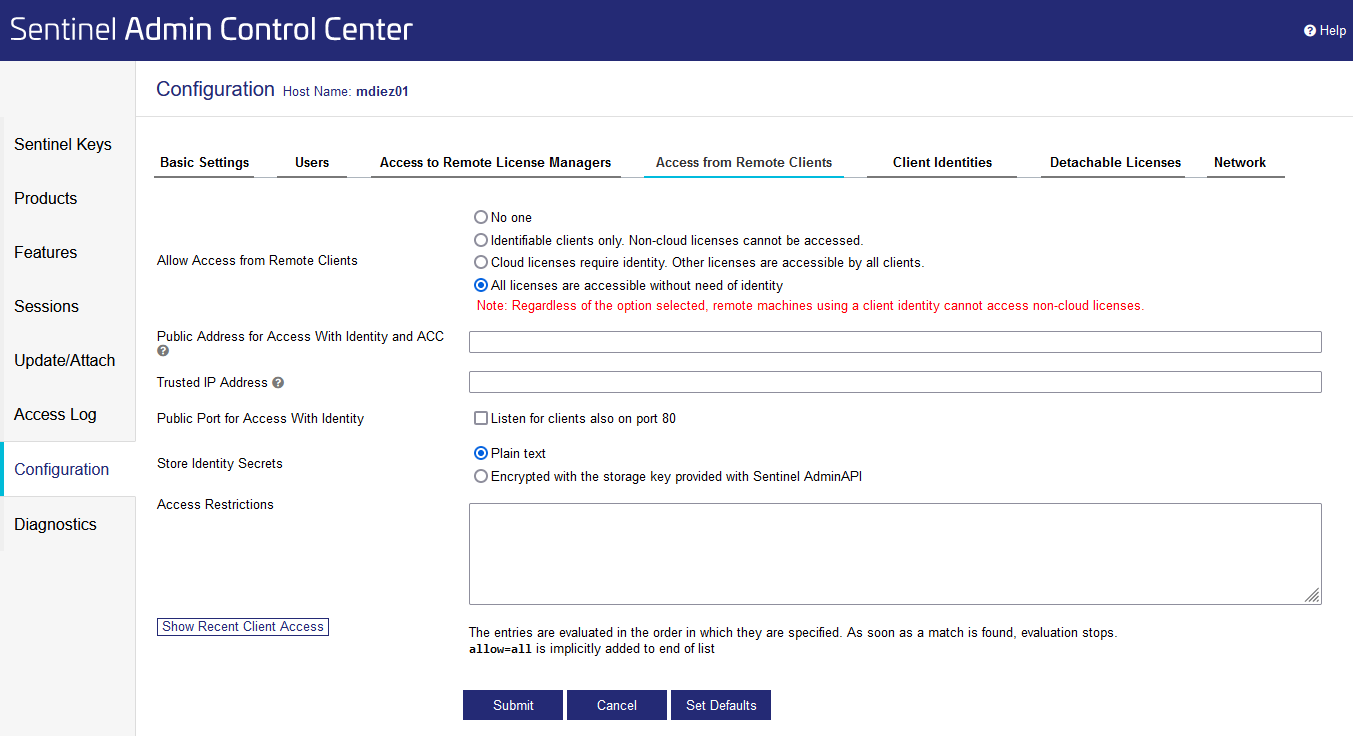
Figure: Access from Remote Clients tab You also have to select the All Network Adapters option in the Network tab.
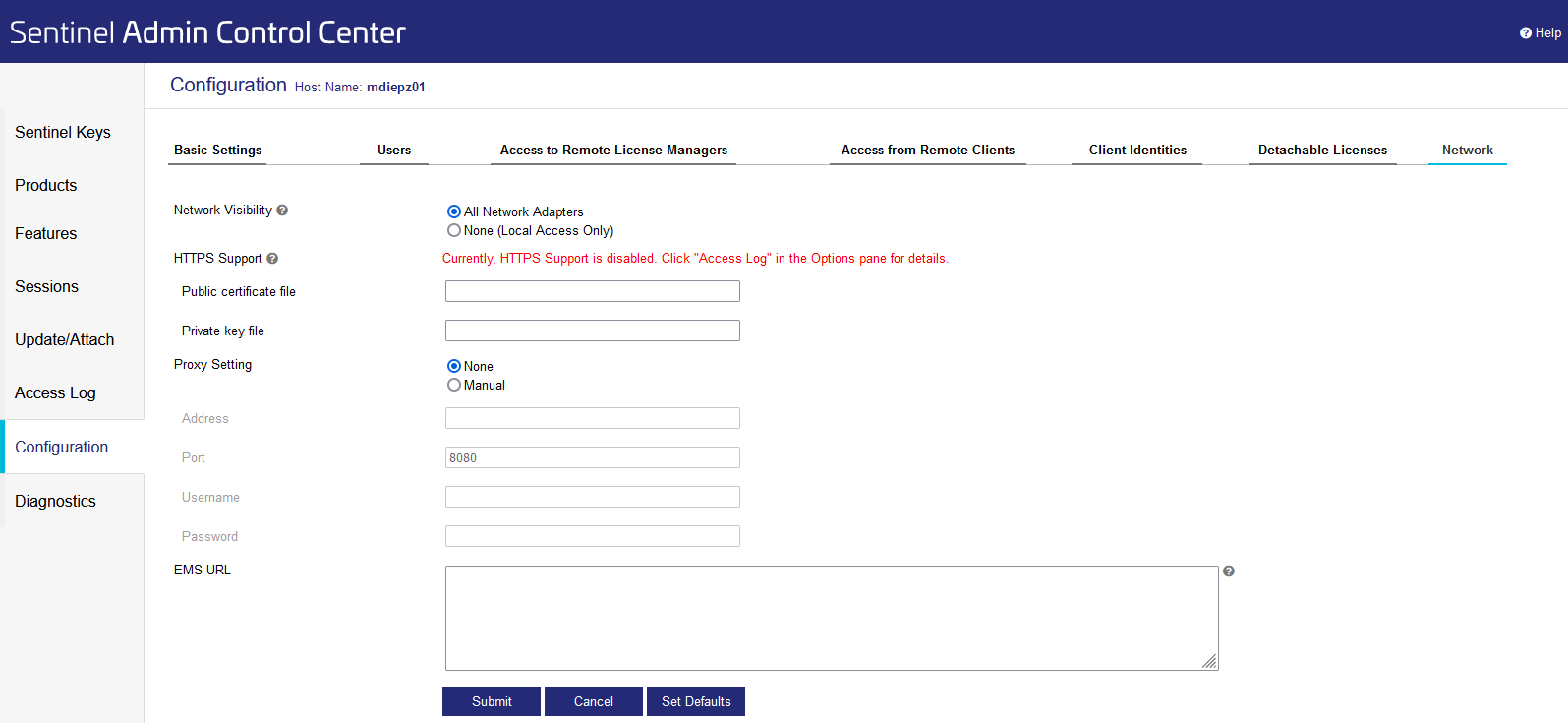
Figure: Network tab After making your changes, click the Submit button.
-
On the machines that will access the license manager machine, you can check whether the connection to the license manager machine is configured correctly.
For this purpose, open the http://localhost:1947/_int_/config.html URL in a browser on the corresponding computer. In the Access to Remote License Managers tab check if access to remote licenses is allowed. You can also select the Broadcast Search for Remote Licenses option there. If this option is not selected, the IP address or the name of the license manager machine has to be entered in the Remote License Search Parameters area.
After making your changes, click the Submit button.
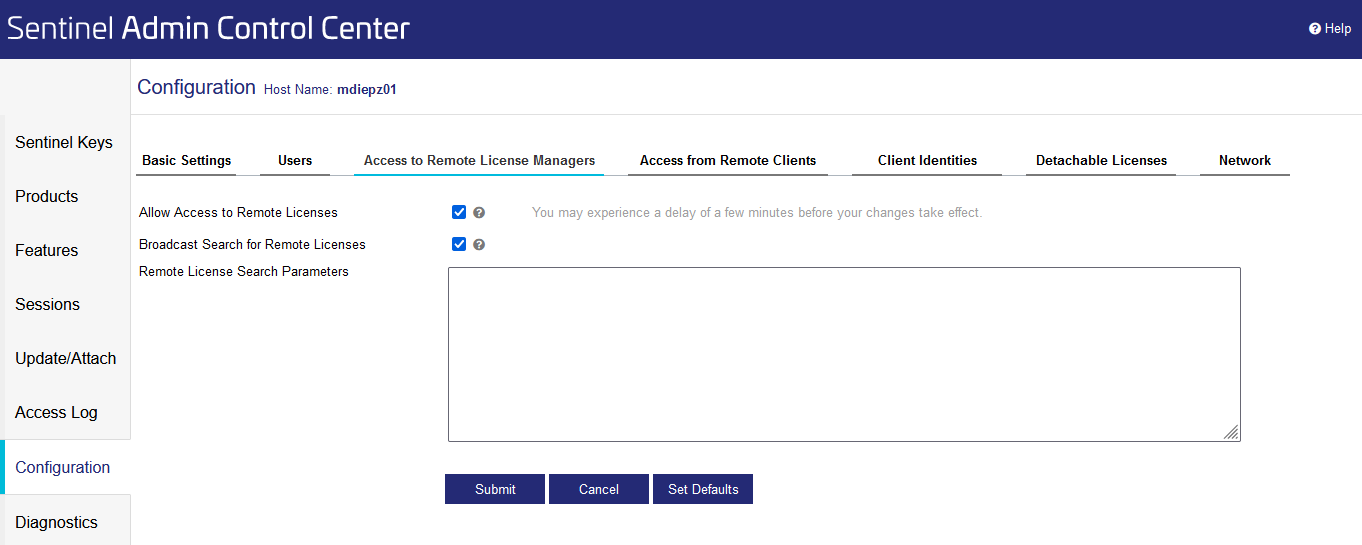
Figure: Access to Remote License Managers tab As an alternative you can also edit the "C:\Program Files (x86)\Common Files\Aladdin Shared\HASP\hasplm.ini" file. You can find the Remote License Search Parameters entries in the [REMOTE] section, serveraddr entry.
For more details refer to the Sentinel Admin Control Center help.
-
On the license manager machine you can check which licenses are activated at http://localhost:1947/_int_/features.html.
-
Go to http://localhost:1947/_int_/sessions.html to check which users currently have SmartExporter open.
On Windows x64 systems, the Sentinel LDK License Manager saves the configuration in %CommonProgramFiles(x86)%\Aladdin Shared\HASP\hasplm.ini.