
Installation of the Additional Data Sources
The SmartExporter SAP Components\DataSources\ZZZZZZZ\Transport\<SAP® enhancement package> directory contains the following files (where ZZZZZZZ is the name of the Additional Data Source, xxxxx is the number of the transport request and YYY represents the delivery system):
K9xxxxx.YYY
R9xxxxx.YYY
The K9xxxxx.YYY file is the R3Trans Command file. The R9xxxxx.YYY file is the corresponding Data file. Data and Command file have to be transferred to the central transport directory of your destination system.
If there are directories for different SAP® enhancement package levels, use the one with the highest level lower than or equal to the enhancement package level of your system.
Note:
When using FTP to transfer the transport files, please make sure to transfer the data in binary mode.
Copy the K9xxxxx.YYY Command file to the /sapmnt/trans/cofiles directory and the R9xxxxx.YYY Data file to the /sapmnt/trans/data directory.
The specified paths for the transport directory /sapmnt/trans serve as an example. If different paths are used in your system (e.g. /usr/sap/trans), you have to change them accordingly.
IMPORTANT NOTE:
Please make sure that the file names are still upper case after the transfer. You also have to remove the read-only attribute.
The import of the requests can be started by using the corresponding TMS functions.
- Call the STMS transaction.
- Select Import Overview
 .
. - Select the SAP® system for which you want to import the requests.
- Select Import Queue Display
 .
. -
In the Extras menu select the Other requests – Add function.
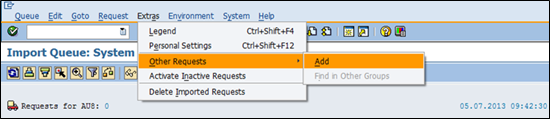
Figure 2: Importing transport request -
Select the transport request which you have copied in the previous step and confirm that you want to add the transport request.
The request will be shown in the import queue.
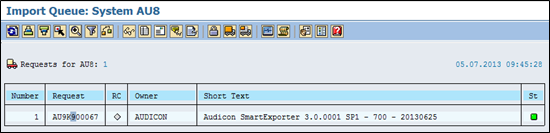
Figure: Import Queue - Select the imported request by highlighting it and click the
 Select Request +/- icon.
 -
Click the Import Request
 icon to import the request.
The transport requests are exported from client 800. In the following step enter the target client for the import to make sure that client-specific data you want to import is copied to the correct client.
If the Additional Data Sources will be used in different clients of your SAP® system, repeat the import for all relevant clients.
Due to the small size of the request you can import it by using the time setting Immediate and the execution setting Synchronous.
You do not have to modify the options. You can use the suggested default values.
- Click Next
 to start the import.
 -
Confirm your entries by clicking Yes.
Depending on the settings the import will now be run synchronously in the dialog or asynchronously in the background.
-
Click the Logs icon to show the transport log of the request.
You can ignore the "(4) Ended with Warning" messages shown for the import steps Import ABAP Dictionary Objects and ABAP Dictionary Activation.
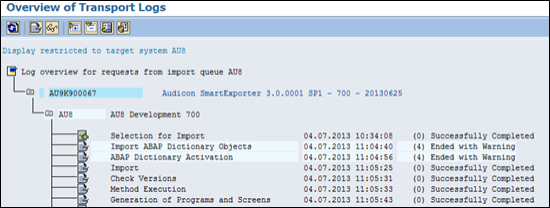
Figure: Transport Logs