
Determining the selection fields / parameters for an existing variant
After the name of the report variant has been determined, you need the information which selection fields and parameters have been implemented for the report and which default values have been defined in the variant for them.
-
Enter the desired variant (in our example this is "1001") in the Quick-Filters step in the Report Variant field, if you have not already done so.
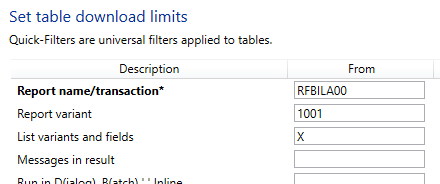
Figure: Report Variant field -
If you generate the preview in the Fields and Filters step, the corresponding selection fields and parameters for the variant are listed after the variant list.
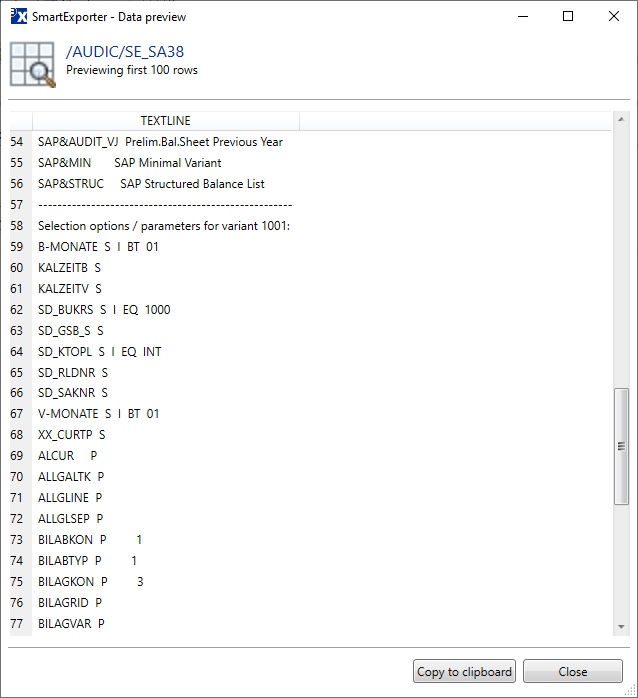
Figure: Selection fields and parameters for the variant in the data preview -
As before, especially if the list is not shown in its entirety in the preview, you can use an extraction to download all the information and view it in an editor.
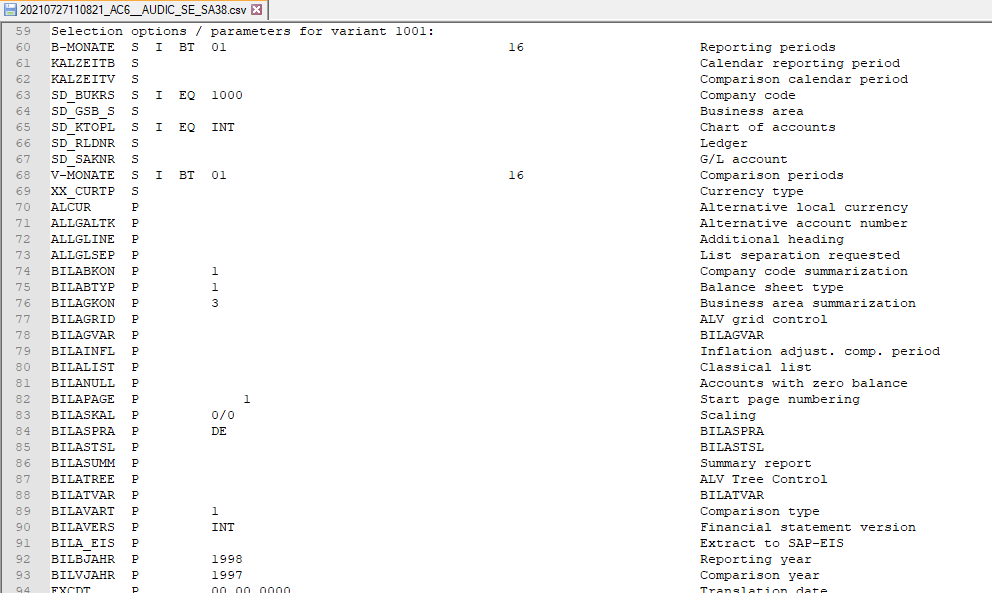
Figure: Complete list of selection fields and parameters as extraction Every line contains the following information/columns:
- name of the selection field or parameter
- indicator if it is a selection field “S” or a Parameter “P”
- predefined initial filter value (if defined)
- the SAP® description of the selection field or parameter
Please pay attention to the selection fields or parameters that are initialized. In the example above, there is for example SD_BUKRS with the company code 1000 (I EQ 1000).

Note:
If you need other filter values, you should define them accordingly as Quick-Filters.
Further information on how the initial filter values are shown in the output:
- I for Include means that the filter value is for inclusion. E for Exclude means that the filter value is for exclusion.
- The following operators are used:
- EQ – Equal
- BT – Between
- CP or LI – Contains Pattern
- LE – Less Than Or Equal To
- GE – Greater Than Or Equal To
- LT – Less Than
- GT – Greater Than
- NE – Not Equal
- NB – Not Between
- After that comes the filter value or, in the case of the BT and NB operators, the From and To values.