
Template Options
All Jazzit documents have common features to indicate when a revision is available. These features can be found in the Jazzit document options section and includes the following:
.png)
| Number | Name | Description |
|---|---|---|

|
Document map |
The document map lists all the sections in the templates. Click on a heading to jump to that section. To switch the document map off, go to Home > Document Map or View > Document Map. |

|
Open document |
Popup menu allows you to open any document from the Working Papers Document Manager. |

|
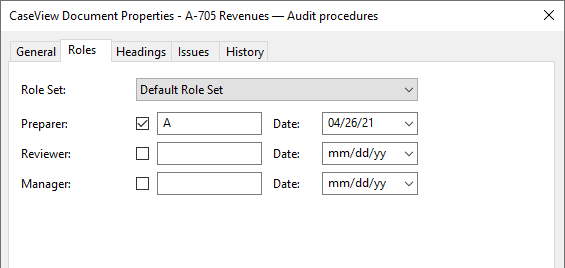
Sign off |
Click on the button to access the Roles dialog to sign off the document.
|

|
Adjusting entries |
View, edit, or create adjusting entries in Working Papers. |

|
Trial Balance |
Opens the Working Papers Working Trial Balance within CaseView. |

|
Save and Exit |
Saves and closes the document instantly. |

|
Accountants Templates update date |
This date indicates the design update date for the Jazzit template. |

|
Reload/update from Resource Centre |
Click on this button to update or reload the letter from the Resource Centre. |

|
Document settings |
Also know as the 'chain button' this button hides/unhides the area under 'Document settings' revealing additional options. |

|
Update status |
Shows the update status of the document. A yellow status indicator ( |

|
Document and Resource Centre dates |
Indicates the version date of the document in the current file and the version date of the connected Resource Centre. The Document and Resource Centre dates will be the same when the document is updated. |

|
Resource Centre Type |
Indicates which Resource Centre the document is connected to, e.g. PEG Audit KLIB |

|
Resource Centre filename |
The Resource Centre filename that the checklist is connected to. Resource Centre filenames start with the Resource Centre filename (ex: PEG Audit KLIB) with the CaseView ID appended to the end (ex: CAA310) |

|
Link Browses |
Choose whether zero balance link hides or not. |

|
Hide details if procedure set to NA: |
In certain checklists setting the procedure to NA will hide details since they are deemed unnecessary. |

|
Doc Map |
The 'Doc Map' button allows you to toggle the Document Map on and off. You can normally toggle it on Home > Document Map in CaseView, however the setting will not save when you open the Financial Statements again. Use the 'Doc Map' button to toggle the Document Map on a permanent basis. |

|
Scale Fonts |
Toggles CaseView's Scale fonts to reduce clipping feature. Sometimes the text in a table will get 'cut-off' or 'clipped' on the screen. This feature corrects that. Please see Document settings | Compatibility for more information on this and other features. |

|
Cleared on roll forward options |
Choose to clear or retain the working paper data types on roll forward. |
.png)