Template Options
All Jazzit documents have common features to indicate when a revision is available. These features can be found in the Jazzit document options section and includes the following:
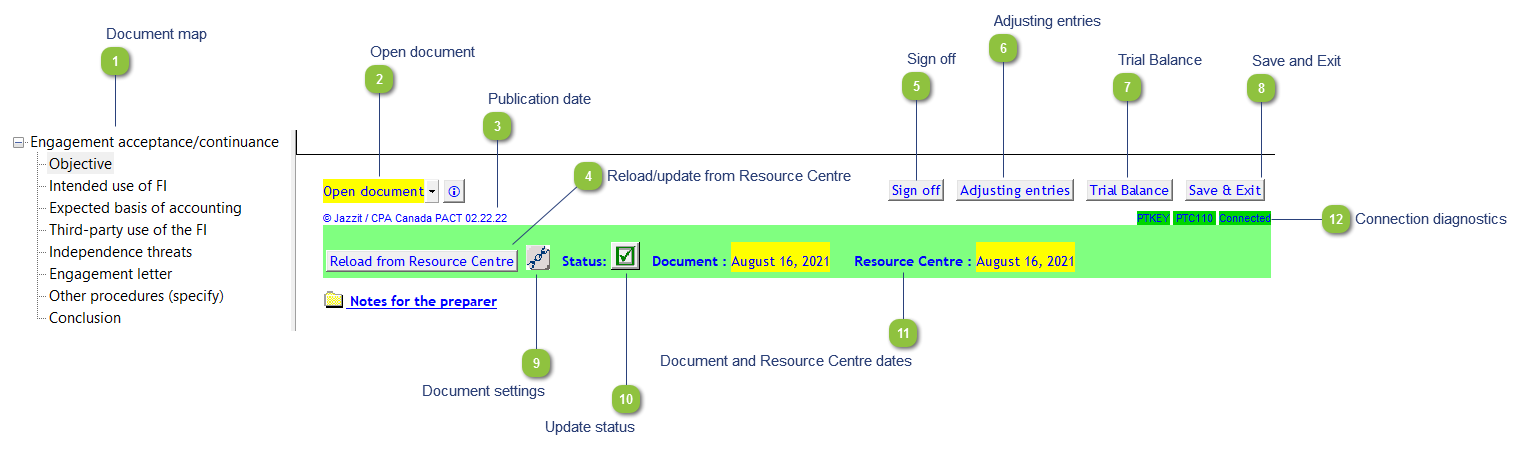
| Number | Name | Description |
|---|---|---|

|
Document map |
The document map lists all the sections in the templates. Click on a heading to jump to that section. To switch the document map off, go to Home > Document Map or View > Document Map. |

|
Open document |
Popup menu allows you to open any document from the Working Papers Document Manager. |

|
Publication date |
This date indicates the design update date for the Jazzit template. |

|
Reload/update from Resource Centre |
Click on this button to update or reload the letter from the Resource Centre. |

|
Sign off |
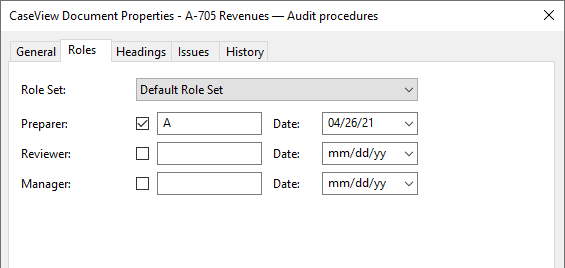
Click on the button to access the Roles dialog to sign off the document.
|

|
Adjusting entries |
View, edit, or create adjusting entries without having to jump to Working Papers. |

|
Trial Balance |
Opens the Working Papers Working Trial Balance within CaseView. |

|
Save and Exit |
Saves and closes the document without closing CaseView completely. |

|
Document settings |
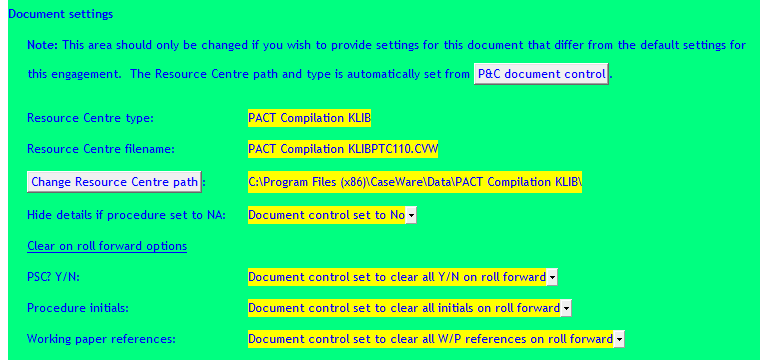
Opens the document settings section. Document settings allow the preparer or Administrator to change certain default options.
Document properties for the checklist present information about the Resource Centre path, type and document filename.
|

|
Update status |
Shows the update status of the document. A yellow status indicator ( |

|
Document and Resource Centre dates |
Indicates the version date of the document in the current file and the version date of the connected Resource Centre. The Document and Resource Centre dates will be the same when the document is updated. |

|
Connection diagnostics |
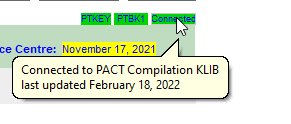
Diagnostic lists the identifier of the Resource Centre connection point (PTKEY), document identifier, and whether it is connected or not. Double click on PTKEY to open it. Hovering your mouse point over the Connected cell will show the last update date for the PACT Resource Centre.
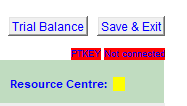
If the PTKEY cell is highlighted in red, either the PTKEY has the wrong identifier or it is missing from the Working Papers file.
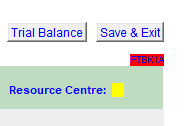
If the document ID cell is red and no other cells show. This indicates that the corresponding module is not found in the Resource Centre
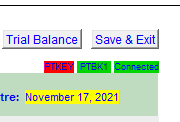
Red PTKEY but green identifier and connection cells indicate that PTKEY has the wrong identifier or it is missing from the Working Papers file and the file has been manually connected to the PACT KLIB. (not recommended)
|
.png)