
Step 3 - Connecting to the klibupdate Directory
-
Set the path to the newly installed klibupdate (as set up in step 2). You can skip step 3 if you see a
 next to it.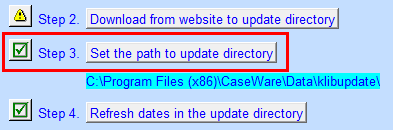
-
Click on the Set path to update directory button and browse to the location where klibupdate is located in Step 2. Highlight klibupdate and click on Select Folder to continue.
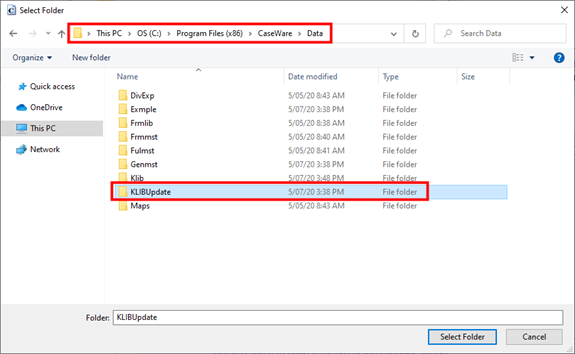
-
A date will appear next to Update directory version when the correct path is set.
 Note: If the Step 3 does not become a checkbox or the Update directory version date is not appearing, close and reopen the RC Update Control. You may get a prompt to update the RC Update Control, click on ‘Yes’. Follow any subsequent instructions that may appear. Ensure the document is unlocked, if buttons do not appear to function.