Template Specific Options
| Number | Name | Description |
|---|---|---|

|
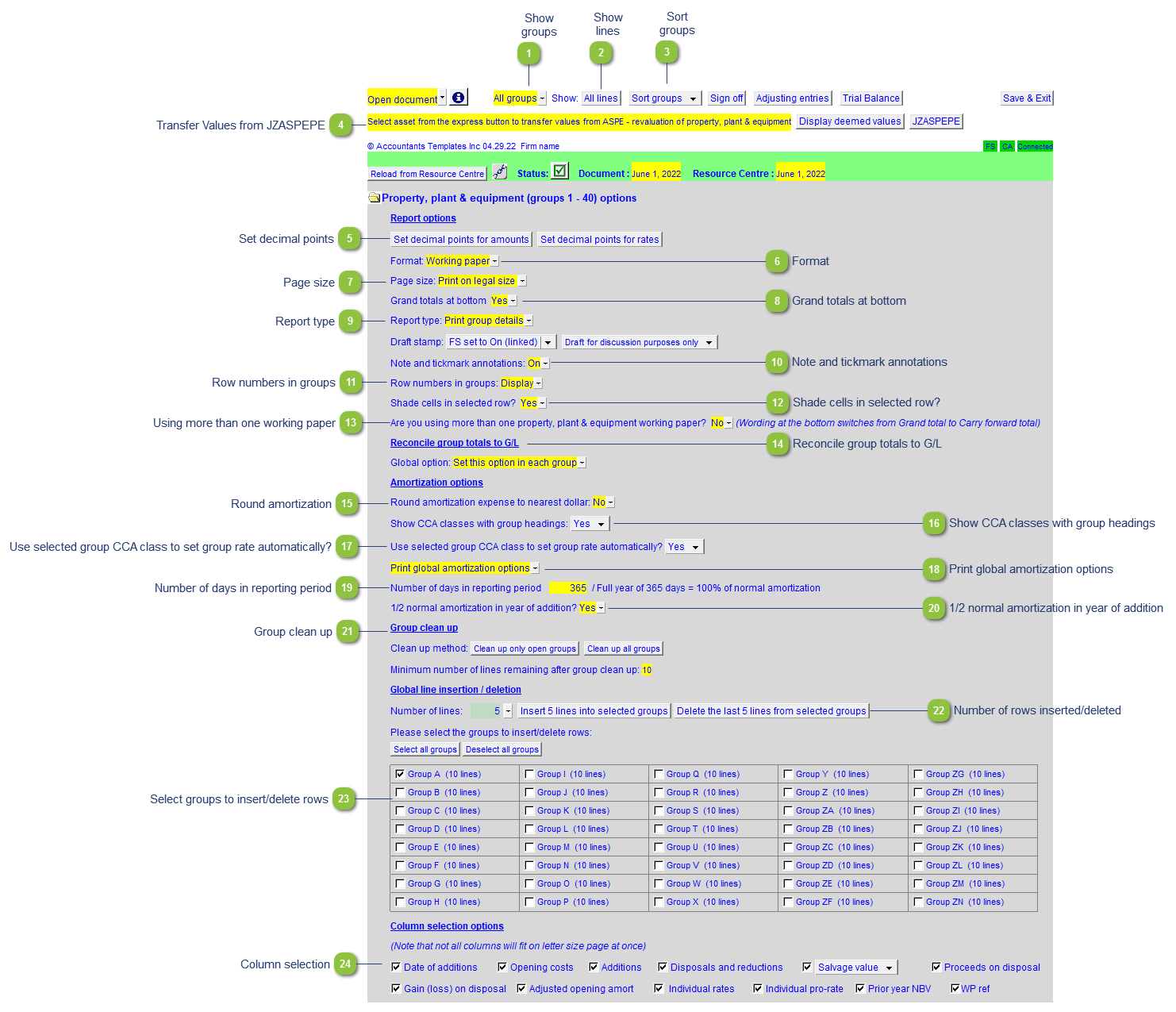
Show groups |
Use the popup menu to select to show all groups or printing groups only. Set the working paper to show printing groups when reviewing the working paper. |

|
Show lines |
Use the button to select to show all lines or printing lines only. Set the working paper to printing lines when reviewing the working paper. |

|
Sort groups |
Click on the Sort button to sort the groups into the desired order. Groups can be sorted both manually and alphabetically. |

|
Transfer Values from JZASPEPE |
The JZASPEPE is a separate working paper used to revaluate Property, Plant & Equipment under ASPE rules. This feature can be used to transfer values from the JZASPEPE working paper. Click on the yellow cell to display instructions on how to transfer values from the JZASPEPE. Note: This feature is only visible when the JZASPEPE working paper is present in the Caseware file. |

|
Set decimal points |
Set the decimals for the amounts and rates. |

|
Format |
Choose to print the working paper as either a standard working paper, or client version. Print a client version will remove the sign-off block and document number, and also move the page numbers to the bottom right |

|
Page size |
Choose between letter and legal paper. |

|
Grand totals at bottom |
Toggle grand total for schedule on or off. |

|
Report type |
Print group details or group summary. |

|
Note and tickmark annotations |
Show or hide the note and annotations column. |

|
Display, print or hide the row numbers in the groups. |
Row numbers in groups |

|
Shade cells in selected row? |
When this option is enabled, the selected row will be highlighted with a different color. |

|
Using more than one working paper |
If you require more than 40 asset classes, there is a second working paper available to use. |

|
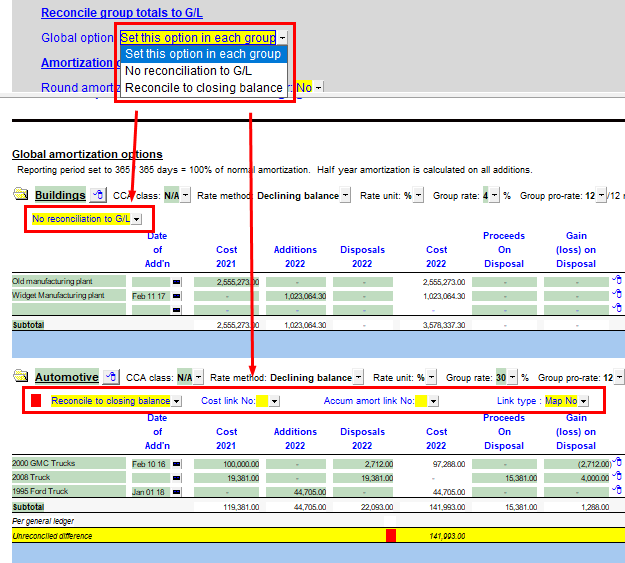
Reconcile group totals to G/L |
An option to set the diagnostic to reconcile group subtotals to a specific amount in the Caseware trial balance is available for each group. See Working Paper Highlights for more information. This option can be globally disabled in the WP - No Reconciliation to GL Make the setting on a per group basis - Set this option in each group Enable this setting globally for every group - Reconcile to closing balance
|

|
Round amortization |
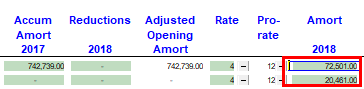
Round amortization expense to the nearest dollar.
|

|
Show CCA classes with group headings |
Use the popup button to select to show or skip the CCA classes for each group heading. |

|
Use selected group CCA class to set group rate automatically? |
Use selected group CCA class to set group rate automatically. |

|
Print global amortization options |
Print/skip global amortization options.
|

|
Number of days in reporting period |
Indicate the number of days within the reporting period. |

|
1/2 normal amortization in year of addition |
Indicate whether ½ year amortization is calculated on all additions. |

|
Group clean up |
Removes empty lines from amortization groups to 'clean up' their appearance. Empty lines will be left in a group if it is needed to maintain the minimum number of lines in a group as set in the yellow cell. The minimum can be set down to 1 line. Clean up can be applied only to groups currently open/visible or applied to all groups in the working paper. |

|
Number of rows inserted/deleted |
Select the number of rows that you want to insert into selected groups or delete from selected groups. |

|
Select groups to insert/delete rows |
Select the groups that you want to insert rows into or delete rows from. The amount of rows already added to each group is indicated in brackets. Note: Updating the Property, plant and equipment working paper from the Resource Centre will result in the inserted lines to be deleted. To prevent this from happening, we recommend that the Jazzit Administrator also increase the number in rows for each group in the Resource Centre module. Please see Maintaining Extra Group lines for more information. |

|
Column selection |
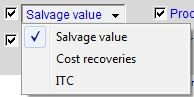
The columns selection options allow you to choose which columns you want to print on the Property, Plant and Equipment working paper. The column indicating Salvage value can also be changed to show Salvage value, Cost recoveries or ITC.
|