Generic note KN55 with single numeric column (5 subsections)
| Number | Name | Description |
|---|---|---|

|
Note features |
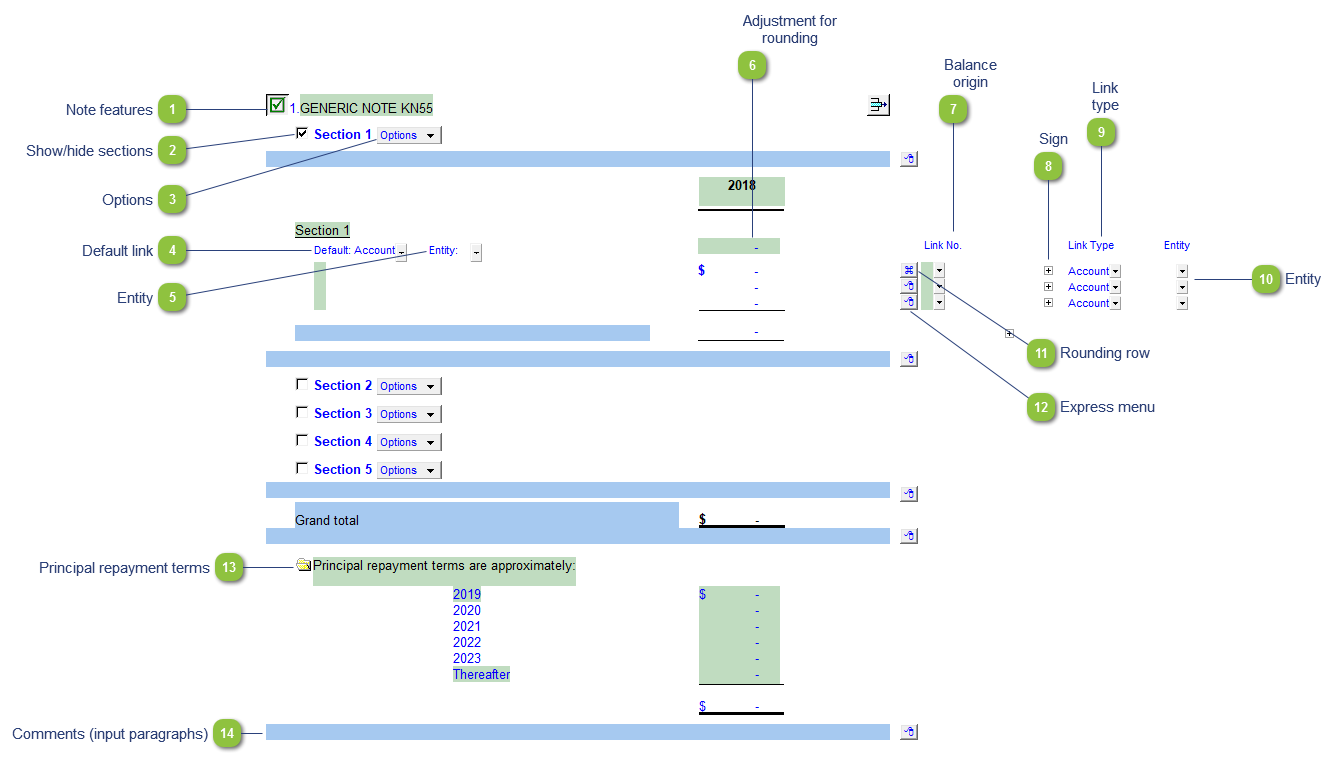
Each note has a series of common features. Refer to Common Note Features for more information on each feature. |

|
2. Show/hide sections |
Use the checkbox to select how many sections you want to show. |

|
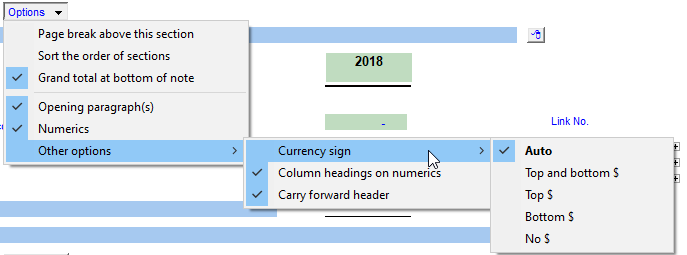
Options |
Please see the following link for more information on the rest of the options.
|

|
Default link |
Select the default grouping you want to use for the note linkage. The note is defaulted to use the Account link. |

|
Entity |
Use the entity popup menu to select the entity from the list. This will only show the balances associated with the selected entity. |

|
Adjustment for rounding |
Type in the rounding difference to adjust the rounding. |

|
Balance origin |
The balance origin indicates which linked number (i.e. map number) the row is linked to. Refer to Balance Origins for more information. |

|
Sign |
This allows you to change the sign of the linked rows. Changing the sign will affect the calculation. |

|
Link type |
The link type is set from the default link type selected. You can change the link type for the individual row item if different from the default link type. |

|
Entity |
Use the entity popup menu to select the entity from the list for each row. This will only show the balances associated with the selected entity for that row. |

|
Rounding row |
To apply the rounding difference to a row, right-click on the express menu (
|

|
Express menu |
Right-click on the express menu to insert more linked and manual lines, insert subtotals, sort and delete current lines where the options are available. |

|
Principal repayment terms |
Click on the folder icon to show or hide the principal repayment terms section. Manually enter the repayment amounts into the input cells. |

|
Comments (input paragraphs) |
You can edit existing input paragraphs or insert more paragraphs using the express menu. Refer to Input Paragraphs for more information on inserting paragraphs. |