CasewareDocs

Generic 9 Column with Subtotals Schedule
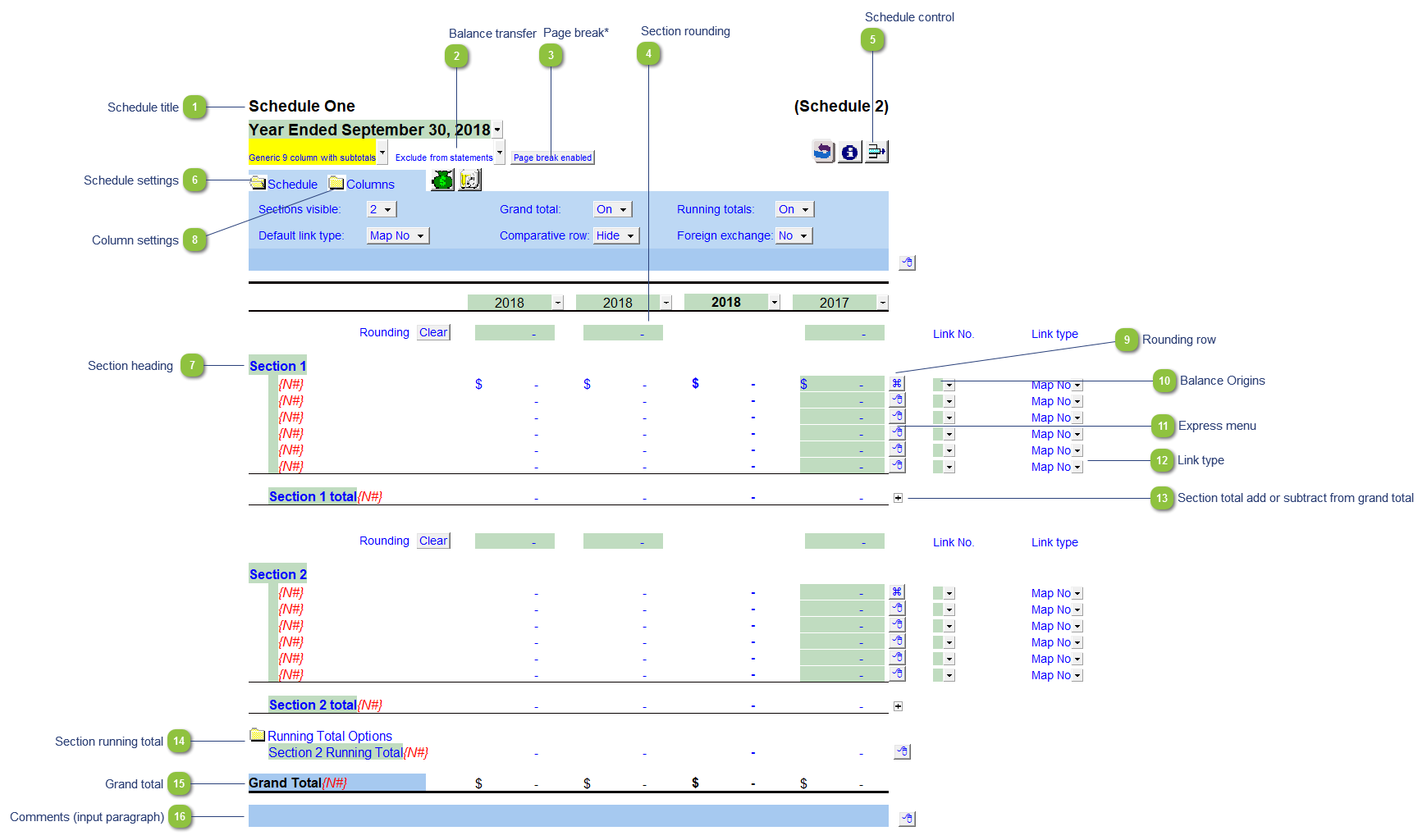
Number Name Description

Schedule title

Customizable schedule title which appears at the top of the schedule and on the Index Page

Balance transfer

Select from the dropdown if the schedule total should be included in the following Balance Sheet or Income Statement areas:

  • Exclude from statements

  • Net added to trade sales - Transfer schedule total to trade sales in the Income Statement

  • Net added to cost of sales - Transfer schedule total to cost of sales in the Income Statement

  • Net added to fee income - Transfer schedule total to fee income in the Income Statement

  • Net subtracted from fee income - Transfer schedule total to be subtracted from fee income in the Income Statement

  • Net added to expenses - Transfer schedule total to expenses in the Income Statement

  • Net added to other income - Transfer schedule total to other income in the Income Statement

  • Net subtracted from other income - Transfer schedule total to be subtracted from other income in the Income Statement

  • Net added to current assets - Transfer schedule total to the current assets in the Balance Sheet

  • Net added to long term assets - Transfer schedule total to the long term assets in the Balance Sheet

  • Net added to current liabilities - Transfer schedule total to the current liabilities in the Balance Sheet

  • Net added to long term liabilities - Transfer schedule total to the long term liabilities in the Balance Sheet

Page break*

Select if the page break should be enabled at the top of the schedule.

*Note: This option is available only when the schedule is set to 4 columns or less. The button shown in the 9 column screenshot above is for illustrative purposes only.

Section rounding

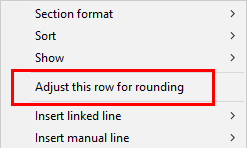
Enter amounts for rounding of the specific column if needed. The rounding amounts will be plugged into the designated rounding line which is indicated by . Right-click on a line for the option to designate the row for rounding.

Schedule control

Left-click the button to delete the schedule.

Right click the button to reload the schedule from the Resource Centre.

Schedule settings

Open the SCHEDULE folder to find the following schedule settings:

  • Sections visible - Select the number of sections required for the schedule (between 1 - 6 sections are available for this schedule)

  • Grand total - Turn the grand total on or off for the schedule

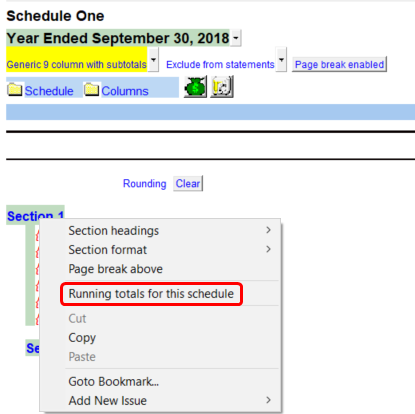
  • Running totals - Turn on running totals between sections (running totals are only available from section 2 - 6 in the schedule)

  • Default link type - Select the default grouping you want to use for the schedule linkage. The schedule is defaulted to use the Map No link.

  • Comparative row - Select if you would like to print a manual comparative prior year row after the total at the bottom of the schedule.

  • Foreign exchange - Select to apply foreign exchange to the schedule

Section heading

Right-click on section headings for formatting options (bold, italics or both). Formatting options also include options for: indents, extra description column, currency symbols placement, and page break placement.

Column settings

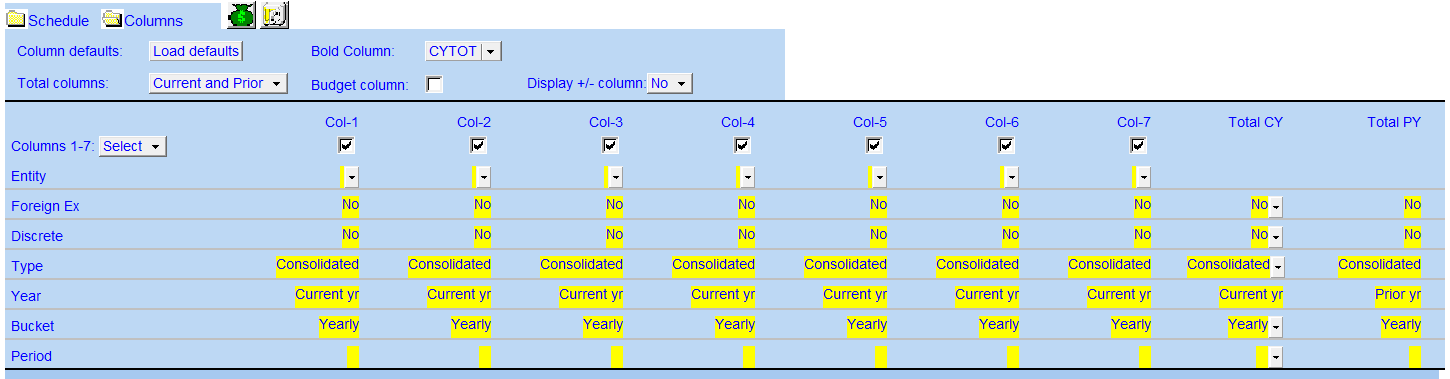
Open the COLUMNS folder to find the following schedule headings settings:

  • Column defaults - Set the column defaults from the Resource Centre (current year and prior year totals are default).

  • Bold Column - Select which column is to be bolded.

  • Total columns - Select if you would like both total columns to appear, only the current or prior year total column, or no total columns.

  • Budget column - Enable or disable the budget column.

  • Display +/- column - Set to display the signage column to the right of each line.

  • Column Selector - Choose which column will be used in the schedule.

  • Entity - Assign the entities to the relevant columns. Entities should be added using the consolidations dialog in Caseware.

  • Foreign Ex - The foreign exchange can also be applied to each individual column(s).

  • Discrete - Select the discrete period (Yes = Period movements, No = cumulative balances up to period selected (year-to-date)).

  • Type - Select the balance type (budget, consolidated, report, adjusted, unadjusted, forecast) that you want to use. This can be used when setting up Group/Company statements.

  • Year - Select the financial year (current, prior 1 through 4) for each column.

  • Bucket - Select the bucket (active, random, yearly, semi-annually, quarterly, monthly, etc.) for each column.

  • Period - Select the relevant period within the year selected that you want to view. This is dependent on the Bucket selected.

For more information on the above settings, refer to the column settings page in the Help File

Rounding row

The line with this symbol in the express menu has been designated as the rounding line.

Any line can be set as the rounding line by using the express menu functionality.

Balance Origins

The link number indicates which linked number (i.e. map number) the row is linked to. Use the popup menu to select a link number. This can be a map, account or group number depending on the link type selected. Refer to Balance Origins for more information. You can also double-click on the balance origin for lines to link to a generic note.

Express menu

Right-click on the express menu to insert more linked or manual lines, insert subtotals, sort and delete current lines where the options are available.

Link type

The link type is set from the default link type selected. You can change the link type for the individual row item if different from the default link type.

Section total add or subtract from grand total

Select if the section total should be added (+) or subtracted (-) from the schedule grand total

Section running total

Open the desired sections Running Total Options for the following setting:

Grand total for the schedule (running totals do not affect the Grand Total)

  • Select which sections are to be included in the running total by selecting the relevant sections tickbox

  • Select if a sections total should be added (+) or subtracted (-) from the running total

  • C - Clear all tickbox selections

  • S - Select all tickboxes

Running totals can also be enabled by right-clicking on the section headings.

Grand total

Grand total for the schedule (running totals do not affect the Grand Total)

Comments (input paragraph)

You can edit existing input paragraphs or insert more paragraphs using the express menu. Refer to Input Paragraphs for more information on inserting paragraphs.