
Licensing Working Papers and GASB Financials Special Purpose Governments
The demo installed is limited to only running a fully functioning product and will contain demo watermarks on the statements. You will need to license the product in order to use all functions in the template and remove the demo watermark.
Licensing Working Papers
Step 1: Contact Sales for Authorization Code
Step 1: Contact Sales for Authorization Code
To expedite the purchase process, please ensure that you have the following information ready at hand before contacting the CaseWare head office.
- Your CaseWare client number
- Your company name
- The name of a contact person
- Email address
- Phone number
If you have already received a current authorization code for your copy of Working Papers, click Next to continue. Otherwise, click Cancel to continue using Working Papers in demonstration mode.
Notes:
- Before registering Working Papers electronically, ensure that the time and date on the computer is synchronized to the network time server or an Internet time server.
- If you wish to exit this dialog, click Cancel to return to the front screen. Click the Continue button in that screen to access the unregistered version of the program.
Step 2: User Accounts and Share Folder
Step 2: Enter Registration Information
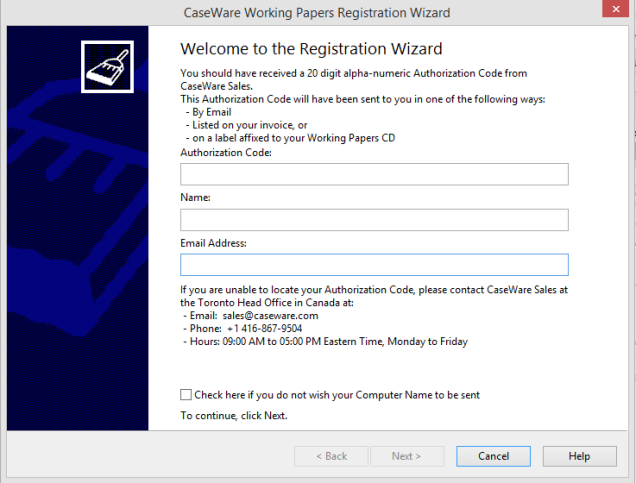
Procedures
- Type the authorization code, your name, and your email address.
- As part of the registration, the name of your computer is transmitted to CaseWare to track the authorization codes and locking codes. CaseWare Technical Support uses this information to diagnose and installation issues. If you do not want this information transmitted, select the Check here if you do not wish your Computer Name to be sent checkbox.
- If you are registering over the Internet, make sure your computer is connected to the Internet before proceeding.
- Click Next.
Step 3: Select a Registration Method
Step 3: Select a Registration Method 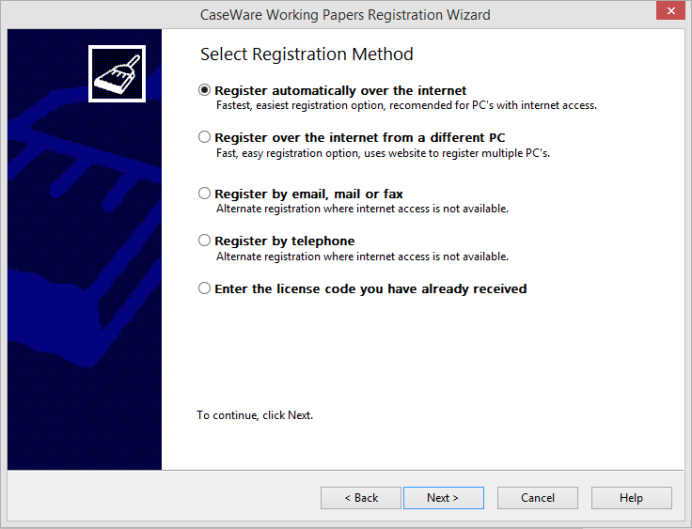
Register automatically over the internet
Working Papers will be registered automatically when connected to the Internet.
Register over the internet from a different PC
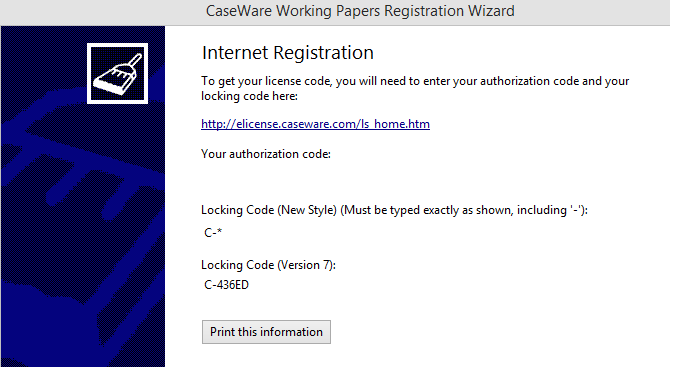
- Click Print this information. A text document opens, containing information you will need when accessing the Internet registration.
- Print the text file and take the printed information to the computer that has access to the Internet.
- If not already online, connect to the Internet.
- In the Address field, type the URL of the registration webpage.
- Type the authorization code and follow the instructions on the webpage.
- Once you have completed the steps on the registration site, return to the workstation where Working Papers is installed.
- Enter the Registration Wizard, and select Enter the license code you have already received.
- Click Next and type the License Code, as indicated.
Register by email, mail or fax
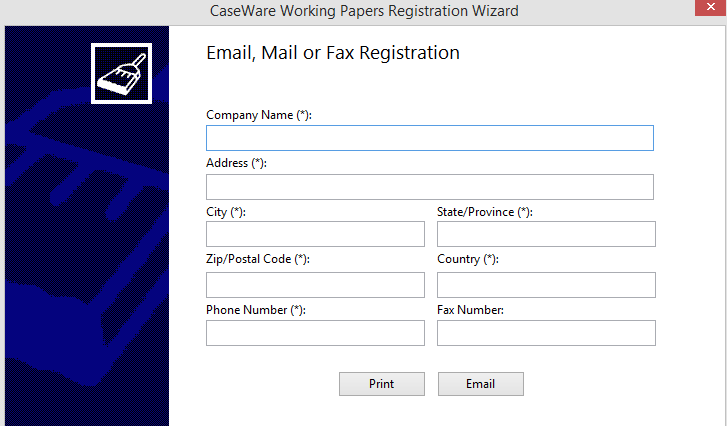
Fill in the form on the screen. Fields marked with an * are required information.
- Click Email. The registration is filled into a new message in your email software. Check that the information you provided is correct.
- Click Send.
Mail or fax
- Click Print to create a printable version of the form.
- The registration form is written into a text file, lsmsg.txt. Check that the information is correct.
- Print the text file.
- If mailing in the form, print an envelope addressed to the distributor listed at the top of the text file, and include the return address on the envelope.
- If faxing the form, fax to the number listed in the text file.
Our sales team will be in contact to provide the license code for your copy of Working Papers. Once you have received your license code, re-enter the Registration screen and select Register Now.
In the next screen, select the Enter the license code you have already received option.
Register by telephone
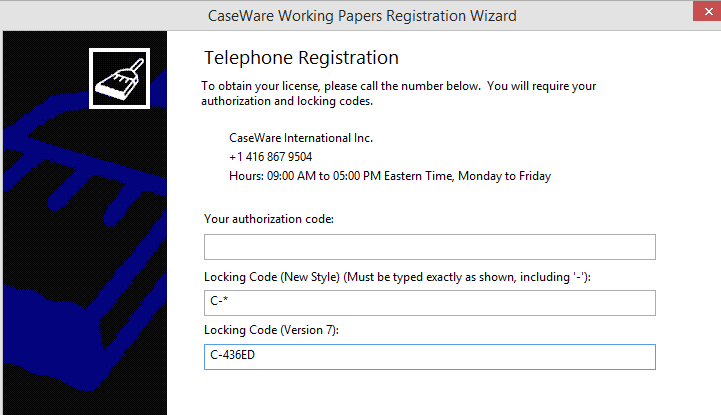
- Call the phone number provided and call within the hours noted.
- Be prepared to provide the authorization and locking codes shown on the screen.
- Once you have received your license code, re-enter the registration screen, and select Register Now.
- In the next screen, select the Enter the license code you have already received option.
Entering a License Code
- In the License code box, type or paste the license code you have been issued.
Step 4: Registration Completed
Step 4: Registration Completed
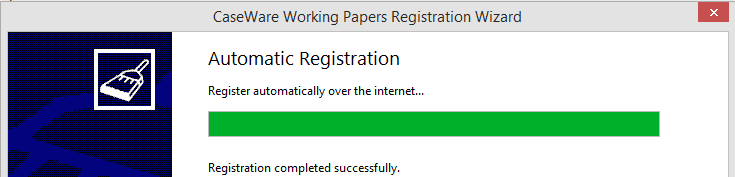
1. Upon successful registration, you will receive the following message:

2. Click Finish to complete the wizard.
Authorizing GASB Financials Template
To access GASB content, your local distributor or CWI will provide an activation for your organization.
Procedure
- Have your activation code handy, and open the Financial statements document.
- Click the
 Activation codes icon at the top right of any ribbon.
 - In the Activation Codes dialog, type the activation code.
- Click OK.
Results
Your Financials product is activated and ready for use.