
Working with linkages
In Financials, you can link balances between statements, schedules, and notes. This reduces the rounding differences that may occur between schedules, statements, and notes.
Note: Only Template authors can define the linkage relationships to the content in the Knowledge Library. If you receive a warning, it may be a result that your statements have not been setup for linkages. For more information, please see our Financials help on Linkages.
Fundamental Topics
Linking a balance
You can link the totals from a statement, schedule or note to any line in another table. However, schedules and notes can only link from another schedule or note. Statements can link a balance from any source.
Procedure-
Click in the targeted input line that is to be linked.
- From the Table Tools tab, in the Linkage group, click Link From.
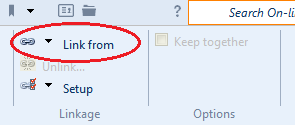
-
Select one of the following.
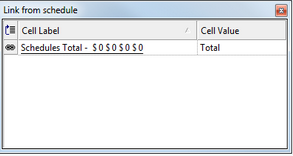
Option Description Link From Statement Establish a link from a line in a financial statement area. You cannot link to a line in an Additional Statement Area. A list of available statement linkages will appear. Link From Schedule Create a link from a schedule. A list of available statement linkages will appear.
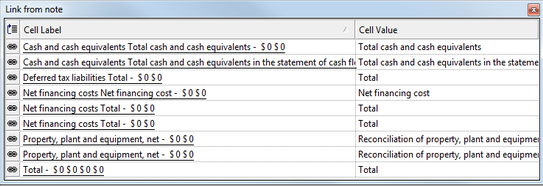
Link From Note Create a link from a note. A list of available note linkages will appear.
-
Click the
 button next to the total that should be linked.
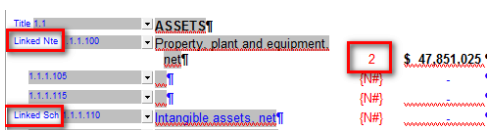
The balance in the table is linked to the line in the statement, schedule, or note, and the line in the statement schedule or note will have a notation to the left of the map browse. If linked to a note, the note reference will automatically update.
Unlinking a balance
If you have linked a balance in a table to a line in a statement, schedule, or note, you can unlink it.
Procedure-
Click a linked cell that is to be unlinked.
-
From the Table Tools tab, in the Linkage group, click Unlink
- Click Unlink.
The balance in the table is no longer linked.