
Updating the Master Template
Updating the master is typically performed by the template owner in the organization. Once complete, the template owner must repackage the template and distribute to all other users in the organization (See Repackaging and Distributing).
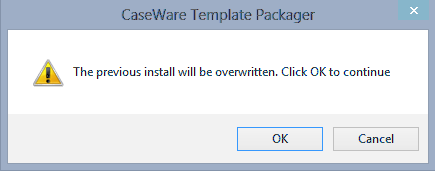
If the file received from CaseWare International does not contain UpdateSetup.cwp in the file name, or you receive the following warning when attempting to run the update, contact CaseWare Technical Support. Click Cancel if you see the message below.
The following steps describe how to update the master template.
Procedure
- Prior to starting the update, make a backup of the master template. Refer to Repackaging the template for backup for more details.
- Double-click the update file that you have downloaded from the CaseWare website.
- Follow the prompts in the Install Template Package dialog to run the update.
- Leave the Program Folder and Knowledge Library defaults as is, unless you have changed the default library path when the template was first installed
- At the confirmation dialog, click OK to close the update.
Results
The update is now complete.
Notes
- Only one person in the office needs to update the master template. This designated individual (typically the template owner) then repackages and redistributes the template to all users.
- The update creates a log file in the CaseWare\Scripts folder. If there is a problem with the update, template authors will need to provide the update log to CaseWare Support.
Best Practices for Updating
CaseWare International typically releases an annual functionality update to the template during the summer. If you are in the middle of preparing your current year annual report or CAFR, we strongly suggest you wait to update your master template and in-progress client files until after you have completed your current year-end.
Consider performing template and client file updates when you perform the year end close process.