
Updating Client Files for Functionality
When you receive an updated master from the template owner you must install the revised template. You will receive a message to overwrite your current installation; this is expected and is appropriate.
Automatic Updates
- Open your client file.
- You will receive a prompt to update your client file.
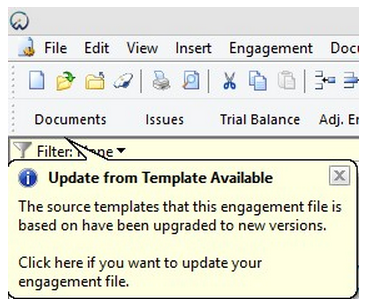
- You will be prompted to create a backup before the update continues. We strongly recommend you create a backup at this time.
- Click the message to begin updating your client file for the latest functionality changes. You will receive a message when the update has successfully completed.
- If you choose not to update at this time, you can initiate this routine again by selecting the Check for Updates from the drop down in the bottom right of the Document Manager beside the value for net income.
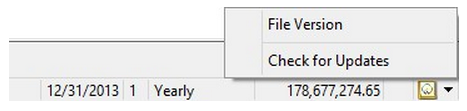
- When opening your Financial Statements you will also be prompted to update your content, if updates are available. This is the automated prompt for the Check for Updates button in the Content Management ribbon.
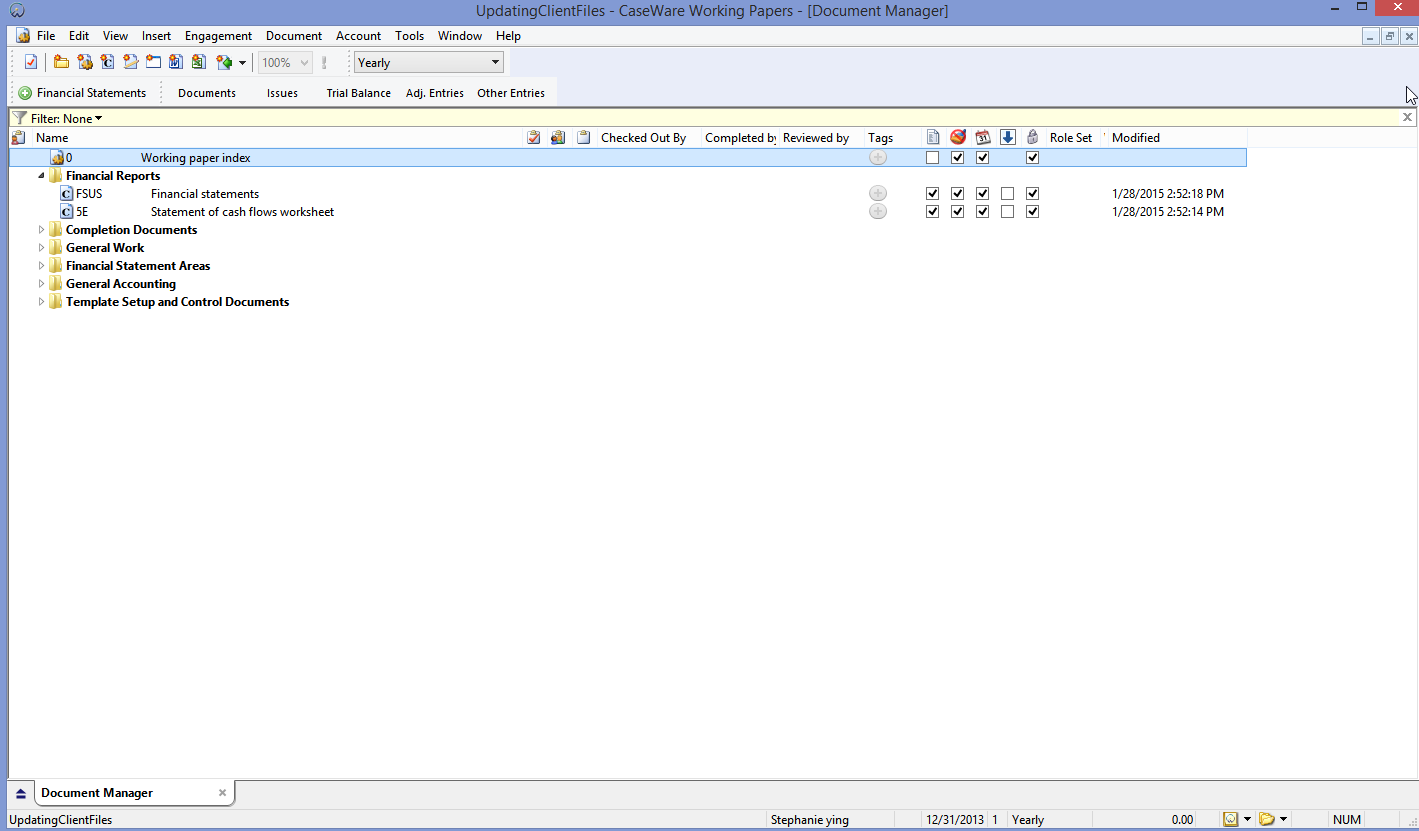
Click to Play
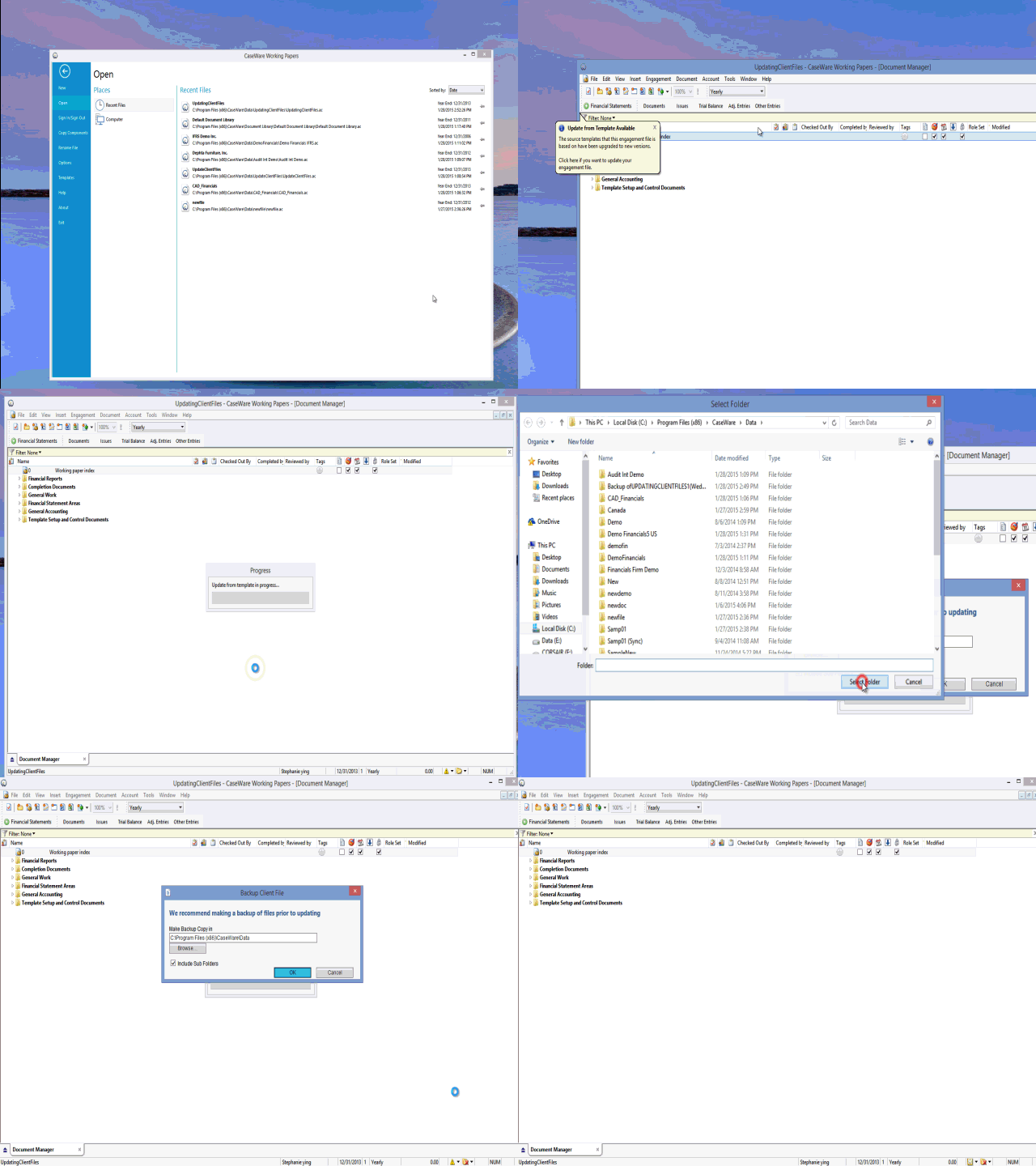
Click to Stop
Troubleshooting Templates
If you are not prompted to update your client file, perform the following steps:
- Delete document CQ - Organization Settings, which is typically found in the Customizing for the Organization folder.
- Make sure to clear out the Recycle Bin to permanently delete the document.
- Re-add the CQ - Organization Settings document by selecting Document | From Document Library
- Change the Source to GASB Financials and then navigate to the Customizing for the Organization folder.
- Highlight the CQ - Organization Settings document and then click Add.